
1. Start the setup
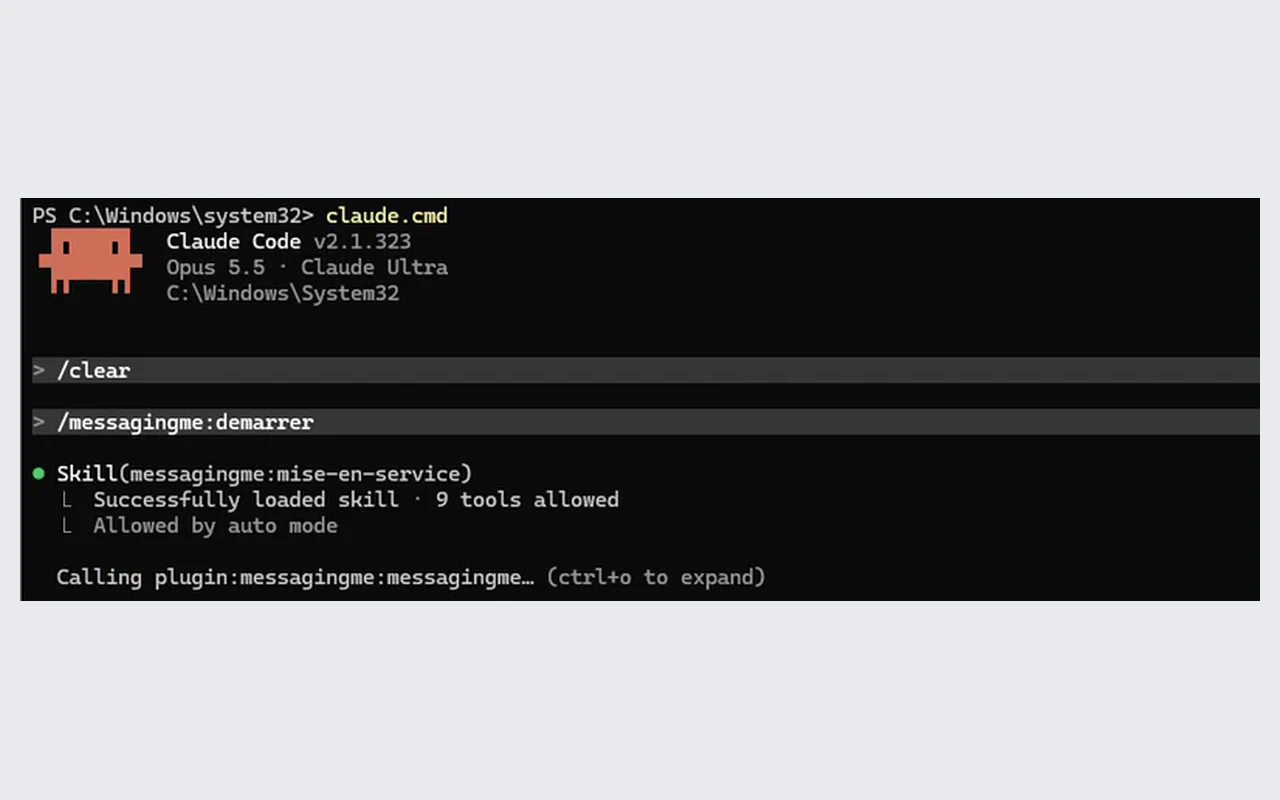
In Claude Code, type “/messagingme:demarrer”: Claude checks your workspace and starts with your WhatsApp number.
1. Open “Connect WhatsApp”
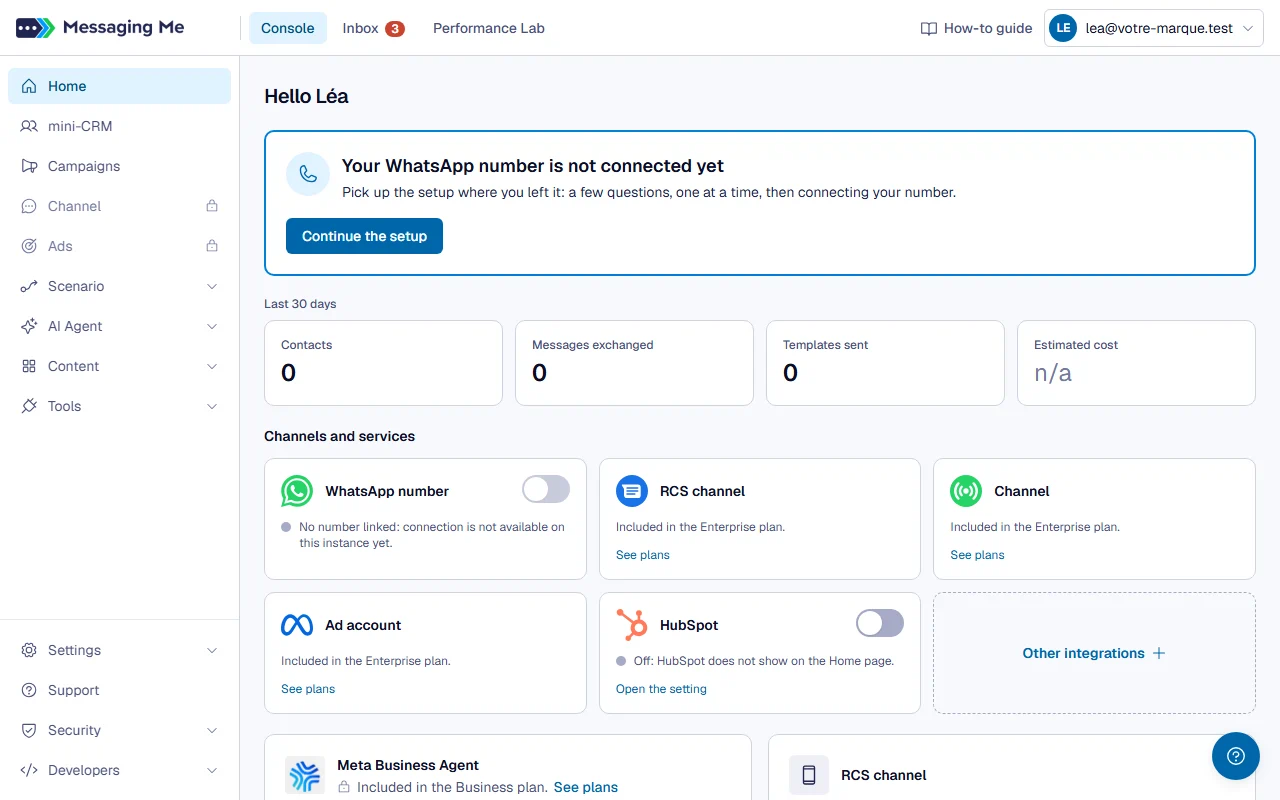
On the Home screen, as long as no number is attached, click “Continue the setup”.
2. Answer Claude’s questions
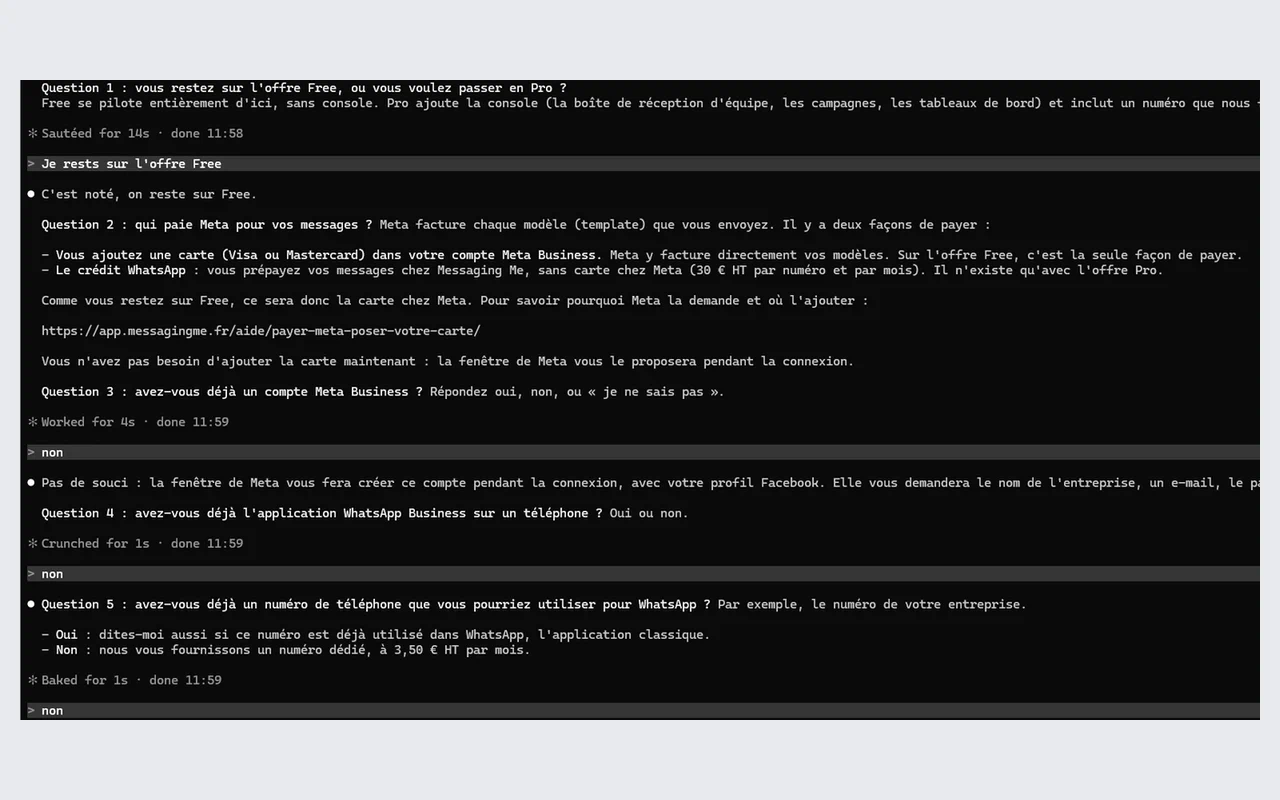
No Meta Business account or WhatsApp Business app, the official API rather than the app, and no number of yours: Claude offers you a provided number.
In detail
The video stays on the Free plan: Meta bills your templates to a card, which you add once the number is connected. Do you have the WhatsApp Business app? The provided number can go in it: see “With your WhatsApp Business app”, below.
2. Choose “Provide me a number”
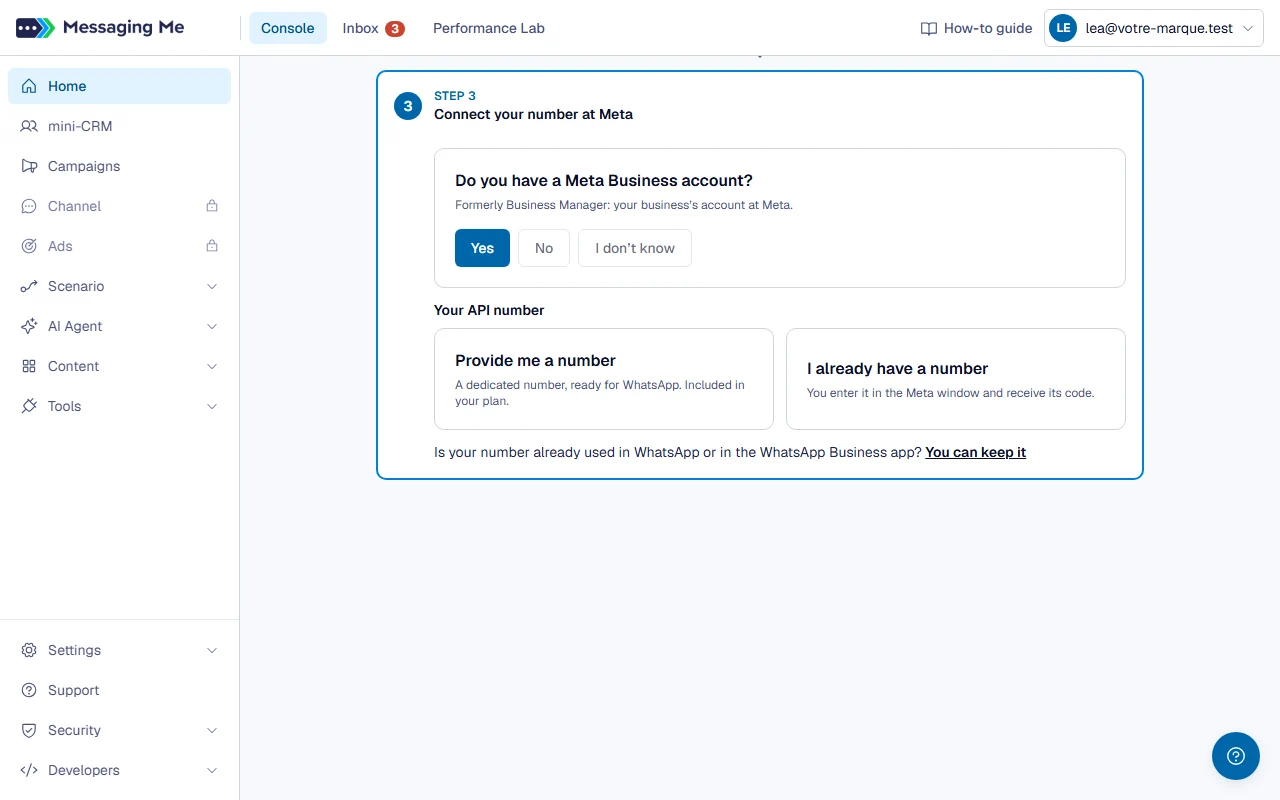
Answer the page’s questions, then choose “Provide me a number”: a dedicated number, ready for WhatsApp.
In detail
Without a Meta Business account, answer “Through the API” to “How do you want to use WhatsApp?”, then “No” to “Do you already have a number you could use?”. To put it in your WhatsApp Business app, see “With your WhatsApp Business app”, below.
3. Pay for the number, then open Meta’s window
On the “Connect WhatsApp” page, pay €3.50 a month (with the Pro plan, “Get my number”, with nothing to pay; during its trial, €3.50, deducted from your first Pro plan invoice, and not refunded if you do not keep it): your UK number appears. Click “Open the Meta window”.
In detail
Under the button, the steps to come show in grey, up to Meta’s window. Keep the page open until the end: the verification code will show there. From Claude Code, Claude gives you the link to this page; it is valid for one hour, and once it has passed Claude gives a new one.
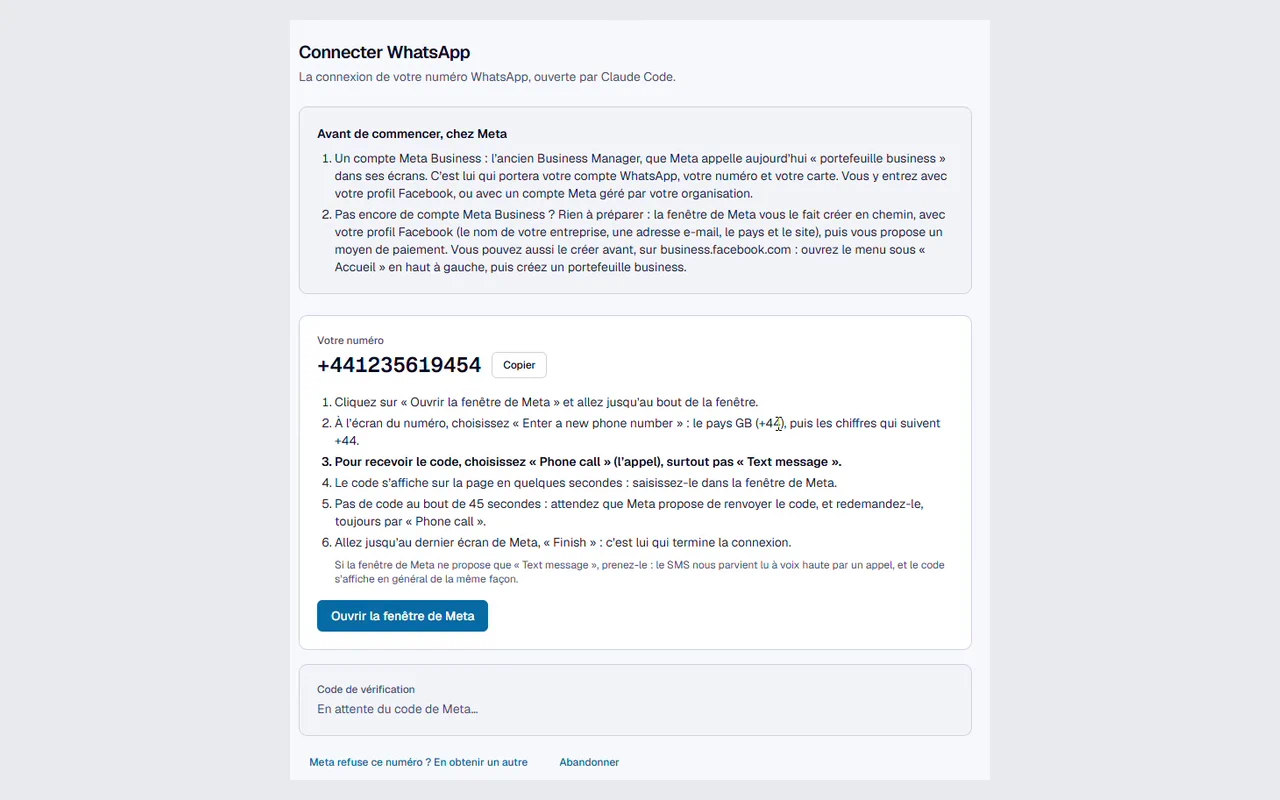
4. Connect the number in Meta’s window
Log in with Facebook. On the number screen, enter a new number: the country GB (+44), then the digits that follow +44. For the code, tick “Phone call”, NOT “Text message”.
In detail
After a security check, Meta calls the number: we pick up the call, and the code shows on the connection page, in the “The code will appear here” box, and in Claude, usually within seconds. Type it into Meta’s window.
No code after 30 seconds: ask Claude whether it got it. Still nothing after 45 seconds: wait until Meta offers to send it again, and ask for it again, still by phone call.
If the window only offers “Text message”, take it: the text reaches us read aloud by a call, and the code usually shows the same way. The video shows Meta’s window in French: there, these choices read “Appel téléphonique” and “Message texte”.
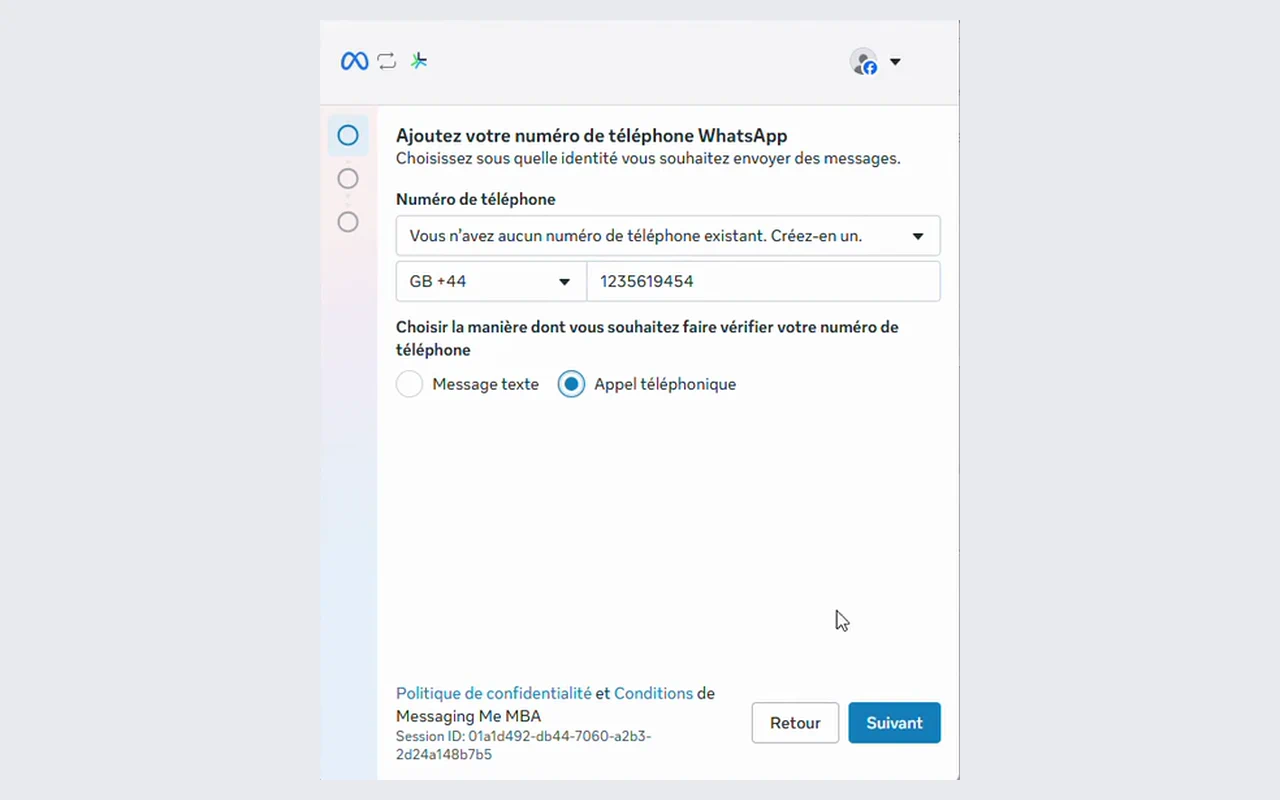
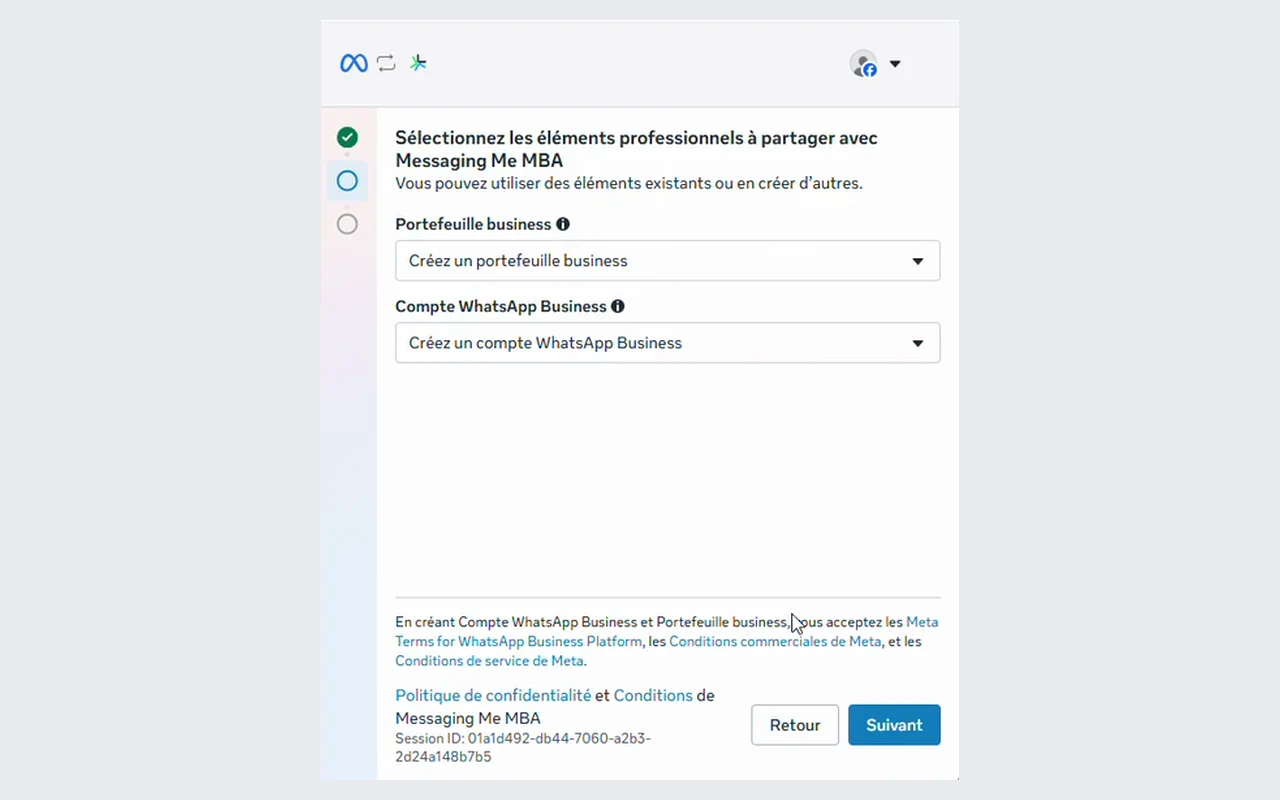
5. Create your Meta Business account
Choose “Create a business portfolio”: if you already have one, even a forgotten one, it is in the list, select it. Fill in your business, check your profile, then authorize Messaging Me.
In detail
For a new portfolio, Meta asks for your business name, an email address, its category, the country and your website.
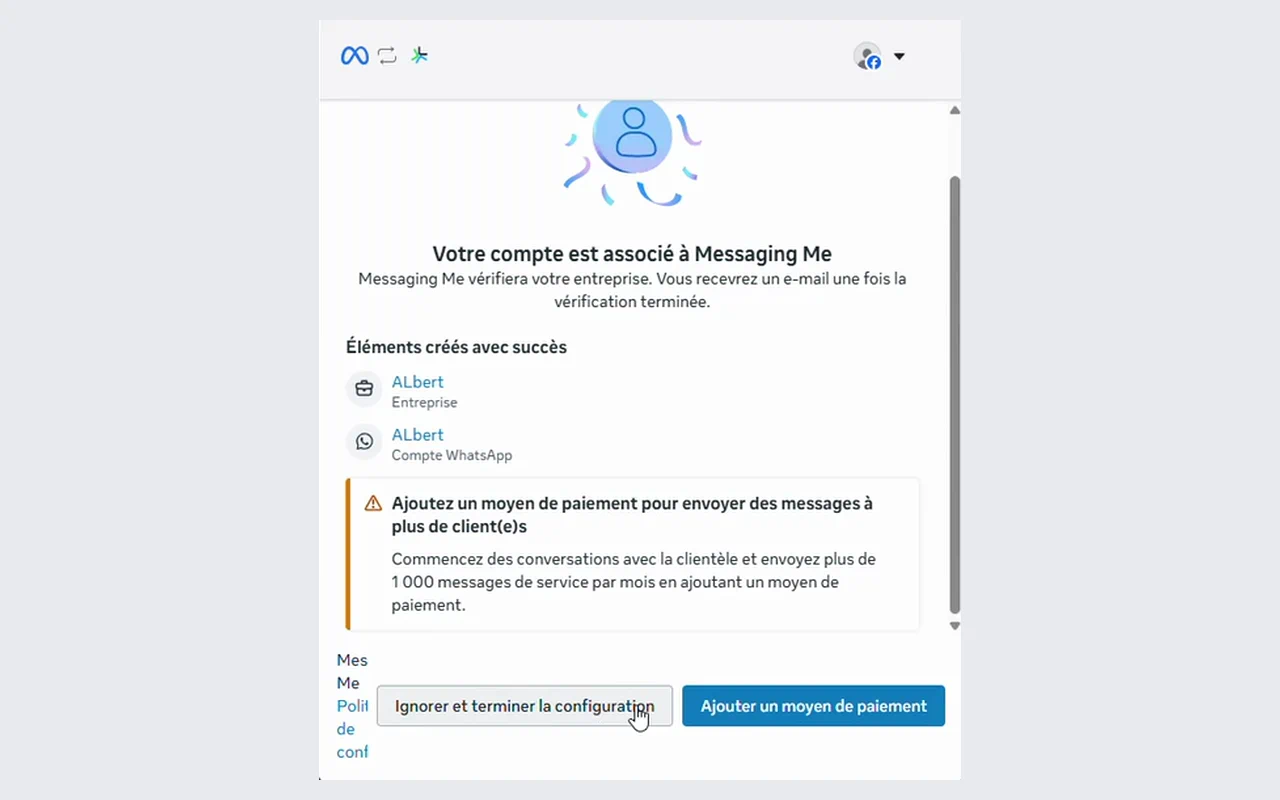
6. Finish
“Your account is connected to Messaging Me”: finish without adding a payment method (“Ignorer et terminer la configuration” in the French window of the video). The connection page and Claude then say “Your WhatsApp number is connected”.
In detail
Meta’s card comes next, before your first templates: Claude gives you the steps.
With your WhatsApp Business app
The provided number can also go in your WhatsApp Business app, which you keep: you reply there from your phone. No app yet? First install WhatsApp Business on your phone: it is free. It already holds a number you do not want to connect? Ours is added as a 2nd account: a WhatsApp Business app holds two accounts at most.
- Answer “With the app” to “How do you want to use WhatsApp?”, then “Yes” to “Would you like us to provide a number?”, and pay for the number (with the Pro plan, “Get my number”): it shows on the connection page.
- Add it in your WhatsApp Business app. For the verification, choose the phone call: the code shows on the connection page, and in Claude. Enter it in the app.
- Click “Open the Meta window”: it connects your app to Messaging Me, and you keep it. Its screens are those of the “Keep my WhatsApp Business app” guide.
Cancel the number. On the console Plan page, “Manage the number subscription” opens Stripe’s page, where you cancel it; from Claude Code, ask Claude. The number keeps sending until the end of the month already paid, with no refund. After that its sends stop, you have 7 days to resubscribe and keep the same number, then it leaves your workspace.