
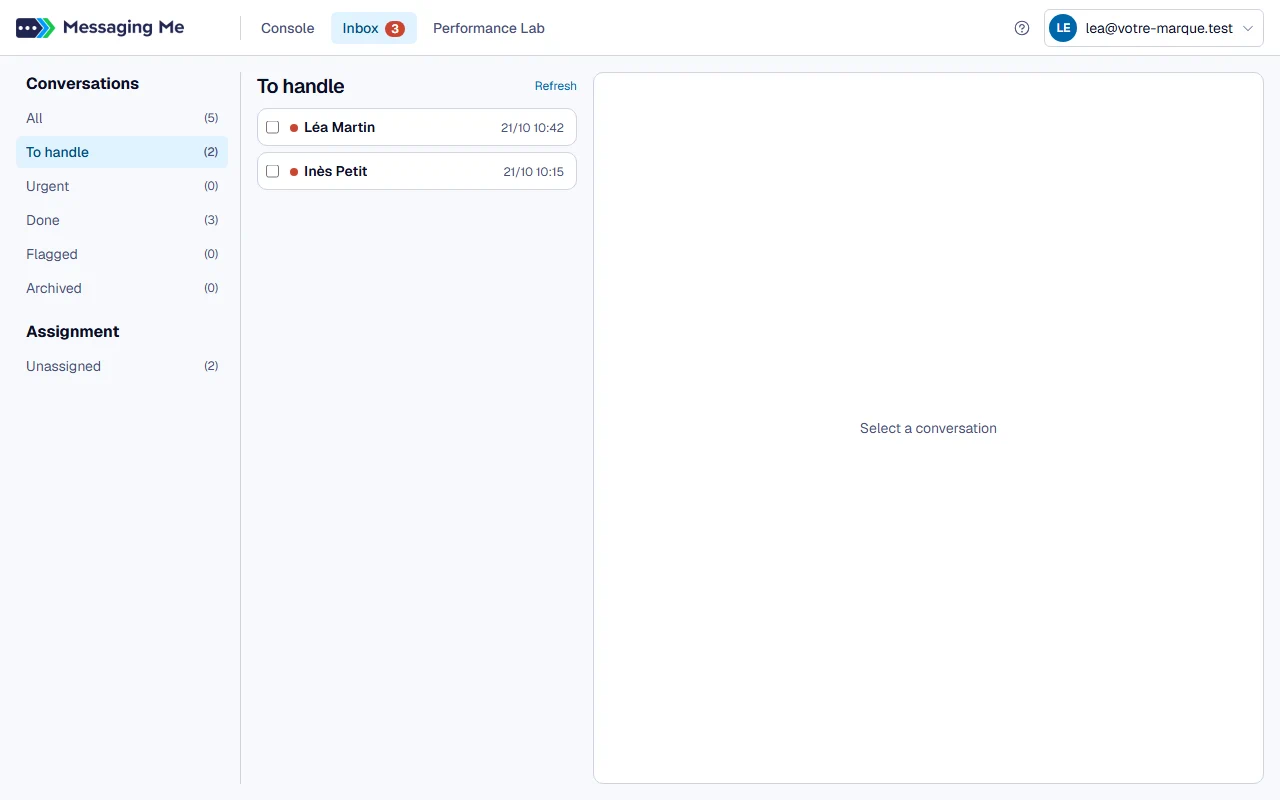
1. Open “To handle”
This is the folder of conversations where the ball is in your court. A conversation leaves it as soon as someone on your side, or the bot, has replied: you are then waiting for the customer, there is nothing more to do.
2. Read the conversation and its details
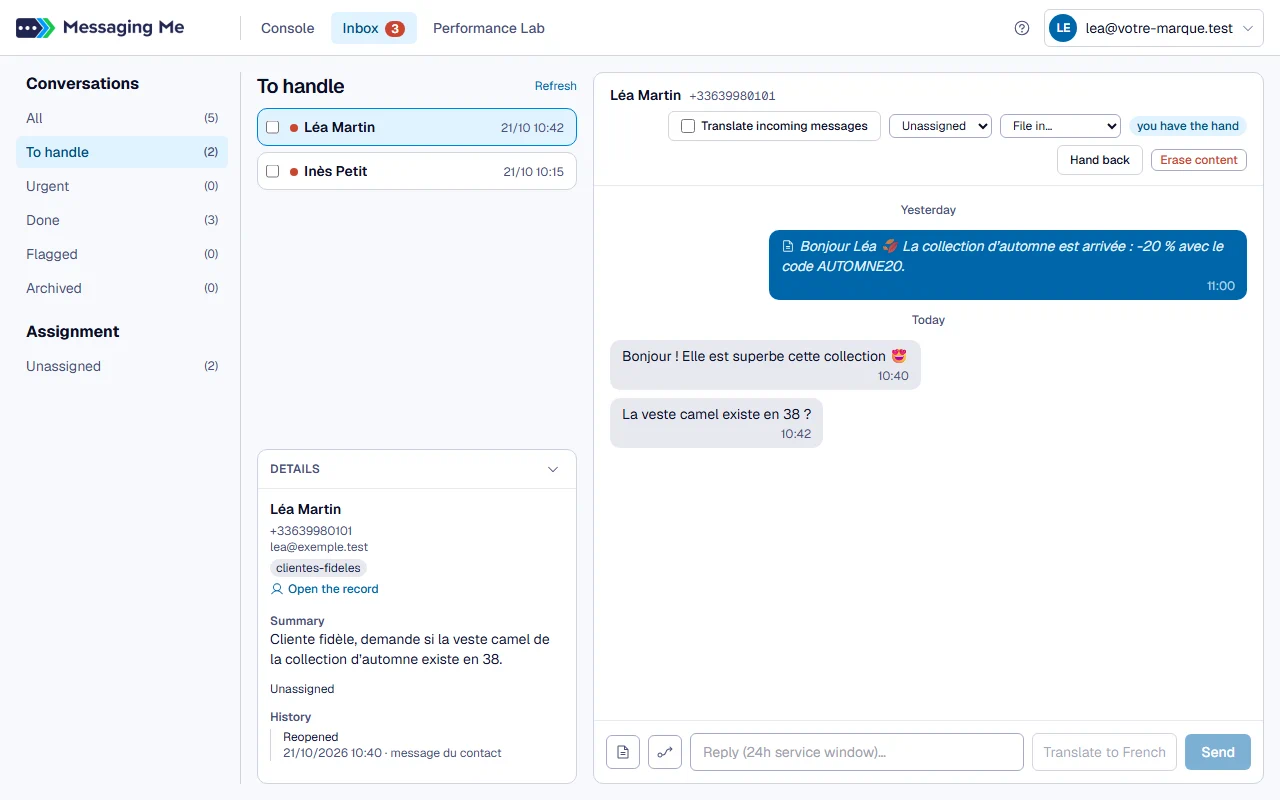
Open a conversation: the bottom of the conversation column shows who the person is, the analysis summary once it has run, who the conversation is assigned to, and its history.
In detail
The details give the person’s name, phone, email and tags, whether they unsubscribed or are blocked. The history runs from most recent to oldest: assignments (to whom, by whom), takeovers from and returns to Meta’s agent, “Done”, “Archived”, “Flagged”, “Urgent”, and when the customer reopened it by writing. A change made by a scenario or a campaign states its cause instead of a name, in French for now (“automatique : campagne Rentrée”, meaning automatic: the Rentrée campaign), and an action made through an API key says so too. When a colleague takes a conversation for themselves, the line says “Taken on”, by them. The panel is read-only: the actions stay at the top of the conversation, and it refreshes after each of them, as after filing several conversations that include this one. The “Open the record” link shows the contact’s record on the right. The button at the top of the panel folds it, and your browser remembers. An agent only sees these details on their own conversations and on those nobody has.
3. Reply
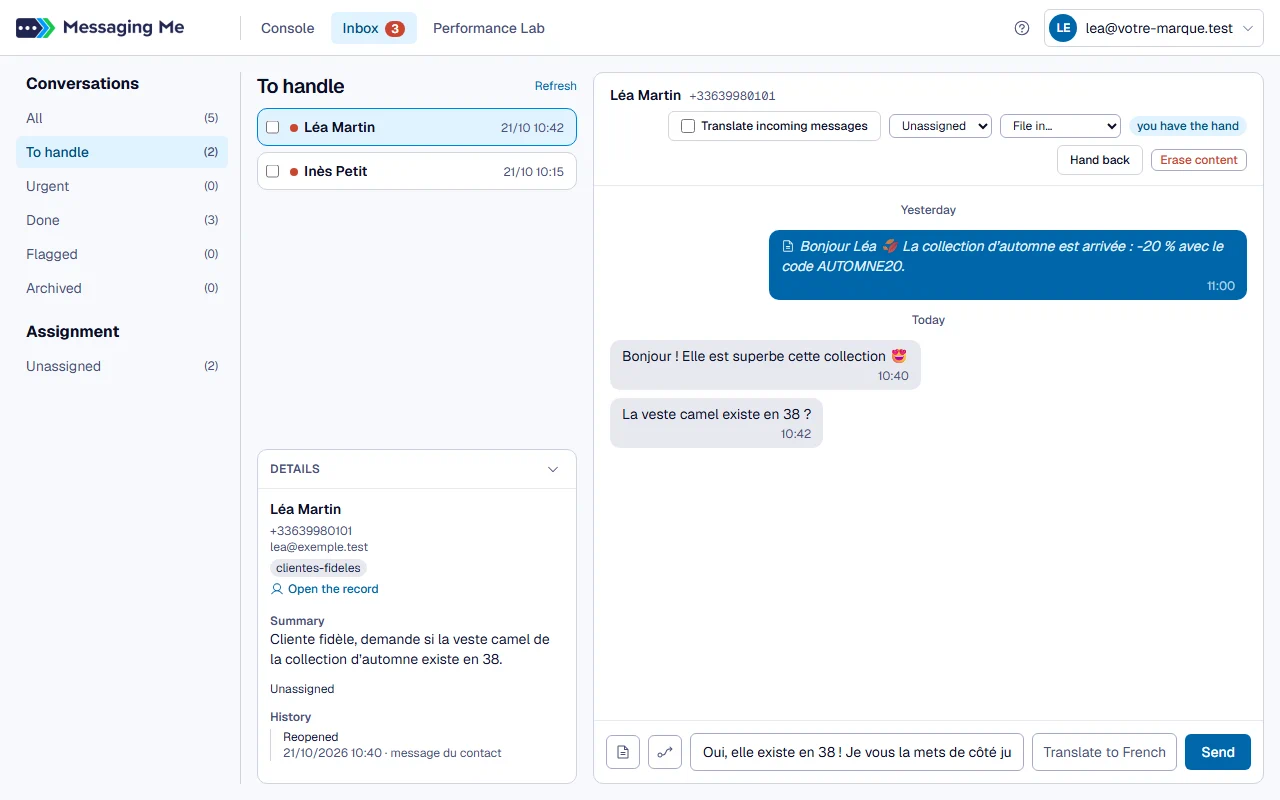
Write your reply and press Send. If the customer does not write in your language, the “Translate incoming messages” switch shows their messages in yours, and the button that names their language (“Translate to Spanish”) translates your reply without sending anything.
In detail
The “Translate incoming messages” switch, at the top of the conversation, shows messages in your console’s language. The setting applies to your browser only: a colleague can read the same thread in English while you read it in French. The original is never replaced, it is kept alongside, and it is the one that counts.
To reply in THEIR language, write your reply normally, then use the button that names the language. It replaces your text with its translation and sends nothing: you reread before pressing Send. Your contact’s language is learned on its own from what they write, you are never asked for it. When sending a template, the button does not appear: the text approved by WhatsApp is the text, translating it would get it refused.
On a voice message, if translation is on, “Transcribe” gives you in one action what was said and its translation, even if the voice message was in Spanish.
⚠️ Translation is paid from your workspace’s credit, unlike transcription and this help. Each translation is deducted from it, at the same rate as AI agents, and the credit log groups them into one line per day. Without credit, the thread stays in its original language and the screen tells you so. An administrator finds the “Top up credit” link there, to Settings, AI credit; if you are not an administrator, ask one of them to top it up. If it says translation is temporarily unavailable, your credit is not the cause, try again a little later. Your workspace’s very first translation takes a few more seconds: the thread first shows in its original language, then comes back fully translated, without you having to reopen the conversation.
4. File or assign
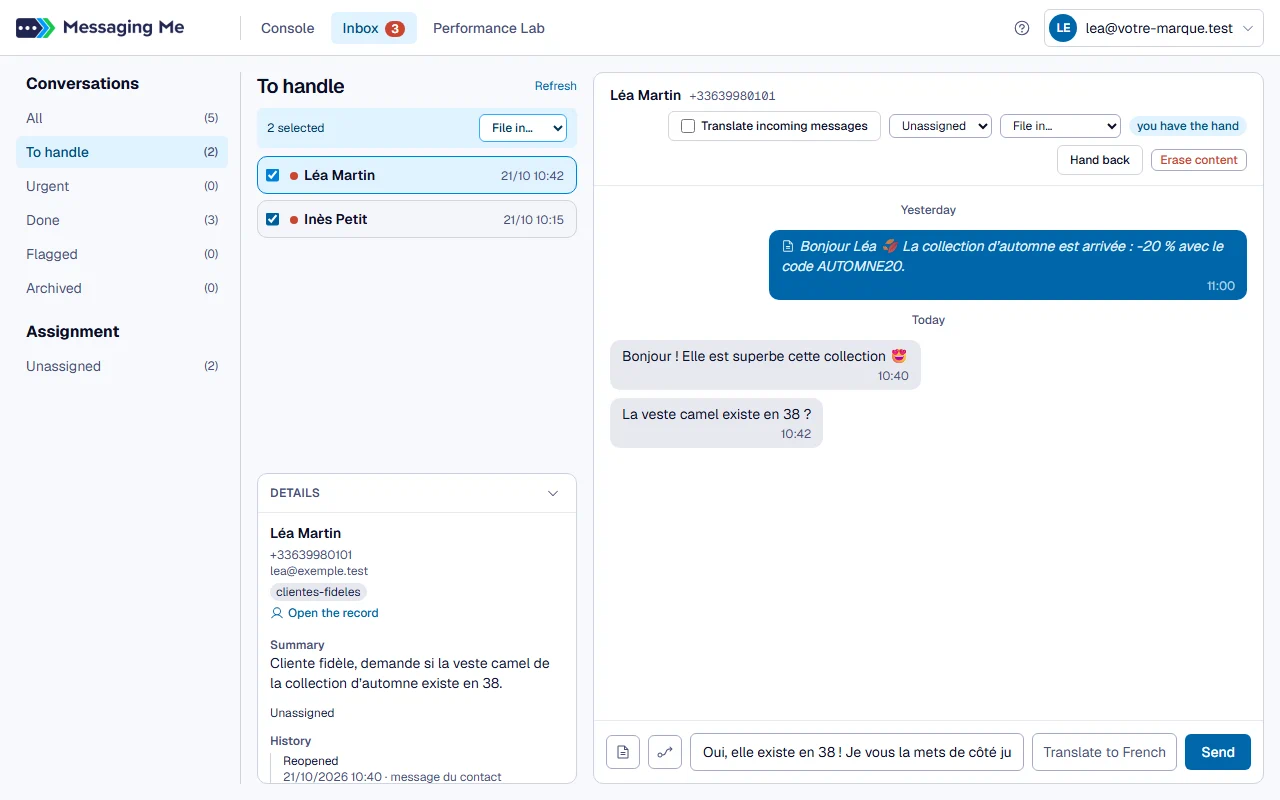
The “File in…” menu, at the top of the open conversation, marks it “Done”, archives it or marks it urgent; the assignment picker hands it to someone.
In detail
“File in…” offers the destinations that will have a visible effect from where you are. It is also where you mark it urgent (“Mark as urgent”) or remove the urgency (“No longer urgent”), and anyone on the team can do it. You can also tick several conversations in the list: the same menu appears above and acts on the whole selection.
The assignment picker is independent of filing. A conversation can be assigned to a person and run by a scenario at the same time: they are two different questions. Only managers and admins distribute conversations. If your workspace allows it (a setting in Settings), an agent sees “I’ll take it” on a conversation nobody has, and can assign it to themselves; they can neither pass it to a colleague nor give it back afterwards.
The folders
- All: every conversation, except those you have archived.
- To handle: those where the ball is in your court. A conversation leaves it as soon as someone on your side, or the bot, has replied: you are then waiting for the customer, there is nothing more to do.
- Done: those you marked “Done” because there is nothing left to reply, even if the customer wrote last (“thanks, have a nice day”). They also stay in “All”, with a small badge. As soon as the customer writes again, the status drops and the conversation comes back to “To handle”: it is a new request for your team, and as long as nobody has replied, the bot does not take it back, even after the delay. A simple emoji reaction (👍) does not reopen it. Marking “Done” does not hand control back to the bot: it restarts the delay after which the bot takes it back.
- Urgent: those a colleague, or an AI agent, marked urgent. Those waiting for the team also move to the top of “To handle”, with a red badge, even if their last message is old. Urgency drops on its own when the conversation is marked “Done” or archived. It is your decision, not the urgency score of the analysis.
- Flagged: those where a message insults the business, detected automatically, plus those you flagged yourself.
- Archived: what you have filed away. Unlike “Done”, an archived conversation no longer appears in “All”.
What is in bold: “To handle”, and a team member’s name under “Assignment”, are in bold as long as they contain a conversation whose customer’s last message has not been opened yet. The bold goes away as soon as someone on the team opens the thread.
When the bot speaks again
When you take over a thread the scenario was running, the bot stops. It only speaks again if you explicitly hand it back, with the dedicated button, or after a delay without a reply from you, counted from your last reply or your last “Done”. This is deliberate: nothing is more confusing for a customer than a bot that starts talking again in the middle of an exchange with a person. After that delay, if Meta’s agent is on, the customer who writes again is handed to it right away, and it replies to that message.
When a scenario reaches its end, if Meta’s agent is on in your workspace, the conversation goes back to it and it replies on its own again. Allow one to two minutes after the scenario’s last message: the handover is only requested from Meta once its last send has been acknowledged. During this short wait, the conversation is yours, so a reply from the customer does show up in “To handle”. If no WhatsApp number is connected, it stays yours: an agent with no number could not reply.
On a thread held by Meta’s agent, the same button takes it from the agent for good, without any message going to the customer: the agent stays silent until the planned takeback, even if you write nothing. These conversations are recognisable in the list by their gradient blue background and the little wand before the name. Meta sometimes refuses to remove this contact from its agent’s list: the screen retries once, then tells you, and writing to the customer takes it for sure.
Other cases
To open the conversation of a contact who has never written, go through their record in Contacts: the “Open conversation” button creates the thread and takes you there. A thread opened this way does not appear in “To handle”, because nobody is waiting for a reply there; you find it in “All”, at the top.
When a customer sends a photo or a file, the photo is shown in the conversation and a document downloads under the name the customer gave it. WhatsApp only keeps these attachments for seven days: after that, the conversation says “File expired”.