
1. Choose the route
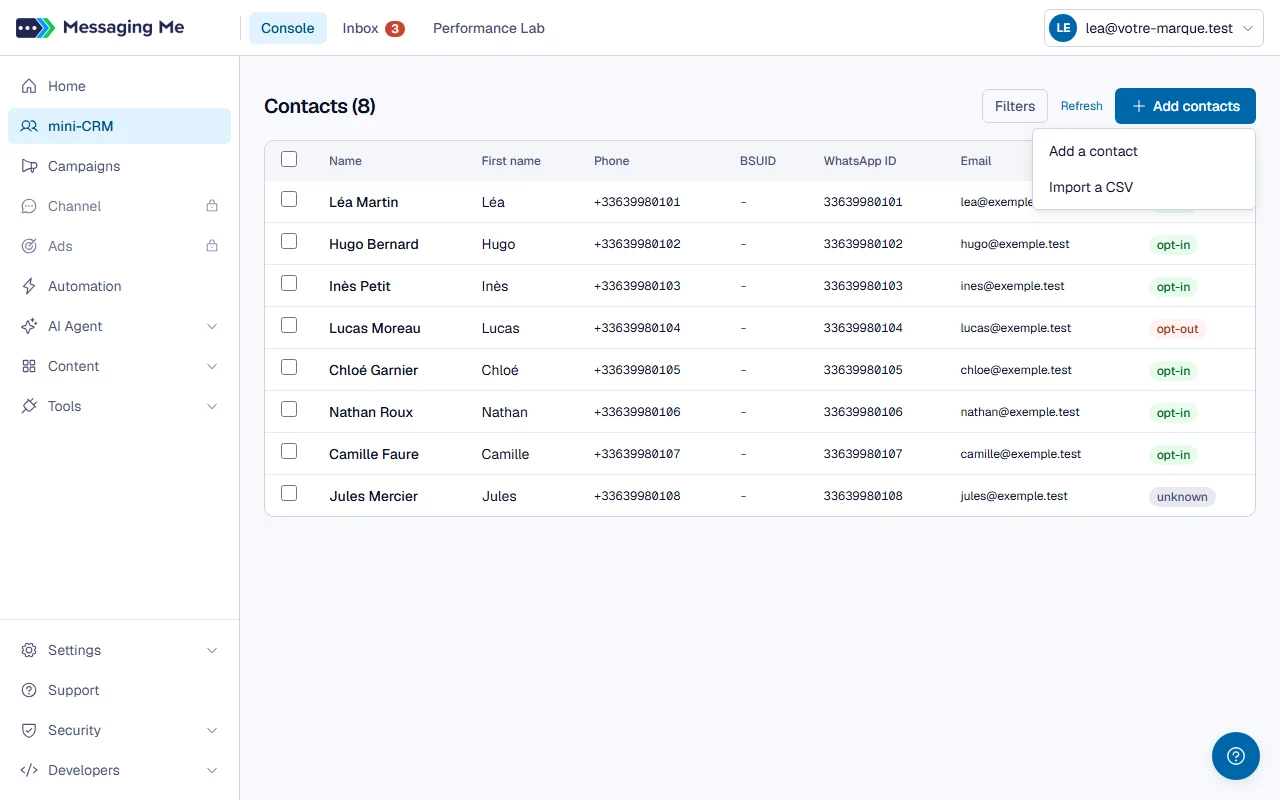
The “Add contacts” button, at the top of the Contacts screen, offers two routes: add a person by hand, or import a CSV file.
2. Match the columns
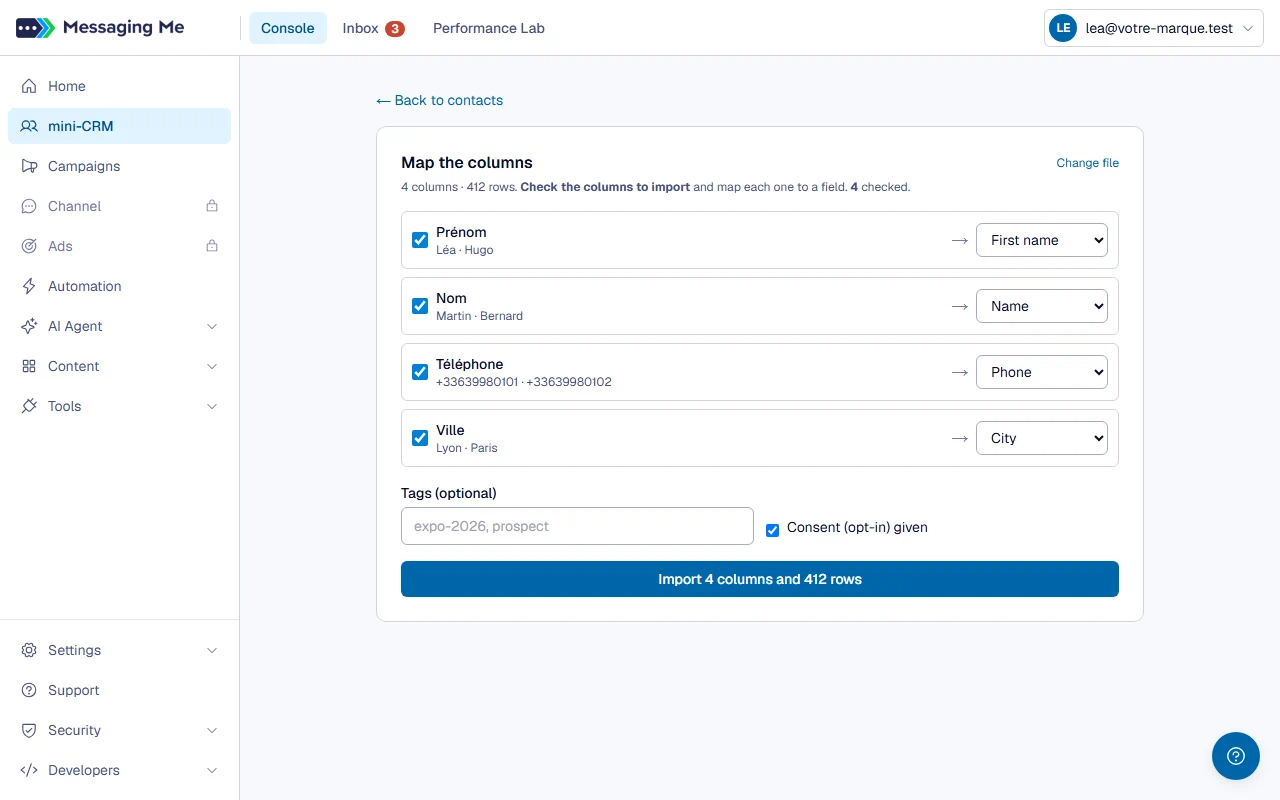
For an import, match each column of your file to a field of the record. The contacts then arrive in your list, ready to be targeted.
3. Decide on consent
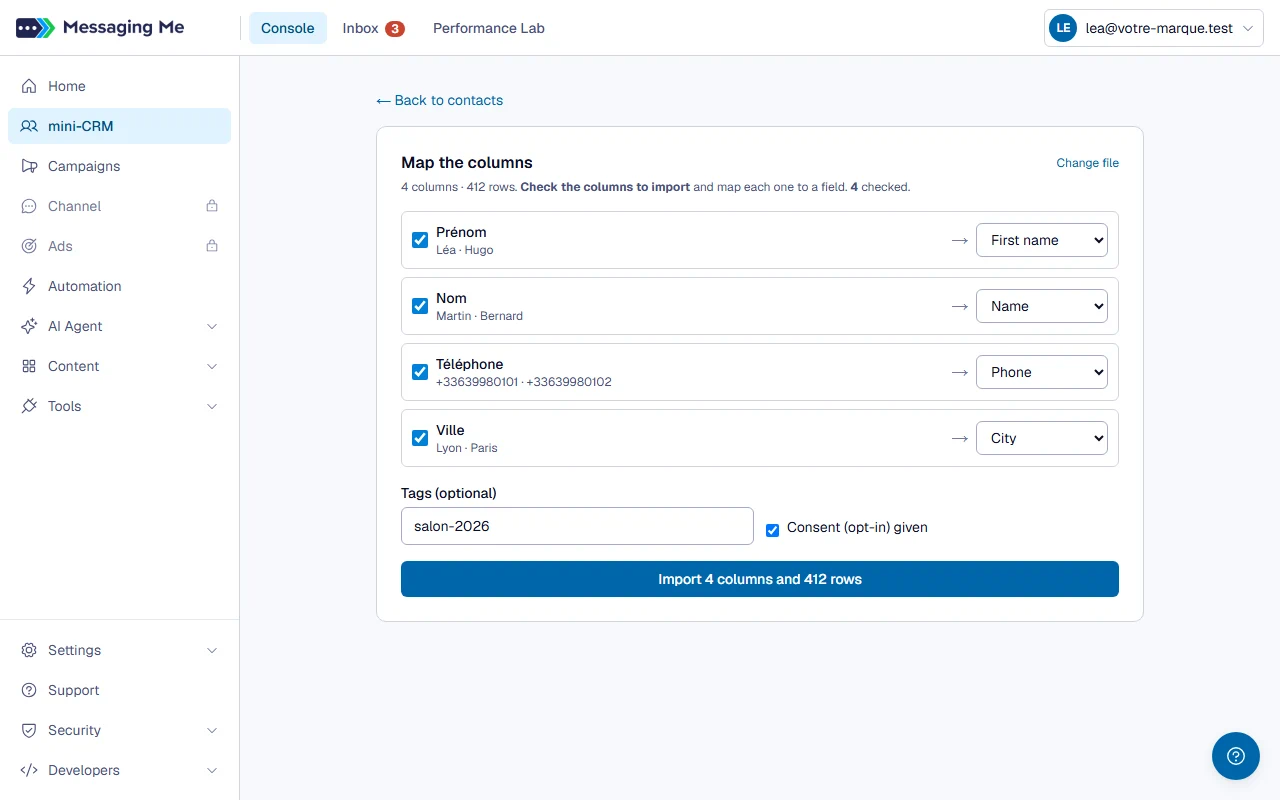
The consent box applies to the whole file, including the people who had replied STOP to you: ticked, it resubscribes them. Only tick it if you hold proof of their consent.
In detail
Adding by hand a number that is already known, on the other hand, never resubscribes someone who said STOP.
4. Find and act in bulk
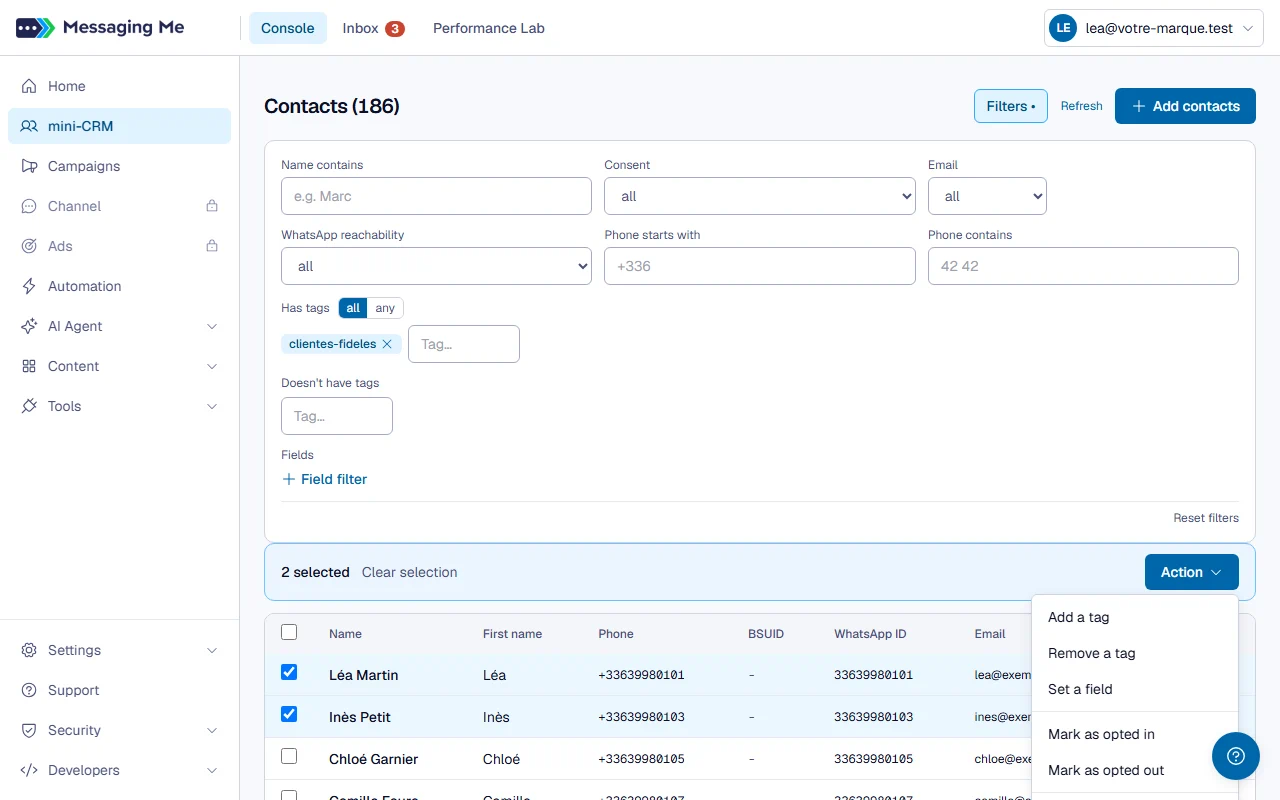
The screen then works as a search engine: filter, tick rows, and the “Action” menu applies the same action to the whole selection (“Add a tag”, “Remove a tag”, “Set a field”, “Mark as opted in”, “Mark as opted out”, “Delete”).
In detail
You filter by tag, by marketing consent, by name, by phone number, by the value of a field you created, by whether there is an email address, by disengagement risk level (useful to prepare a campaign towards those who are drifting away), or by what their latest analysis says: intent, sentiment, satisfaction or urgency above or below a score, request resolved or not, analysed less than so many days ago. A record never analysed matches none of these values. Filters add up, and they are the same when you choose a campaign’s recipients.
Three things to know before acting in bulk:
- “Mark as opted in” (consent given) makes the selection a recipient of your campaigns. Only do it if you hold proof of that consent. People who replied STOP to you stay that way: the screen tells you how many records kept their STOP. A STOP is lifted from the person’s record, by the person themselves, by a CSV import with the box ticked or by a scenario, never by a bulk action.
- “Mark as opted out” (consent refused) excludes from every campaign, including those already scheduled.
- Deleting cannot be undone: the record, the conversation and its history go in a single action. You must type the word SUPPRIMER to confirm.
A contact’s record
Clicking a row opens the person’s record. There you edit their fields, their tags and their consent, and you read the summary of their latest analysed conversation as soon as they have had one: enough to know what you talked about before calling them back, without reopening the exchange. This summary is written by the analysis, it cannot be edited by hand, and it disappears together with the conversation when it reaches your retention period. The “History” tab of the record shows, for its part, the summary of each of their conversations.
The record is organised in tabs: Details shows everything, Tags, Fields and Analysis each show one part (the tags, the custom fields, what the platform has inferred about the person), and History lists their campaigns and conversations.
The Latest analysis block of the record says what the latest conversation taught about the person: intent, sentiment, satisfaction and urgency out of 10, request resolved or not, topic, who handled it and the suggested action. It cannot be edited by hand either, and it shows when new messages have arrived since. Unlike the summary, it stays on the record when the conversation is deleted: these are findings, not the person’s words. Only deleting the record removes it.
The record also shows the person’s disengagement risk: low, medium, high, or unknown, with a score out of 100, the main reasons written in plain words and since when they have been at that level. It is recalculated every night from the last 90 days: replies, clicks, reads, latest analysed conversation, reachability, unsubscription. The date only moves if the level changes; the score and the reasons are always up to date. “Unknown” means that no message was delivered to them over that period, so there was nothing to observe. A record the calculation has never seen yet shows “not computed yet”.