
1. Write the message
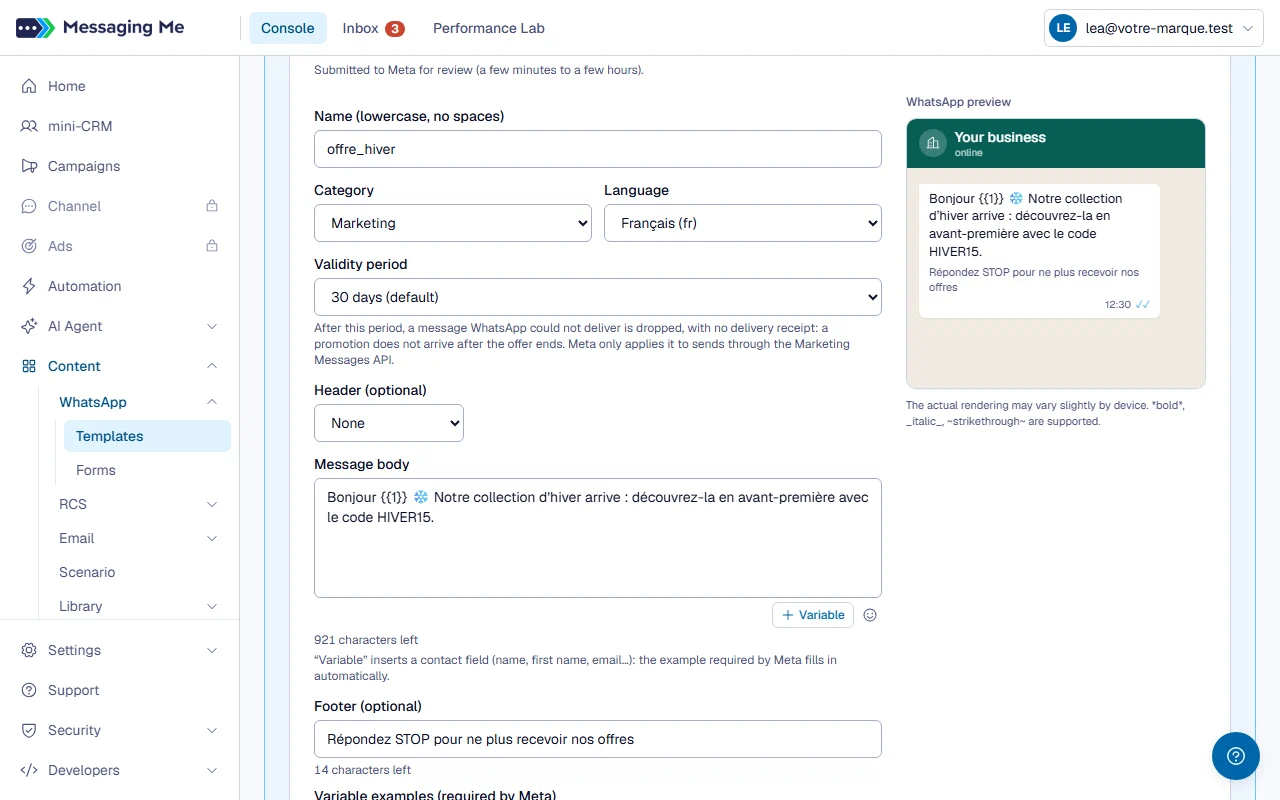
On the Templates screen (Content > WhatsApp menu), write the body text, then add if needed a header (text, image or video), a footer and buttons.
In detail
The text header and the footer are limited to sixty characters and do not accept a variable. Under each limited field, a counter tells you how many characters you have left: the body accepts 1,024, a button’s text 25. A body that is too long turns red, and the template does not go out as long as it is over. You can also create a carousel: a shared introduction message, then two to ten cards with an image (160 characters of text each), each carrying the same buttons.
2. Personalise with variables
Write a variable between double curly braces: when the message goes out, it is replaced by what is in the contact’s record.
In detail
A contact whose field is empty does not receive the message: WhatsApp refuses a template with a missing variable, and you find them among the campaign’s excluded recipients, with the reason.
A link specific to each contact: in a link button’s address, the “Variable” button inserts a field from the record, for example an order number. Each contact lands on their own page: the field is filled in at the time of the click, and simply removed if it is empty. An example, under the address, shows what the contact will receive. The field goes after the site’s name, never inside it, and not in the links of a carousel’s cards.
3. Choose the validity period
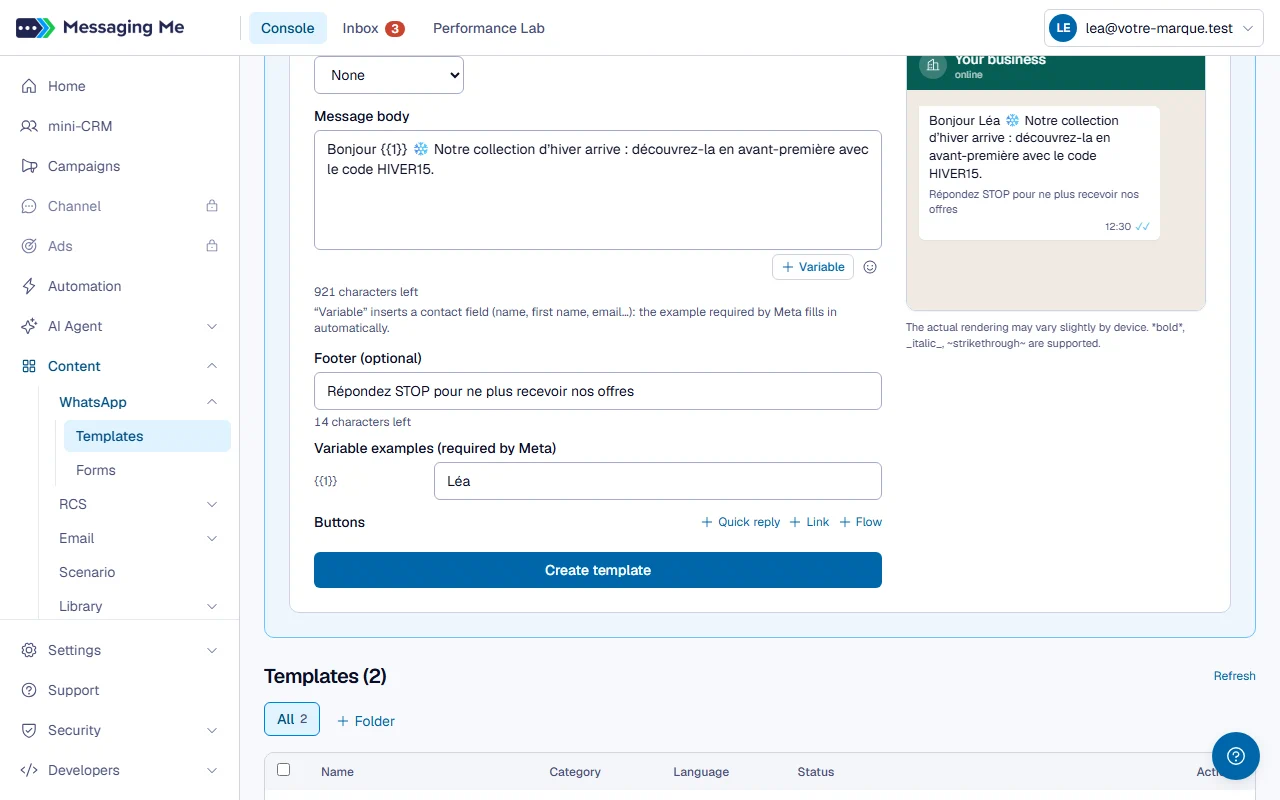
Under the category, say how long WhatsApp tries to deliver the message before giving up: from 12 hours to 30 days for a marketing template, from 1 to 12 hours for a utility template, and 30 days if you leave it alone.
In detail
A message that is given up gets no delivery receipt. A promotion no longer arrives after the offer ends, a reminder no longer after the appointment. For a marketing template, Meta only applies it to sends through its Marketing Messages API; and if Meta changes the template’s category, the period goes back to 30 days.
4. Choose the language and submit
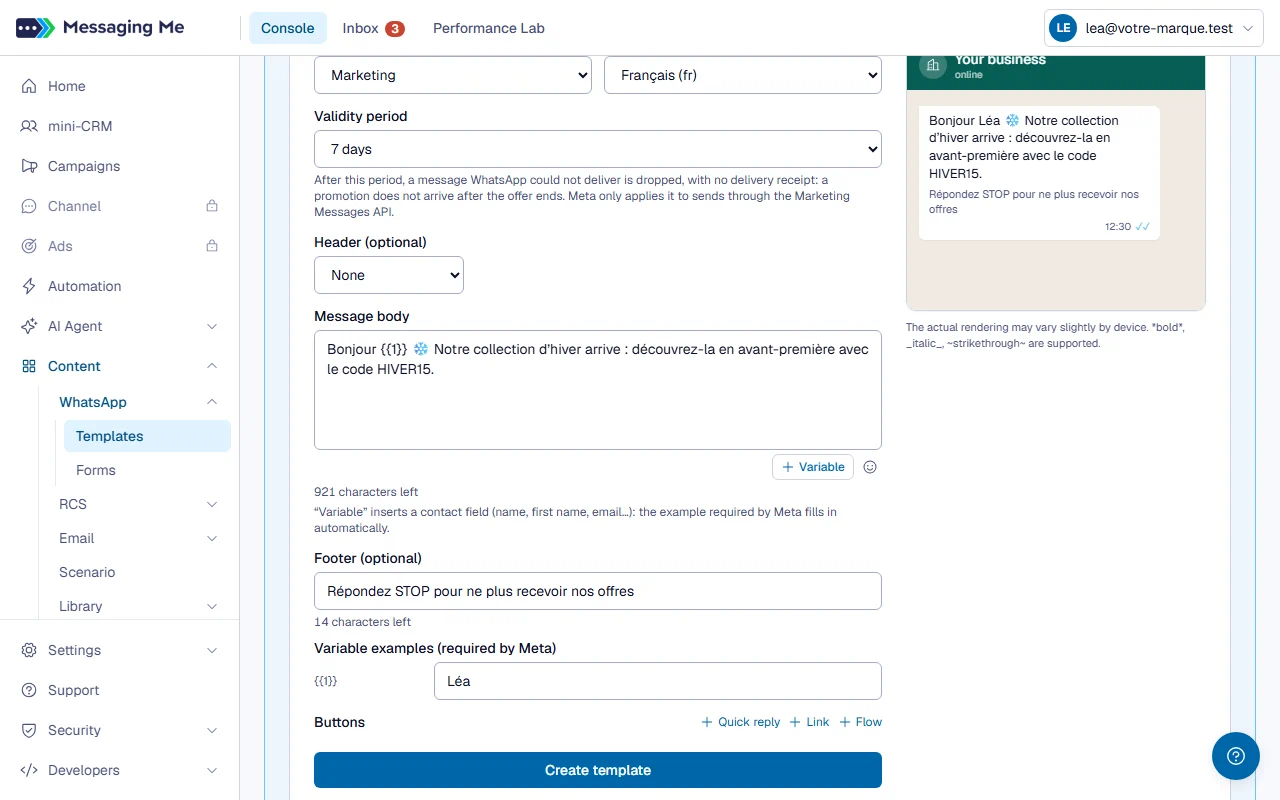
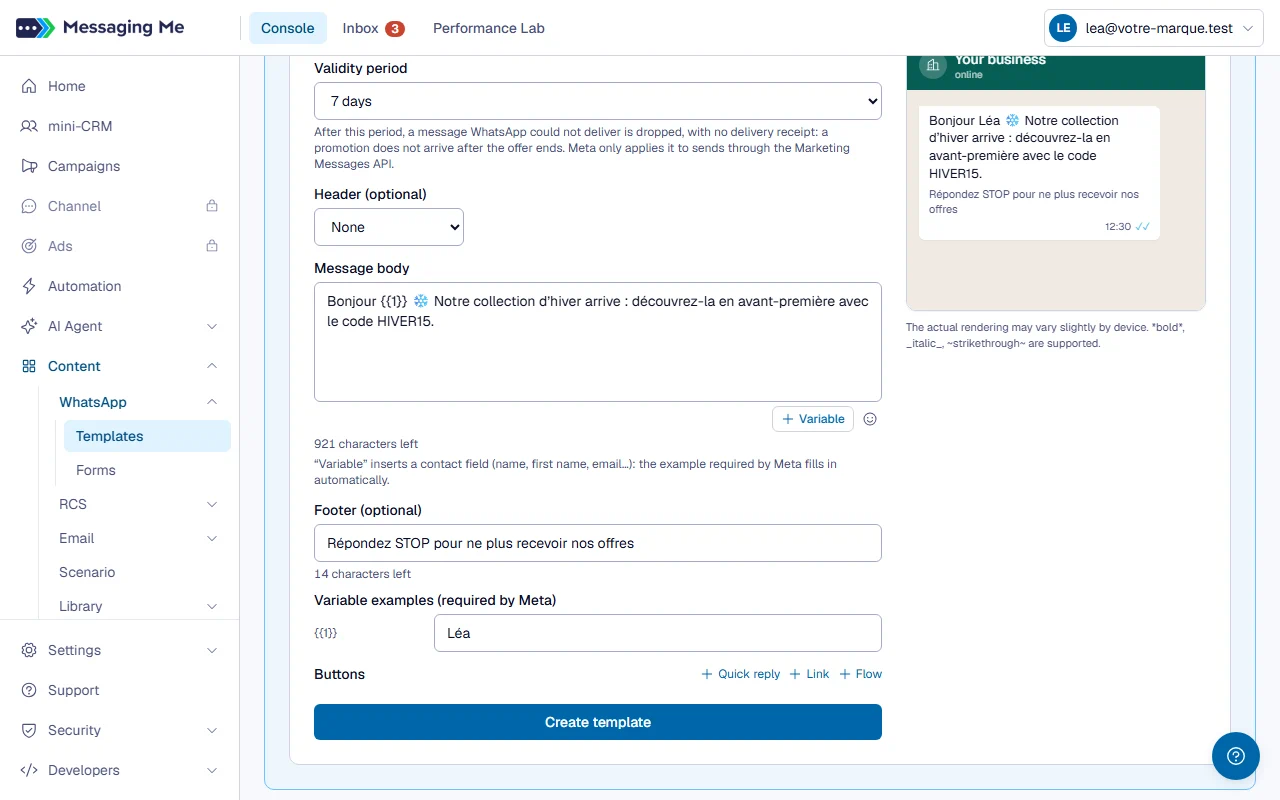
Choose the language from a list, then submit: WhatsApp usually replies within a few minutes, sometimes a few hours, and the screen follows the status for you.
To find your way around, file your templates in folders: the tabs above the list filter, and “Move to…” files one row or the ticked templates. A template is filed with all its languages.