A campaign reaches people who have not necessarily written to you recently. That is why its first message must be a template approved by WhatsApp, or a scenario that starts with one. The assistant’s screens are in French for now: their labels are quoted below as they appear, with their meaning in brackets.
1. The name
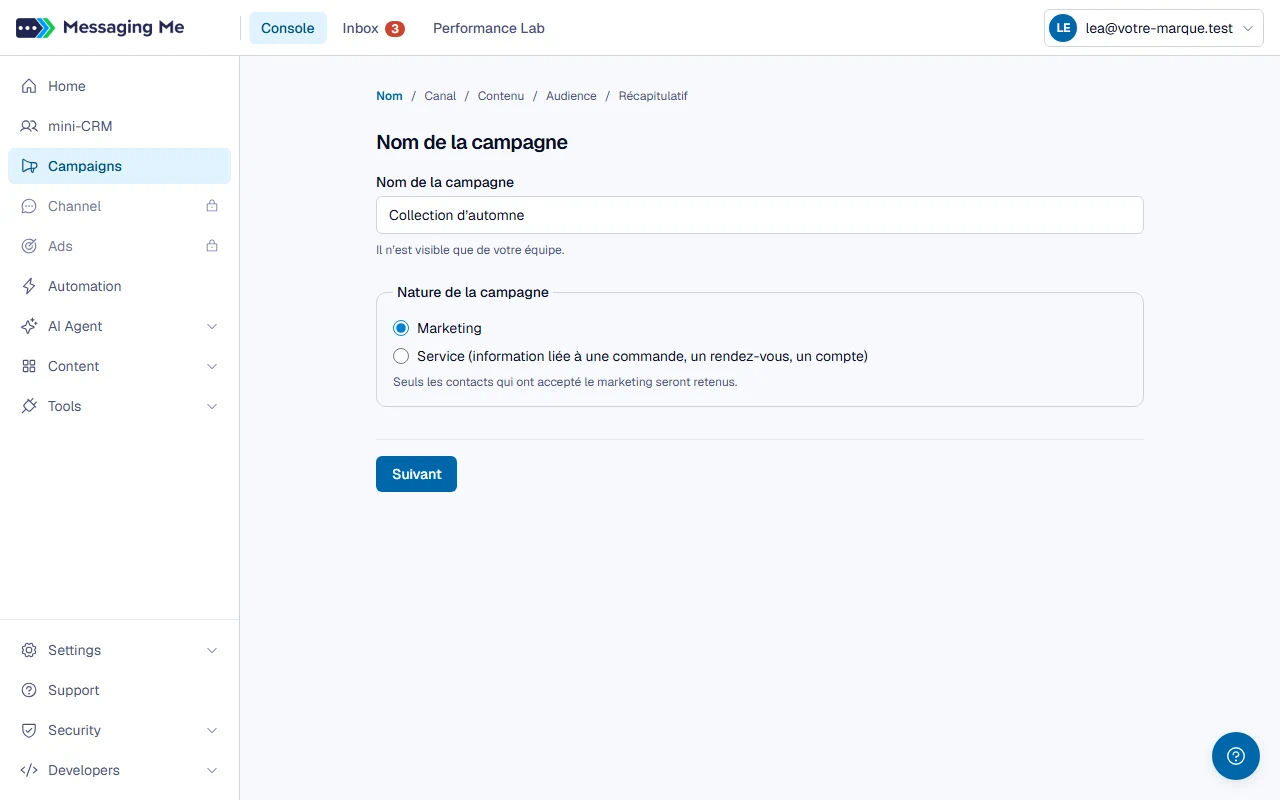
Give the campaign a name, visible to your team only, and state its nature: “Marketing”, which only sends to contacts who have given their consent, or “Service”, for information about an order, an appointment or an account.
2. The channel
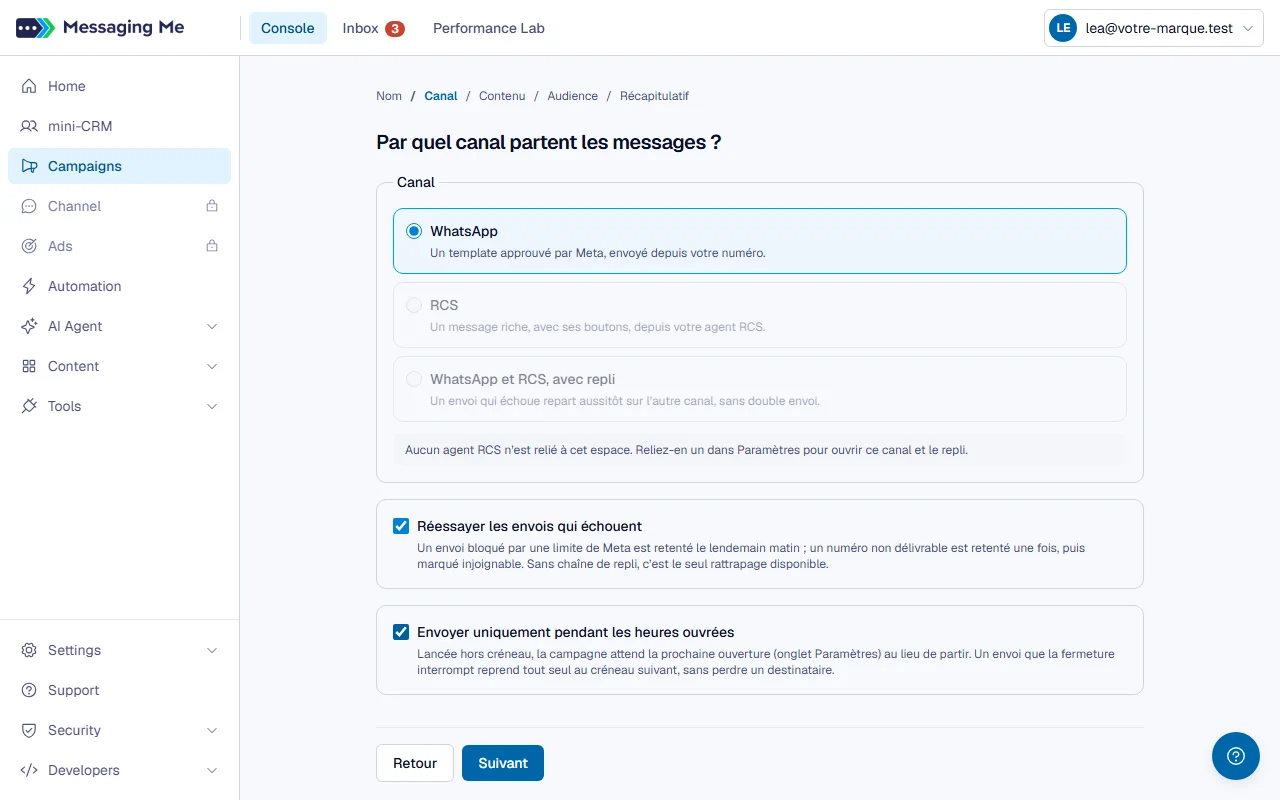
Choose a single channel (WhatsApp or RCS), or a chain: the message goes out on a first channel, and the contacts it did not reach are picked up on a second one, then possibly by email.
In detail
The screen opens on this one question, with no answer pre-selected, and the rest of the step appears once you have chosen. On a single channel, you can ask for failed sends to be retried; with a chain, the question does not arise, since the fallback IS the retry. Finally, you decide whether the campaign only sends during your opening hours: this box applies to first sends as well as to follow-ups.
3. The content
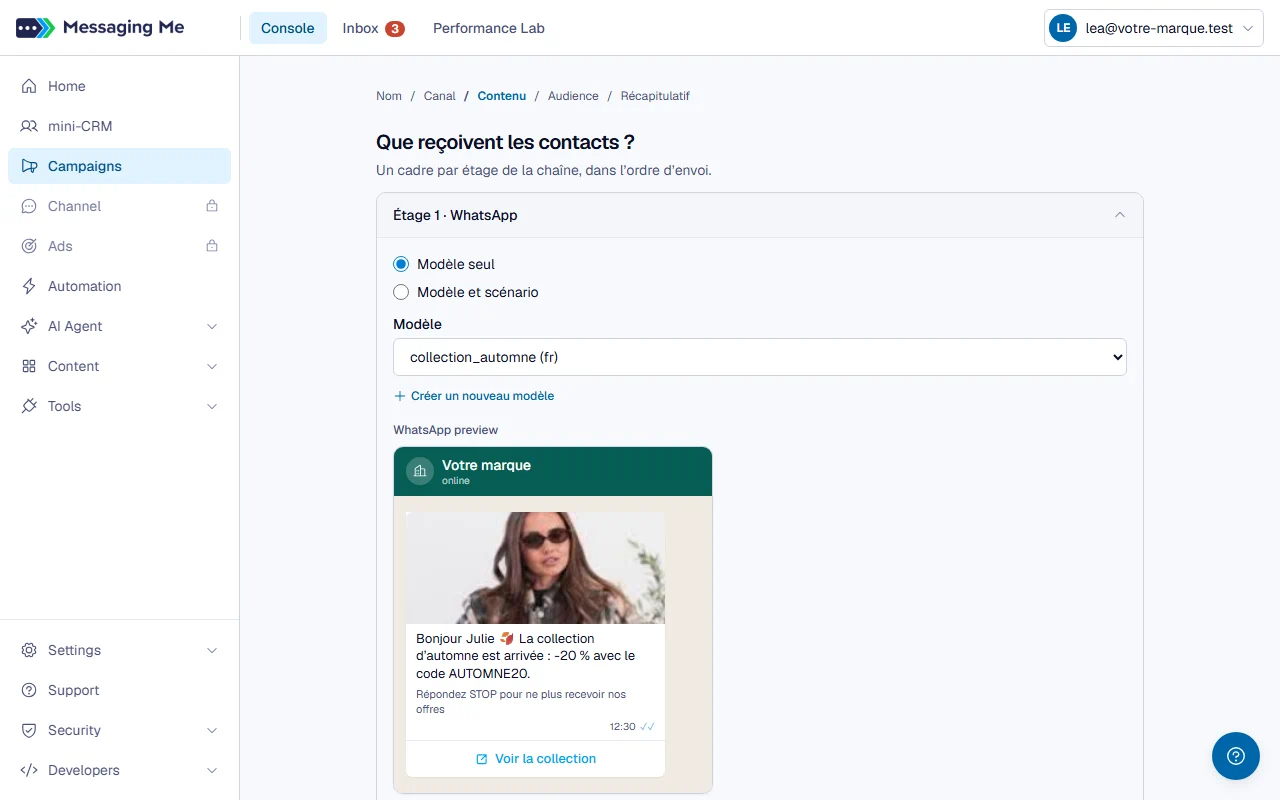
For WhatsApp, choose an approved template: a preview immediately shows you what the contact will receive, and you say where each of the template’s variables comes from. A chain has one frame per stage, in sending order.
In detail
If the template you need does not exist yet, you create it without leaving the campaign: it goes to WhatsApp for validation, and it is selected on its own as soon as it is approved. As long as a stage has no content, the screen tells you and does not let you move on.
In the frame of each stage that does not open a scenario, you are asked a question: what happens when a contact replies to THAT stage. “Le répondeur automatique prend la main” (the automatic responder takes over) leaves the reply to the one you chose on the Home screen, under “Who answers the customer” (Meta’s agent, an AI agent or a scenario); this choice is greyed out, with its reason, if your team is the one answering. The other choice sends the conversation to your Inbox. It is set stage by stage. Then, once all the content is chosen, a last question appears, but only if at least one stage sends to the Inbox: who the conversation goes to, nobody in particular, a named person, or in turn.
On an RCS stage, “Partir d’un message enregistré” (start from a saved message) also offers your carousels (several cards that scroll, each with its image and buttons). The carousel is copied as is onto the stage and shows in the preview: to change it, edit it in Content > RCS > Messages, then choose it again. “Revenir à un message simple” (back to a simple message) gives back the text you had written.
A stage can also go out as a scenario rather than a simple message. On WhatsApp, the scenario provides the opening template; on RCS, your message goes out first and the scenario starts right after. As with templates, if the scenario you need does not exist, you create it without leaving the campaign: the editor opens in a window, and the published scenario is selected on its own for that stage. You then find it in the Scenario tab like the others. On a stage that opens a scenario, the reply question is not asked: the scenario decides what happens on reply, and the screen tells you so instead. It reappears on any stage that sends a simple message, because the contacts reached by that one will reply outside any scenario.
If the scenario you are looking for does not appear in the picker, it is for one of two reasons: it starts with a message that can only go out in a conversation already open, or it opens on the other channel (a WhatsApp stage only offers scenarios that start with a template, an RCS stage only those that start with an RCS message).
4. The audience
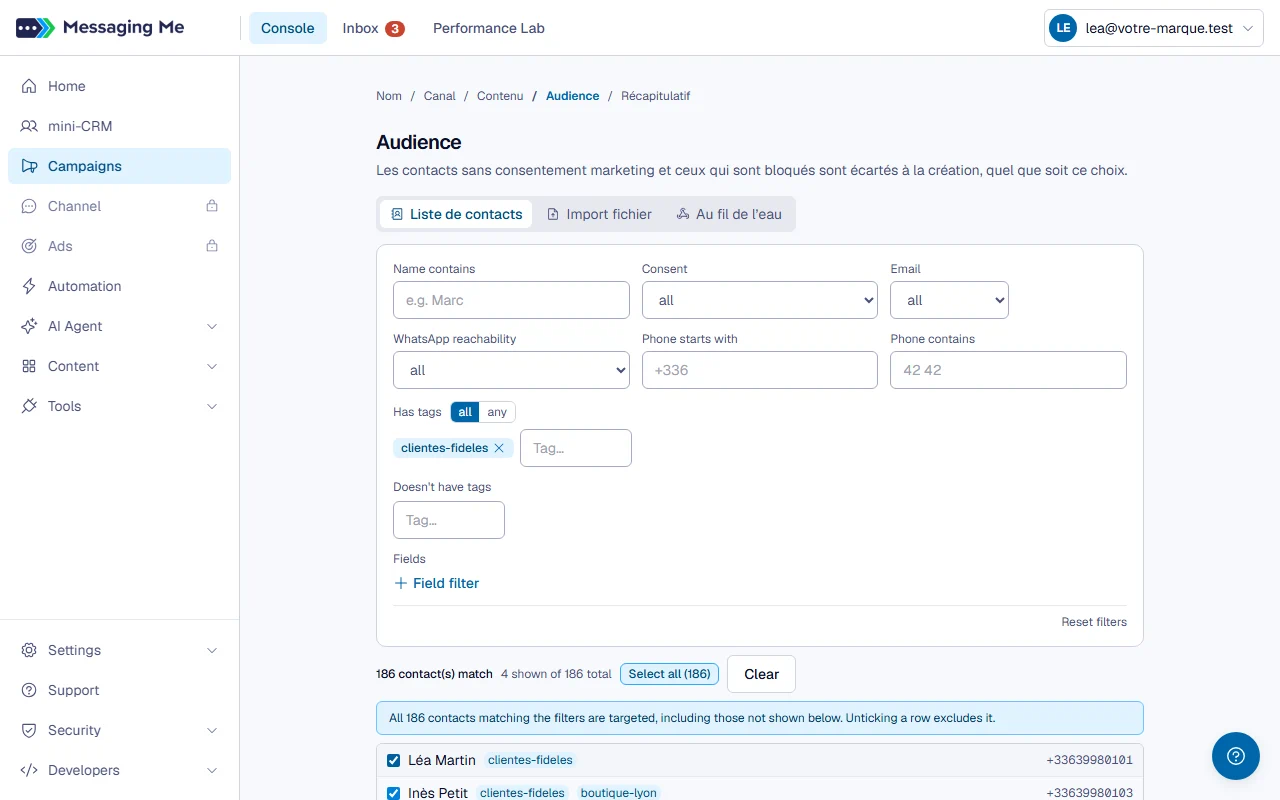
Say who to send to. Most often: pick from your contacts, with filters you combine (one or several tags, marketing consent, the start or part of the number, the value of a field you created, the name). A counter tells you live how many contacts match.
In detail
You can also import a CSV file, which then puts a required tag on the imported contacts and targets that tag. Another option: an “Au fil de l’eau” (continuous) campaign, with no list at all, which takes every contact arriving through a webhook address for as long as it stays open.
5. The summary and the launch
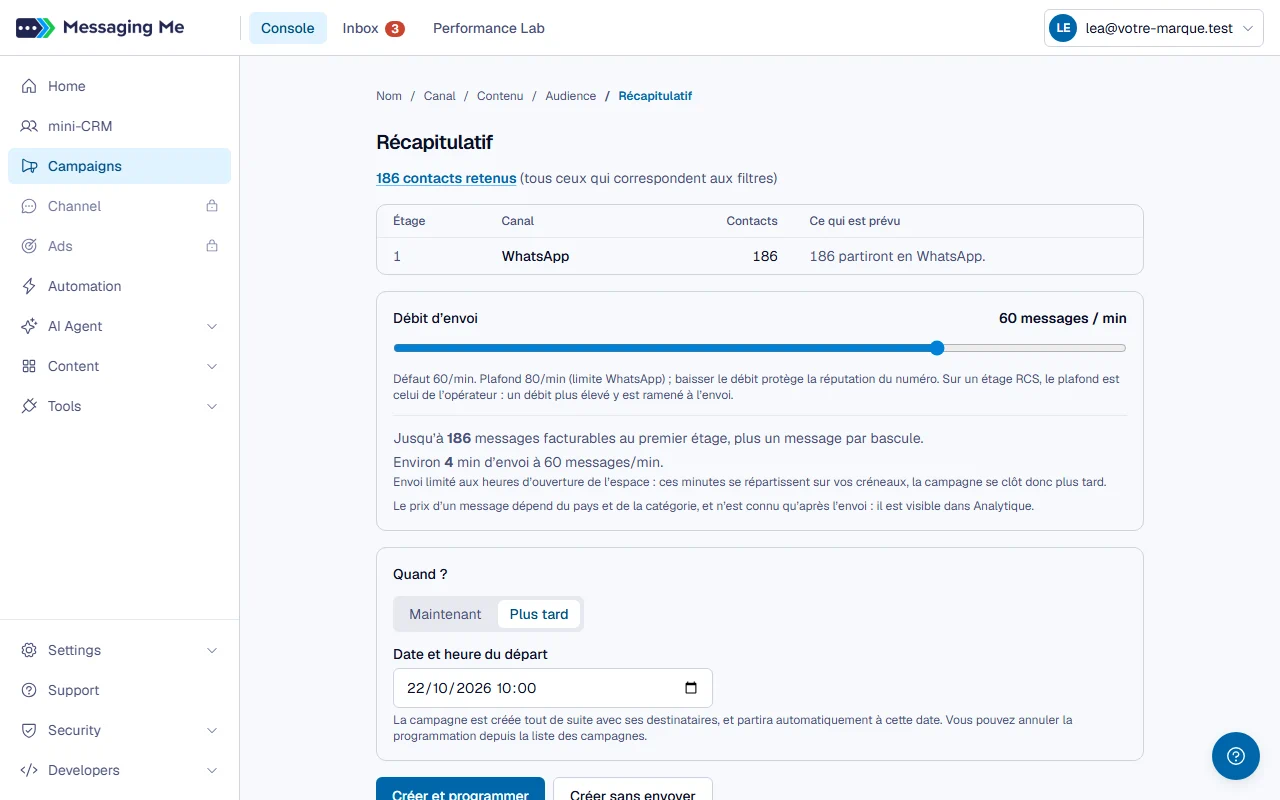
Check how many contacts each stage reaches, set the sending pace, then answer “Quand ?” (When?): “Maintenant” (Now), with the “Lancer la campagne” (Launch the campaign) button, or “Plus tard” (Later), at the date and time you set, to schedule the send with the “Créer et programmer” (Create and schedule) button.
In detail
This summary is the only screen that tells you how many contacts each stage of the chain reaches. A careful pace protects your number’s reputation. A scheduled campaign appears in the list with “Scheduled for” and its date. “Créer sans envoyer” (Create without sending) creates the campaign without sending anything, to check who is included before committing a single message: it then waits for you in the list, with its “Launch” button.