
1. Open Meta’s window
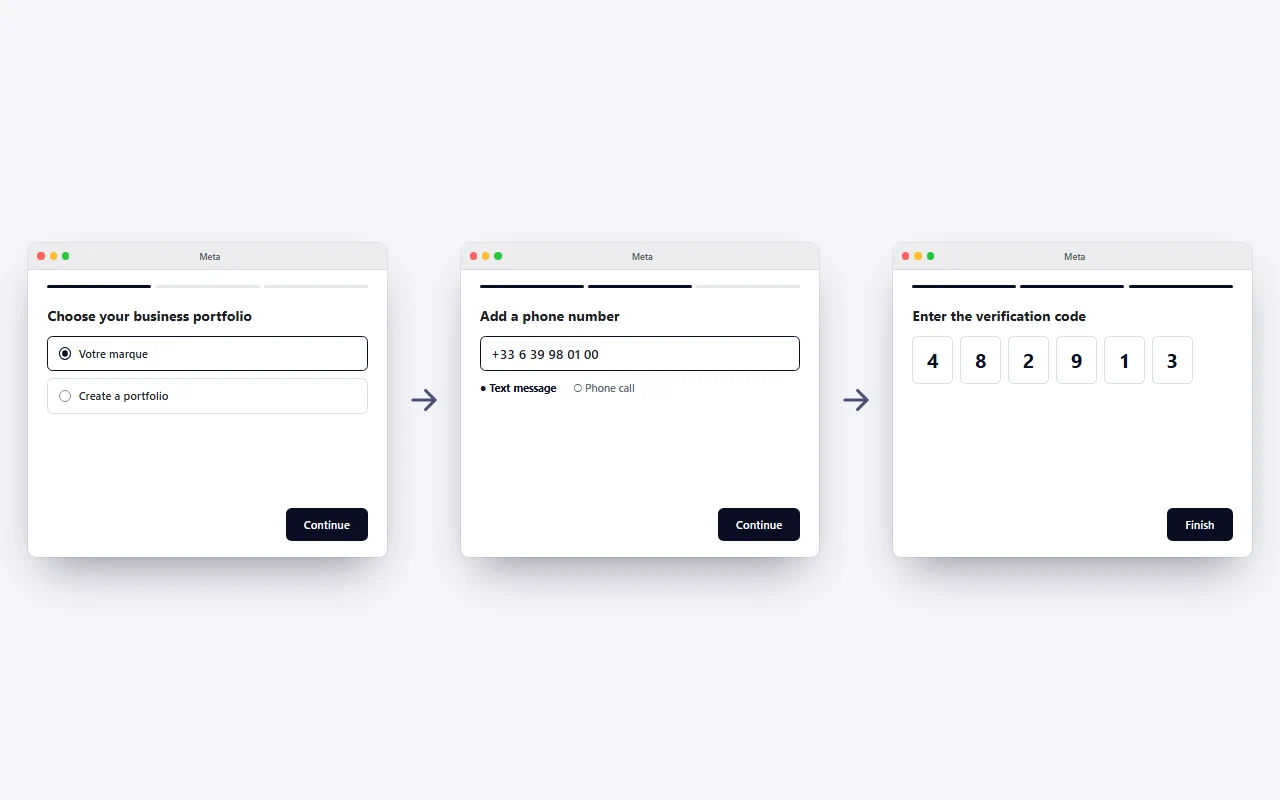
As long as no number is attached, a button on the Home screen opens Meta’s window. There you choose your business account and your number, and everything else happens without you.
In detail
If you had already started once, starting again works: you have nothing to re-enter and no new code to request, you find the existing account and number again. When Meta refuses, it is ITS reason that is shown (expired code, account not shared, several numbers to choose between), not an opaque error message.
2. No number? Get one
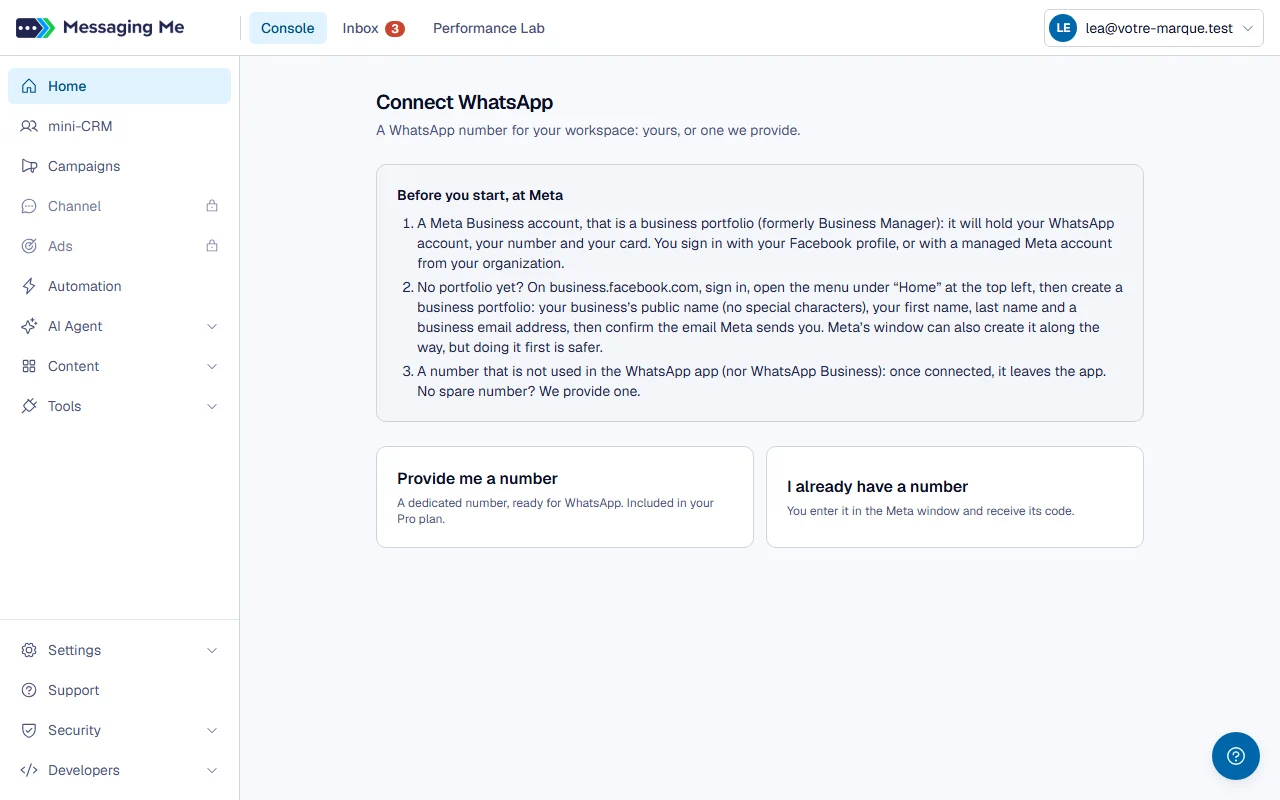
The “No number? We provide one” link opens the “Connect WhatsApp” page: “Provide me a number” offers you a dedicated UK number at €3.50 excl. VAT a month.
In detail
You pay on Stripe’s page (a promo code can be entered there, if we gave you one), then the number appears. Next, in order:
- “Open the Meta window”;
- on the number screen, “Enter a new phone number”, the country GB (+44), then the digits that follow +44;
- verification by SMS (“Text message”) if Meta lets you choose;
- the code appears on the page within a few seconds, copy it into the window; with no code after 45 seconds, wait for Meta to offer to resend it and try the other method;
- finally, go all the way to Meta’s last screen (“Finish”), which completes the connection.
If Meta refuses this number, “Get another one” gives you a new one. “Manage my subscription”, on this page, opens Stripe’s portal (card, invoices, cancellation); from Claude Code, ask Claude.
3. Verify the number, if Meta asks
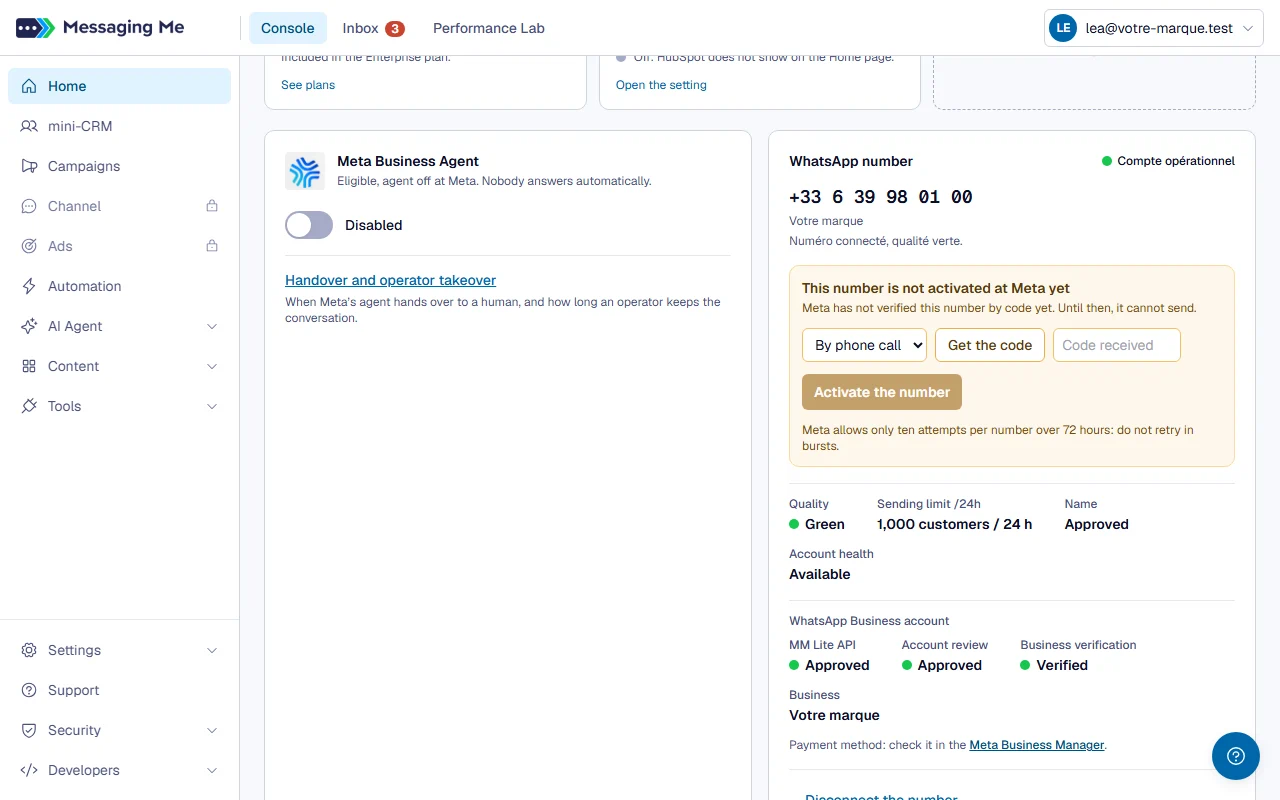
Meta sometimes lets the sign-up finish without verifying the number: it is yours, but it cannot send yet. The number card says so and carries the button that fixes it.
In detail
Meta sends you a code (by call, or by SMS if you prefer), you enter it, and the number is registered right away. Meta only tolerates ten requests per number over 72 hours, all steps combined, and blocks the number beyond that: the screen therefore refuses a second code within a minute and never retries on its own.
4. Read the number’s status
The number card shows your WhatsApp profile picture, the account status as a coloured badge, the number’s quality, your display name and how many customers you can write to per 24 hours.
In detail
The profile picture is the one your recipients see: nothing appears until you have set one, which is the usual case at the start. The customer count reads “Not yet evaluated by Meta” until Meta has decided. When a status cannot be read, the screen says “Status unavailable” with a Retry button, rather than a reassuring green.
Just below, a WhatsApp Business account panel shows Meta’s review of the account, your business verification and the owning business, each with its badge. Your payment method cannot be read from here: the screen sends you to Meta’s Business Manager instead of showing an invented value.
Four figures over 30 days open the page (contacts, messages exchanged, templates sent, estimated cost). They are exactly those of the Performance Lab, and a dash replaces the cost when Meta gives no rate.
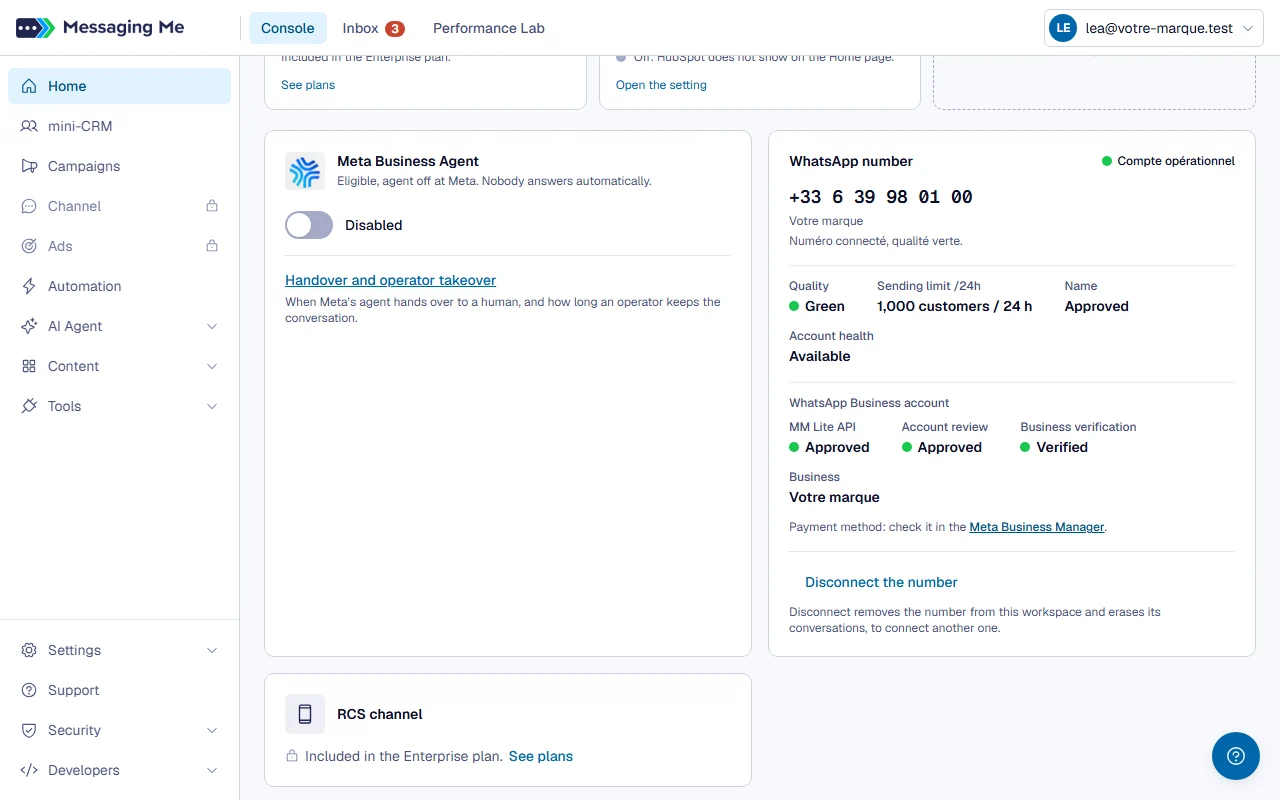
One workspace runs one number. Connecting a second one is refused, telling you which one is already there and what to do: create a second workspace, or detach this one. Accepting both would mix up the conversations of the same person.