
1. Open the Meta window
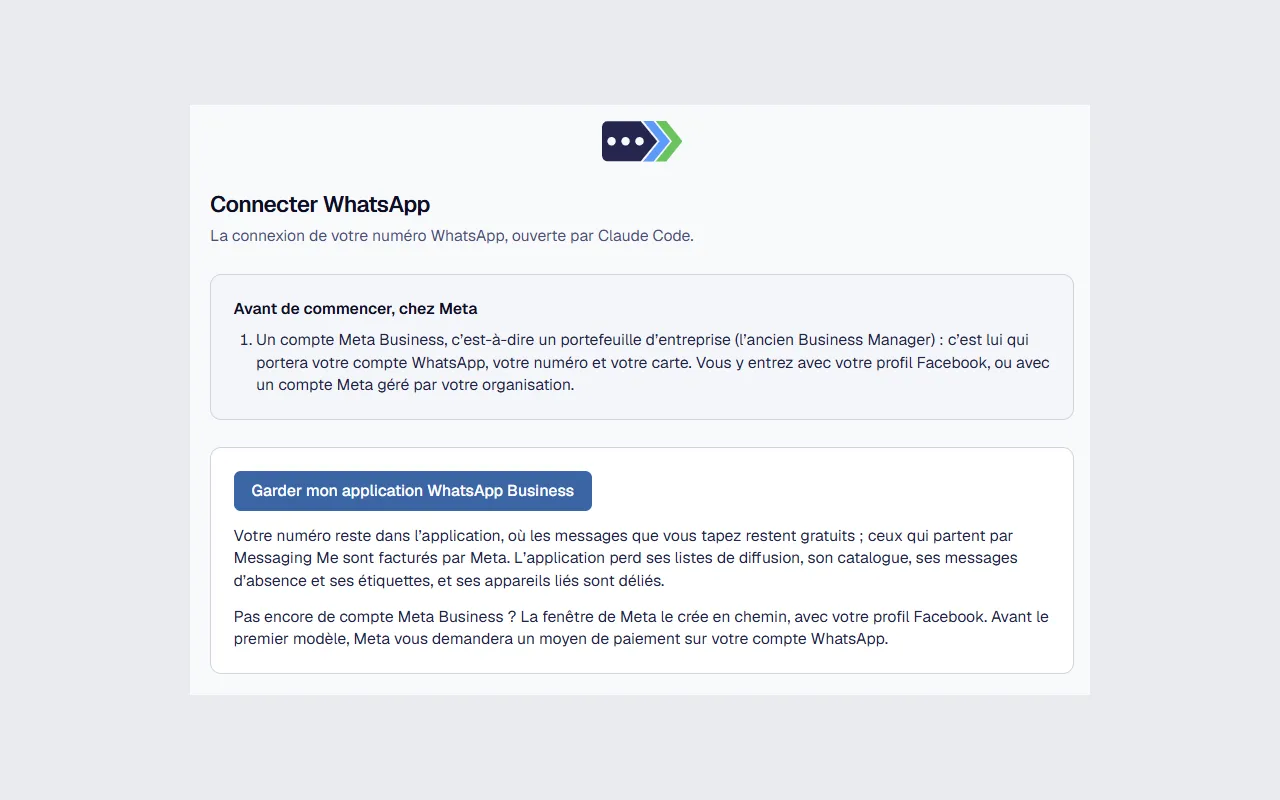
Ask Claude Code: it gives you a link to the “Connect WhatsApp” page. The page sums up what changes, then the button opens Meta’s window, where you sign in with your Facebook profile.
1. Open the Meta window
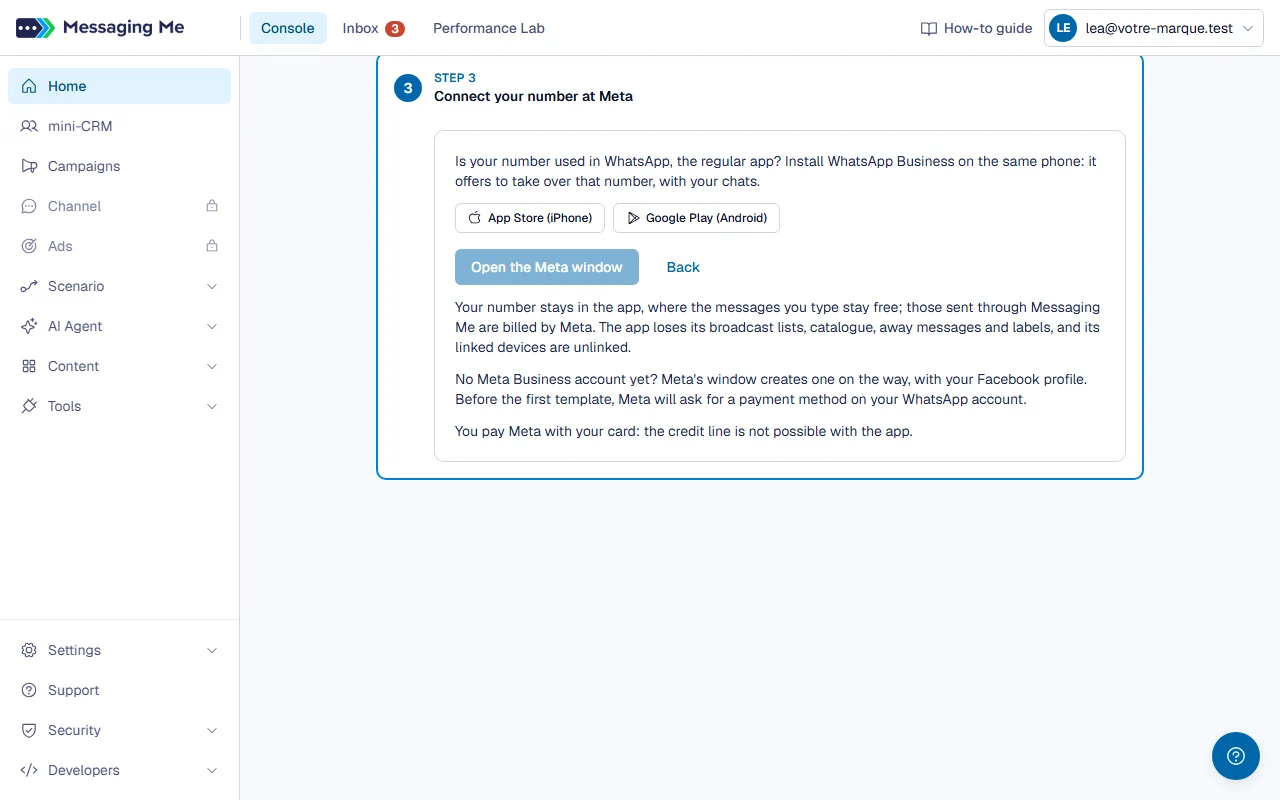
On the “Connect WhatsApp” page, click “You can keep it”, then “Open the Meta window”: it opens, and you sign in with your Facebook profile.
In detail
Without a Meta Business account, the page’s questions lead to the same button: “Yes” to the WhatsApp Business app, then “Yes” to the number working in it and to “Do you want to use that number?”. Otherwise, answer “With the app” to “How do you want to use WhatsApp?”, then “No” to “Would you like us to provide a number?”: you install a number of yours in it.
2. Enter your number
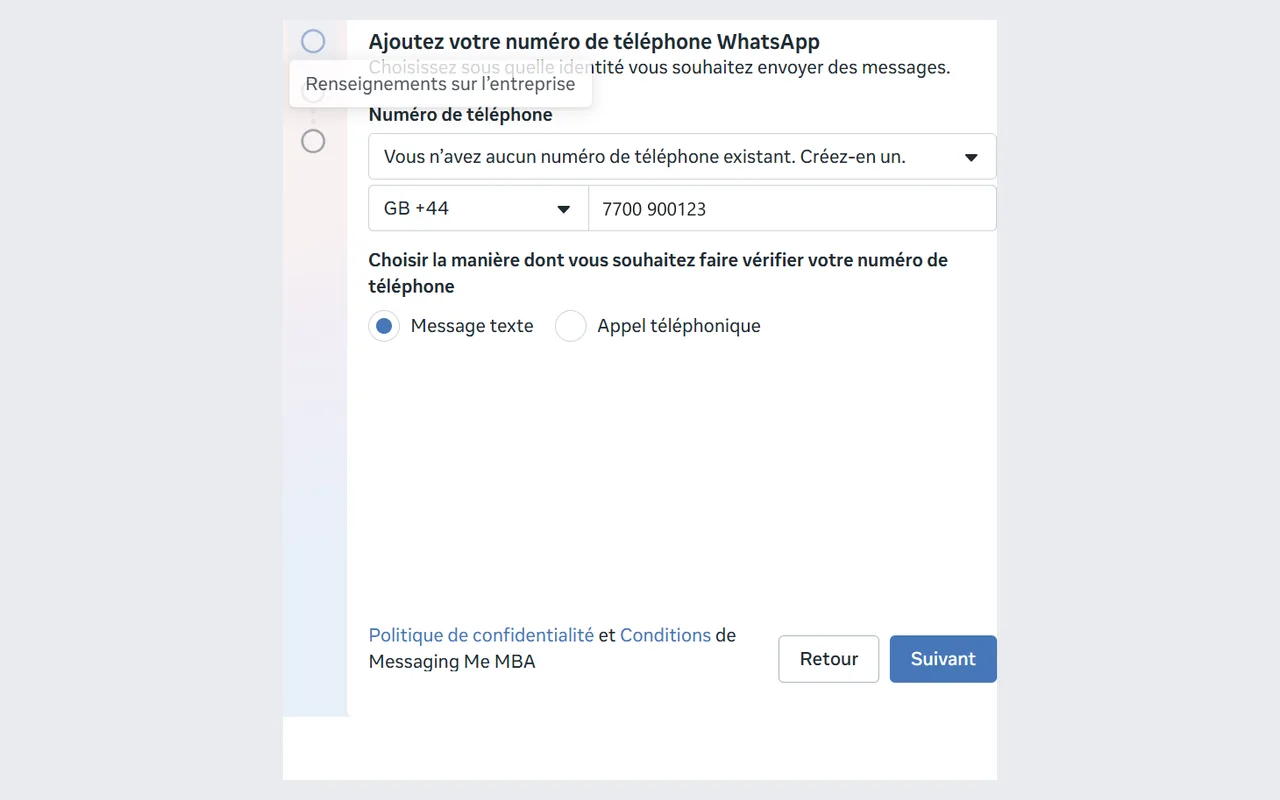
Enter the number of your WhatsApp Business app, with its country, then choose how Meta verifies it (by text message or by phone call) and follow what it asks.
3. Check your profile
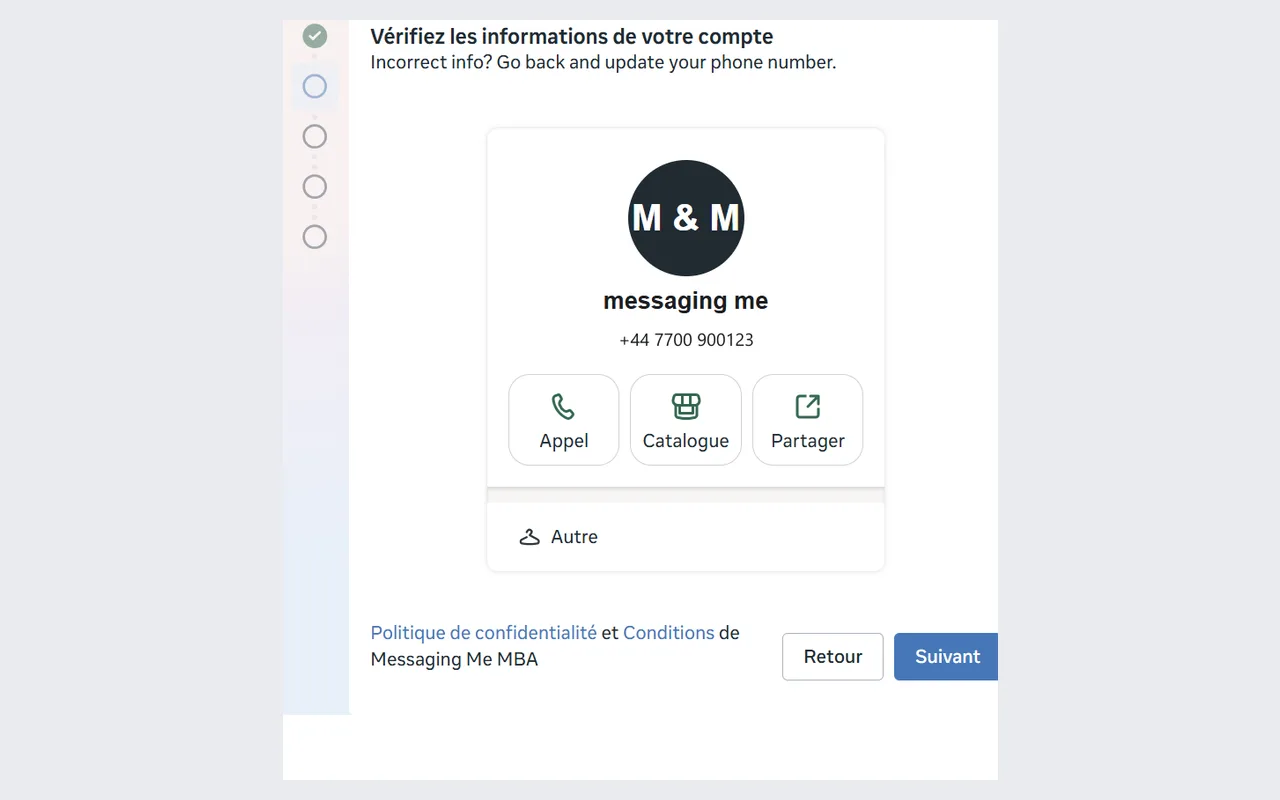
Meta recognizes your app’s profile: its name, its picture and your number. If it does not match, go back and fix the number.
4. Choose or create your Meta Business account
If you already have a business portfolio, choose it. Otherwise, choose “Create a business portfolio”: it is created along the way.
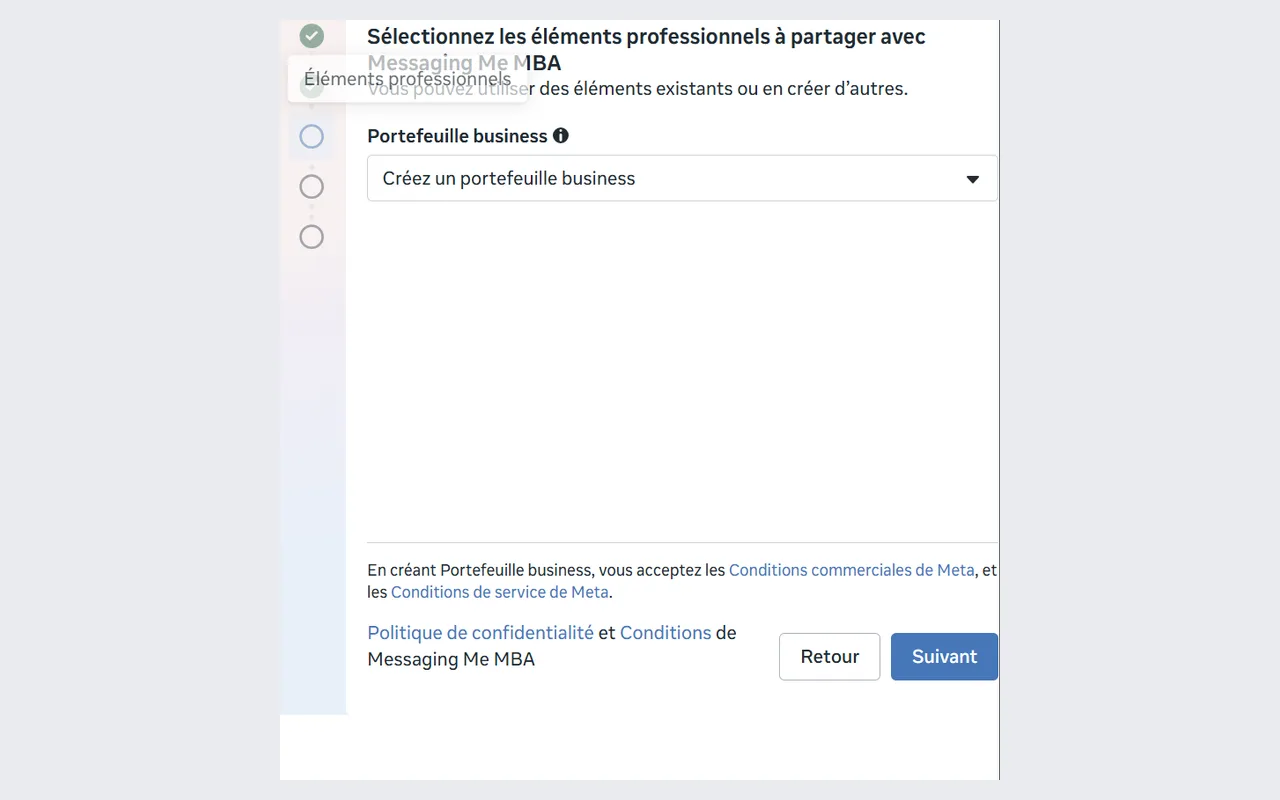
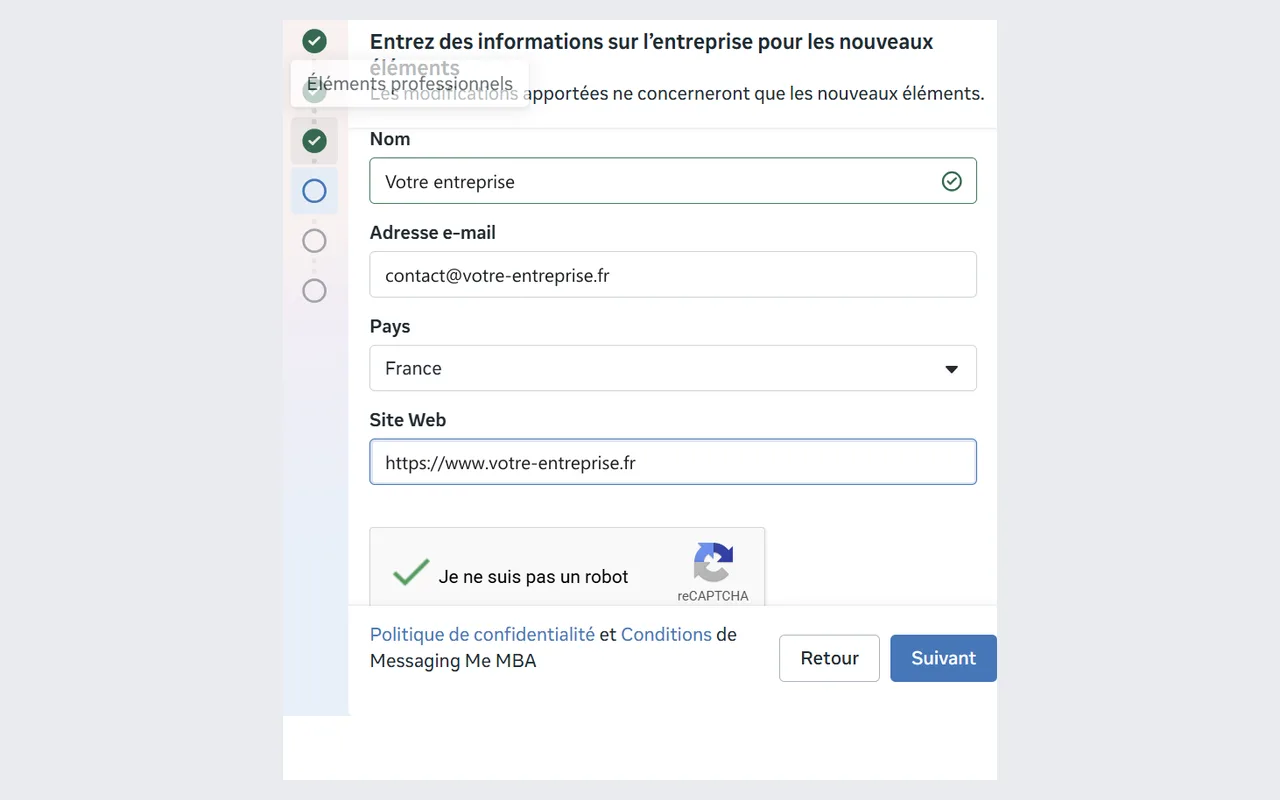
5. Describe your business
For a new portfolio, Meta asks for your business name, an email address, the country and your website.
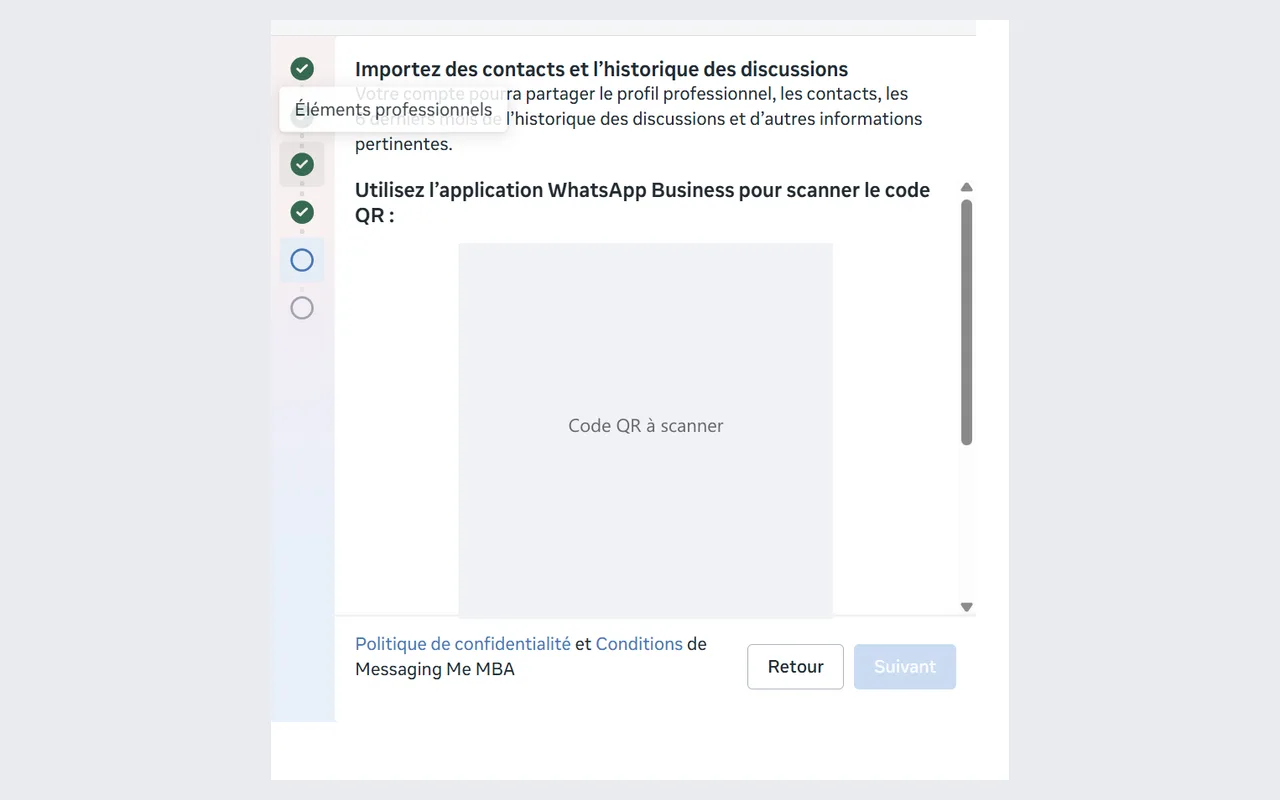
6. Link your app
In the WhatsApp Business app on your phone, tap “Connect” in the message from the official Facebook business account, or go through the ⋮ menu: “Settings”, “Account”, “Business Platform”, then “Connect to the Business Platform”.
In detail
Confirm sharing your chat history, then scan the QR code the window shows. If scanning does not work, choose on the phone to enter the access code instead, and type the code the window shows. Messaging Me does not take over your contacts or past conversations: they stay in the app.
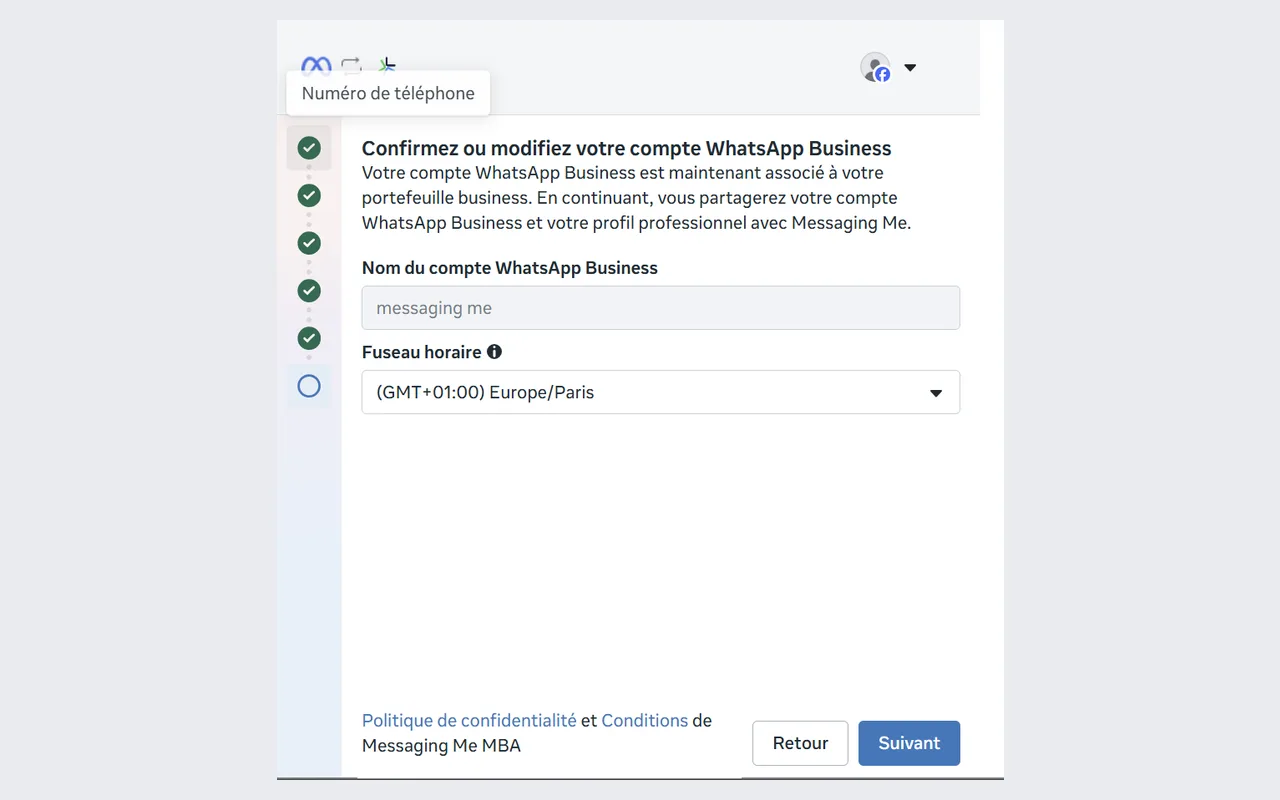
7. Confirm your WhatsApp Business account
Check its name and time zone, then continue.
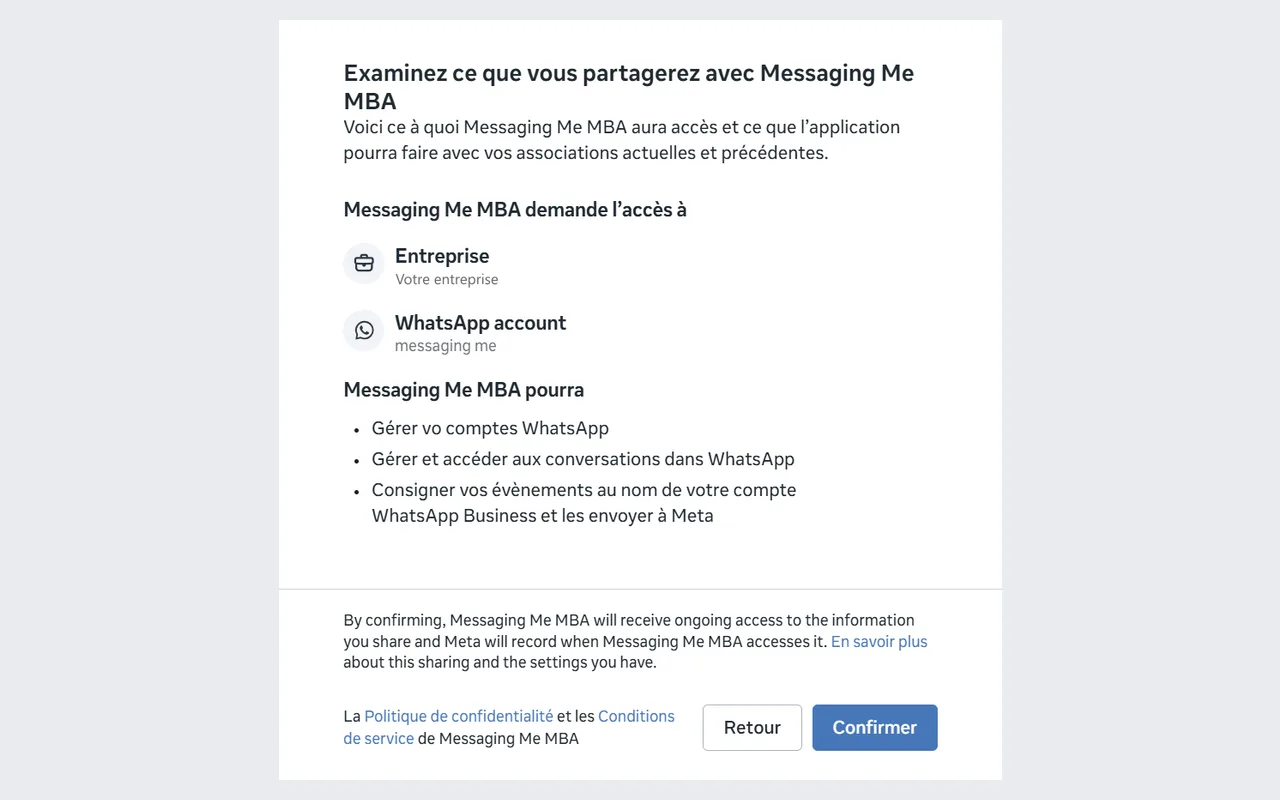
8. Accept sharing with Messaging Me
Meta sums up what Messaging Me will be able to do: manage your WhatsApp account, its conversations, and pass your account’s events on to Meta. Confirm.
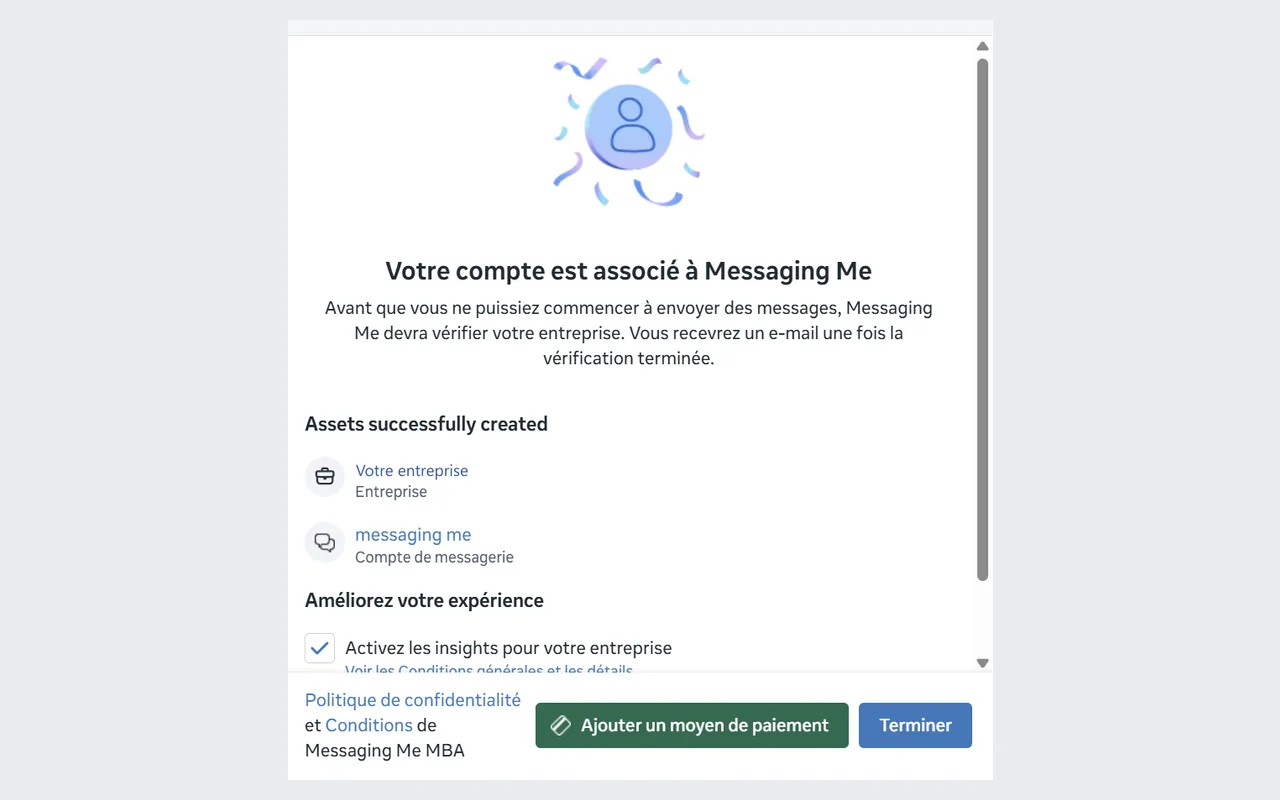
9. Finish
“Your account is connected to Messaging Me”: your WhatsApp account is created, and your portfolio if it is new. Click “Finish”; the payment method at Meta can wait for your first template. Your number shows on the Home screen. If not, press “Open the Meta window” again: the window picks up what is already created and completes the connection.
What changes in the app
The messages you type there stay free; those sent from Messaging Me are billed by Meta. The app loses its broadcast lists, its catalog, its away message and its labels, and its linked devices are unlinked. Open it at least every two weeks.
What you type in the app does not show in Messaging Me yet. If an AI agent answers your customers, it does not see your replies: it may answer at the same time as you.
Your number’s name and photo are set in the app, on your phone. And you pay Meta with your card: the credit line is not possible with the app.