1. Choose the template
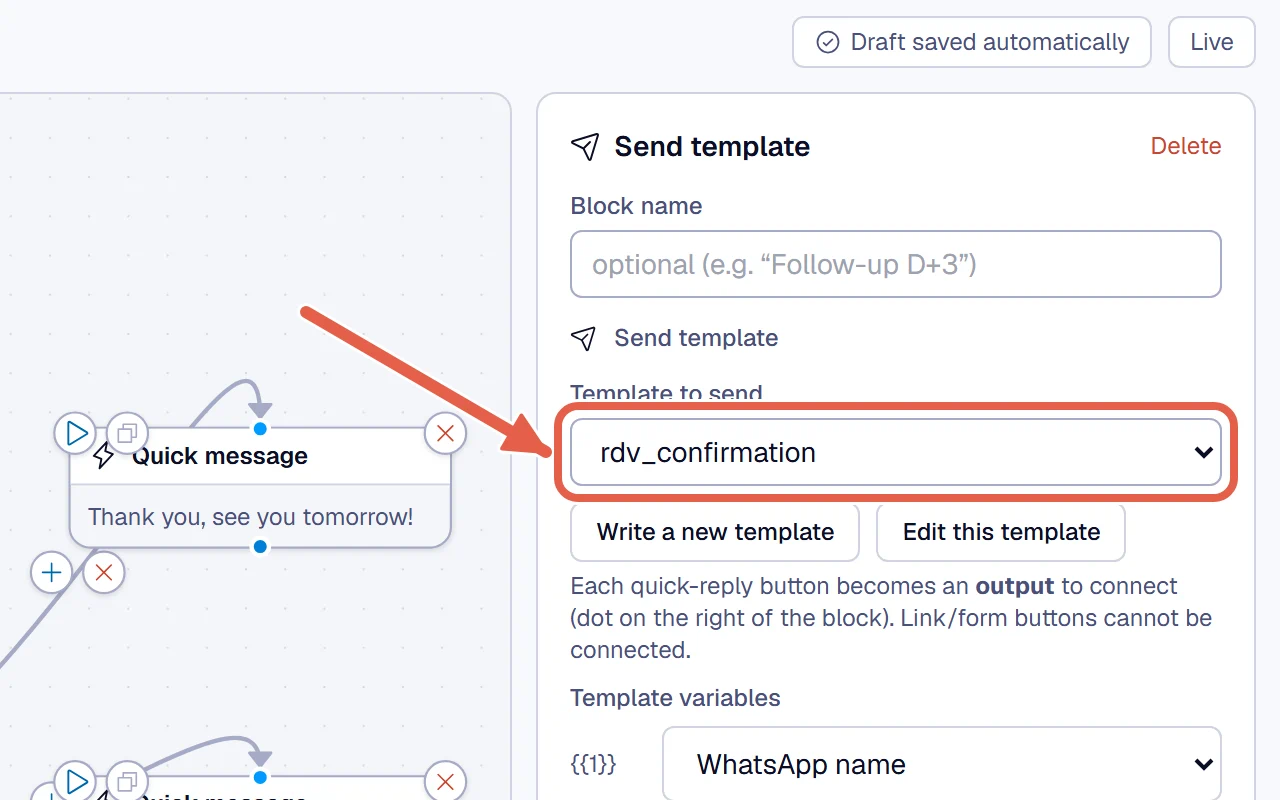
Click the block: its panel opens on the right, with the "Template to send" list at the top.
In detail
- Only templates approved by WhatsApp are offered. On the canvas, the block shows a thumbnail of it.
- It goes out even in a conversation closed for more than 24 hours, including when a wait wakes up.
- As the first block of a scenario launched as a campaign, it is what the campaign sends: while it is empty, the scenario cannot go out as a campaign.
- Two templates with the same name in two languages are not told apart: only one of them goes out.
2. Connect each variable
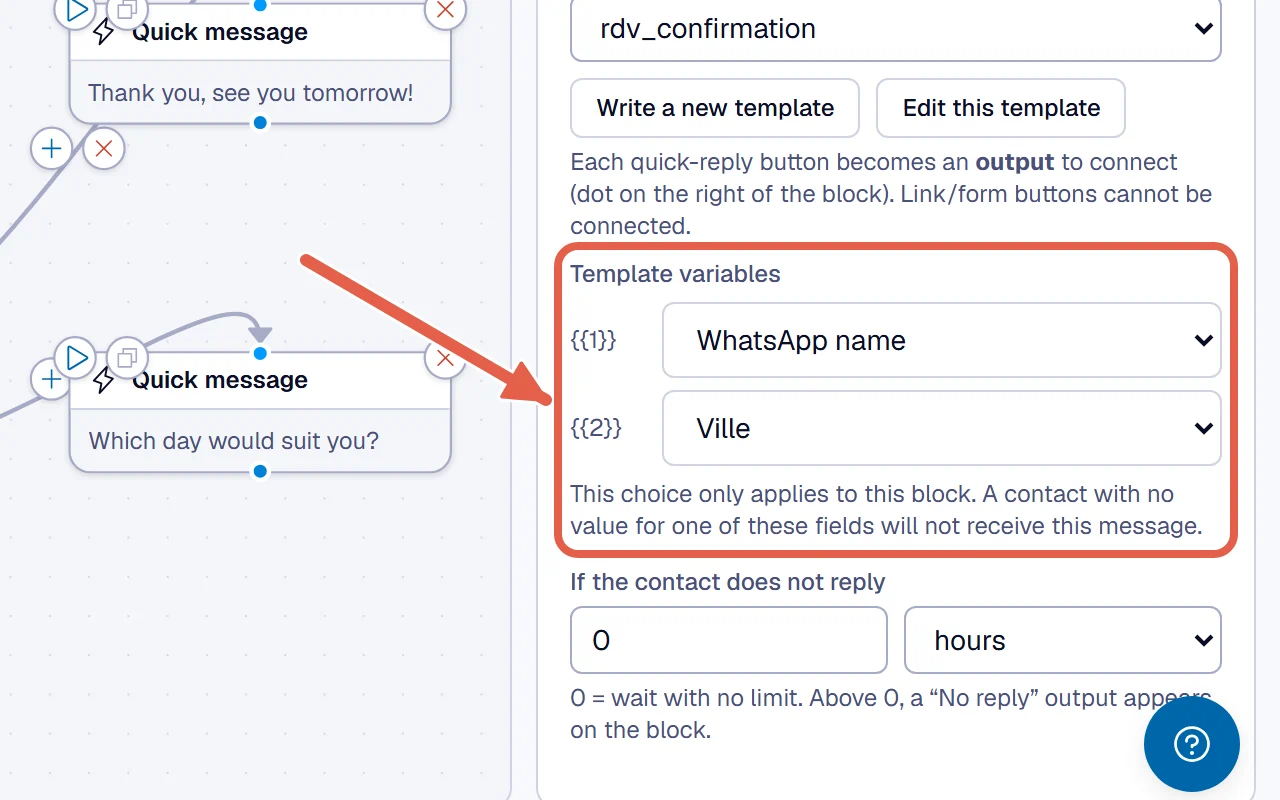
Under "Template variables", each {{1}}, {{2}}… has its list: a contact field, today's date or a fixed text.
In detail
- Each variable first follows the field chosen when the template was written. Your choice only applies to this block; the template and its approval by WhatsApp do not change.
- "Use the template fields" cancels your choices.
- A variable connected to nothing has a red border: the block will not go out.
- A contact whose field is empty does not receive the template: during a journey, the conversation goes to your team and the Error log says why; when a campaign is launched, it counts as a failure.
- "Today's date" is written DD/MM/YYYY, in Paris time.
- First template of a scenario launched as a campaign: its variables are chosen at the Content step of the campaign, which takes over your choices.
3. Connect each reply button
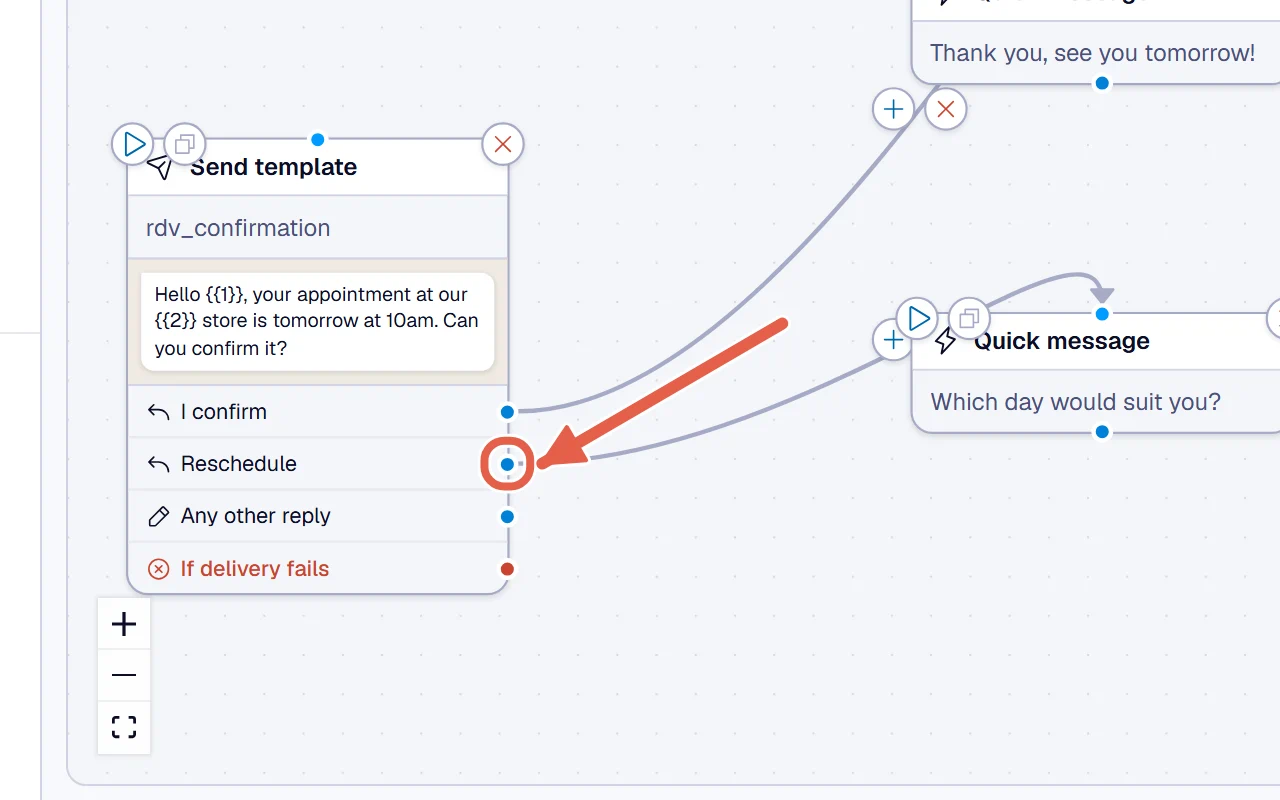
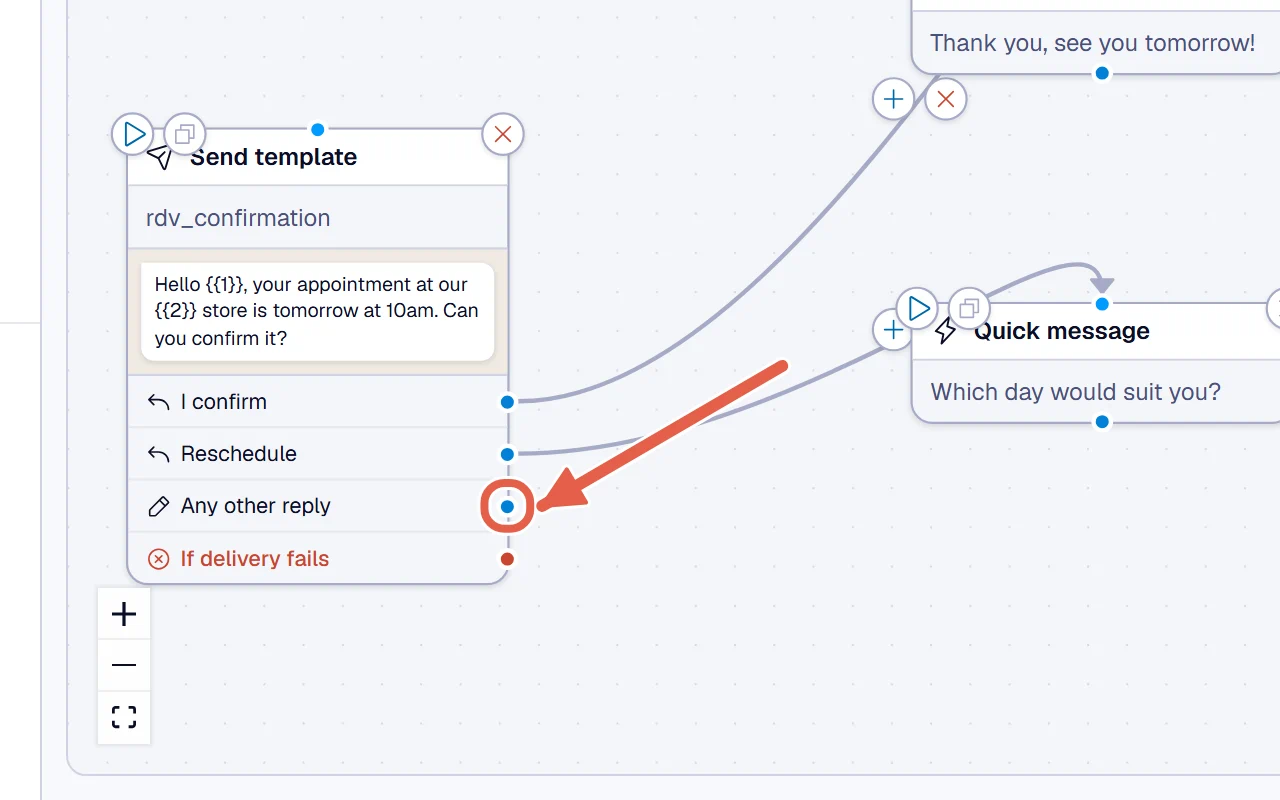
Each quick reply of the template becomes a dot on the right of the block: drag an arrow to the next block.
In detail
- Link or form buttons have no dot: they open a page and send nothing back.
- Carousel: each quick reply of each card has its dot, marked C1, C2…
- A red dot is a button connected to nothing. If it is tapped, the contact goes through "Any other reply" if it is connected; otherwise, they get nothing and the conversation goes to your team, in "To handle".
4. Plan for other replies
The "Any other reply" dot is used when the contact writes instead of tapping a button.
In detail
- An emoji reaction to the template counts as another reply.
- Connected to nothing, the journey stops and the conversation goes back to whoever usually answers your customers.
5. Plan for no reply
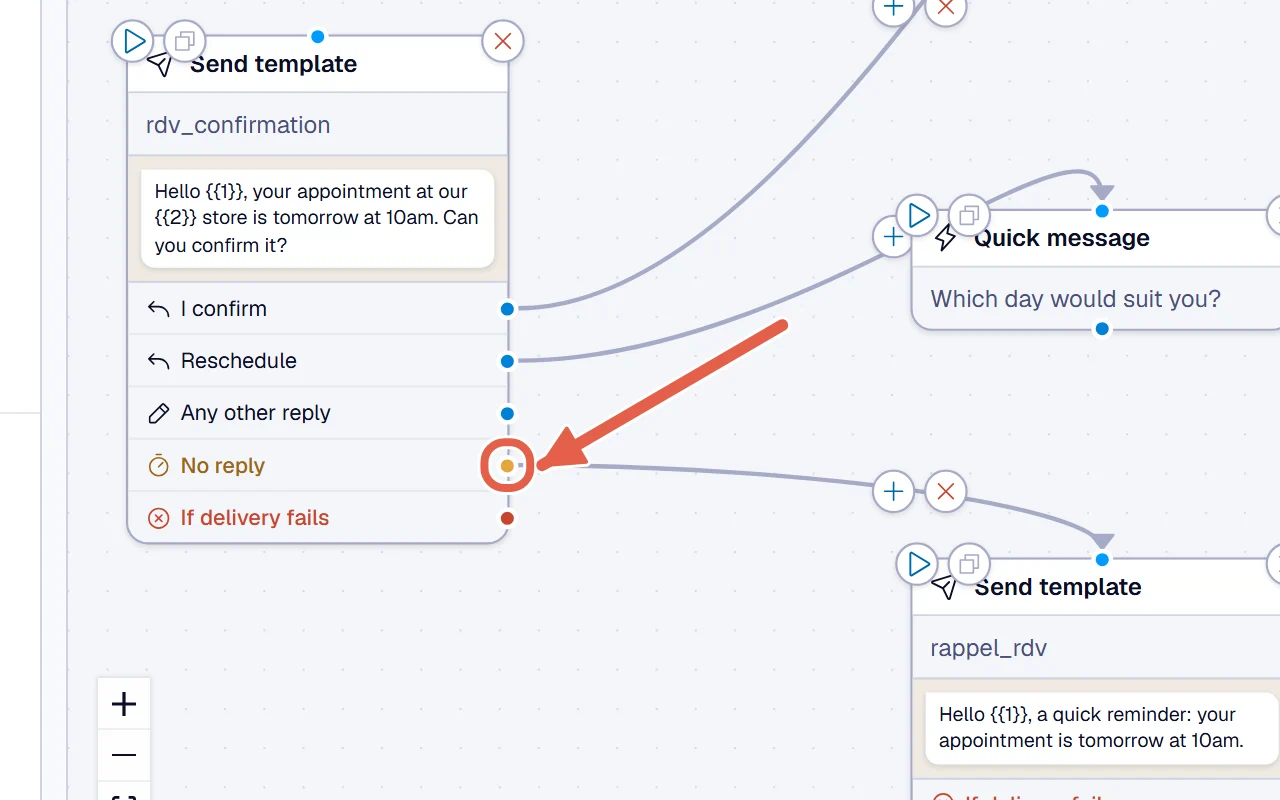
Under "If the contact does not reply", set a delay in minutes, hours or days (30 days at most): a "No reply" output appears on the block. Connect it to the follow-up.
In detail
- Once the delay passes without a reply, the journey goes that way; a button tapped or a message written before it takes its usual output. The delay is kept to about the minute; on a large campaign, the follow-ups are spread out.
- What follows this output goes out before the customer has replied: if the conversation was not open, it must be a template. The builder flags it in yellow, without refusing anything.
- A button tapped on an old message, once the follow-up has gone out, counts as a written message: it does not take the branch of the follow-up's button in the same position.
- A message that arrives at the very moment the follow-up goes out does not move the journey forward and gets no automatic reply: it waits for you in the Inbox.
- A template with a delay can no longer be sent on its own by an agent's tool.
- Setting the delay back to 0 removes the output and its arrow.
6. Chain after a template without buttons
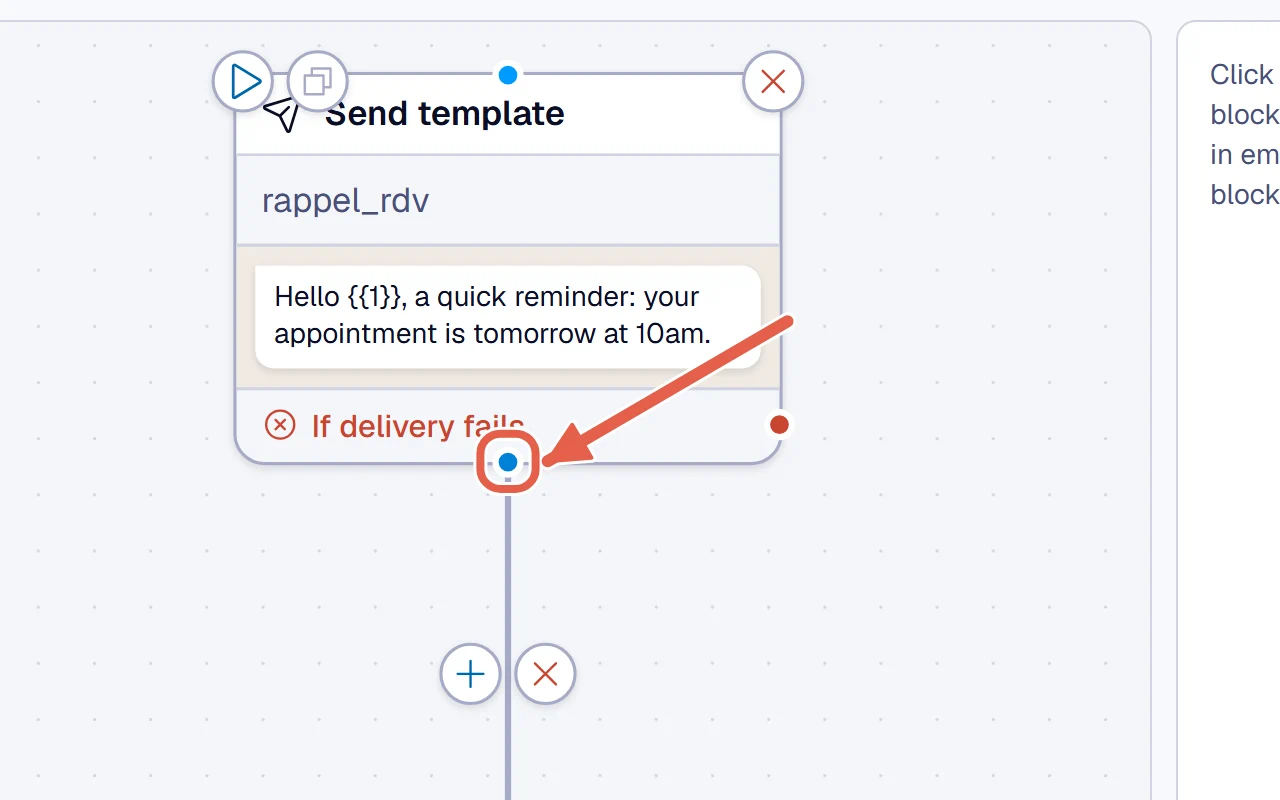
The block has only one dot, at the bottom: connect it to the next block.
In detail
- What follows goes out when the contact replies, whatever the reply. Without a reply, the journey waits with no time limit, unless a delay is set (step 5).
- Exception: if Meta's agent answers your customers, what follows goes out right away, unless a delay is set: the block then waits for the reply.
- If your team or Meta's agent took over the conversation, the contact's reply no longer moves the journey forward.
7. Write or edit the template without leaving the scenario
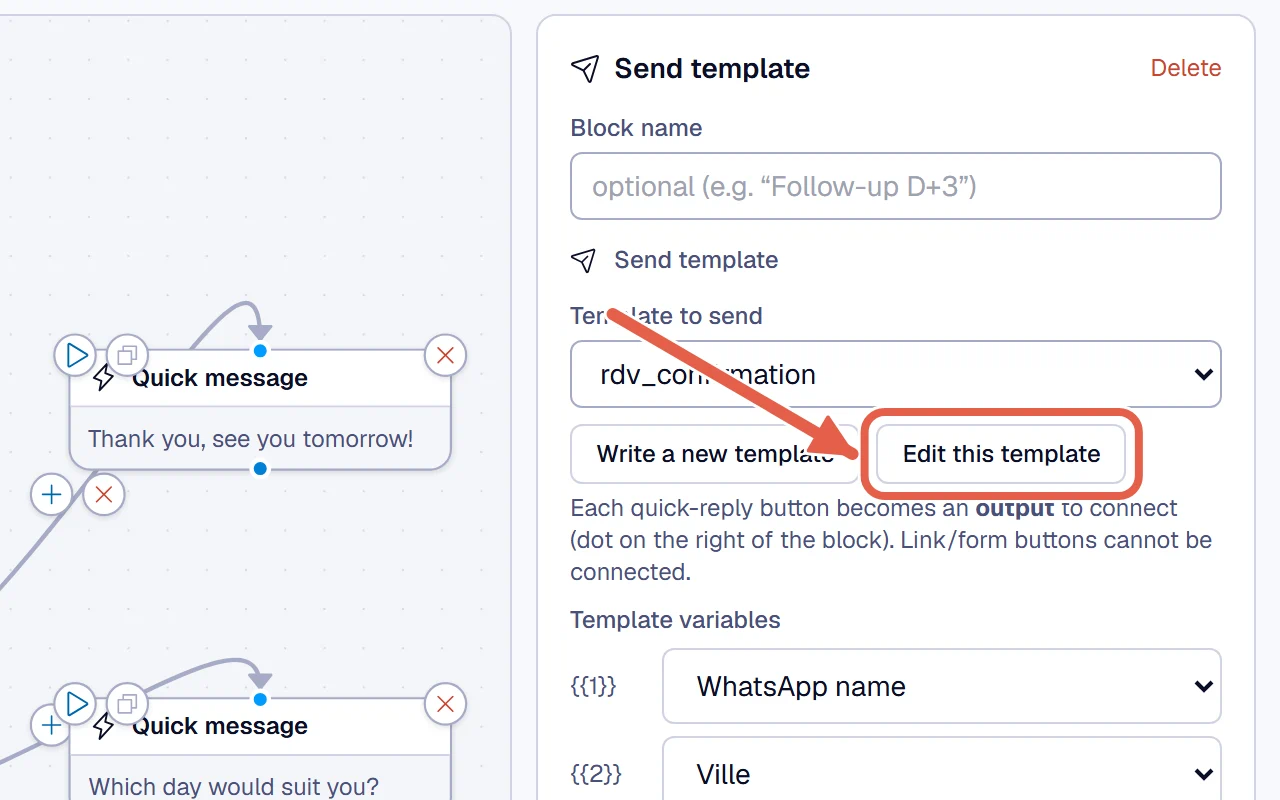
Under the list, "Write a new template" opens the Content > Templates form; "Edit this template" fills it with the block's template; "Edit", at the bottom right of the message in the block on the canvas, does the same. "Submit to Meta" sends it for review (a few minutes to a few hours), and the block takes it right away.
In detail
- Its name is created automatically from the scenario name. The block shows "Under review at Meta", then nothing once approved, or "Rejected" with the reason.
- "Edit" always creates a new template: the old one stays in Content > Templates and still goes out until the new version of the scenario is live.
- Until it is approved, it does not go out: during a journey (the test link plays the draft), the conversation goes to your team and the Error log says "under review at Meta".
- Publish the scenario: if the template is still under review, going live is scheduled and happens on its own at approval, and an e-mail tells you. A campaign running on this scenario prevents scheduling it: publish once the template is approved. "Cancel the scheduled publication" keeps the live version.
- Arrows follow the button text: a removed button loses its arrow, the others keep their branch. This is also true when you choose another template in the list.
- A carousel or an image, video or document header is created in Content > Templates.
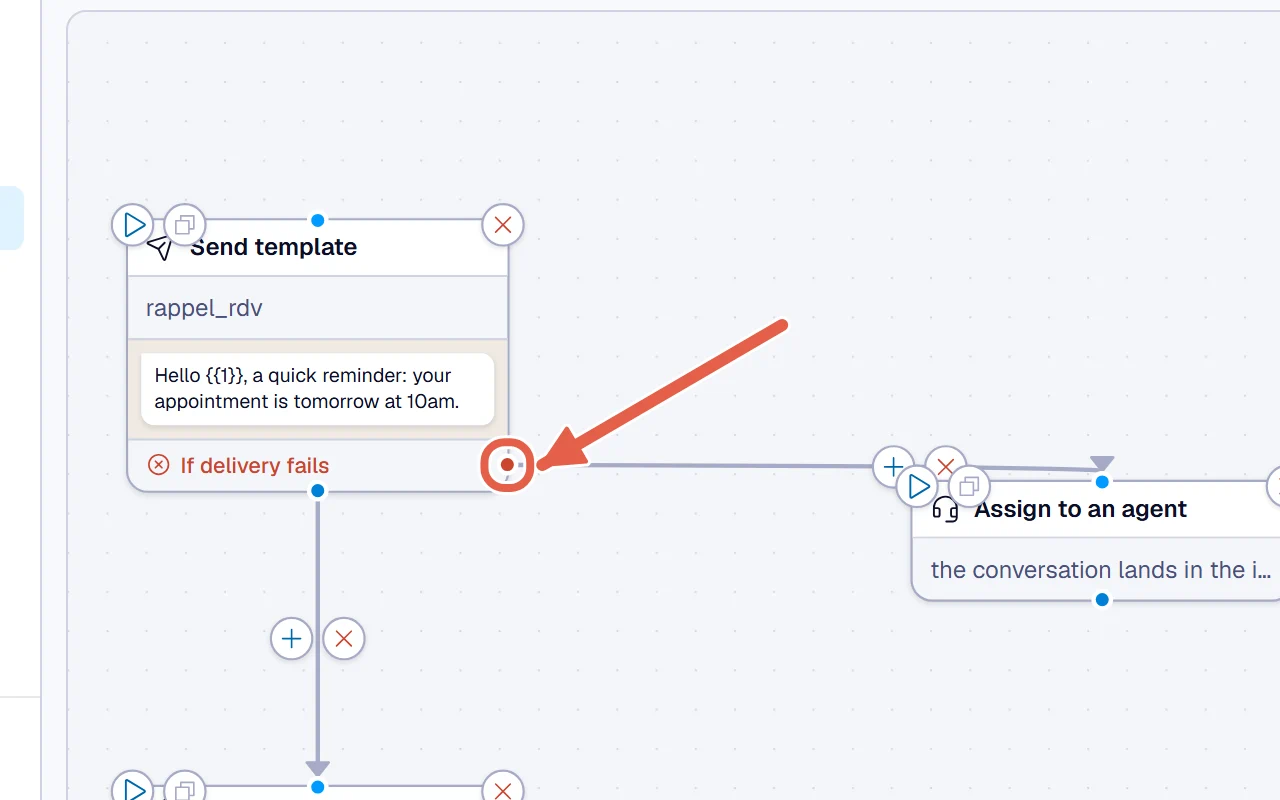
8. Plan for a failed delivery
Every Send template block has a red "If delivery fails" output: connect it to the fallback, for example an RCS message, an e-mail or "Assign to an agent".
In detail
- The journey takes it when WhatsApp could not deliver the template: a number without WhatsApp, a phone unreachable for too long. A template delivered but never read does not take it.
- A contact who replied STOP, or without consent for a Marketing template, does not take it either: they receive nothing.
- Once connected, the block waits for WhatsApp to confirm the delivery where the next step would have left at once (step 6): a few seconds usually, longer if the phone is off.
- In a Shopify or HubSpot campaign, a contact caught by this output is not retried a second time.