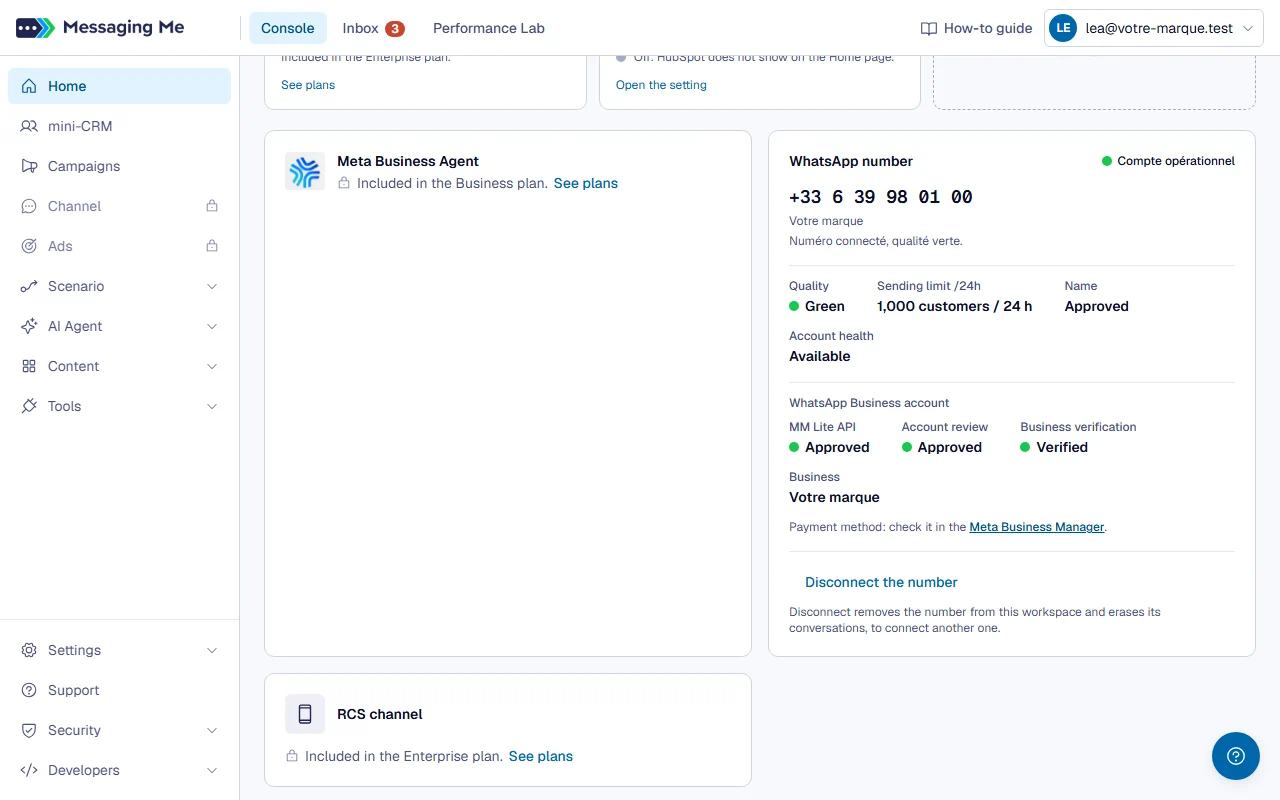
1. Choose your plan
Free, at no cost, is run from Claude Code or Codex. The Pro plan, at €49 a month, opens the whole console and starts with a 14-day free trial: you subscribe on Stripe's page, then come back to the next step. Business and Enterprise are requested through the contact form.
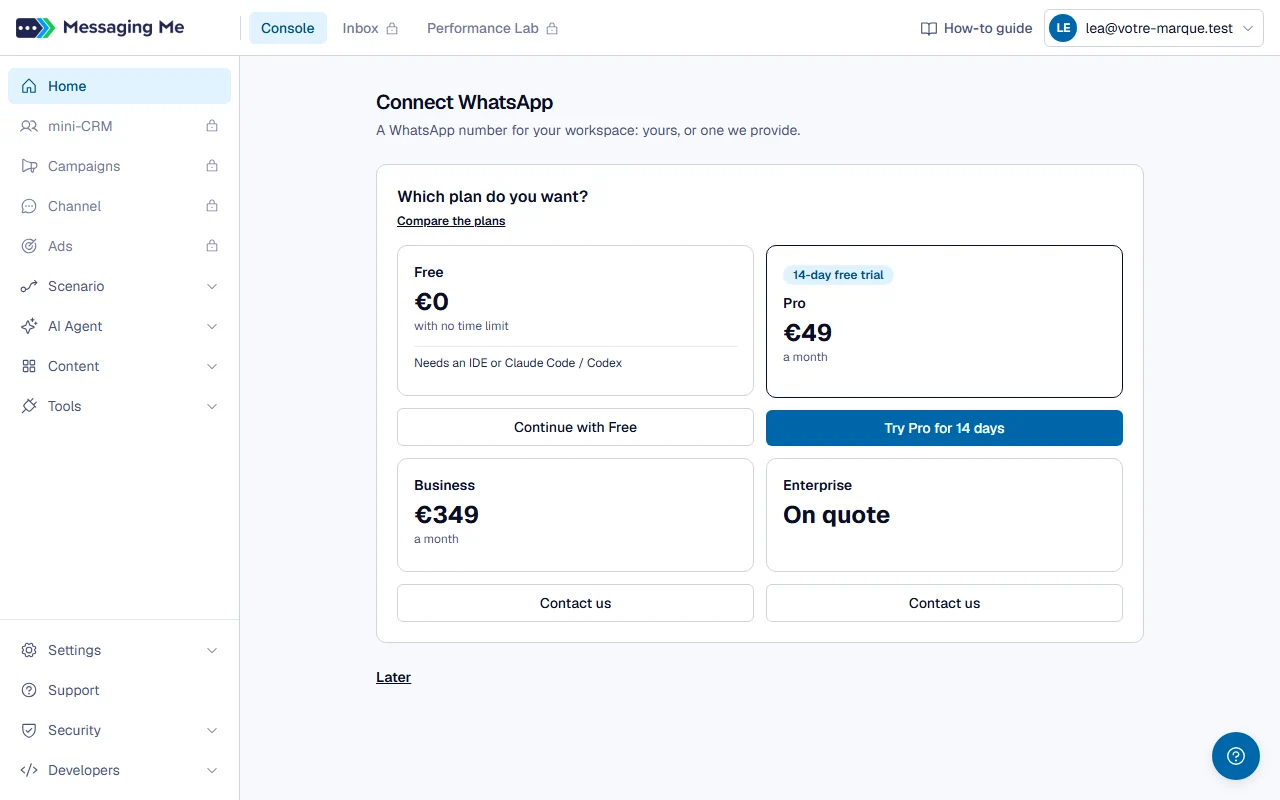
2. Choose how to pay for your Meta messages
Meta bills each template you send. Two solutions: you pay Meta yourself, with a payment method on your Meta Business account, or Messaging Me advances these costs for you, with the credit line. Nothing is chosen in advance: the next step only appears once you have answered.
In detail
No card is needed to connect your number: the payment method at Meta is added afterwards, on your Meta Business account, before your first templates. See “Pay Meta: add your card”. The credit line costs €30 per number per month, with the Pro or Business plan: you top it up by card in Messaging Me, and on Enterprise it is invoiced. See “Pay for your messages without a card at Meta”. A number that keeps the WhatsApp Business app stays on your payment method at Meta.
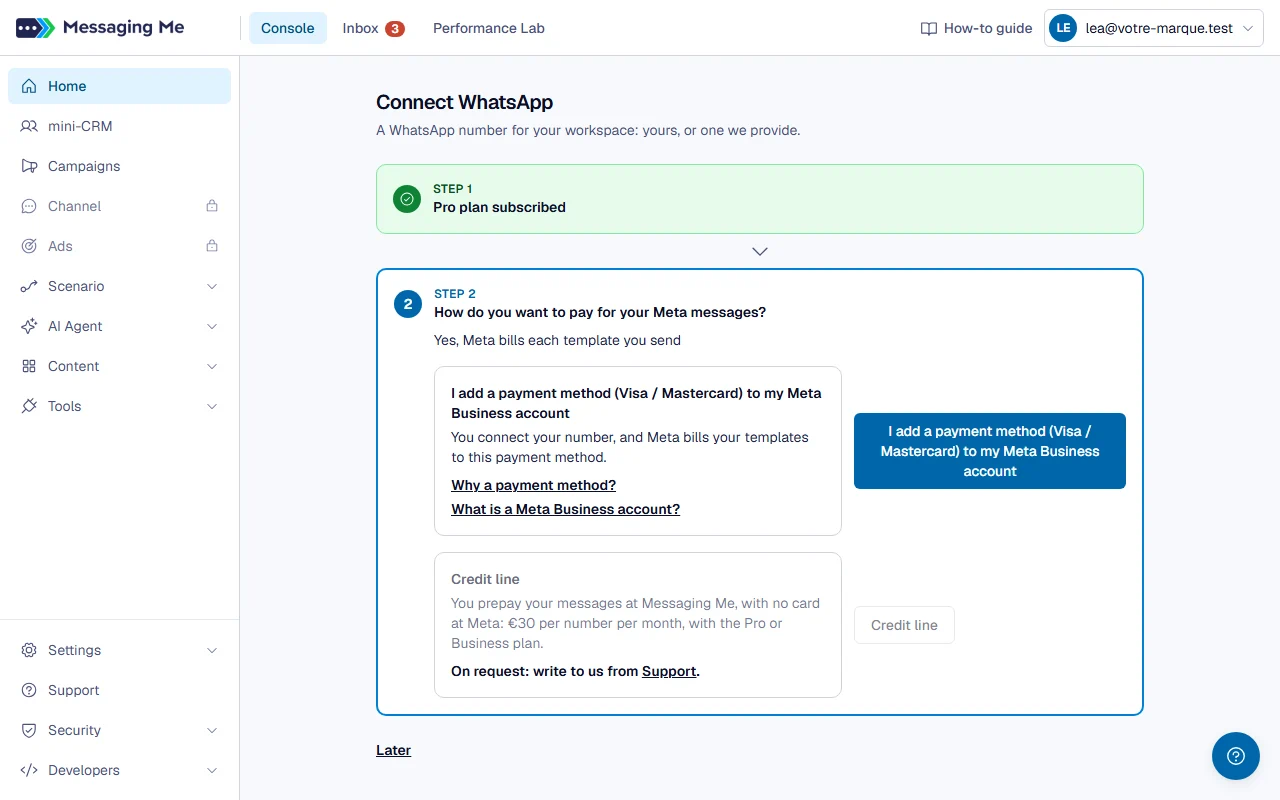
3. Your number, or ours
A few questions decide the path: do you have a Meta Business account, a WhatsApp Business app, do you want the app or the API, do you have a number of your own. You have a number: you connect it. You don't: “Provide me a number” gives you a dedicated UK number, included in the Pro plan, and €3.50 a month without it.
In detail
Without a Meta Business account, “How do you want to use WhatsApp?” lets you choose, unless you keep your app's number. “With the app”: the number, yours or ours, goes in your WhatsApp Business app (to install first if you don't have it, two accounts at most per app), and you keep it; you also reply from your phone, the name and photo are set there, and you pay Meta with your card. “Through the API”: everything goes through Messaging Me (automatic replies, campaigns, a shared Inbox), and the display name is customized at Meta, which reviews it. See “Keep my WhatsApp Business app” and “Get a number provided by Messaging Me”.
For the provided number, you pay on Stripe's page (a promo code goes there, if we gave you one; during the Pro plan's trial, its €3.50 is deducted from your first Pro plan invoice, and not refunded if you do not keep it), then the number shows. In Meta's window, choose “Enter a new phone number”, the country GB (+44), then the digits after +44; to get the code, choose “Phone call”, NOT “Text message”: the code shows within seconds on the page, in the “The code will appear here” box, under your number. With no code after 45 seconds, request it again, still by “Phone call”. If Meta refuses this number, “Get another one” gives you a new one.
4. Meta's window
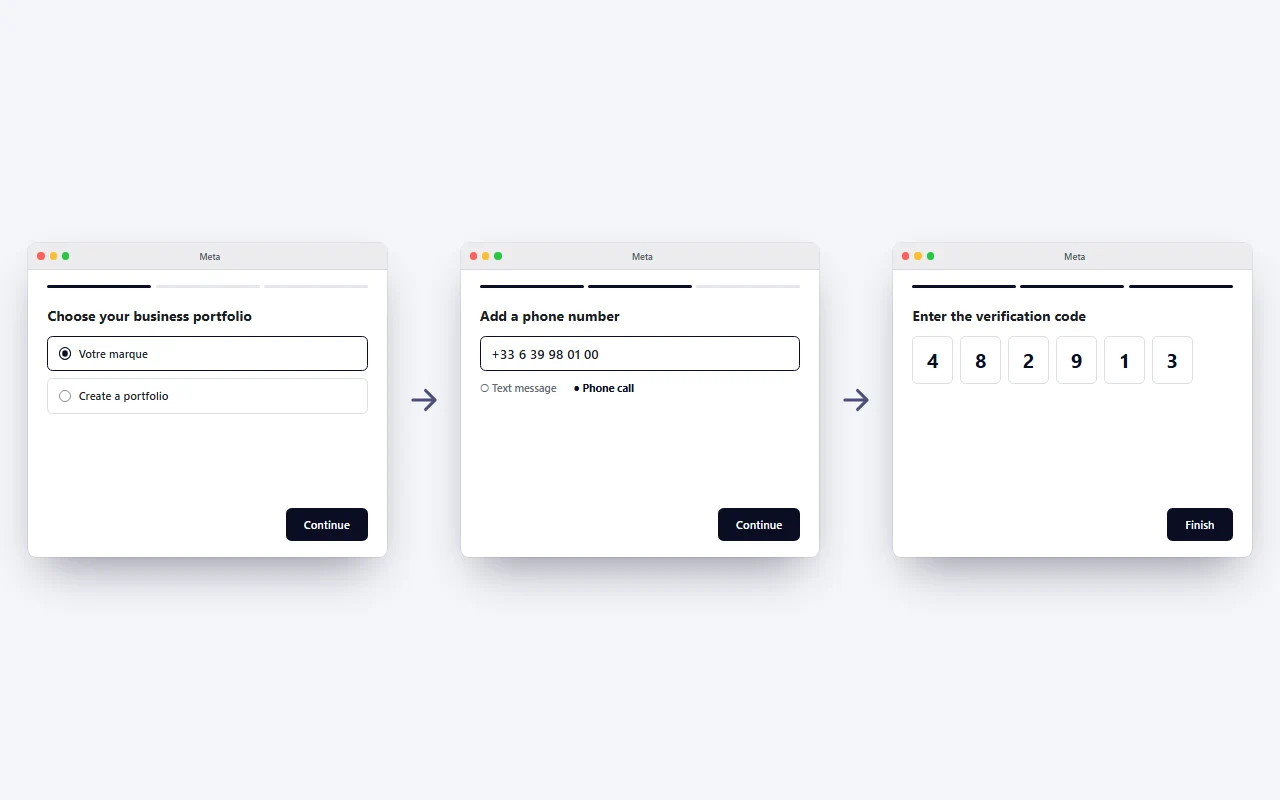
There you choose your business account and your number, Meta sends you a code, you enter it, and you go to the last screen (“Finish”).
In detail
No Meta Business account? The window has you create it along the way. If you had already started, starting again works: you find the existing account and number. When Meta refuses, its own reason shows.
Sometimes Meta finishes without having verified the number: the number card says so, and “Activate the number” gets you a code. Meta only tolerates ten code requests per number over 72 hours: the screen never retries on its own.
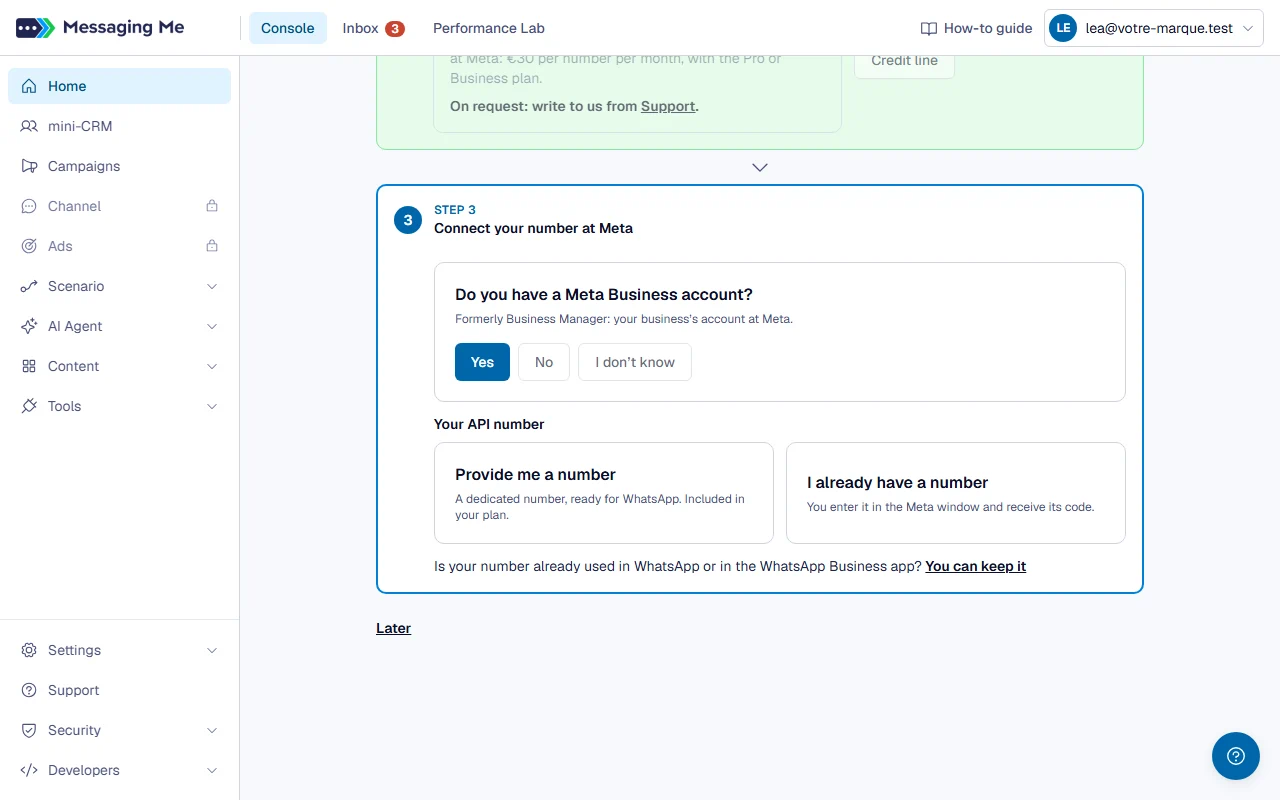
5. Read the number's status
The number card shows your WhatsApp profile picture, the account status as a coloured badge, the number's quality, your display name and how many customers you can write to per 24 hours.
In detail
The number of customers reads “Not yet evaluated by Meta” until Meta decides. When a status cannot be read, the screen says “Status unavailable” with a Retry button. Just below, the WhatsApp Business account panel shows Meta's review of the account, your business verification and the owning business. With the Pro plan, four figures over 30 days open the page: contacts, messages exchanged, templates sent and estimated cost.