It applies to a number that does not keep the WhatsApp Business app: a number that keeps it is paid with your card at Meta. The option is taken on the Pro plan from its trial, or on a confirmed Business plan; taken during the trial, it stops with no refund if the Pro plan does not continue after the 14 days. Every step on this page is for the workspace's administrators only.
1. Take the option
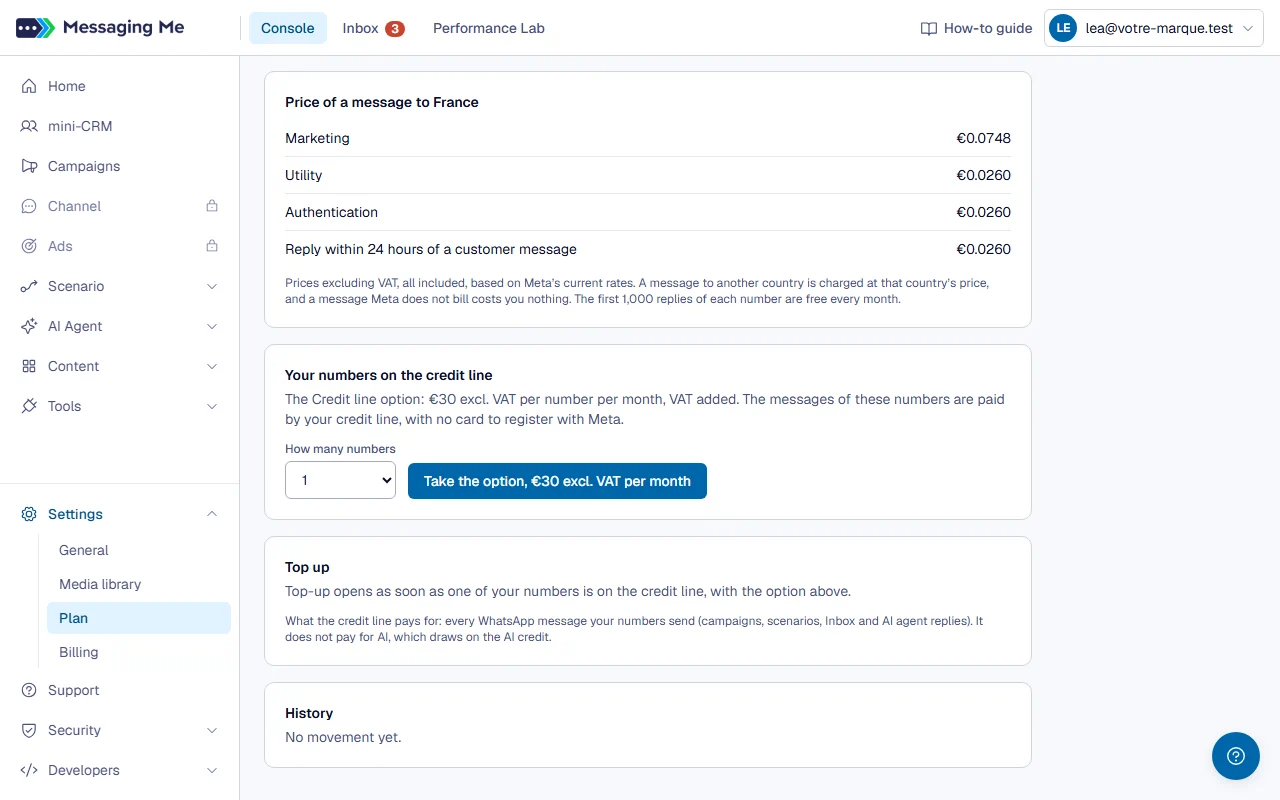
In Settings > Plan, Credit line tab, choose how many numbers, then “Take the option”: Stripe’s payment page opens. The option is paid when taken, even during the Pro plan trial. The “Credit line” card of the “Connect WhatsApp” page offers it too.
In detail
From Claude Code or Codex, tell it “I want my messages paid by the credit line”: it gives you the option’s payment page, then the connection link once the option is paid.
2. Connect your number without a card
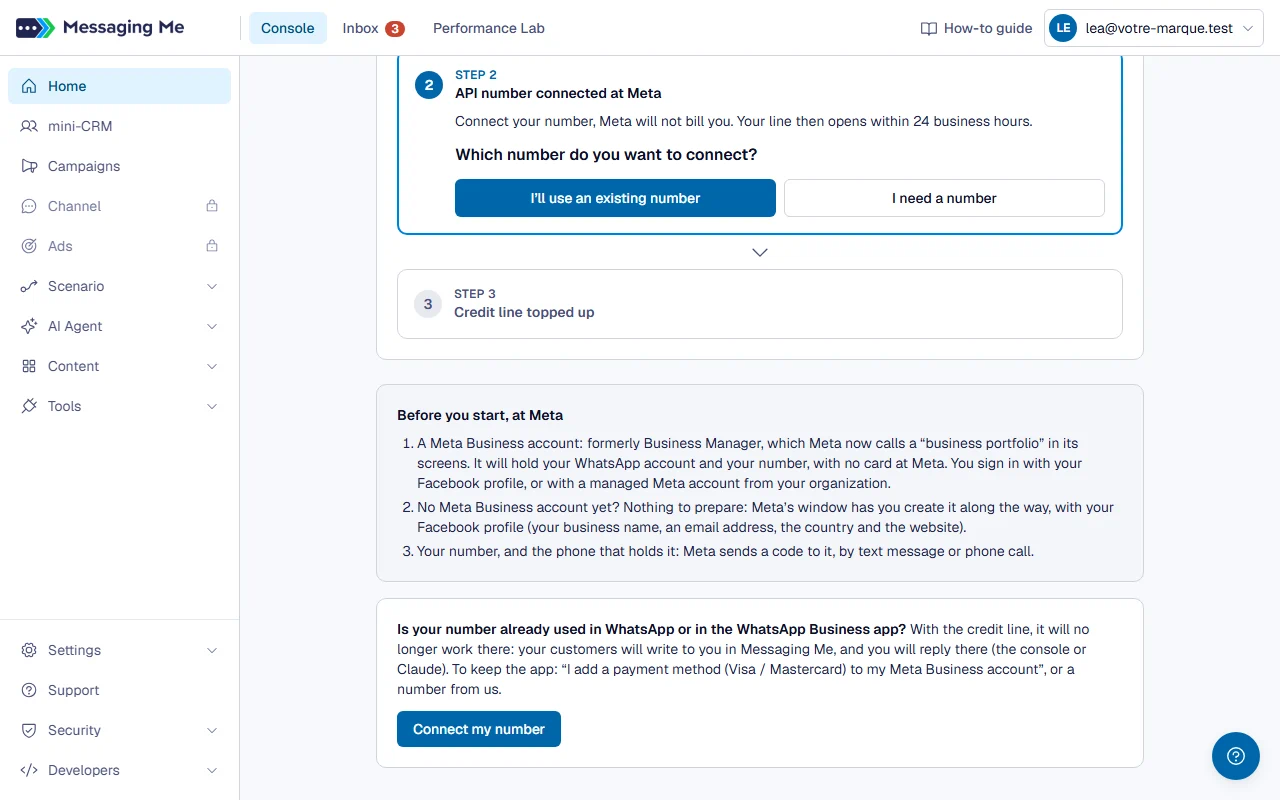
On the “Connect WhatsApp” page, the “Credit line” card asks “Your number, or ours?”. Your number: “I’ll use an existing number”, then “Connect my number”. Ours: “I need a number”, “Get my number”, then “Open the Meta window”. Either way, Meta’s window opens without asking for a payment method.
In detail
“I’ll use an existing number”: your number, with the phone that holds it, where Meta sends a code. “I need a number”: a number we provide, included in your plan. Your number’s line opens on connection, within 24 business hours at most. From Claude Code, the connection link opens the same window, with no card.
Is your number already connected with your card at Meta? The credit line can’t take it over: to change this, write to Support. To benefit from it, connect your number without a card from the start.
3. Top up your credit line
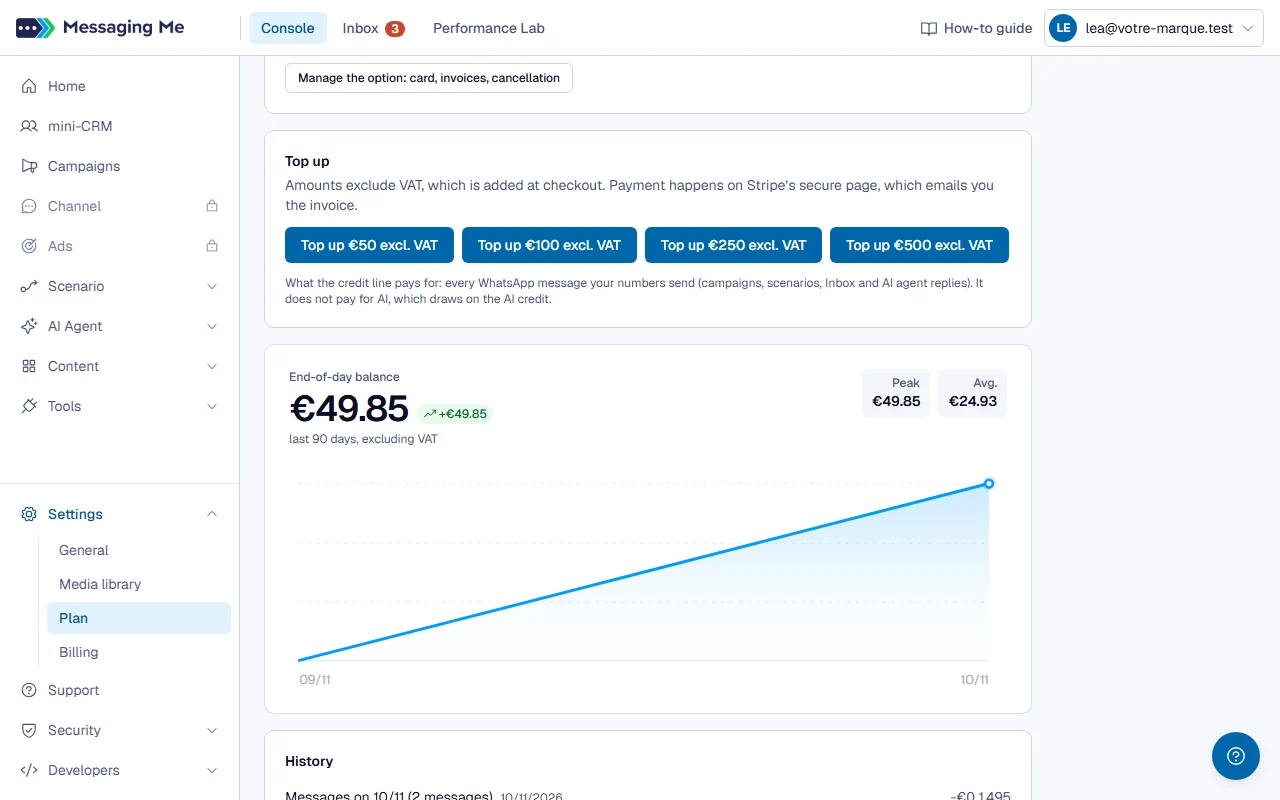
Its balance starts at zero: before your first templates, top it up in the Credit line tab, by €50, €100, €250 or €500, through Stripe’s payment page. The tab shows the price of a message to France, category by category, all included. At zero, no message goes out any more, replies included.