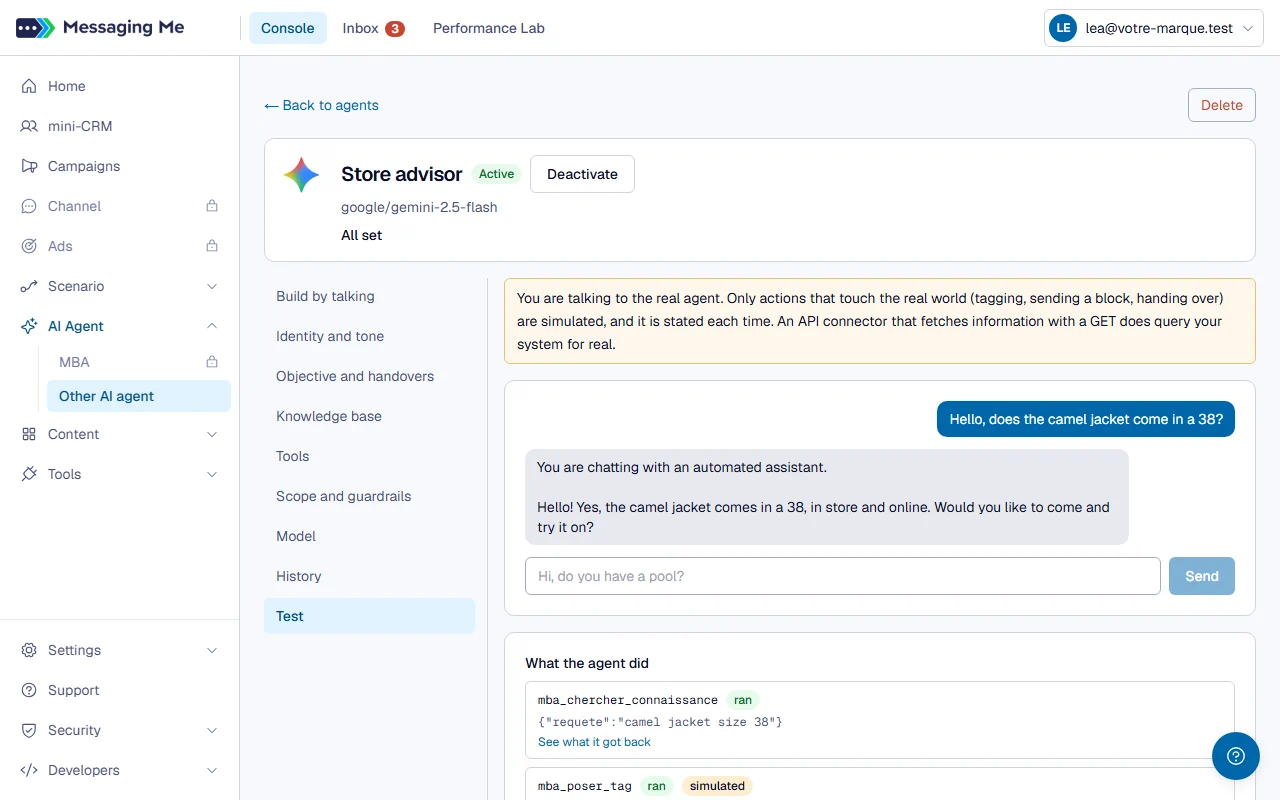
1. Write to it like a customer
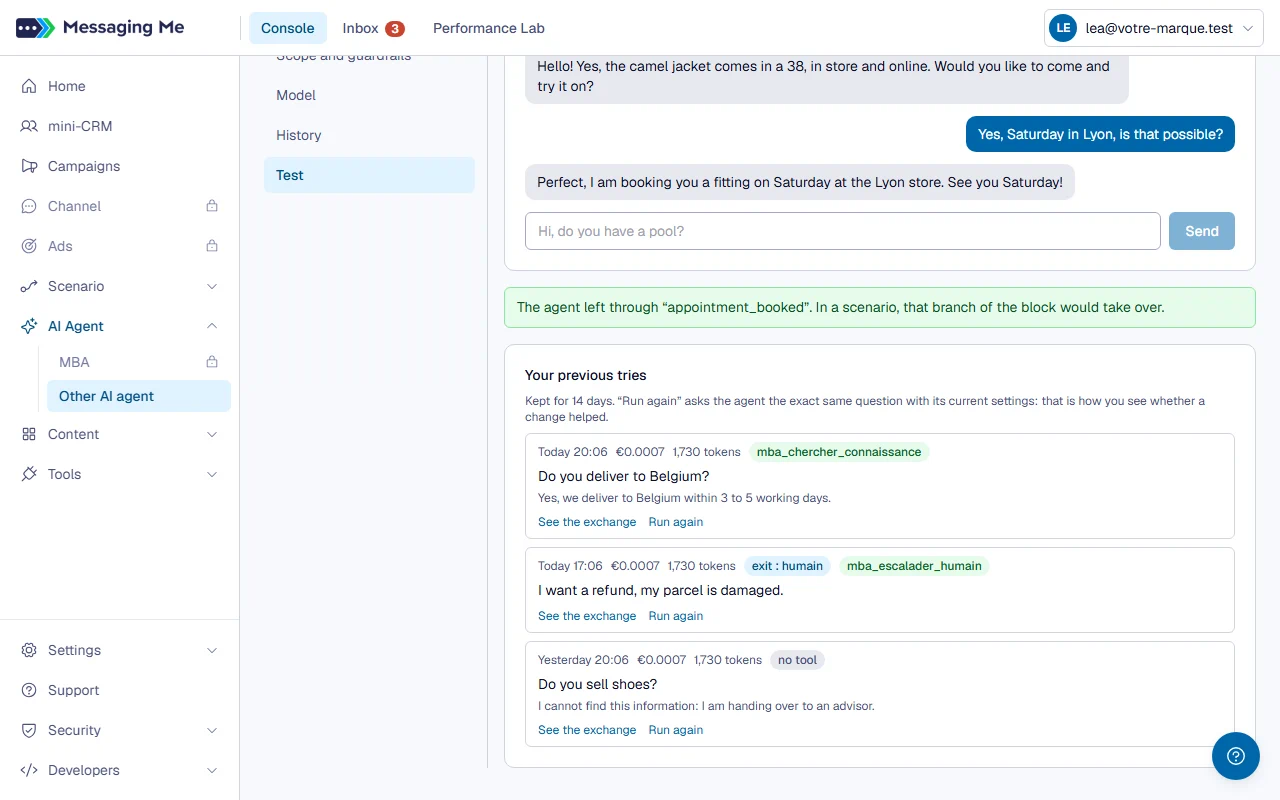
“Test” tab: write what a customer would write to you, then “Send”. Carry on the exchange over several messages, as on WhatsApp.
In detail
- The AI disclosure appears at the top of its answer, as the contact will read it.
- A try really calls the model: it is paid from your AI credit like a conversation, and with no credit the tab refuses.
2. Read what the agent did
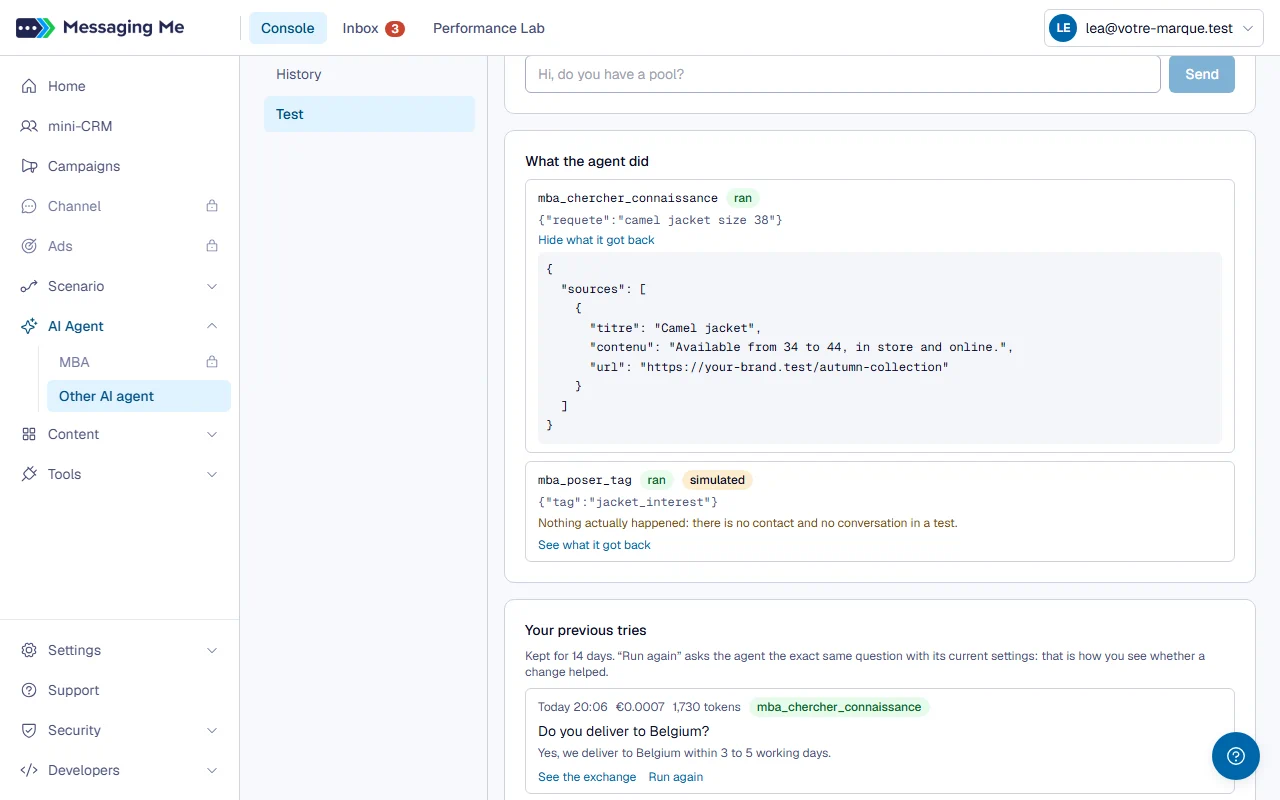
Under the conversation, “What the agent did” lists each tool called, with what it asked. “See what it got back” shows the tool’s answer.
In detail
- It is the first thing to read in front of a bad answer: “it did not find” and “it did not even search” are not the same flaw.
- What touches the real world is simulated, and marked “simulated”: tagging, sending a block, handing over, marking urgent, triggering an action. There is no contact and no conversation in a try.
- An API connector call that only reads your system (a GET request, given to the agent as “it retrieves information”, with no contact data) really goes out: you see a real quote, and your system is queried every time. Other calls are simulated, with sample values.
3. Read the exit
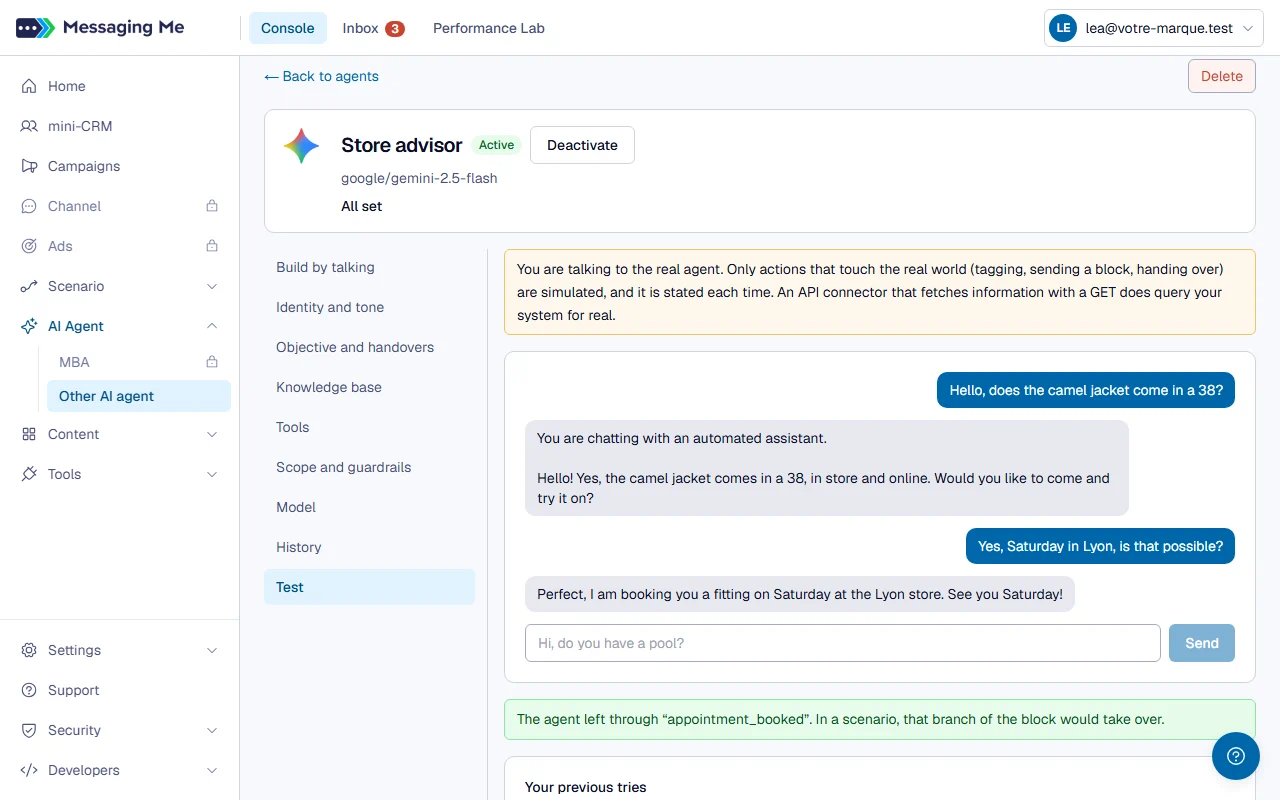
When the agent leaves, a banner says through which output: in a scenario, that branch of the block would take over.
In detail
- “Answer refused” means the model imitated a tool result instead of calling one. It is not a cap to raise: check that its tools are active, otherwise change the model.
- When the agent starts a scenario, the try stops with no exit, and a banner says so: in a real conversation, the scenario takes over and the agent goes quiet.
4. Ask the same question again
“Your previous tries”, under the conversation: “Run again” asks the agent the exact same question with its current settings.
In detail
- That is how you tune an agent: change an instruction, then ask the same question again to see whether the answer moved.
- Each try is kept fourteen days, with the time, its cost, its tokens, the exit taken and the tools called, visible without opening anything. “See the exchange” replays it in full.
5. Find what changed
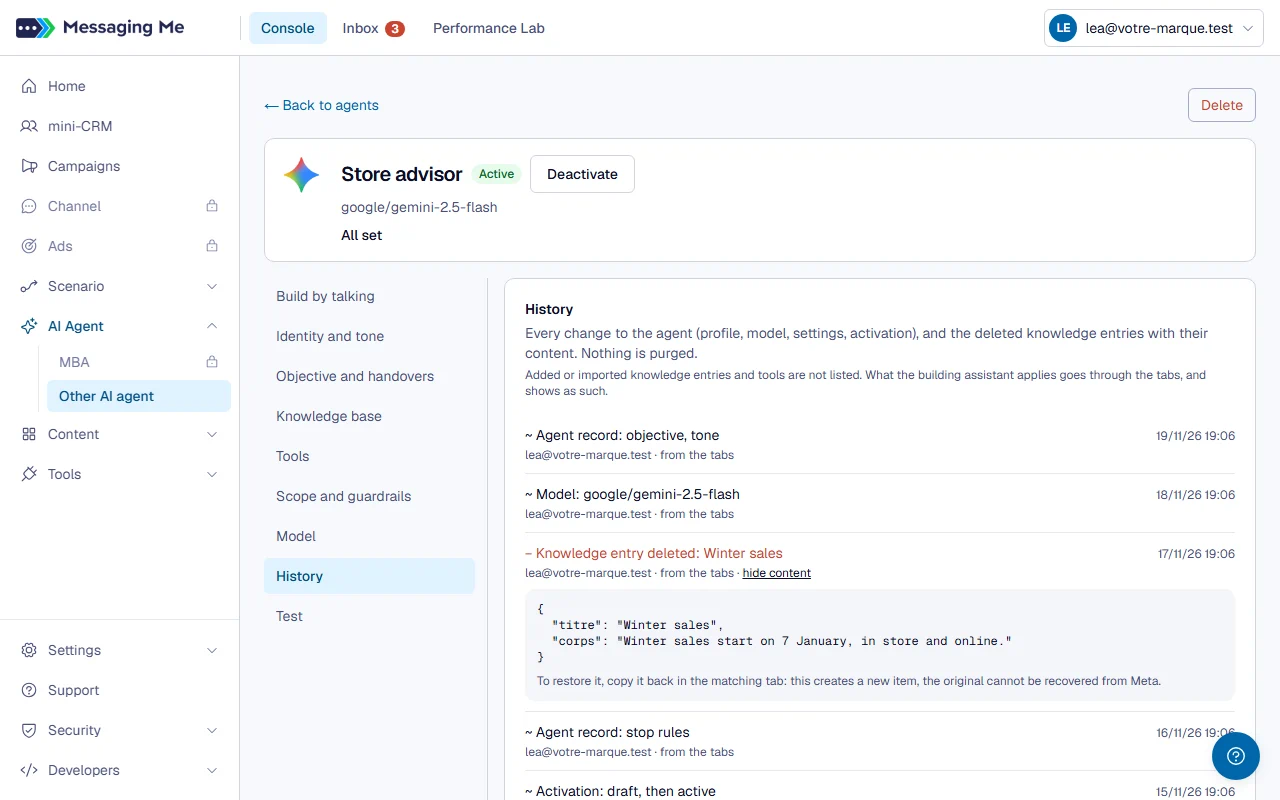
“History” tab: each change to the agent (its record, its model, its settings, its activation), with who made it, when, and from where: from the tabs, or by Claude.
In detail
- A deleted knowledge entry leaves its content there, even deleted along with fifty others: “show deleted content”. There is no recycle bin, that line is the only copy.
- What the setup assistant saves goes through the tabs, and shows as such.
- Entries added or imported and tools are not listed there, and the screen says so. Nothing is purged.
- Admins only.