
From the console, with the Pro plan
The console guides you from start to finish, in eight steps.
1. Open the Shopify card
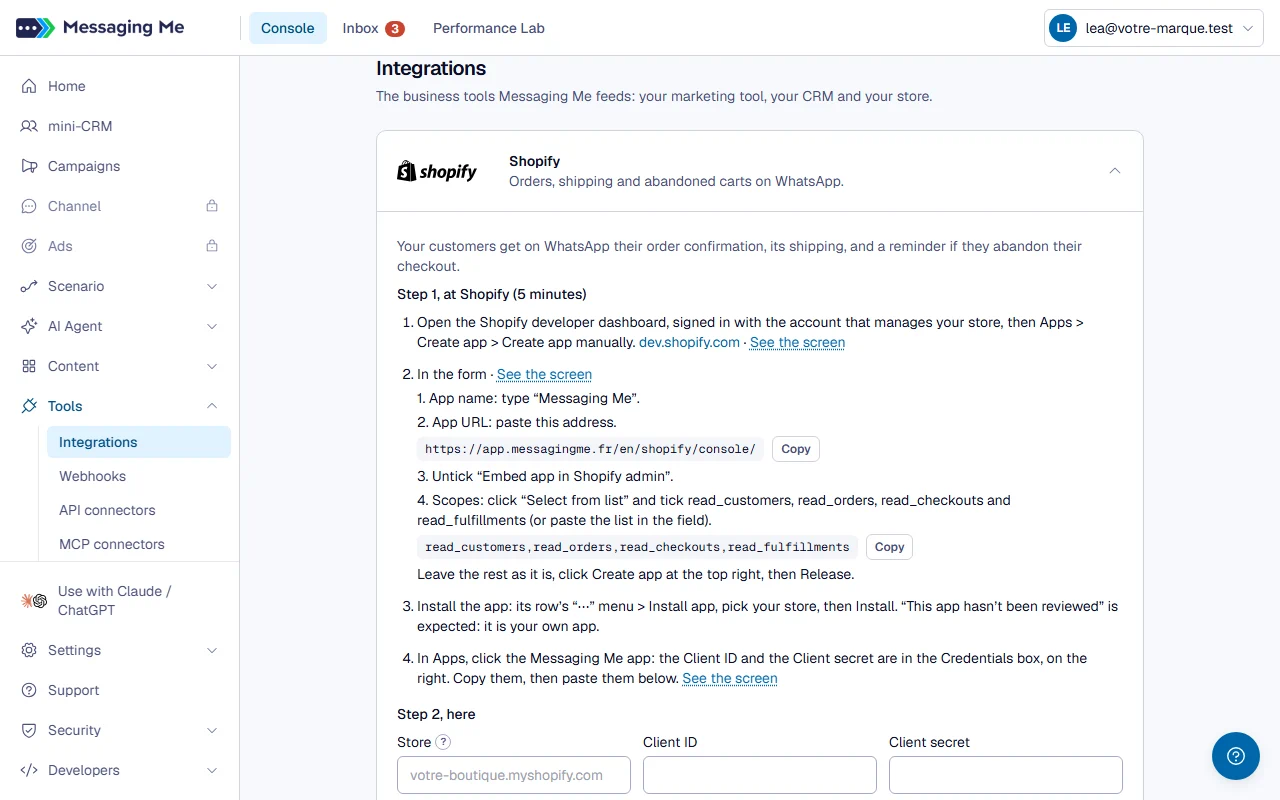
In the Tools > Integrations menu, the Shopify card says what it does and guides you in two steps, the first at Shopify, the second in the console.
In detail
It only shows to the workspace’s administrators.
2. Create your app at Shopify
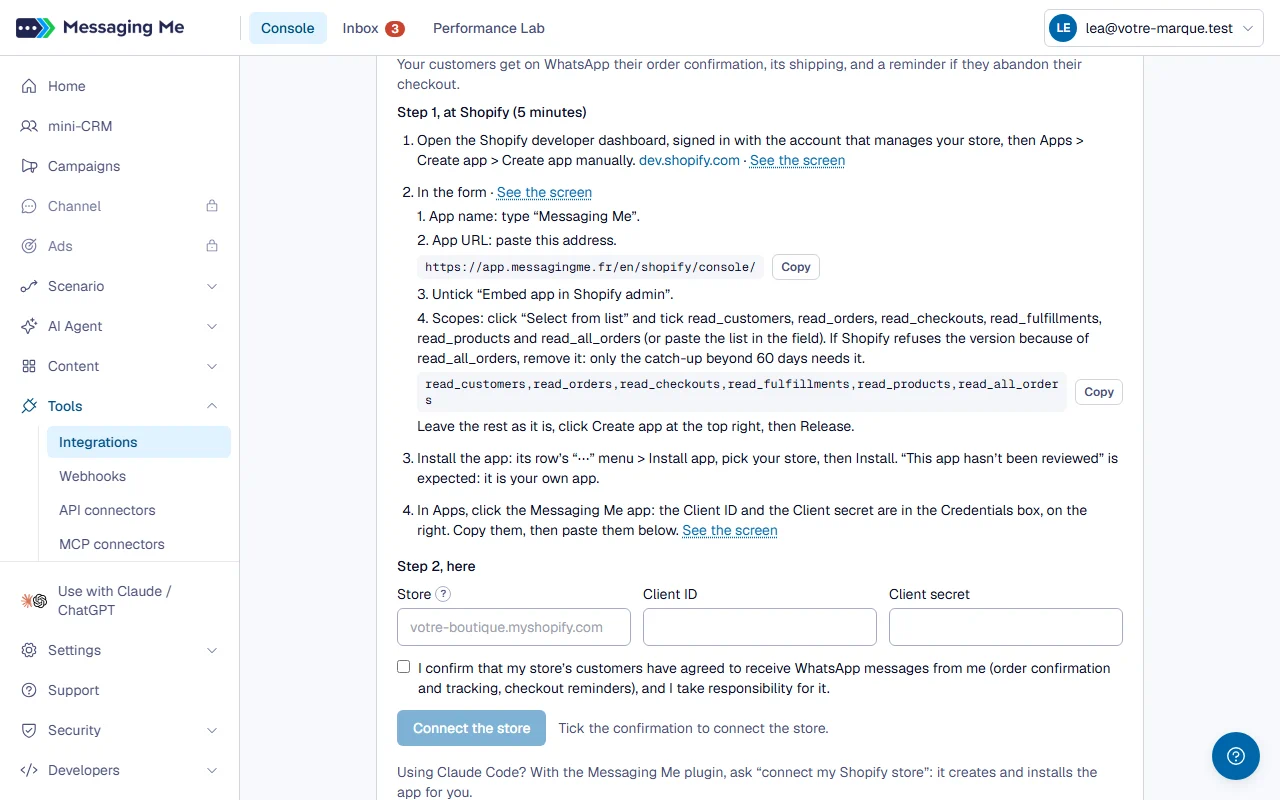
On the Shopify developer dashboard, signed in with the account that manages your store, create the app manually (Create app manually) and paste the address and the scopes that the card lets you copy in one click. Allow five minutes.
In detail
Untick “Embed app in Shopify admin”, leave the rest as it is, then Create app and Release. Then install it on your store: the message “This app hasn’t been reviewed” is expected, it is your own app. Finally, open the app in Apps: its Client ID and its Client secret are in the Credentials box, on the right. If Shopify refuses the release because of the read_all_orders scope, remove it from the list and release again: only reading orders older than 60 days will need it.
3. Connect the store
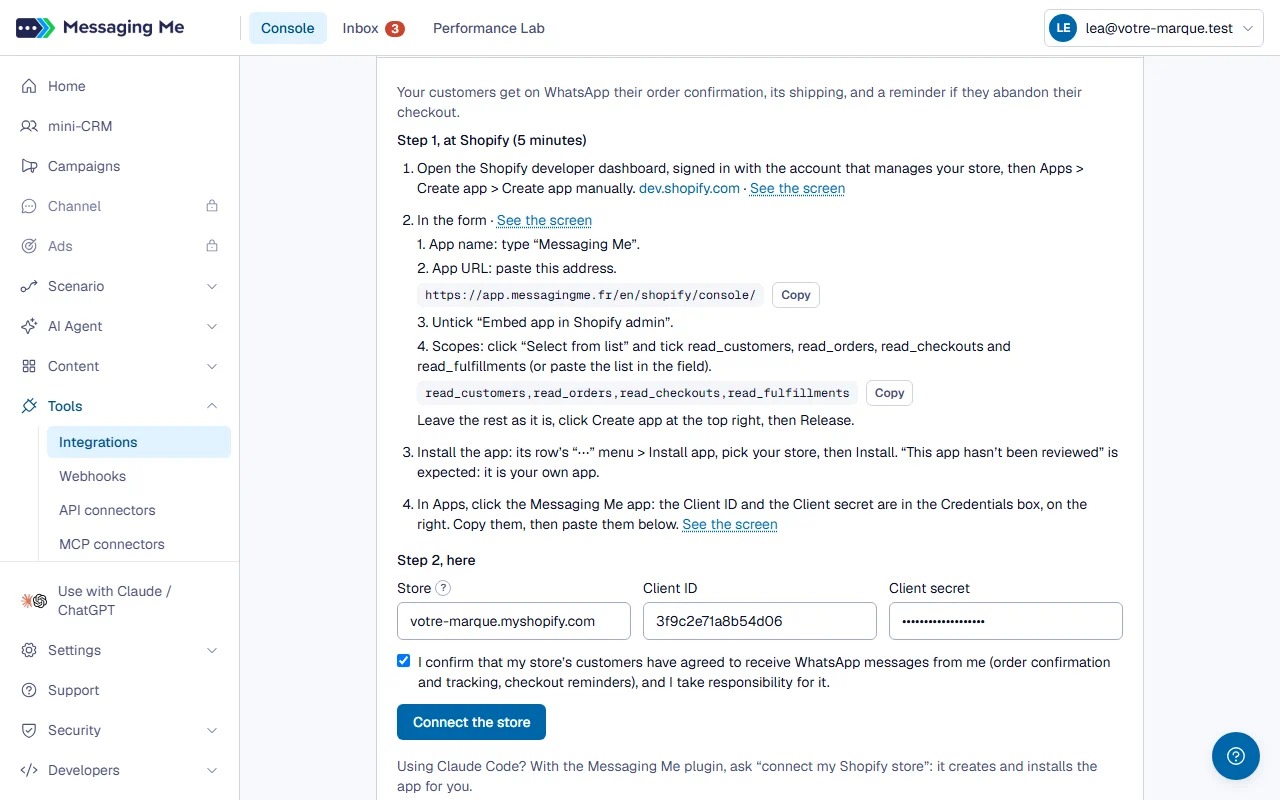
Back in the card, paste the store's internal name (the one ending in .myshopify.com, not your website's public address: the “?” bubble says where to read it), the Client ID and the Client secret, tick the confirmation, then “Connect the store”. Your three messages are written at once and sent to Meta for approval.
In detail
With this box, you confirm that your store’s customers have agreed to receive your WhatsApp messages, offers included, and you take responsibility for it: Meta requires their agreement for any message you send them first. Without it, the store does not connect. The sentence, the date and your address are kept.
4. See your messages, then switch them on
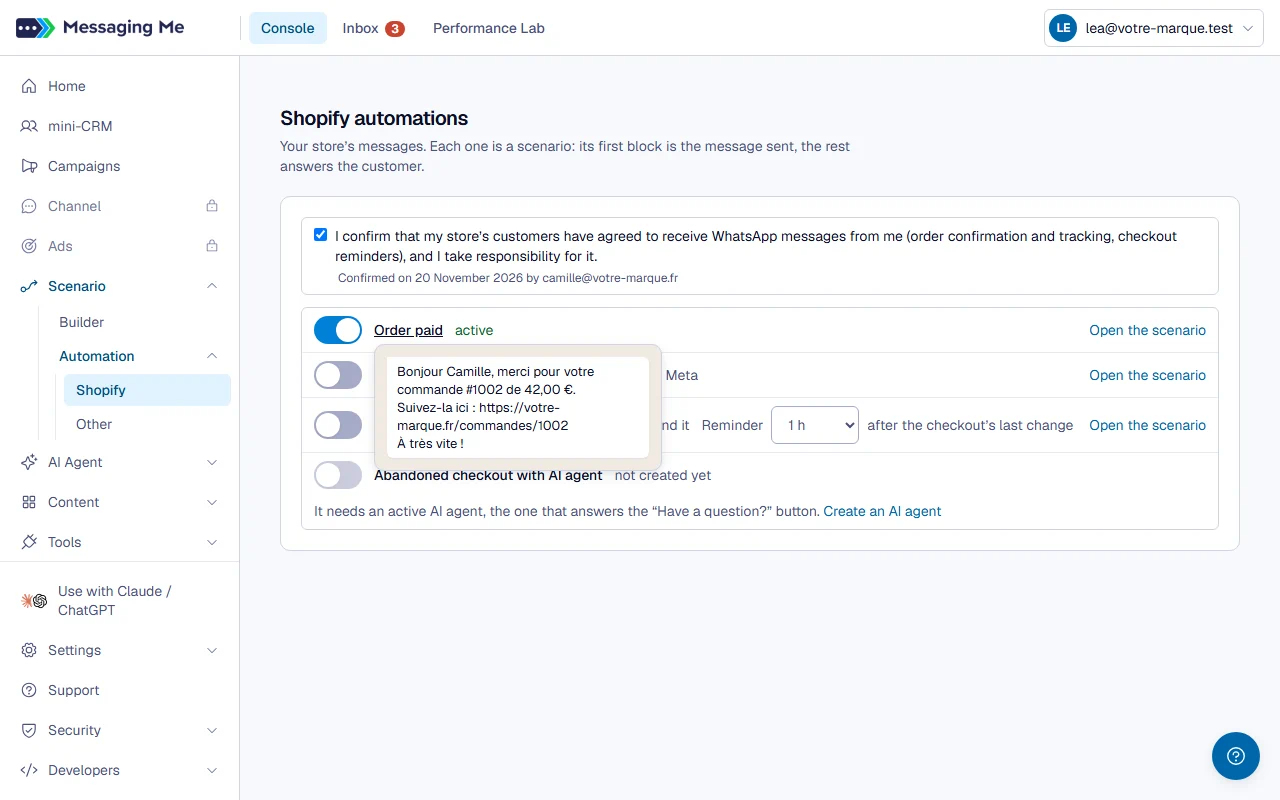
Scenario > Automation > Shopify lists your automations: Order paid, Order shipped, Abandoned checkout and Abandoned checkout with AI agent (below). Hover over a line to read its message, with examples in place of the data; click it to open its scenario.
In detail
The first name, the order number, the links to the order or the parcel are already linked, and the checkout message has its “Reprendre mon panier” button (back to my cart). Meta usually approves within minutes: the line goes from “off, message under review at Meta” to “ready: turn it on to send it”. Nothing goes out to your customers until you turn its switch on; switched on during the review, it sends for the events that come after the approval.
For the checkout, also choose the delay after its last change: 15 min, 1 h (by default), 3 h or 24 h. Switching an automation off stops its journeys under way.
At the top of the page, the confirmation box says when and by whom it was ticked. Without it, no automation switches on. Unticking it switches your three automations off: the console asks you first.
5. Improve the message, if you want to
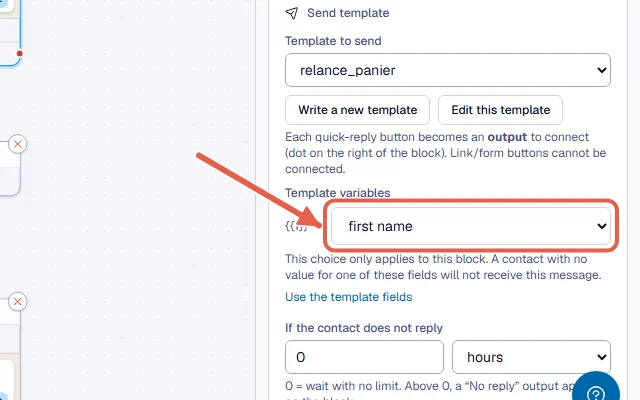
In the scenario, the first block, marked “first message”, is the template the event sends. “Edit this template” reworks it and keeps its Shopify data; you can also choose another one, or “Write a new template” and link its variables. Finally, “Publish”.
In detail
The new text goes out as soon as Meta approves it; until then, the old one carries on. A template written from an automation belongs to it: do not reuse it elsewhere, it is deleted at Meta shortly after it is replaced. The first block itself cannot be deleted. The scenario opens under the list of your automations; “Close” folds it.
6. Build the follow-up, if you want one
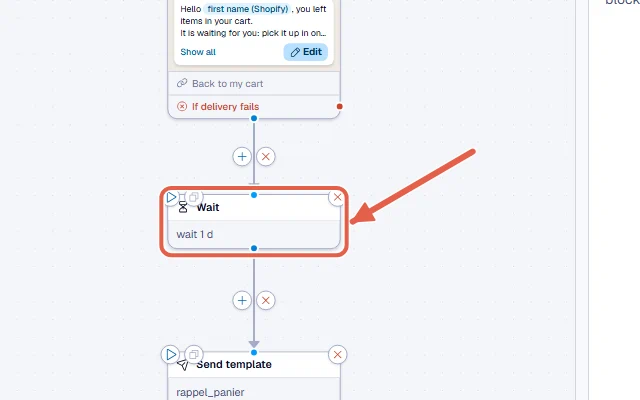
After the first message, add blocks as in any scenario: a Wait block then a reminder, a template button that leads to an answer, a message that quotes a piece of the order’s data (“Shopify data”, in the choice of variables). Without a follow-up, only the first message goes out.
In detail
As long as the customer has neither replied nor clicked, every send must be a template: the builder tells you so. Each block has its own page in the help.
7. Import your customers
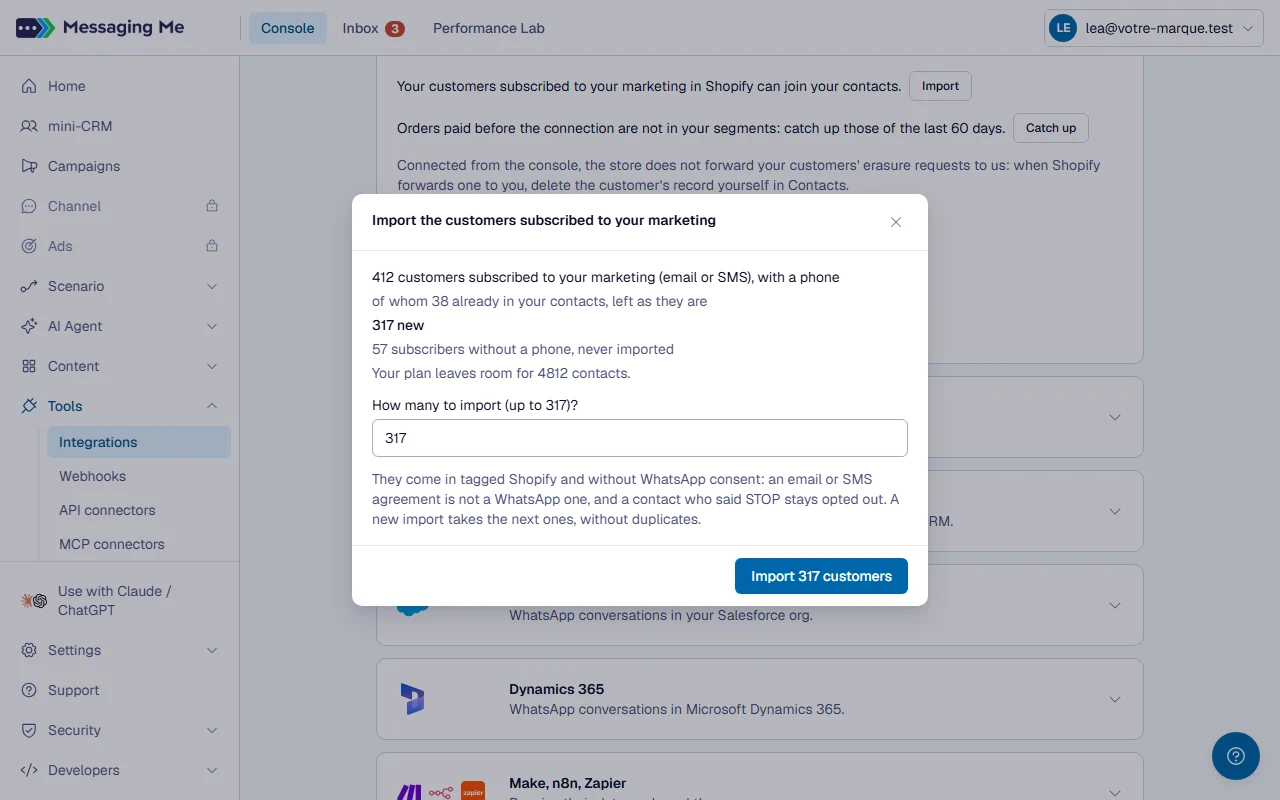
“Import”, on the Shopify card, opens the import of the store’s customers subscribed to your marketing (email or SMS) who have a phone number. They are counted first, along with the room your plan leaves; you choose how many to import, the most recent first.
In detail
The records are tagged “Shopify” and arrive without WhatsApp consent: an email or SMS agreement is not one.
8. Follow up, pause or cut
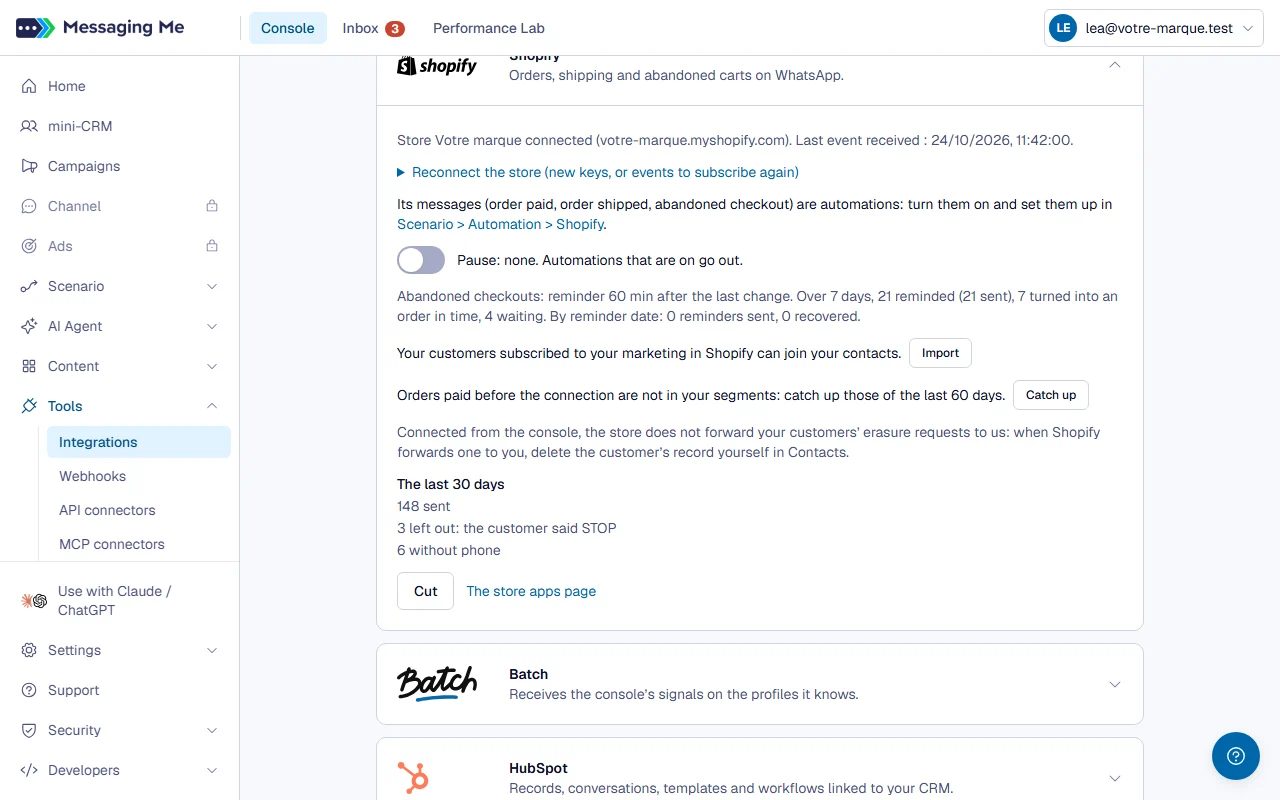
The Shopify card shows the connected store, the last event received and the figures for the last 30 days: messages sent, customers left out and why. The pause switch stops every send without disconnecting anything; “Cut” disconnects the store.
In detail
While paused, your automations keep their settings, but nothing goes out, neither first message nor follow-up; the journeys under way stop, and a checkout abandoned during the pause is never reminded afterwards. After “Cut”, the app stays installed on your store: uninstall it from the store apps page, whose link is on the card. You can reconnect it from the card.
The abandoned checkout reminder
A customer who fills in the checkout with their phone number without ordering gets the first message of the Abandoned checkout automation, with the button that reopens their checkout, at the delay you chose after its last change, then the follow-up of its scenario. Nothing goes out if an order came of it in the meantime, even an unpaid one, and an order born from the checkout stops its journey, wherever it stands. A second checkout takes the place of the first: its reminder stops the journey of the previous one.
The proposed message does not show the checkout address: its “Reprendre mon panier” button (back to my cart) leads there. On click, the customer lands on their own checkout, the last one recorded for their number, or on your store if they no longer have one; the click is counted like those of your other tracked links. To put this button in another template of the scenario, a second reminder for example: add a link button, open the menu of its field and choose “Cart link (Shopify)”. A checkout message created before 20 November 2026 keeps its link in the text.
A customer who replies STOP gets nothing more: the proposed message says so at the bottom (“Répondez STOP pour ne plus recevoir ces messages”, reply STOP to stop these messages), keep that sentence if you rewrite it. The card counts the reminders sent, the checkouts that turned into an order in time, and those waiting; and, by reminder date, the checkouts recovered (reminded then paid) and their amount.
The reminder with an AI agent
The Abandoned checkout with AI agent automation sends the same reminder, with one more button: “Vous avez une question ?” (“Have a question?”). The customer who taps it is taken care of right away by the AI agent you chose.
You need an active AI agent: without one, the switch stays greyed out. When you switch it on, the console asks which one; you can change it later on the same line. Its message and its scenario are created for you, and Meta approves the message before the first send.
The two checkout reminders do not run together: switching one on switches the other off, so that a checkout gets only one reminder. An advisor who already took the conversation keeps it. If the agent cannot answer (no AI credit left, agent disabled), the question reaches your team in “To handle”. The line warns you when the button no longer leads to the agent, when the agent is no longer active, or when Meta has not approved the message yet.
A phone number required at checkout
In Shopify, set the shipping address phone number to “Required” (Settings > Checkout). Without a phone number, an order gets neither a confirmation nor a reminder on WhatsApp, and only a visit that came through one of your campaign links can still tie it to your messages.
What your sends brought in
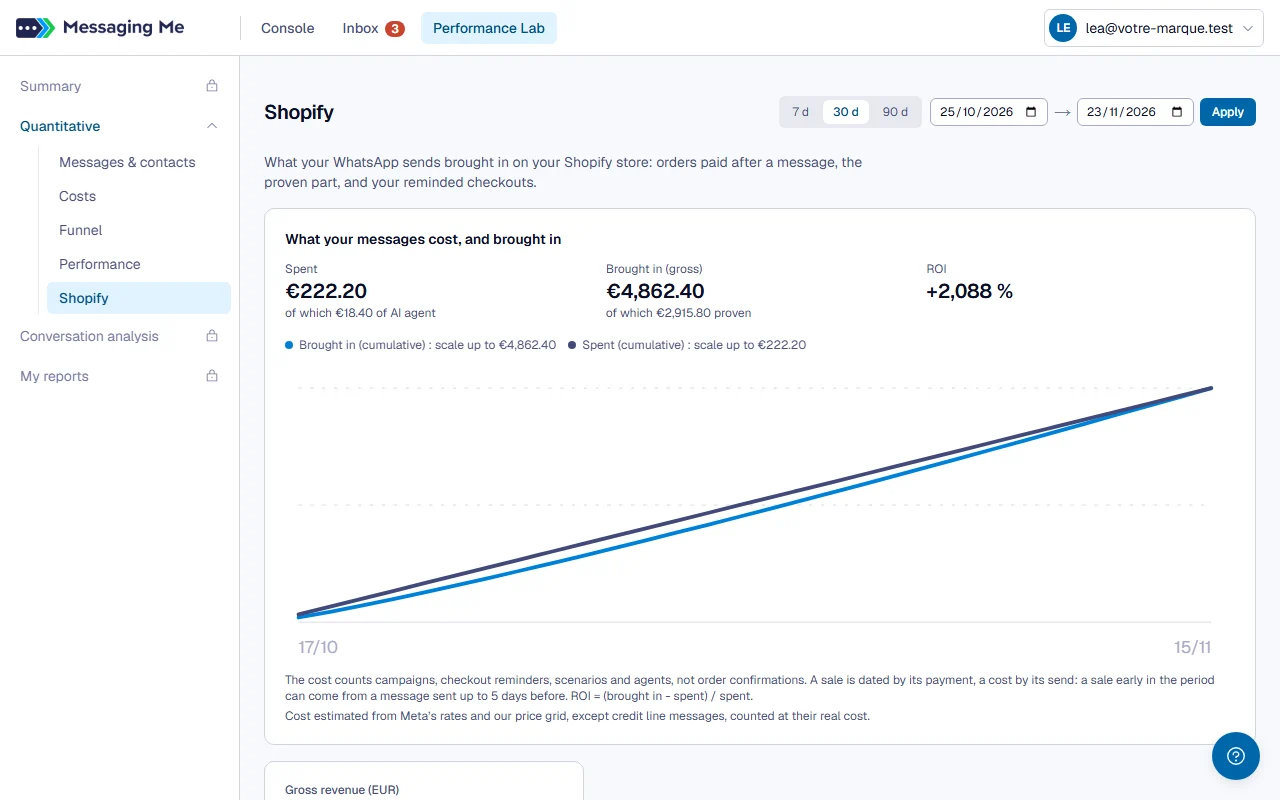
The revenue from your orders paid after a WhatsApp message, and what your messages cost.
9. Open Performance Lab > Quantitative > Shopify
Pro plan: the revenue, what your messages cost, and your ROI, overall, for each campaign and for each Shopify automation.
Targeting your customers by their orders
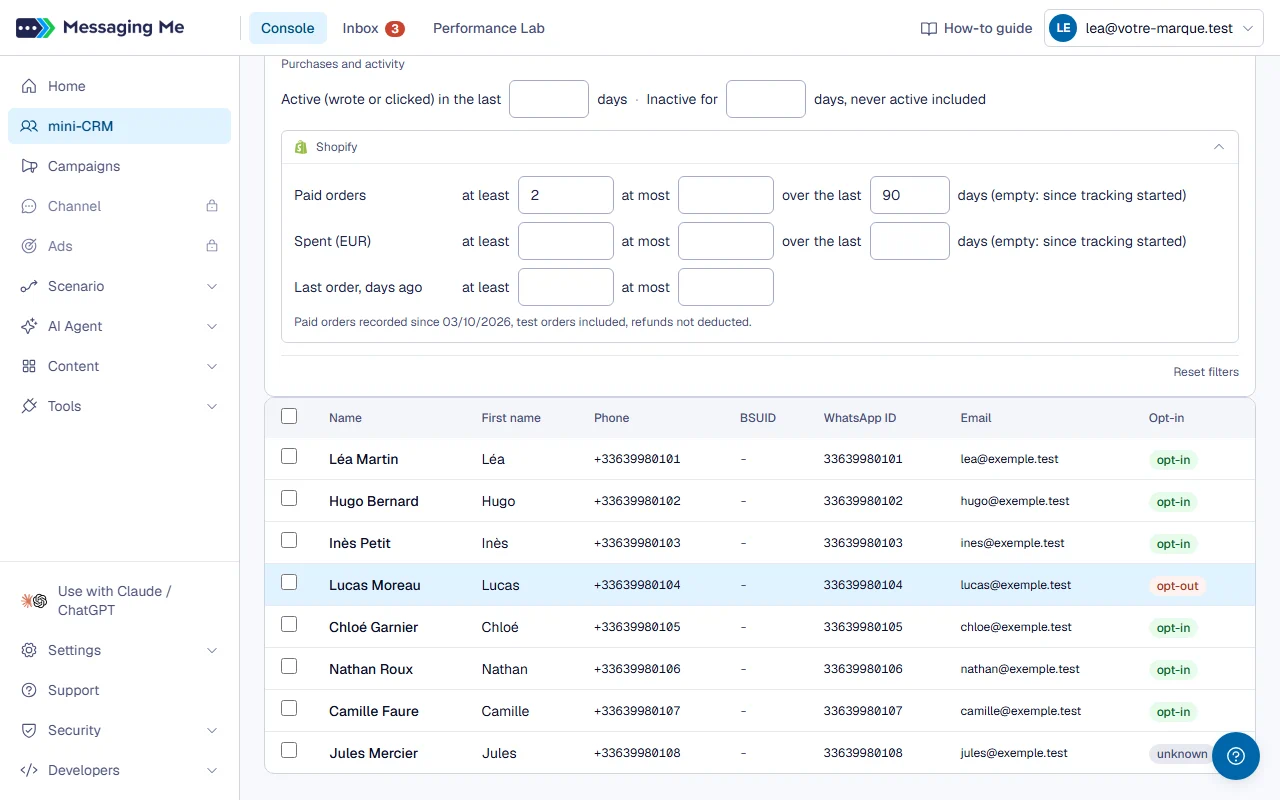
Your customers picked by their paid orders: how many, for how much, the last one when, and what they bought.
10. Filter in the “Shopify” section
Pro plan: in the mini-CRM, open the filters then the Shopify section; in a campaign, the audience’s Shopify button opens it. Paid orders, spend, last order, over the period you choose.
In detail
And products: those who bought a product (or a single variant, by its SKU), those who did not buy it (always together with a bought product, never alone), and restock, the last purchase of a product so many days ago. You pick them among the products already ordered in your store; gift cards cannot be targeted.
And collections: those who bought at least one product of each of the chosen collections. They are read from Shopify on your products already ordered, when you open the section, which says “reading” while they are read. A collection counts as it is in your store at that reading, whose date the section gives, not as it was on the day of the order: a product taken out of a collection no longer counts in it.
And two ready-made buttons, with no setting: “Wrote without ordering” (at least one message still known) and “Clicked without ordering” (at least one tracked link click), for contacts with no order recorded. One click sets the button, a second removes it; the number on each button says how many contacts it finds, and a button that finds nobody is not shown.
11. Catch up the orders of the last 60 days
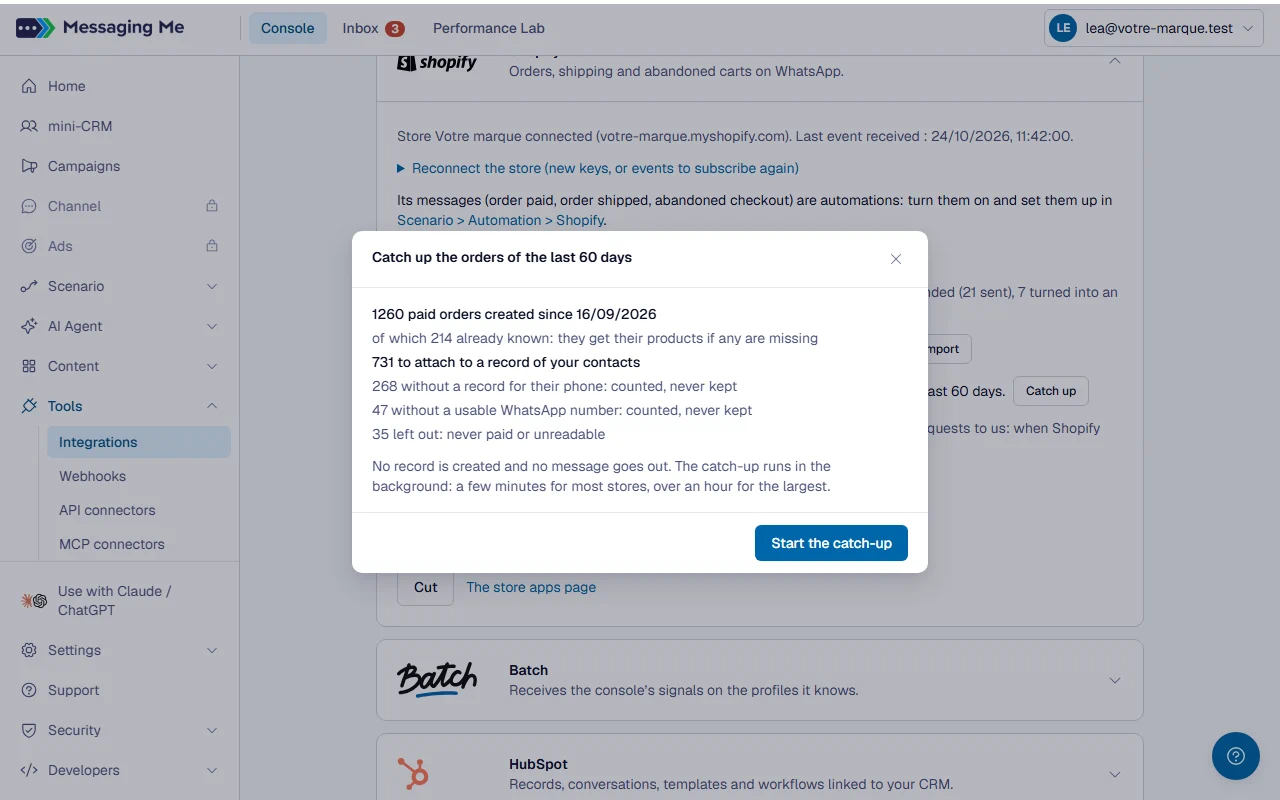
On the Shopify card, “Catch up” first counts, writing nothing, the paid orders of the last 60 days: already known, to attach to a record, the buyer records to create and the places your plan leaves, without a record or without a phone. “Start the catch-up” reads them all again in the background, and the card tells where it stands.
In detail
Each order joins the record of its phone, with its amount and products. A buyer with a mobile phone and no record yet gets one, on the customer’s or the billing phone, never the shipping one (a gift recipient does not get in): opted in on the strength of your attestation, tagged “Shopify”, within your plan’s contact limit; beyond it, their order is counted, never kept. The preview warns you when these records would take your last places: a new customer writing to you first could then no longer get in. No message goes out, and the revenue brought in by WhatsApp does not change. Allow a few minutes for most stores, over an hour for the largest.
The sending rules
A customer who replied STOP gets nothing, and the monthly templates and your plan’s contact limit count: a new customer’s record counts. If that limit is reached, new customers no longer get their messages; the card counts them, and you get an email at the first refusal of the month. A landline number is set aside in favour of a mobile on the order. And if a new customer’s number is not on WhatsApp, the record created for their message is deleted as soon as Meta says so: its place comes back. Each first message shows in Campaigns, one line per order. It goes out even when the agent or your team holds the conversation, without cutting it.
If the customer writes during a Wait block, or taps a button of another of your messages: the AI agent, the responder scenario or your application answers them, and the automation goes on. In Team or Meta agent mode, the automation stops: the request lands in “To handle”, or Meta’s agent answers. If they reply in writing to a block that waits for their reply, the automation follows that block’s “Any other reply” output; without it, it stops.
Your customers’ requests
An erasure request from a customer forwarded by Shopify erases their record; an access request is reported to you by email, and it is up to you to answer it. A store connected from the console does not forward these requests to us: when Shopify forwards one to you, delete the customer’s record yourself in Contacts.