1. Choose where the message comes from
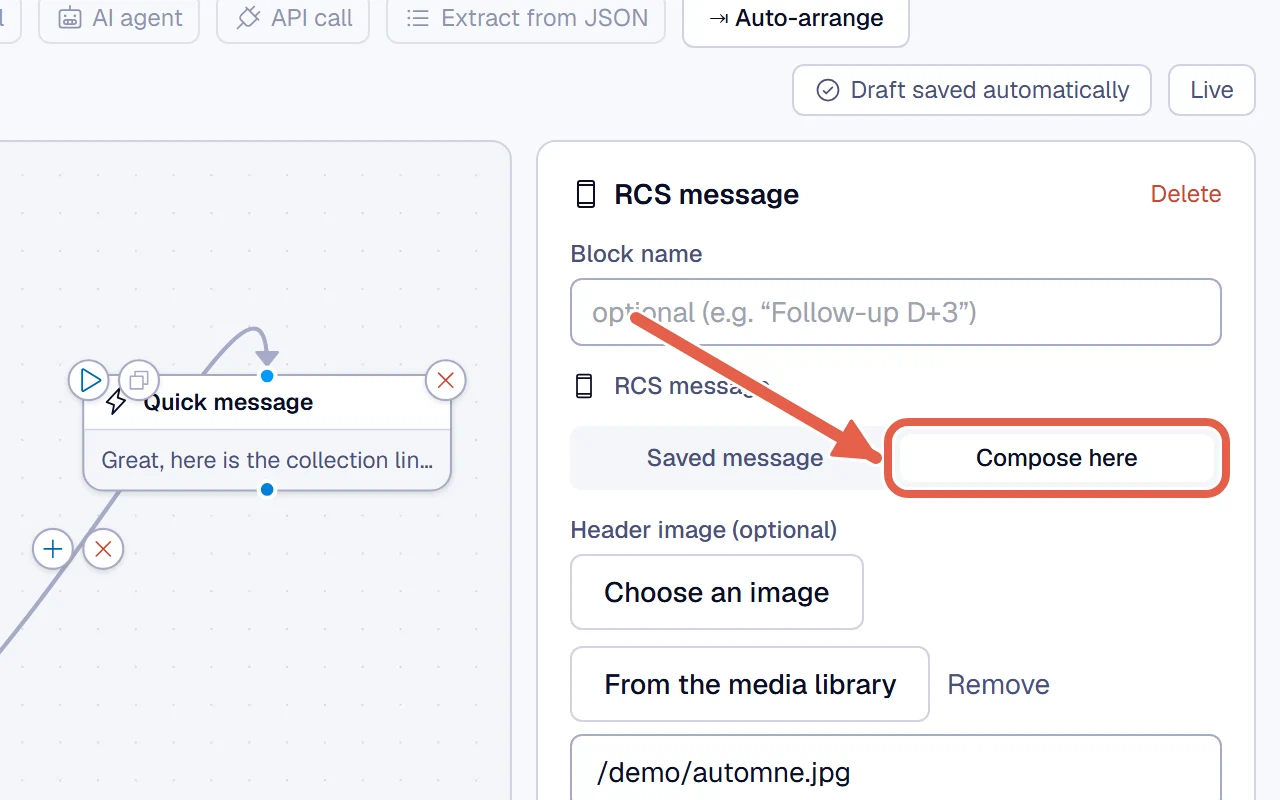
Click the block: "Saved message" copies a message from your library, "Compose here" writes it in the block.
In detail
- The block is greyed out in the palette until your RCS agent is filed and approved.
- Sending also requires the Enterprise plan: without it, the block goes straight to "Not reachable on RCS".
- Once copied, the message no longer follows the library: editing the library does not change this block.
- Carousels are not offered in a scenario yet.
2. Write the text and the image
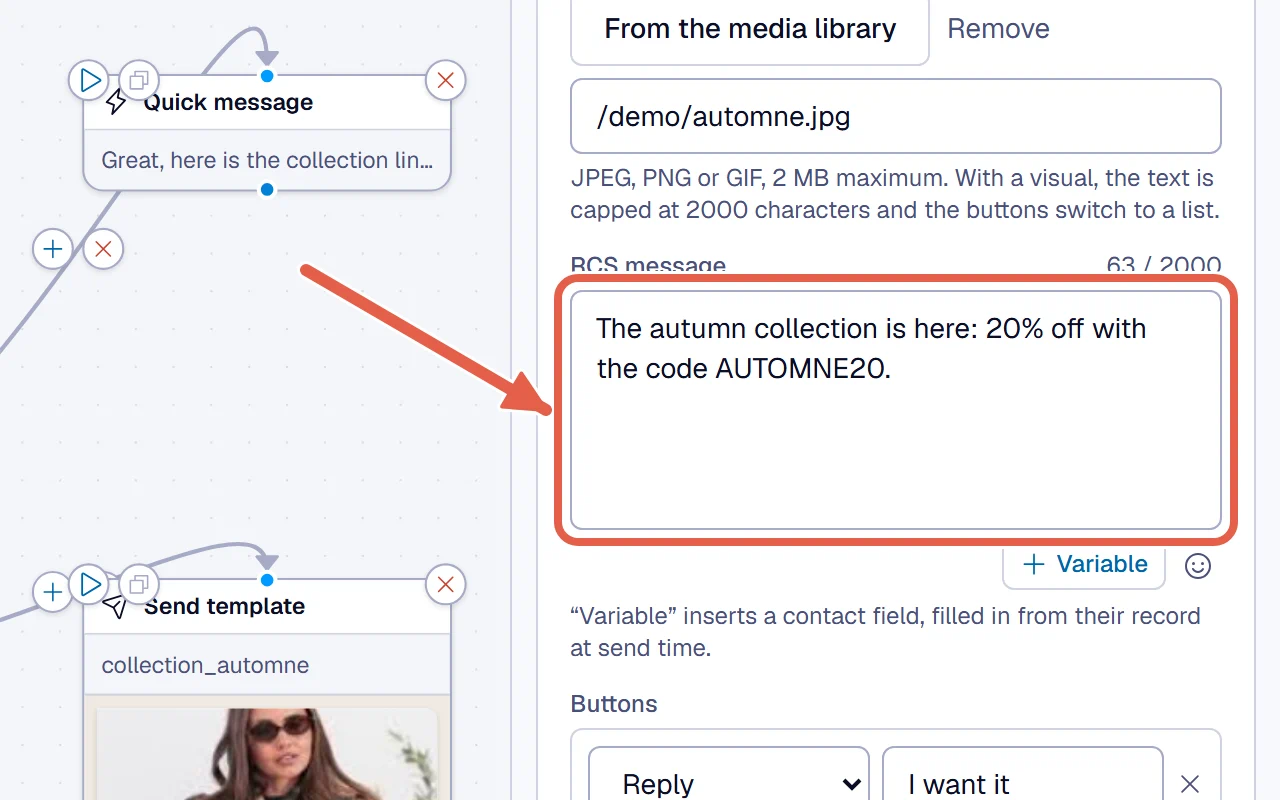
"RCS message", then "Header image", optional.
In detail
- 3,072 characters, or 2,000 with an image.
- JPEG, PNG or GIF image, 2 MB at most.
- "Variable" inserts a contact field; empty on their record, it is replaced by nothing.
- Without text, nothing goes out and the journey takes "Not reachable on RCS".
3. Add buttons
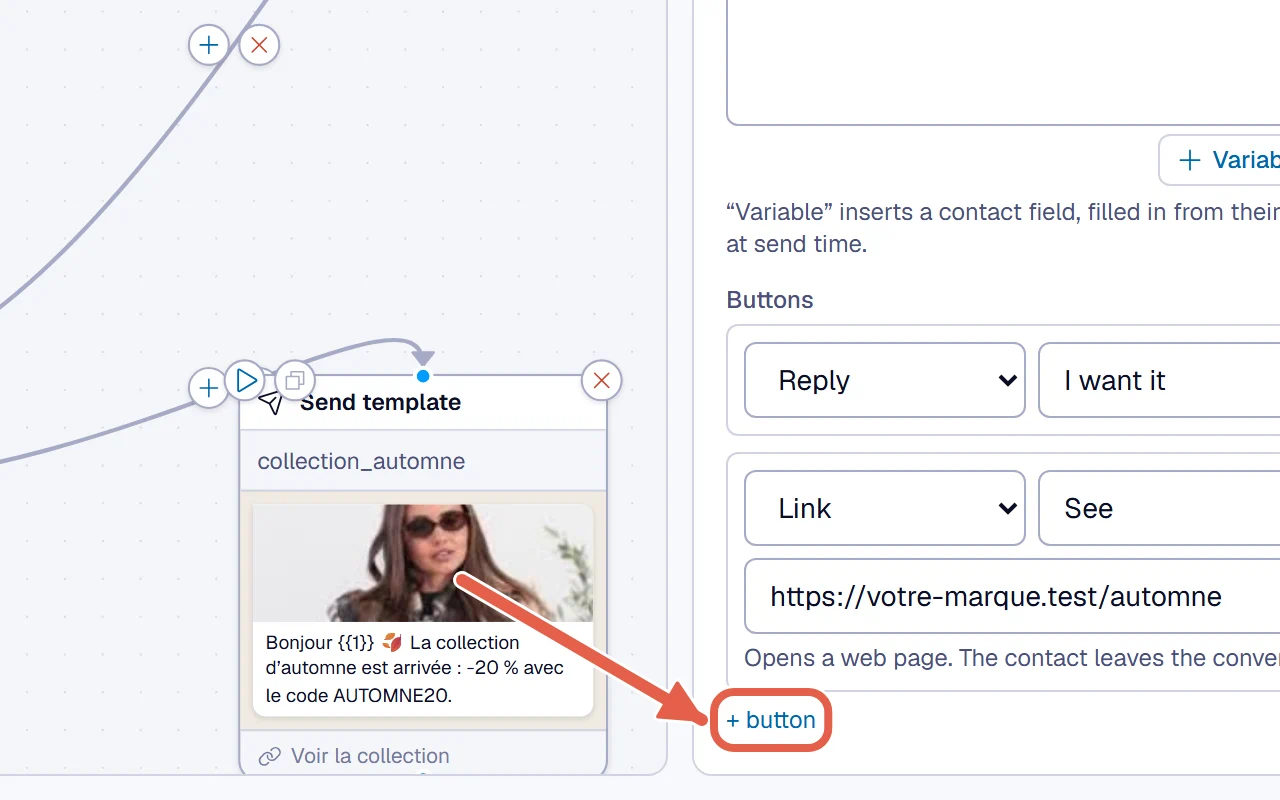
"+ button": reply, link, call, calendar, place or location request.
In detail
- 11 buttons at most, or 4 with an image.
- Label: 25 characters at most.
- Only a Reply button opens an output to connect.
- A Calendar button whose date cannot be read is removed; the message goes out anyway.
4. Connect the outputs
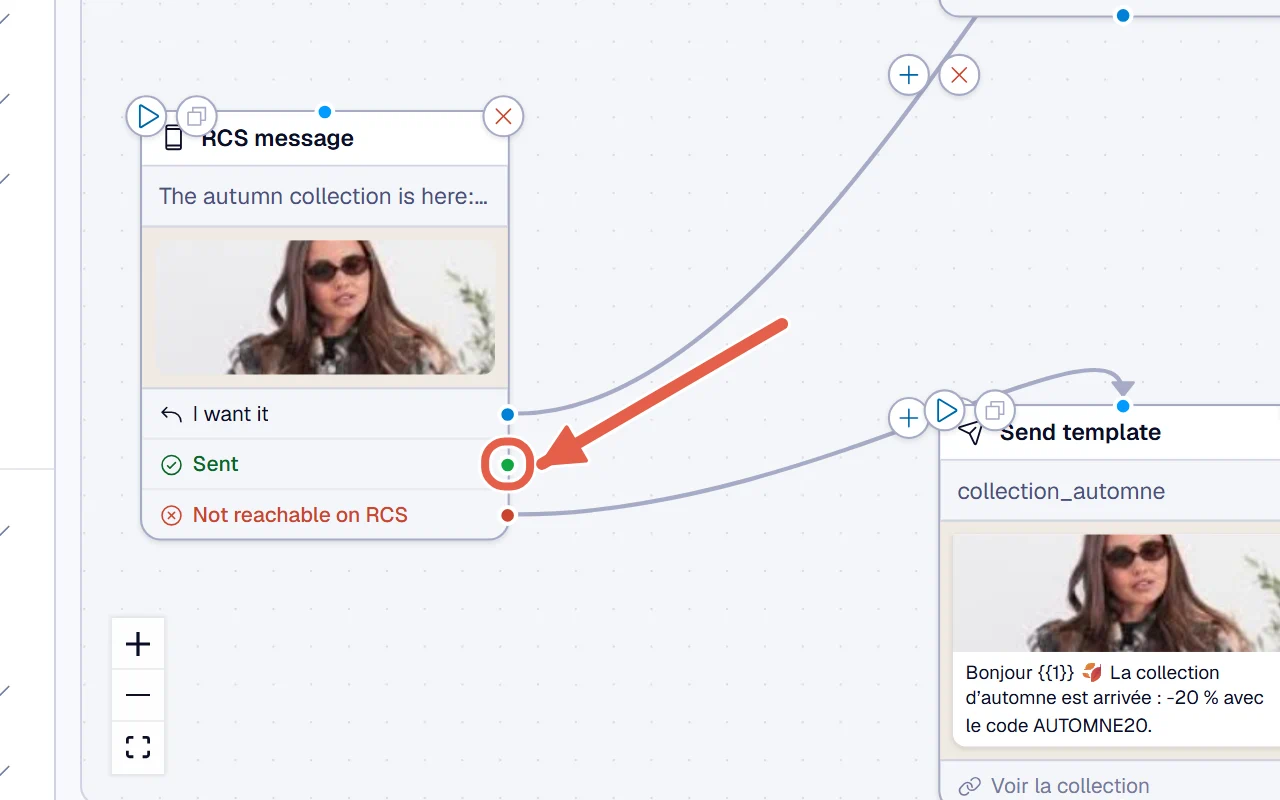
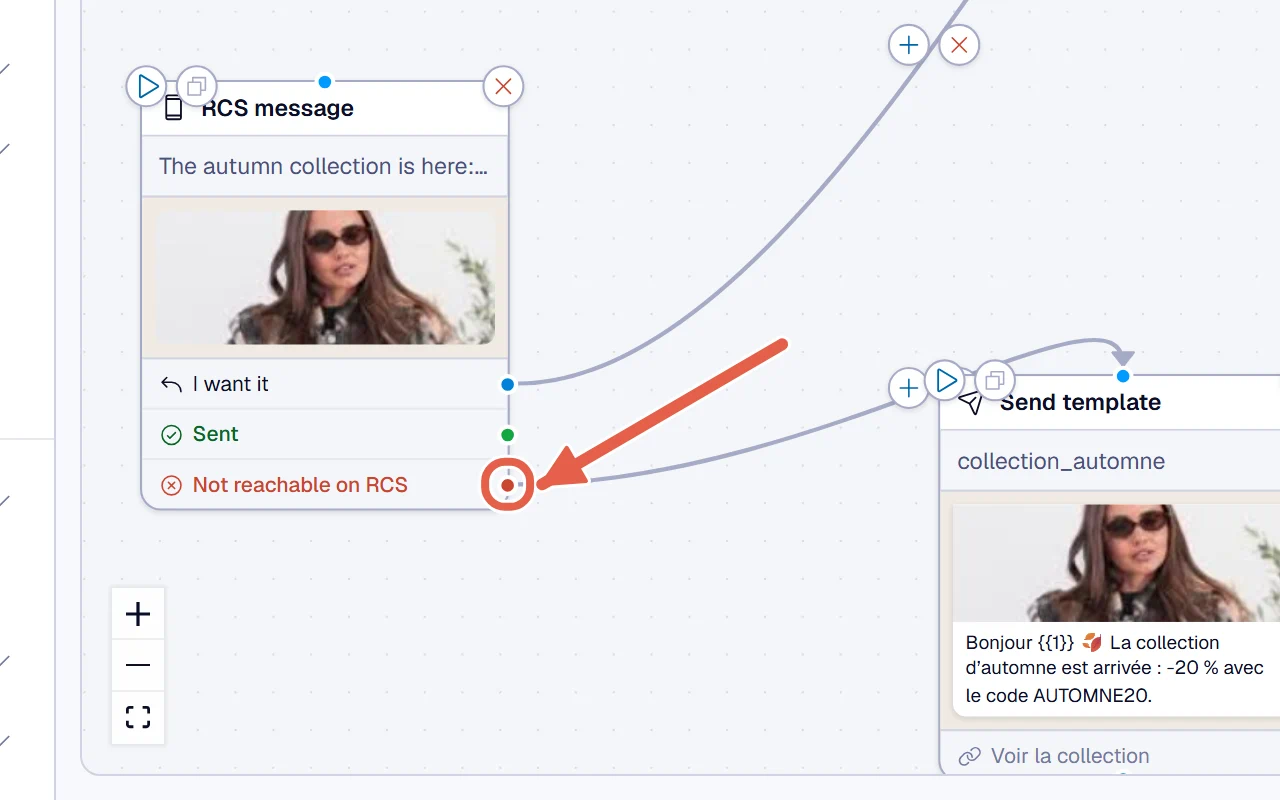
"Sent", "Not reachable on RCS", and one output per Reply button.
In detail
- "Not reachable on RCS" is taken right away without text, without the Enterprise plan or for a contact who said STOP over RCS, otherwise on the failure reported by the carrier, a few moments to a few minutes after sending: connect a WhatsApp template send to it, to reach on WhatsApp those RCS does not reach.
- "Sent" is taken when the message is delivered. With Reply buttons, the journey waits for a tap instead; a message written by the contact takes "Sent".
- A button connected to nothing: the contact who taps it gets nothing and the conversation goes to your team.
5. Carry on over RCS
After this block, the conversation carries on over RCS.
In detail
- The following quick messages go out over RCS. To go back to WhatsApp, plug in a template send: the journey moves there and stays there. A form or a question also bring it back.
- A form, a question or an AI agent only go out on WhatsApp, if the contact wrote there within 24 hours: the screen warns you.
- RCS has no 24-hour window. At the start of a scenario, this block opens an RCS campaign.
- It cannot follow the "Then, without waiting" output of a quick message: the scenario cannot be published.