
1. Open the Shopify card
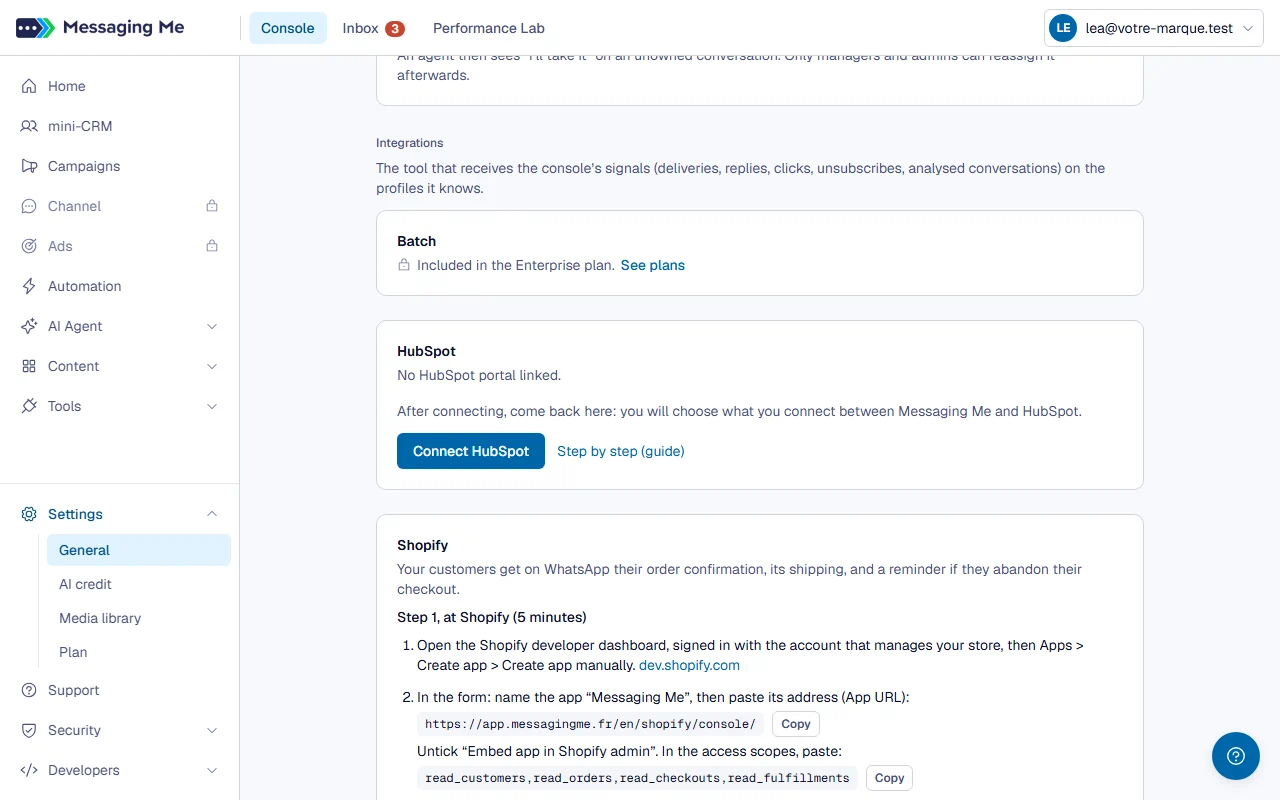
In Settings > General, scroll down to the integrations: the Shopify card says what it does and guides you in two steps, the first at Shopify, the second in the console.
In detail
It only shows to the workspace’s administrators.
2. Create your app at Shopify
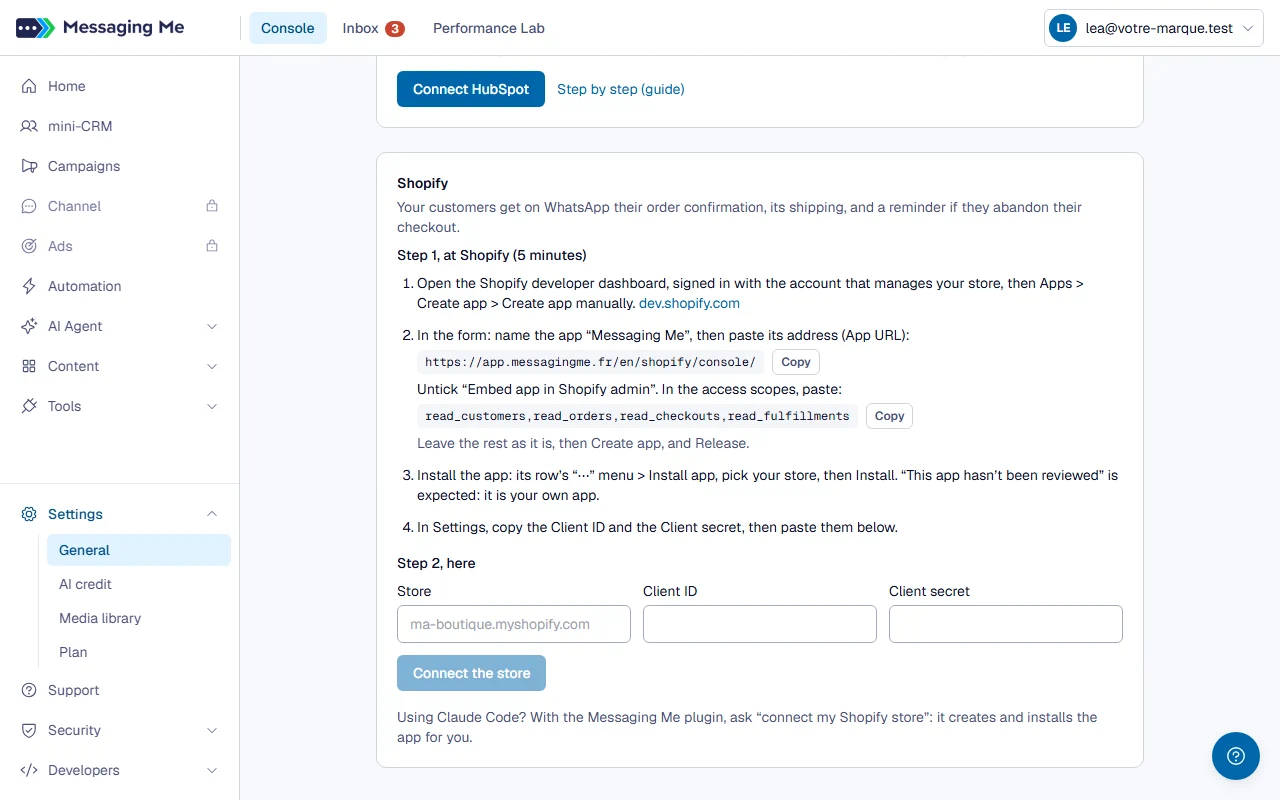
On the Shopify developer dashboard, signed in with the account that manages your store, create the app manually (Create app manually) and paste the address and the scopes that the card lets you copy in one click. Allow five minutes.
In detail
Untick “Embed app in Shopify admin”, leave the rest as it is, then Create app and Release. Then install it on your store: the message “This app hasn’t been reviewed” is expected, it is your own app. Finally, in its Settings, copy its Client ID and its Client secret.
3. Connect the store
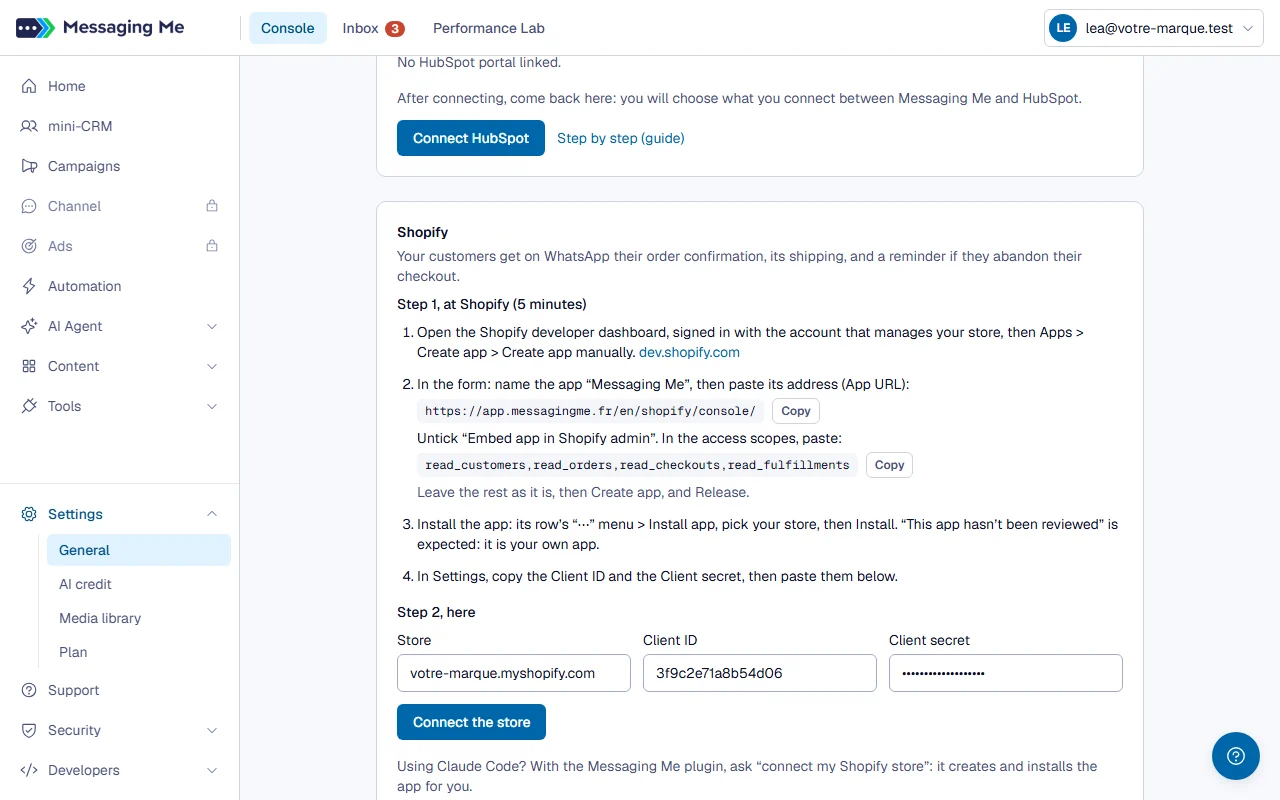
Back in the card, paste the store name, the Client ID and the Client secret, then “Connect the store”. The card then shows your three messages, each with its status.
4. Write the message
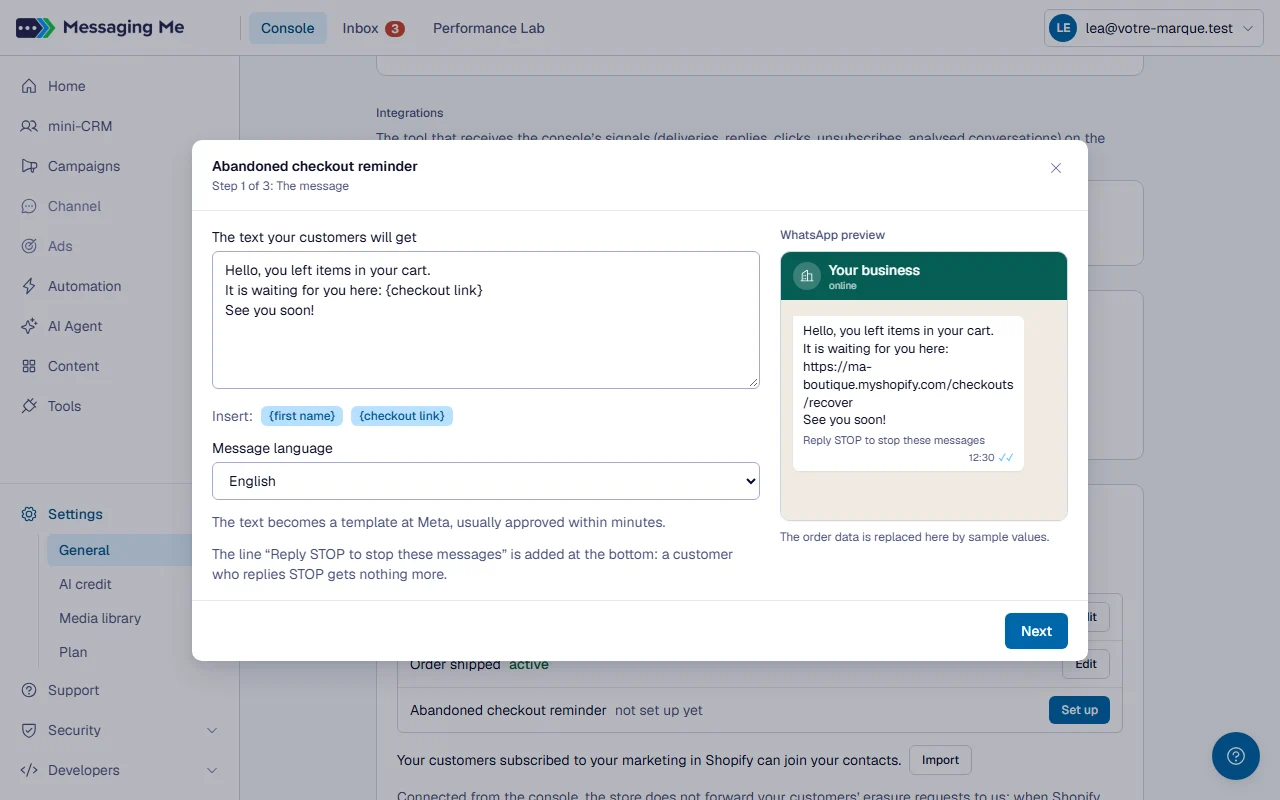
For each message, “Set up” opens an assistant. It suggests a text, which you can edit: the order data is written in curly brackets, such as {first name} or {checkout link}, and a preview shows you what the customer will get.
In detail
Each new text creates a new template at Meta: you can therefore rework it as often as you like. The previous one, if it was created here, is deleted shortly after the new one is approved. The templates created by the assistant (their name starts with “shopify_”) serve the store: do not reuse them in a scenario or a campaign.
5. Set the delay and the consent
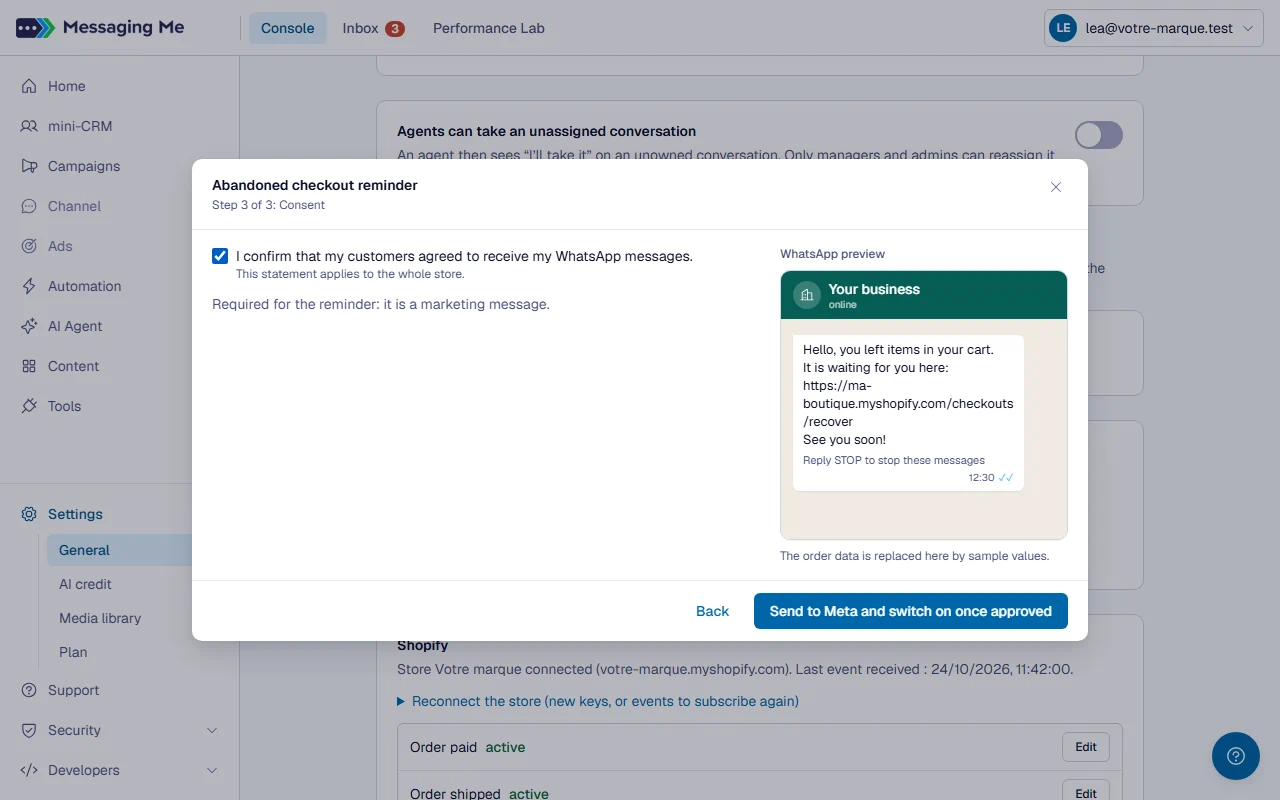
For the reminder, choose the delay after the checkout (1 h by default), then confirm your customers’ consent, required for it and optional for an order message. Finally, “Send to Meta and switch on once approved”.
In detail
The message switches on by itself when Meta approves it, usually within minutes, and an email lets you know (or tells you why Meta refused it). Editing an active message does not stop it: the old one goes out until the new one is approved. Changing only the delay or the box applies right away, without going back through Meta.
6. Import your customers
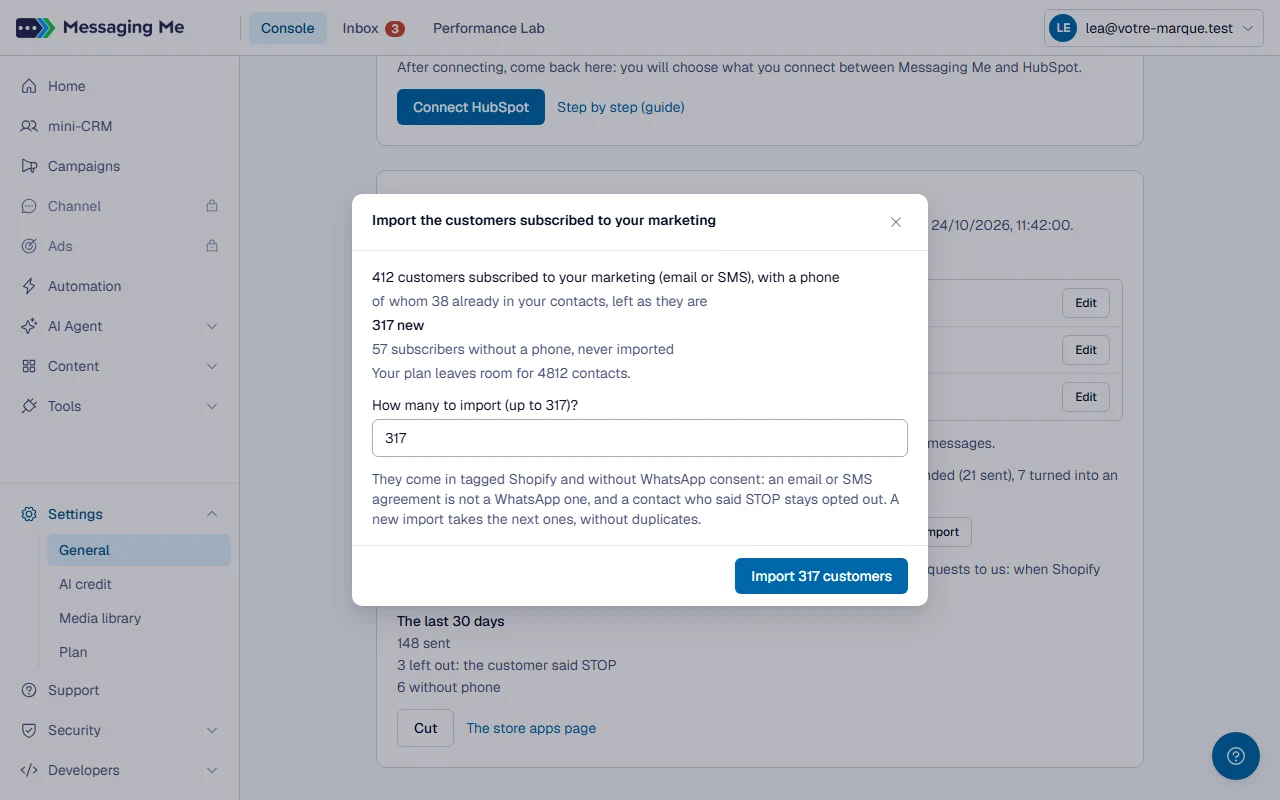
“Import” opens the import of the store’s customers subscribed to your marketing (email or SMS) who have a phone number. They are counted first, along with the room your plan leaves; you choose how many to import, the most recent first.
In detail
The records are tagged “Shopify” and arrive without WhatsApp consent: an email or SMS agreement is not one.
7. Follow up, or cut
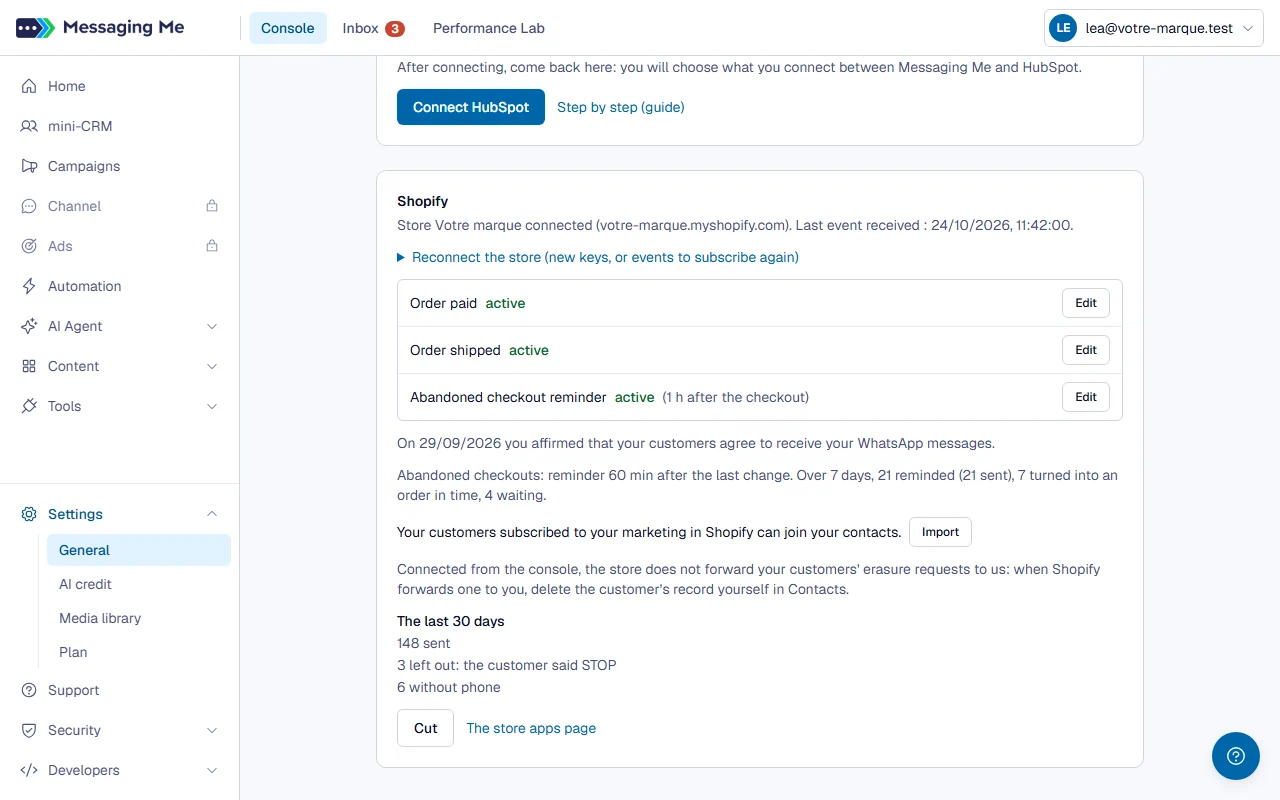
The card shows the connected store, the status of each message, the last event received and the figures for the last 30 days: messages sent, customers left out and why. “Cut” stops every message.
In detail
The app then stays installed on your store: uninstall it from the store apps page, whose link is on the card. You can reconnect it from the card or from Claude Code.
The abandoned checkout reminder
A customer who fills in the checkout with their phone number without ordering gets ONE reminder on WhatsApp, with the link that reopens their checkout, at the delay you choose after its last change (from 15 min to 72 h). Nothing goes out if an order came of it in the meantime, even an unpaid one. It is a marketing message: it only switches on once you have confirmed your customers’ consent, and it carries at the bottom the line “Reply STOP to stop these messages” (in a French template, “Répondez STOP pour ne plus recevoir ces messages”). The card counts the reminders sent, the checkouts that turned into an order in time, and those waiting.
The sending rules
A customer who replied STOP gets nothing, and the monthly templates and your plan’s contact limit count: a new customer’s record counts. If that limit is reached, new customers no longer get their messages; the card counts them, and you get an email at the first refusal of the month. Each message shows in Campaigns, one line per order. The message goes out even when the agent or your team holds the conversation, without cutting it.
Your customers’ requests
An erasure request from a customer forwarded by Shopify erases their record; an access request is reported to you by email, and it is up to you to answer it. A store connected from the console does not forward these requests to us: when Shopify forwards one to you, delete the customer’s record yourself in Contacts.
From Claude Code
With the Messaging Me plugin (every plan, Free included), ask “connect my Shopify store”. Claude creates the app in your own Shopify organization (no Shopify review is needed); all you have to do is sign in to Shopify and click “Install”. It then suggests the text of each message, has it approved by Meta, and connects it.