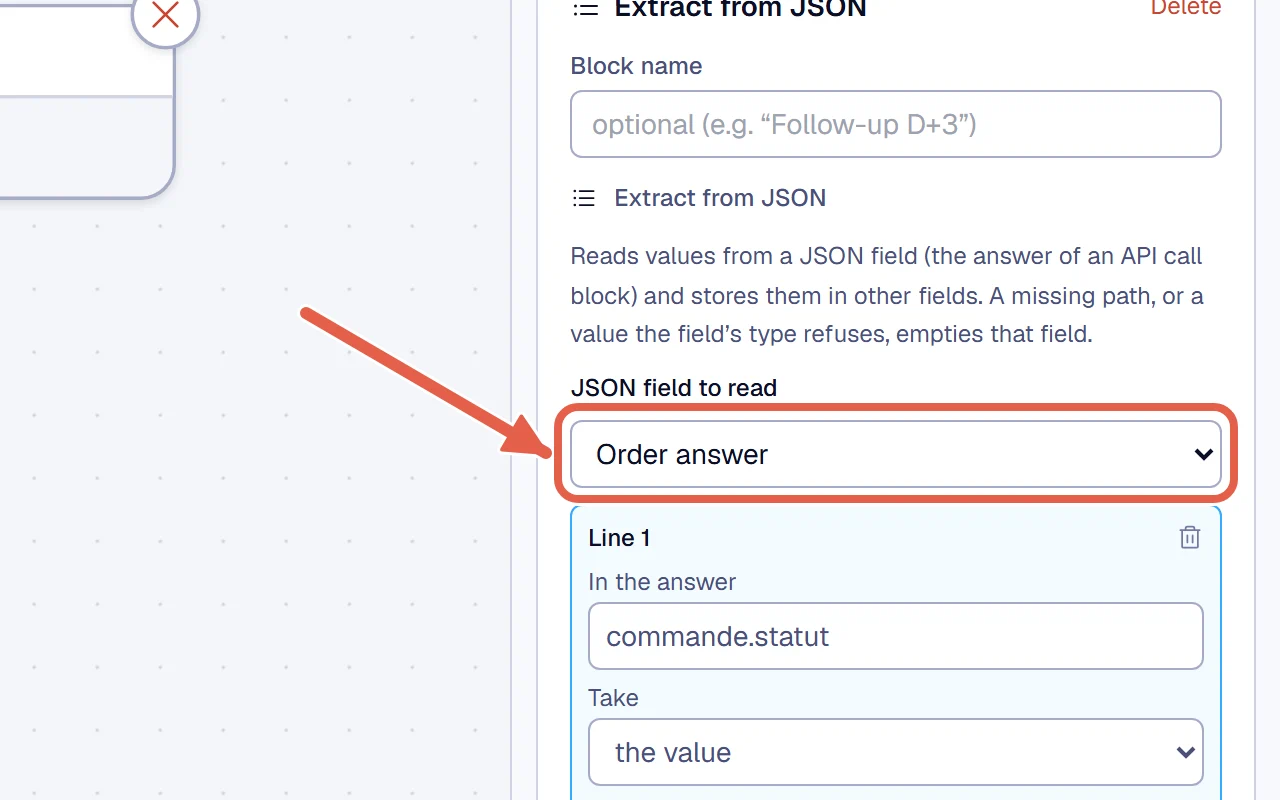
1. Choose the JSON field
Click the block, then choose in "JSON field to read".
In detail
- Only JSON fields are offered. They are created in Content > Library > Fields.
- The block is greyed out in the palette until a call is declared in Tools > API connectors.
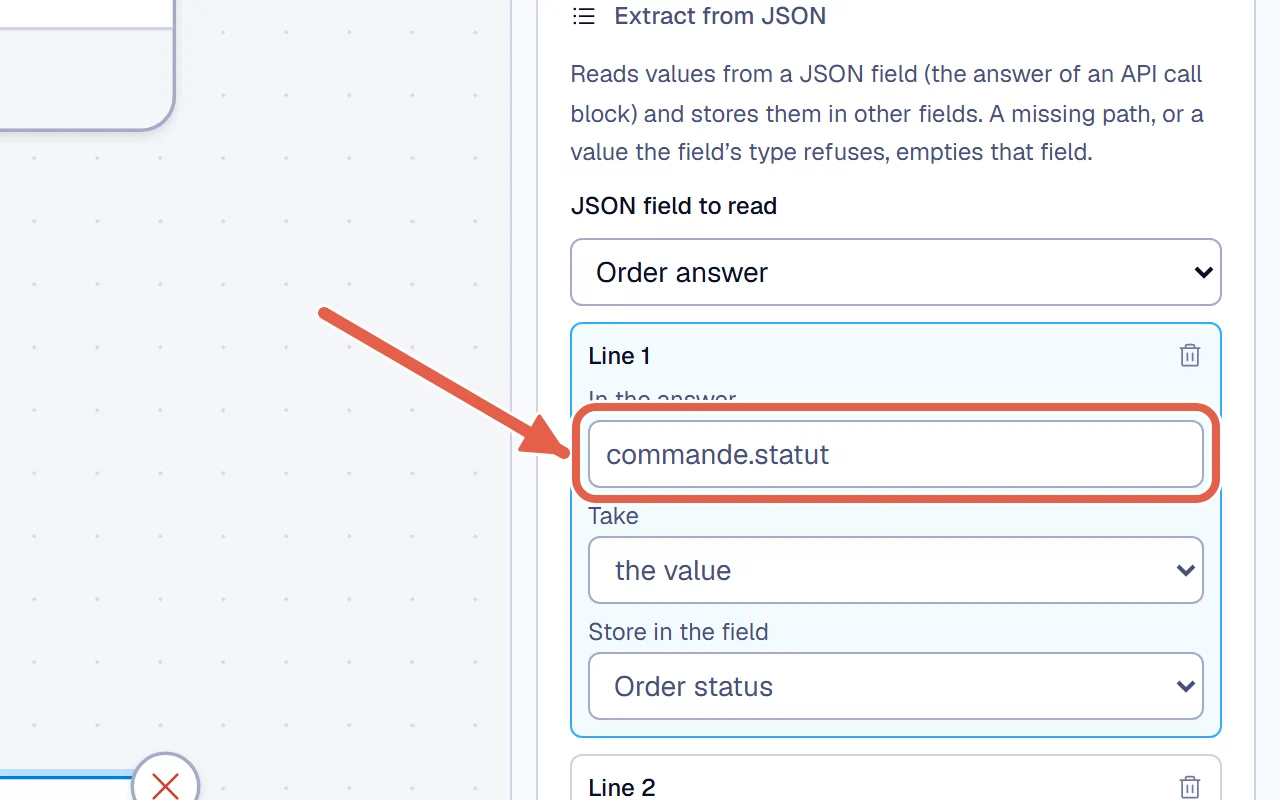
2. Write the path
"In the answer": commande.statut, articles[0].nom for the first item, articles[-1].nom for the last one; empty, the whole answer.
In detail
- 300 characters at most. A key contains neither a dot nor a bracket.
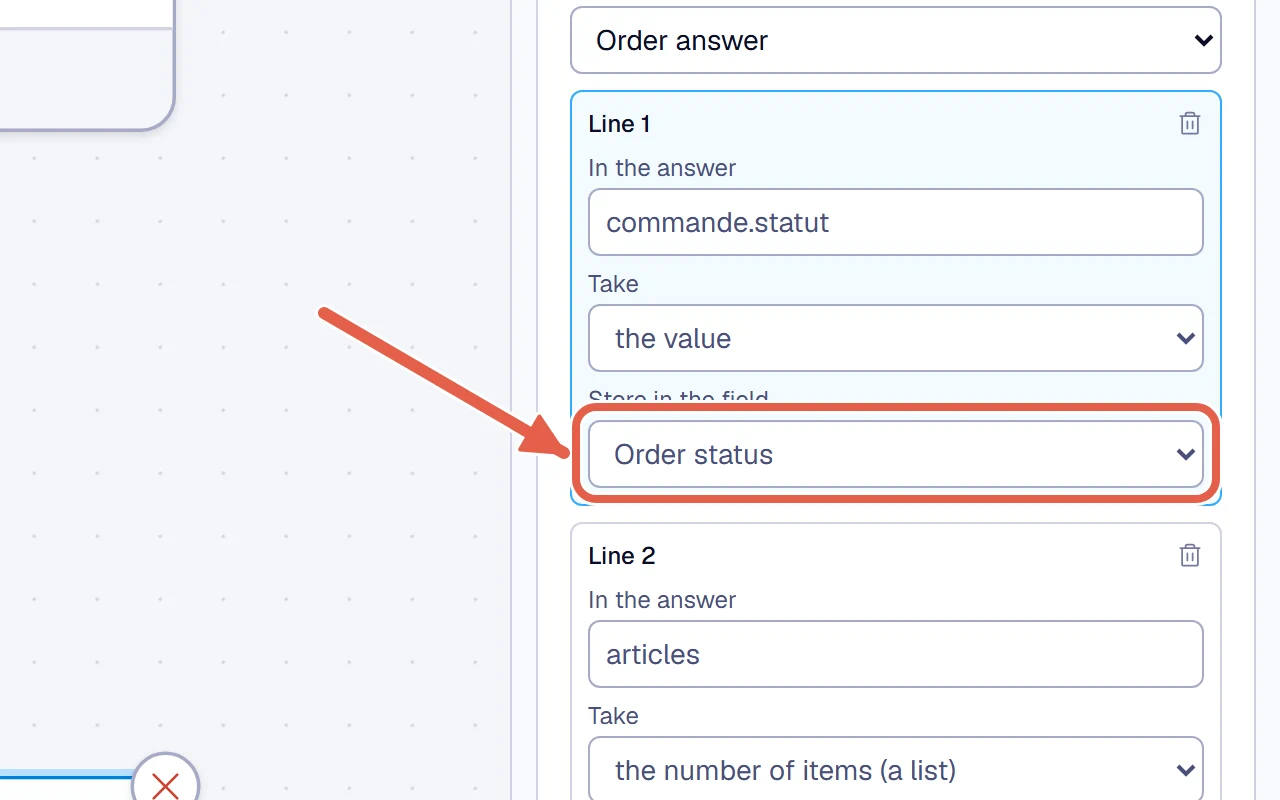
3. Choose what to take and where to store it
"Take": the value, or the number of items of a list; "Store in the field" says where.
In detail
- 20 lines at most; "Add a line" adds one. A line without a target field is ignored.
- A missing path, or a value the field's type refuses (a text in a number field), empties the field.
- An object or a list is stored as JSON, true or false as true or false.
- An empty or unreadable JSON field empties all the target fields.
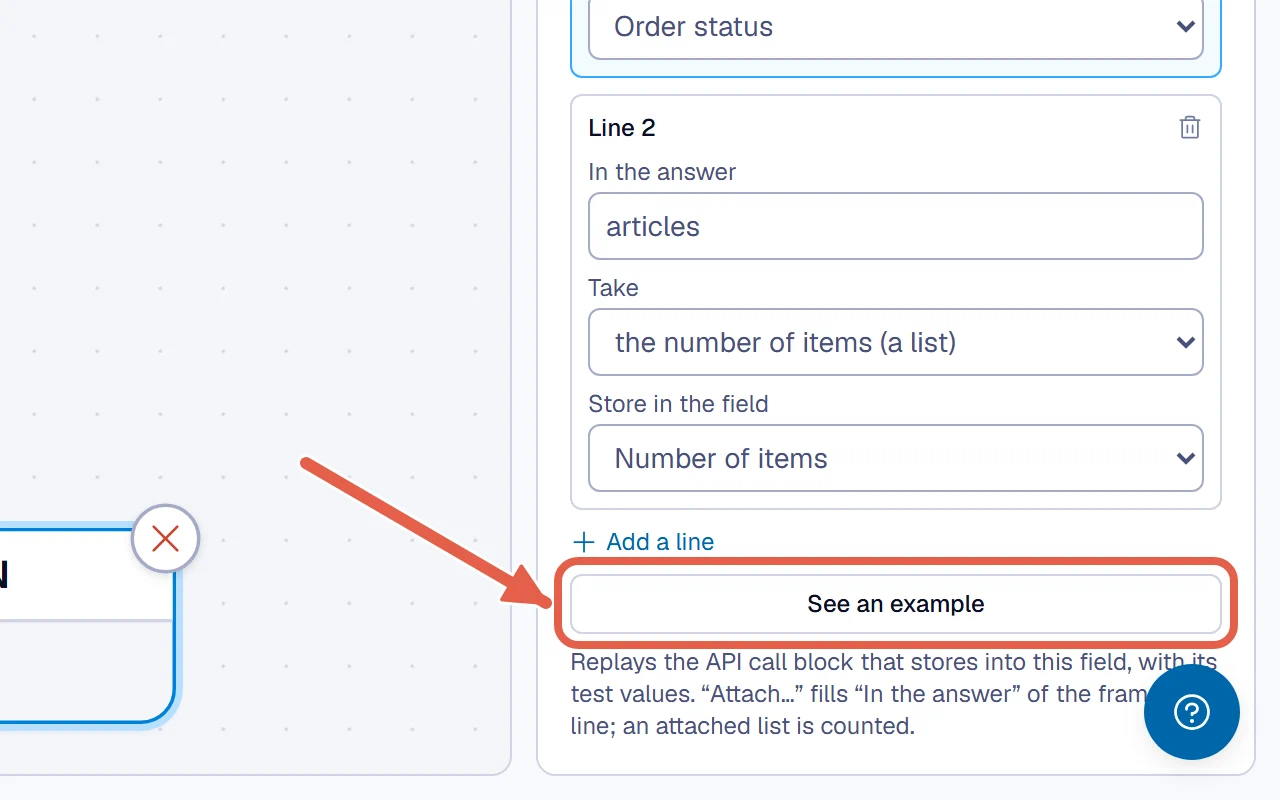
4. See an example
"See an example" replays the scenario's API call with its test values: "Attach…" fills in the path of the framed line.
In detail
- The button only appears if an API call block of the scenario stores into this field; otherwise, type the path.
- A call other than GET acts on your system: the screen asks for confirmation before replaying it.
- The example does not check the field's type: it may show a value the field will refuse.
- An answer of more than 20,000 characters is no longer shown as an example.
5. Connect what follows
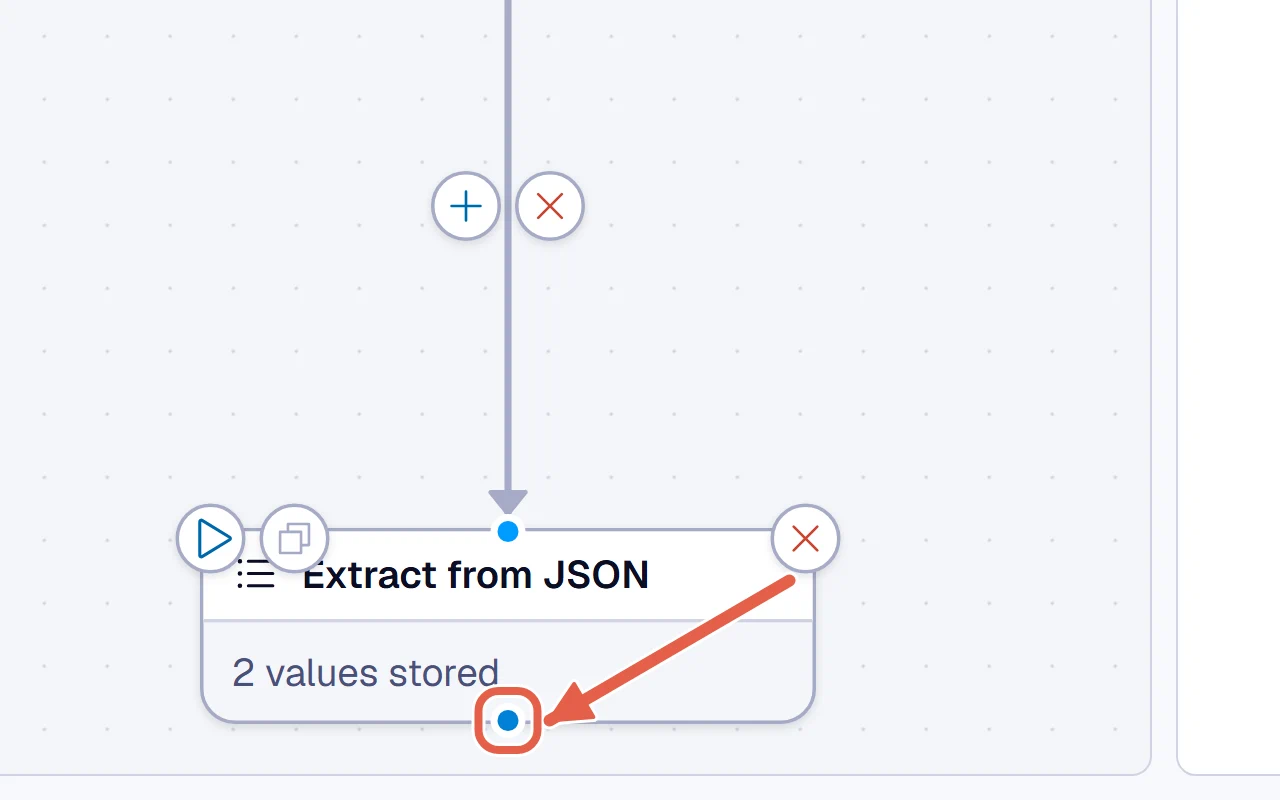
The block has only one dot, at the bottom: what follows goes out right away.
In detail
- A Condition placed after it reads the extracted values. In a campaign, place a Wait between the API call and this block, after the first template.
- It can follow the "Then, without waiting" output of a quick message.
- Connected to nothing, the journey stops there.