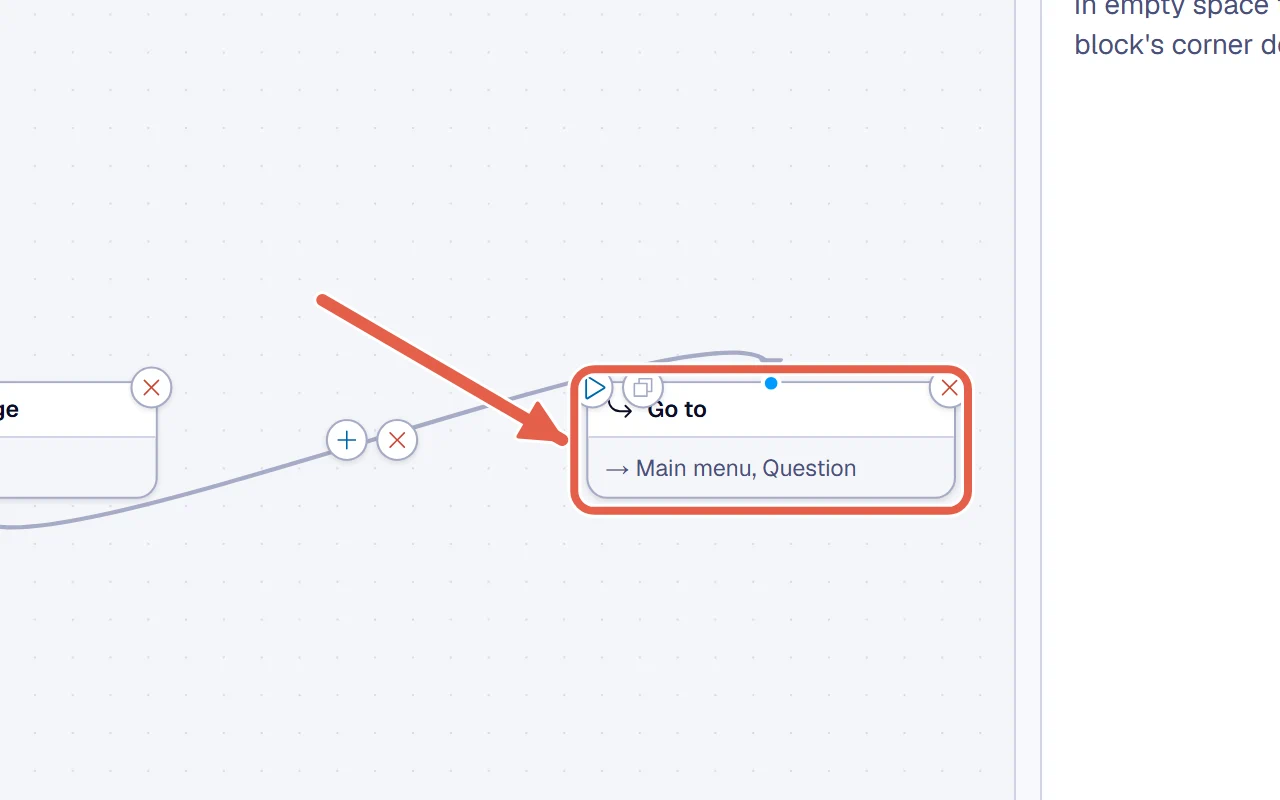
1. Choose the scenario
Click the block, then in "Scenario": "This scenario", or another one of the workspace.
In detail
- In another scenario, its published version plays: publish it first.
- The answers already given follow the contact: they are on their record.
- A scenario targeted by a "Go to" cannot be deleted while this block targets it.
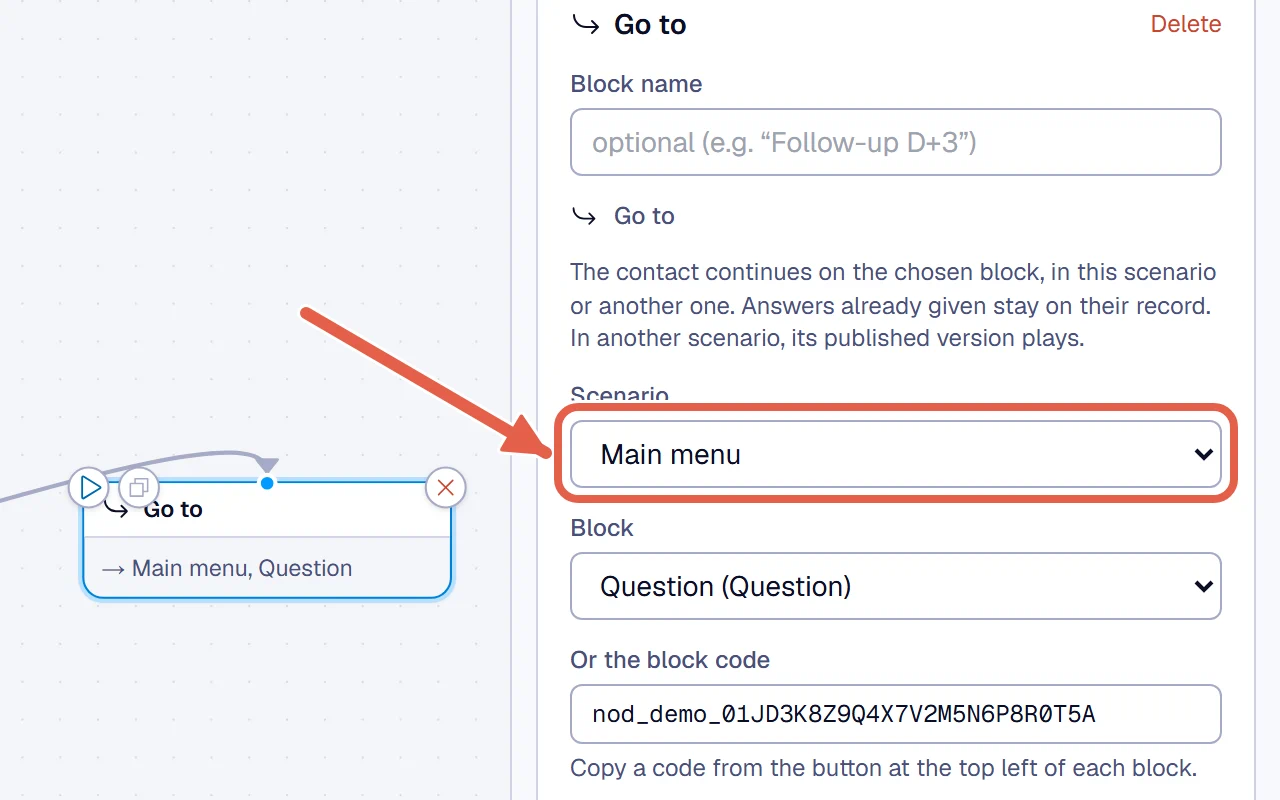
2. Choose the block
"Block" lists those of the chosen scenario; you can also paste its code in "Or the block code".
In detail
- The code is copied with the button to the right of the play button, at the top left of each block. A block just added gets its own on saving, a second later.
- Without a chosen block, or with a code that points to no block, the scenario cannot be published.
- In another scenario, deleting the targeted block does not block publication: the jump fails when the contact goes through it, and the conversation goes to your team. In this scenario, publication is refused.
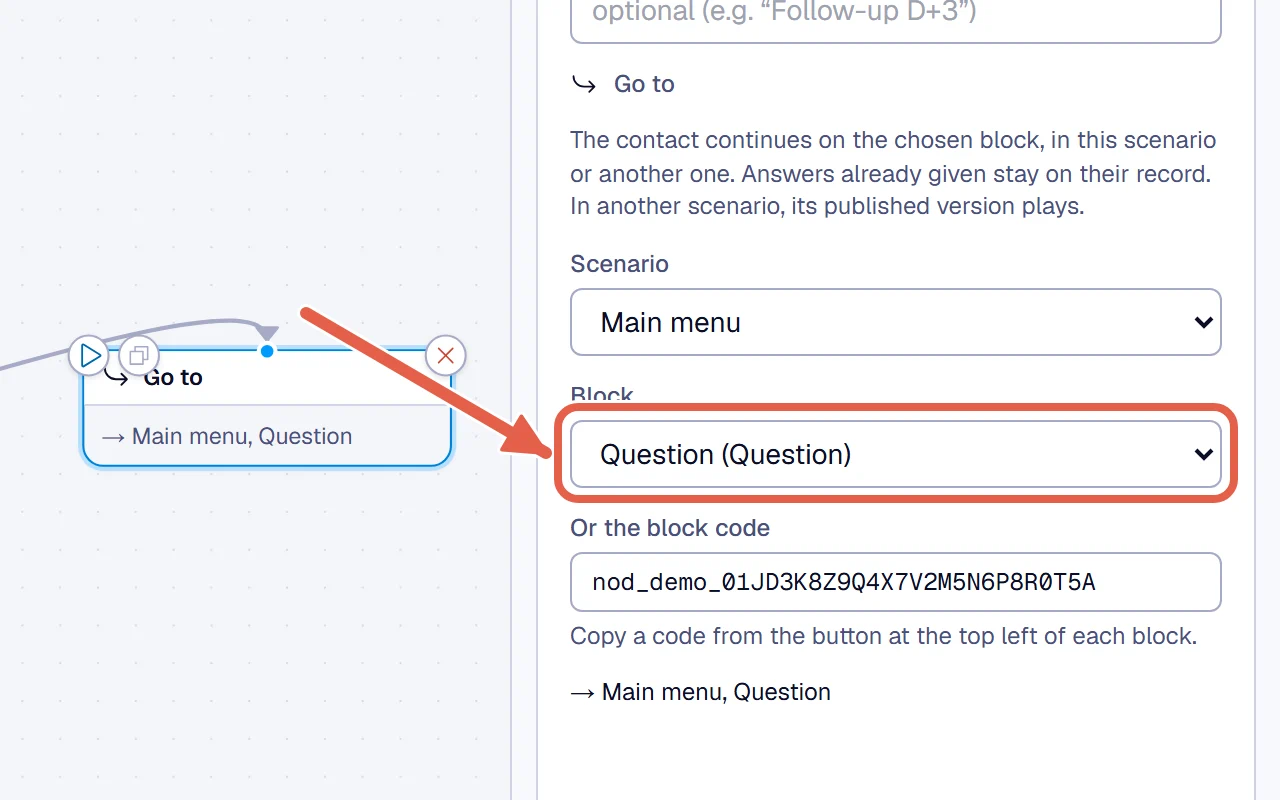
3. The rules of the jump
The block has no output: the journey goes on over there.
In detail
- Coming back to a block already crossed, without a reply from the contact in between, stops the journey. Going back to the menu after a reply works.
- More than 20 "Go to" chained without a pause are stopped, and the conversation goes to your team.
- After a wait of 24 hours or more, a jump to another scenario whose first send is a quick message, a question, a form or an AI agent is refused at publication. Within the same scenario, the screen only warns you; it also warns you of a jump reached before any reply from the customer, behind a "No reply" output for example.
- Placed before the first template, a jump to another scenario prevents launching the scenario as a campaign.
- It cannot follow the "Then, without waiting" output of a quick message: the scenario cannot be published.