1. Choose the form
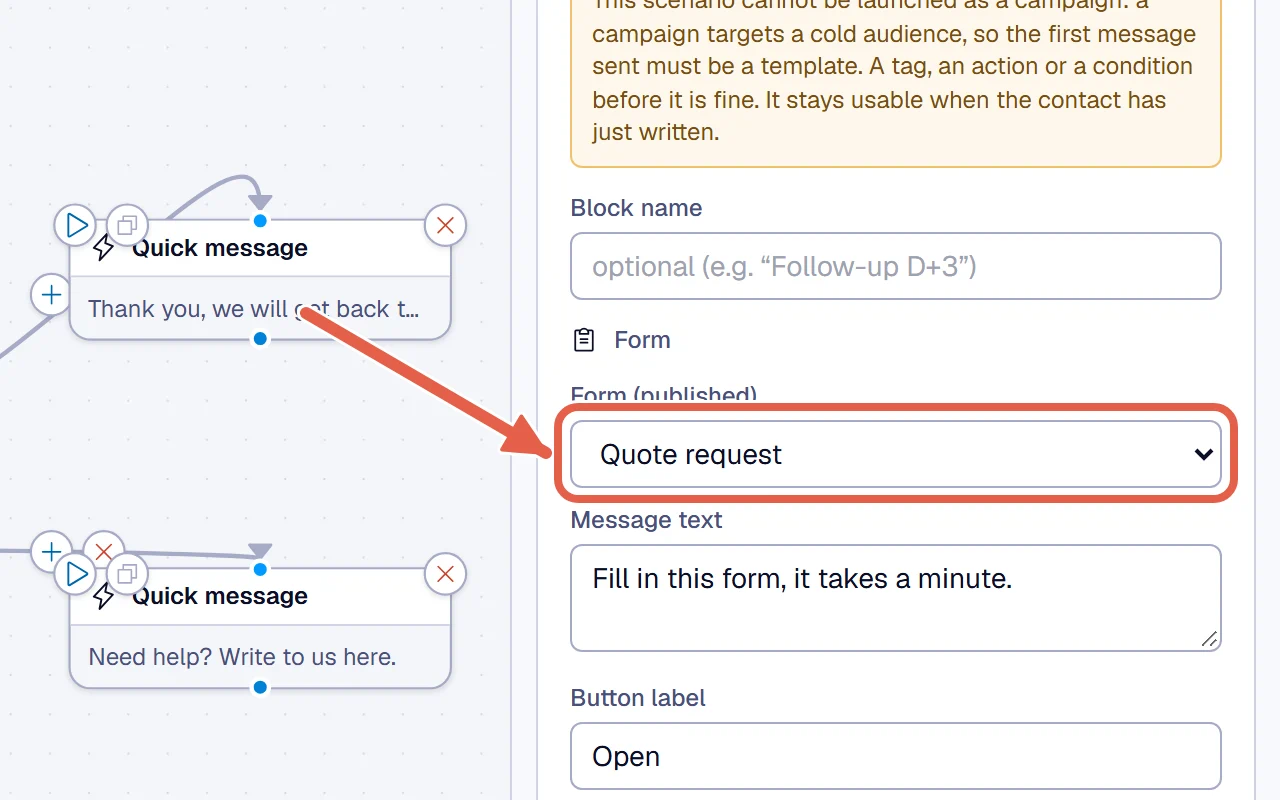
Click the block, then choose in "Form (published)".
In detail
- Only published forms are offered. They are built in Content > WhatsApp > Forms.
- It only goes out in an open conversation: the contact wrote to you less than 24 hours ago. A scenario that starts with it therefore cannot go out as a campaign. Placed where it would not get through, the screen warns you in yellow.
- It always goes out on WhatsApp, even in an RCS journey.
- Without a chosen form, nothing goes out and the journey stays on this block; if Meta's agent answers your customers, it goes through "Any other reply".
2. Write the intro text and the button
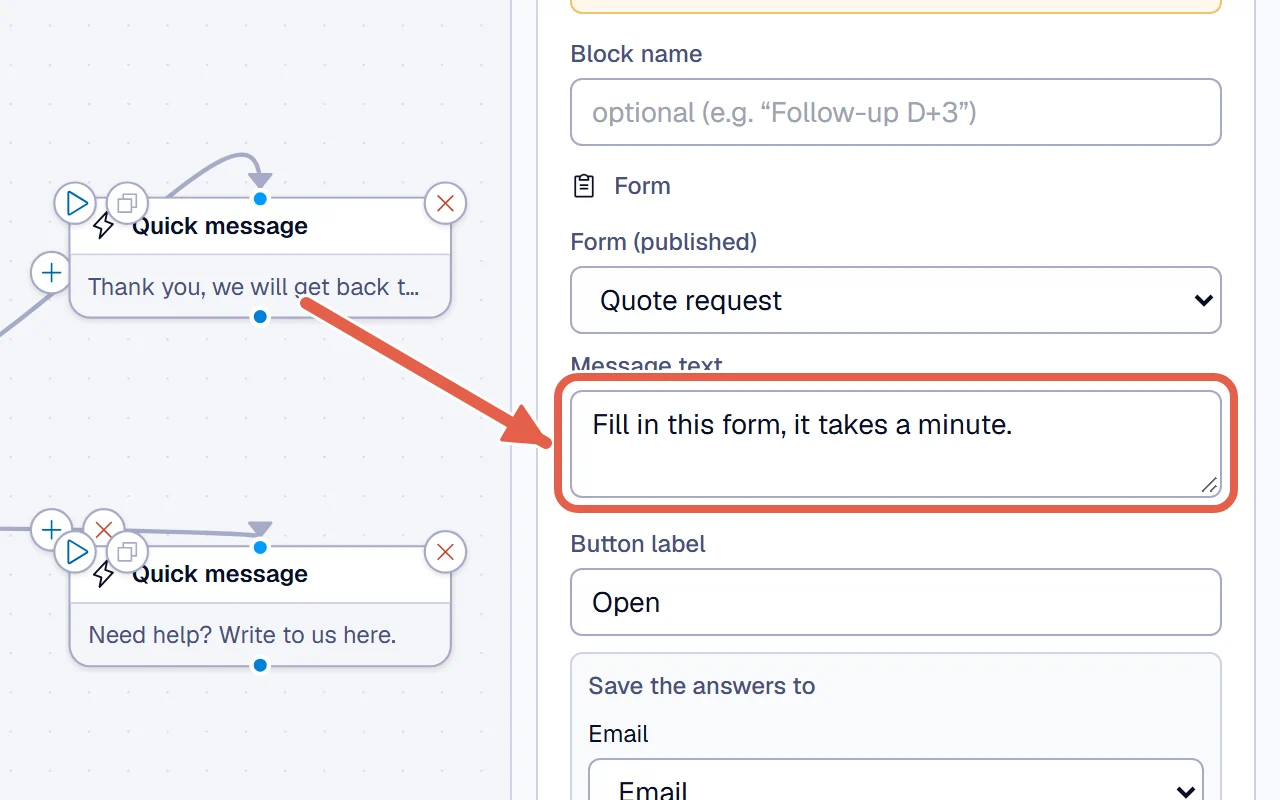
"Message text" goes with the form; "Button label" is what the contact taps to open it.
In detail
- Empty intro text: "Formulaire :" followed by its name goes out instead, in French.
- Button: 30 characters at most, "Envoyer" if it is empty. It first takes the form's final button.
3. Choose where to store the answers
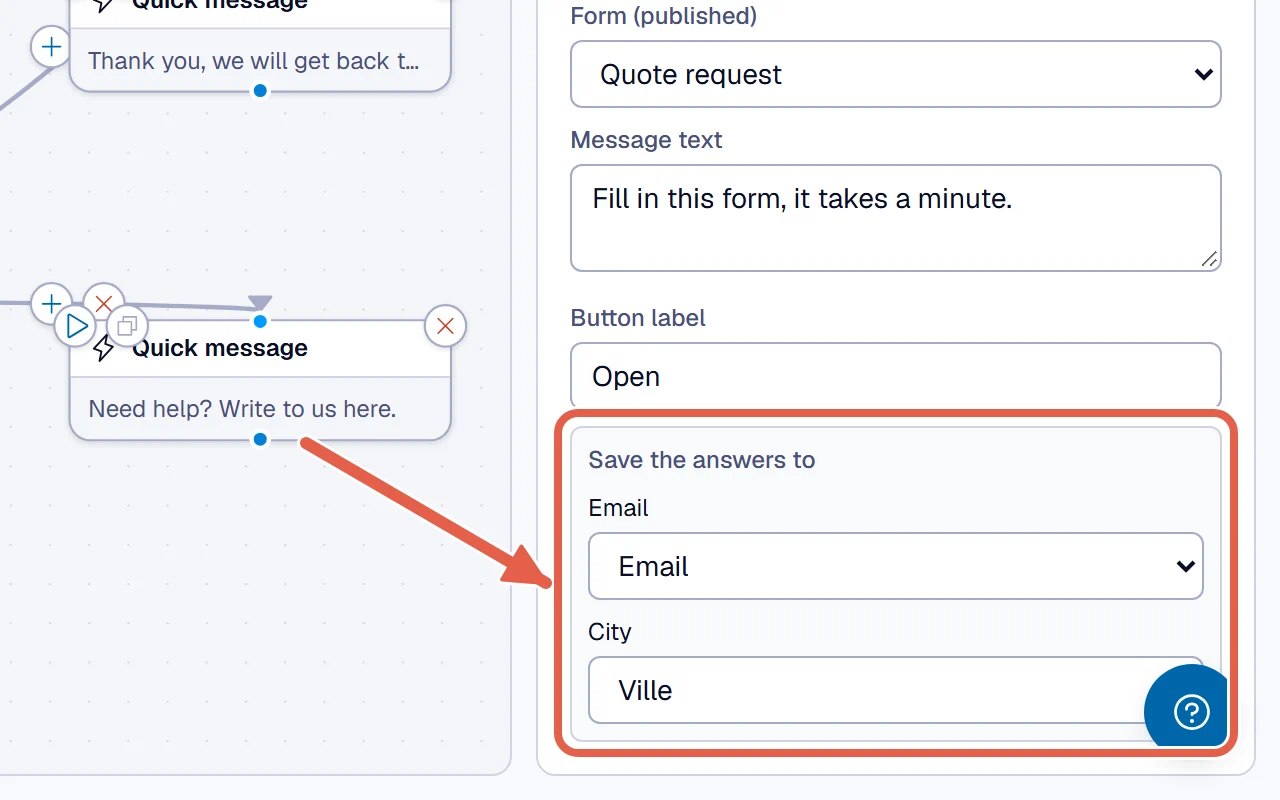
Under "Save the answers to", one field of the record per form element.
In detail
- Each element first follows the field chosen in the form; another choice only applies to this scenario.
- "Do not save" stores nothing, even if the form stored this element elsewhere.
- No JSON field, no WhatsApp name, no phone number.
- A multiple choice is written "a, b", a checkbox true or false; an empty answer writes nothing.
- A ticked consent box signs the contact up to your campaigns, even on "Do not save".
- Form created in Business Manager: nothing is stored until a field is chosen here, and its consent box signs nobody up.
4. Connect "Form submitted"
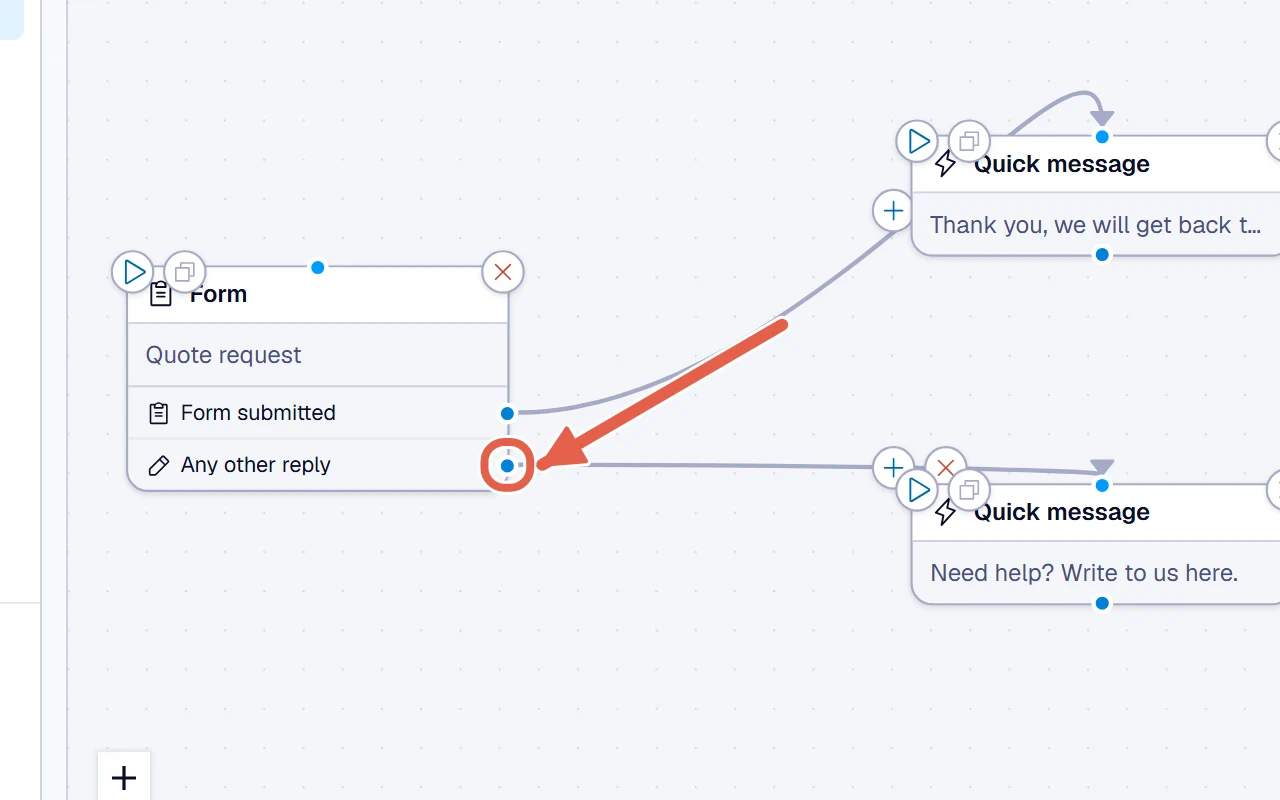
The output the contact takes when they submit the form.
In detail
- Any form submitted during the wait takes it, even another one; but the block only stores the answers to the form it sent, another one follows its own settings.
- Connected to nothing, the submitted form goes through "Any other reply".
- Without an answer, the journey waits, with no time limit.
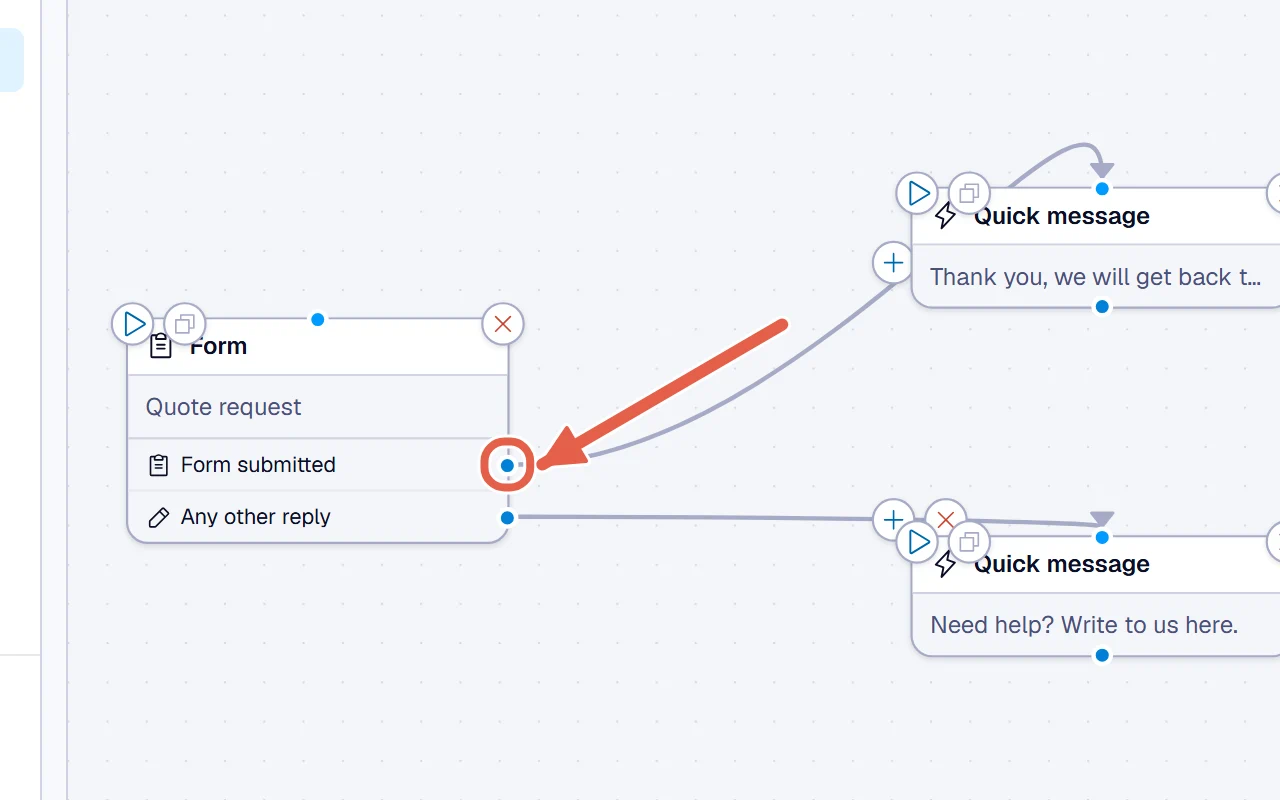
5. Plan for other replies
"Any other reply" is used when the contact writes instead of filling in the form.
In detail
- An emoji reaction counts as another reply.
- Connected to nothing, the journey stops and the conversation goes back to whoever usually answers your customers.
- If your team or Meta's agent took over the conversation, the contact's reply no longer moves the journey forward.
- A Form cannot follow the "Then, without waiting" output of a quick message: the scenario cannot be published.