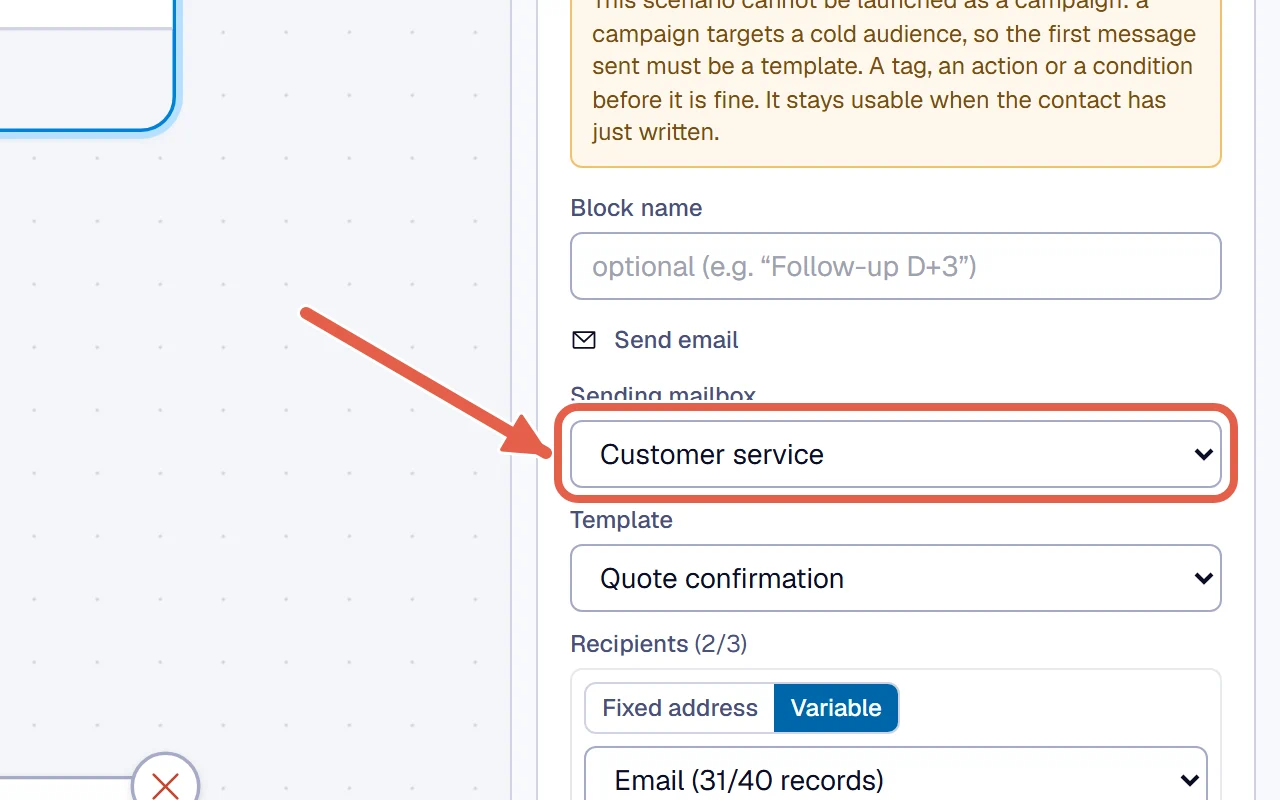
1. Choose the mailbox and the template
Click the block, then "Sending mailbox" and "Template".
In detail
- The block is greyed out in the palette until a mailbox is connected (Tools > SMTP email). The guide "Send an email from a scenario" explains how to connect it and write the templates.
- The template's variables are replaced by the contact's record, in the subject as in the body.
- Missing mailbox, template or recipient: the block does nothing and the journey goes on.
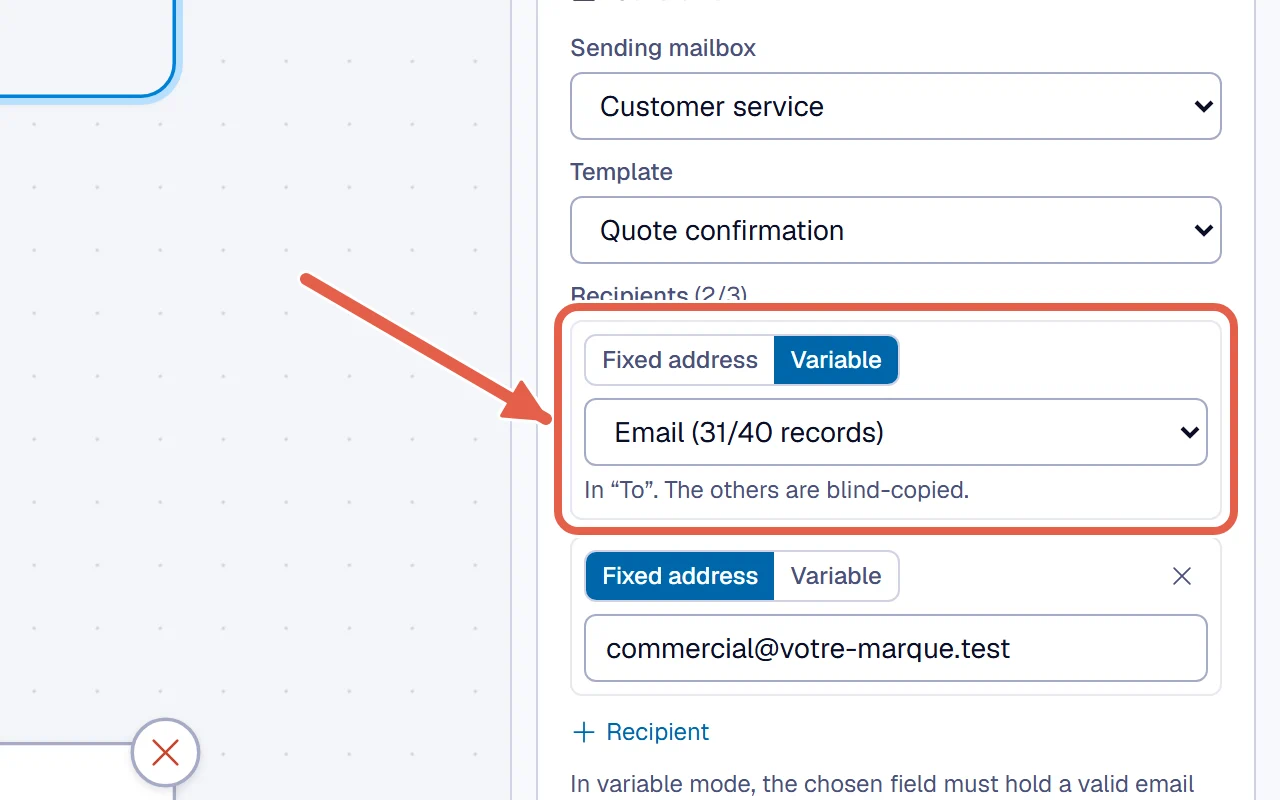
2. Choose the recipients
Each line: "Fixed address", or "Variable" for a field of the record.
In detail
- 3 recipients at most: the first in "To", the next ones blind-copied.
- Next to each field, the number of records that fill it: a field empty everywhere will send nothing.
- An address that gives nothing is ignored; the others go out anyway.
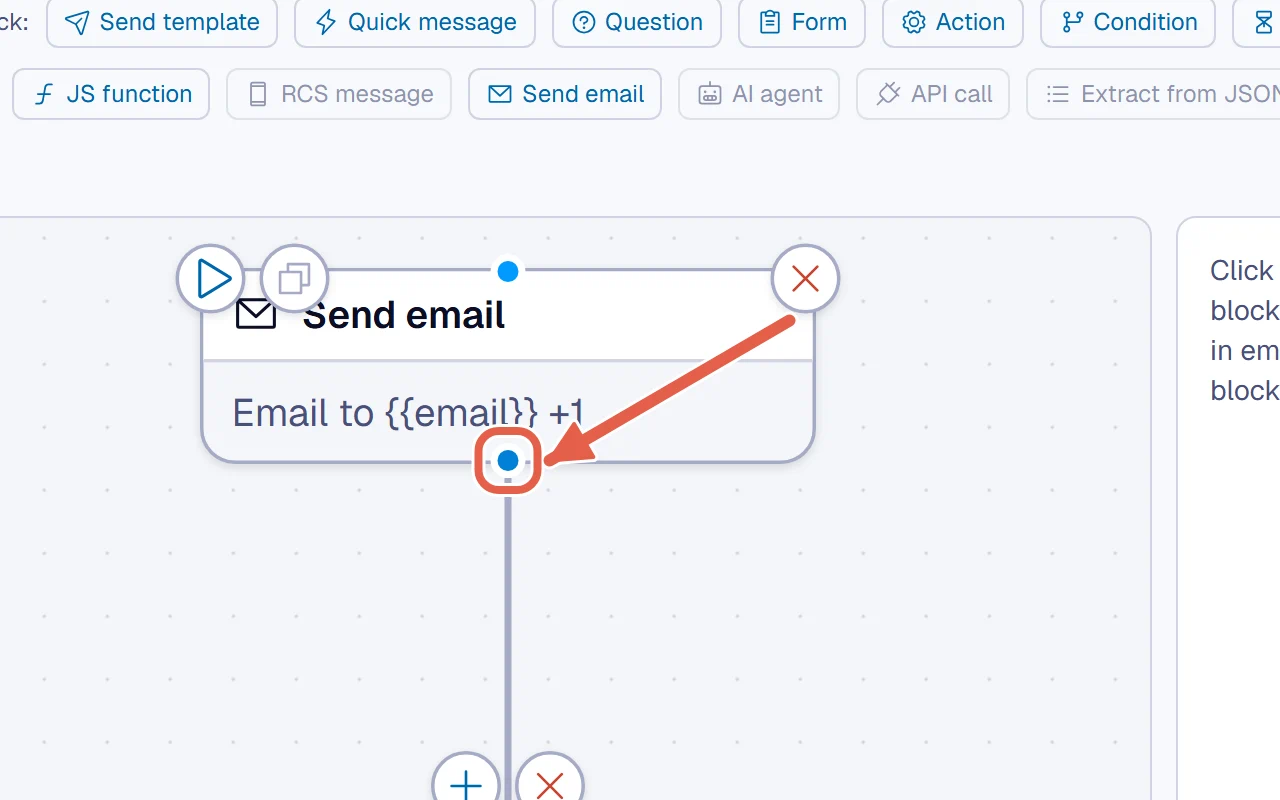
3. Connect what follows
The block has only one dot, at the bottom: what follows goes out right away, without waiting for the email.
In detail
- A failure (unreachable mailbox, invalid address) is logged and does not stop the journey. Sends are counted in the Performance Lab, under My dashboards.
- Exception: a contact who said STOP does not receive the email; if nothing else went out, the conversation goes to your team.
- No 24-hour window: the email goes out at any time.
- It can follow the "Then, without waiting" output of a quick message.