You fill it in four ways: your website, a document, an entry written by hand, or a file attached to the setup assistant. Everything happens in the agent’s “Knowledge base” tab.
1. Read your website
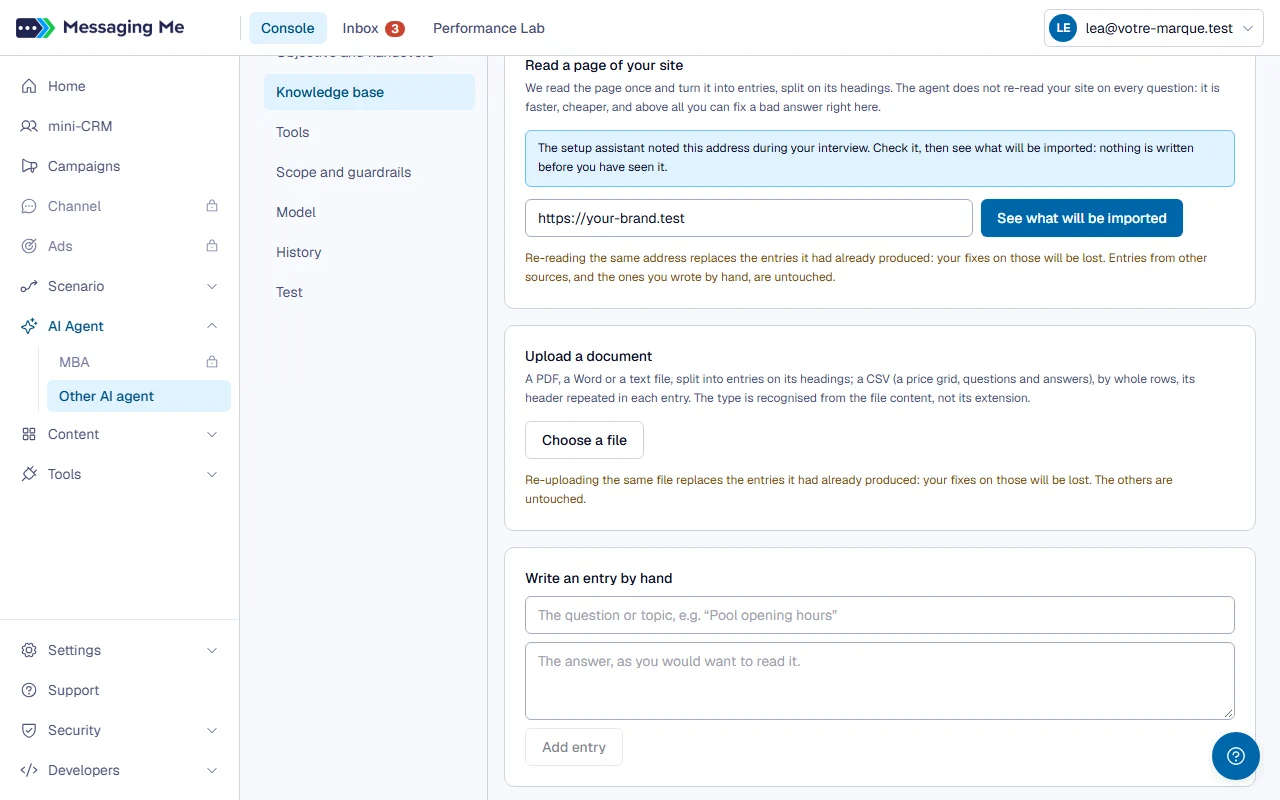
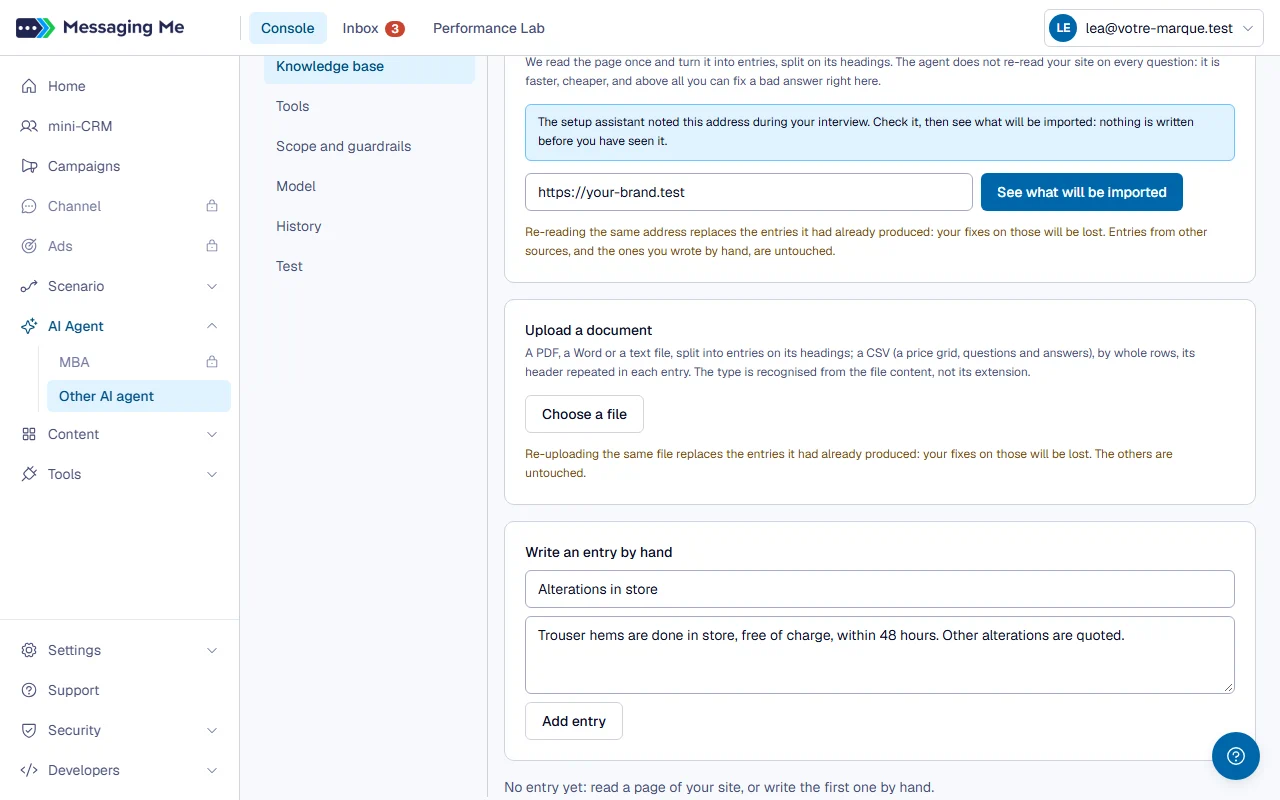
“Read a page of your site” card: paste an address, then “See what will be imported”.
In detail
- A page’s address reads that page only; your domain’s address reads the site, up to fifty pages close to the home page.
- The address you gave the setup assistant is already in the field, with a banner saying so.
- The site is read once and split into entries on its headings. The agent does not re-read it on every question: it is faster, cheaper, and a bad answer can be fixed right here.
2. Reread the preview, then import
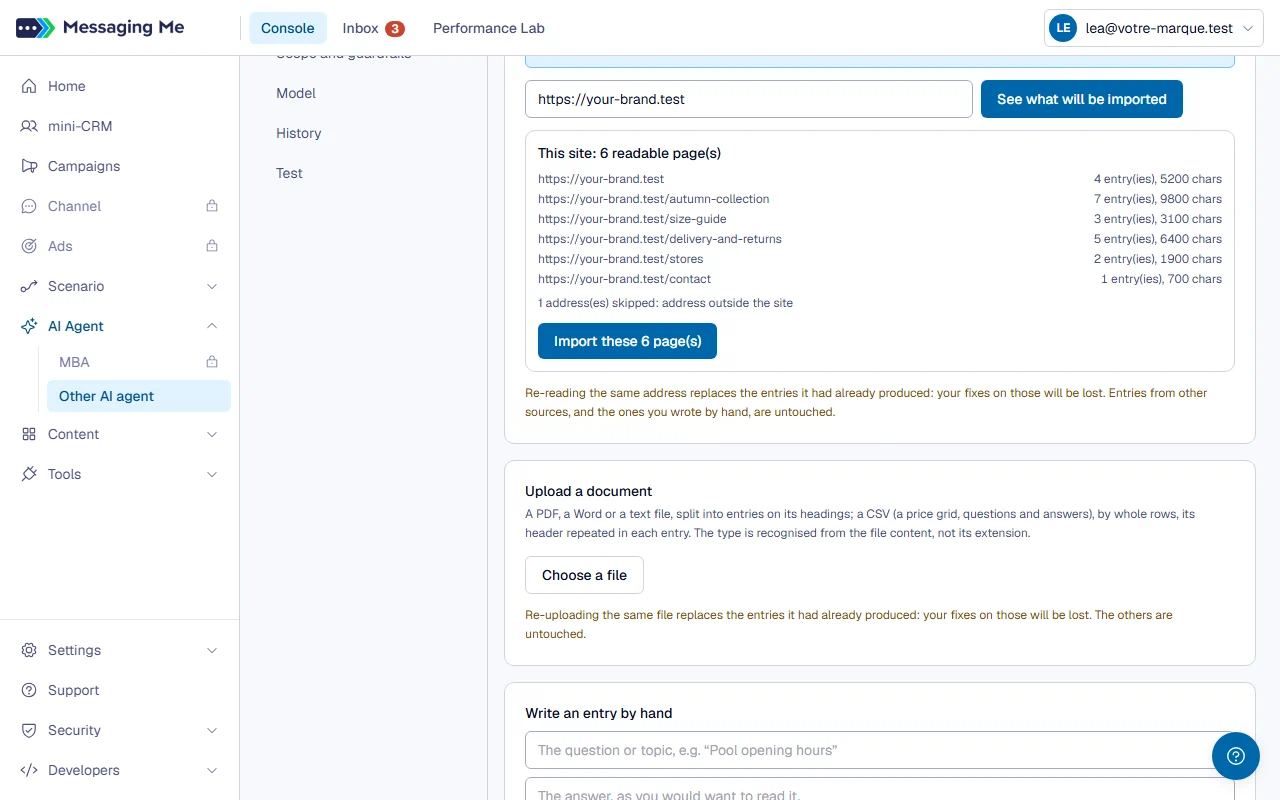
The preview lists the readable pages and what each one will give, in entries and characters. Nothing is written before “Import these N page(s)”.
In detail
- A slow site is read for 30 seconds at most: the preview then says pages are missing. An import stopped for lack of time offers “Import the N remaining page(s)” in one click.
- When the page cap is reached, the preview says so: import these first, then give a more precise address for the rest. Skipped addresses are named, with their reason.
- Beyond 40 entries for one page, the rest of it is not read, and the import message says so, page by page.
- Re-reading the same address replaces the entries it had produced: your fixes on those are lost. The other entries are untouched.
3. Upload a document
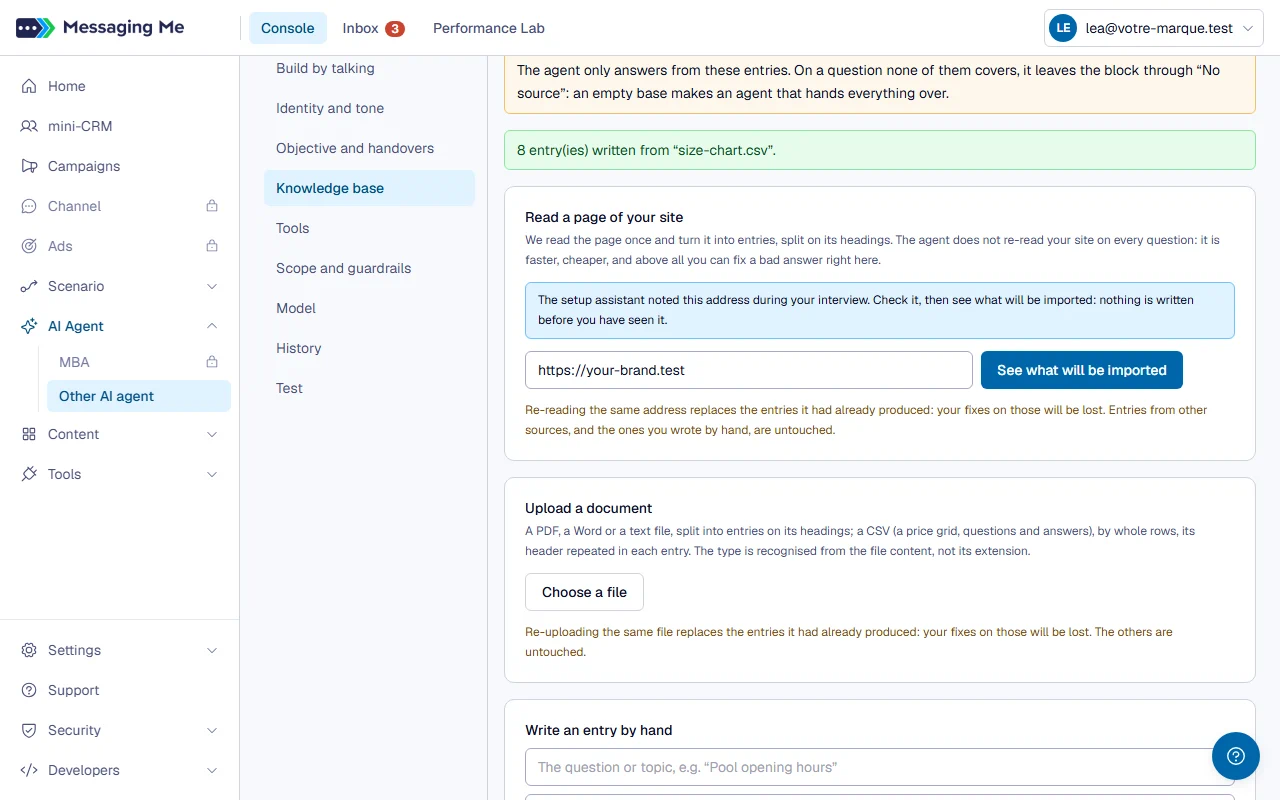
“Upload a document” card, “Choose a file”: a PDF, a Word file, a text file or a CSV.
In detail
- A PDF, a Word or a text file is split into entries on its headings. The type is recognised from the file content, not its extension. 8 MB at most.
- A CSV, a price grid for example, is split by whole rows, its header repeated in each entry. One saved by Excel on Windows, with semicolons, works too.
- Beyond 40 entries, the rest of the document is not read, and the screen says so. Uploading the same file again replaces the entries it had produced.
- An image is not uploaded here: attach it to the assistant (step 5).
4. Write an entry by hand
“Write an entry by hand” card: a title (the question or the topic), the answer as you would want to read it, then “Add entry”.
In detail
- It is the shortest path for what no page says: summer opening hours, an exception, an instruction.
5. Attach a file to the assistant
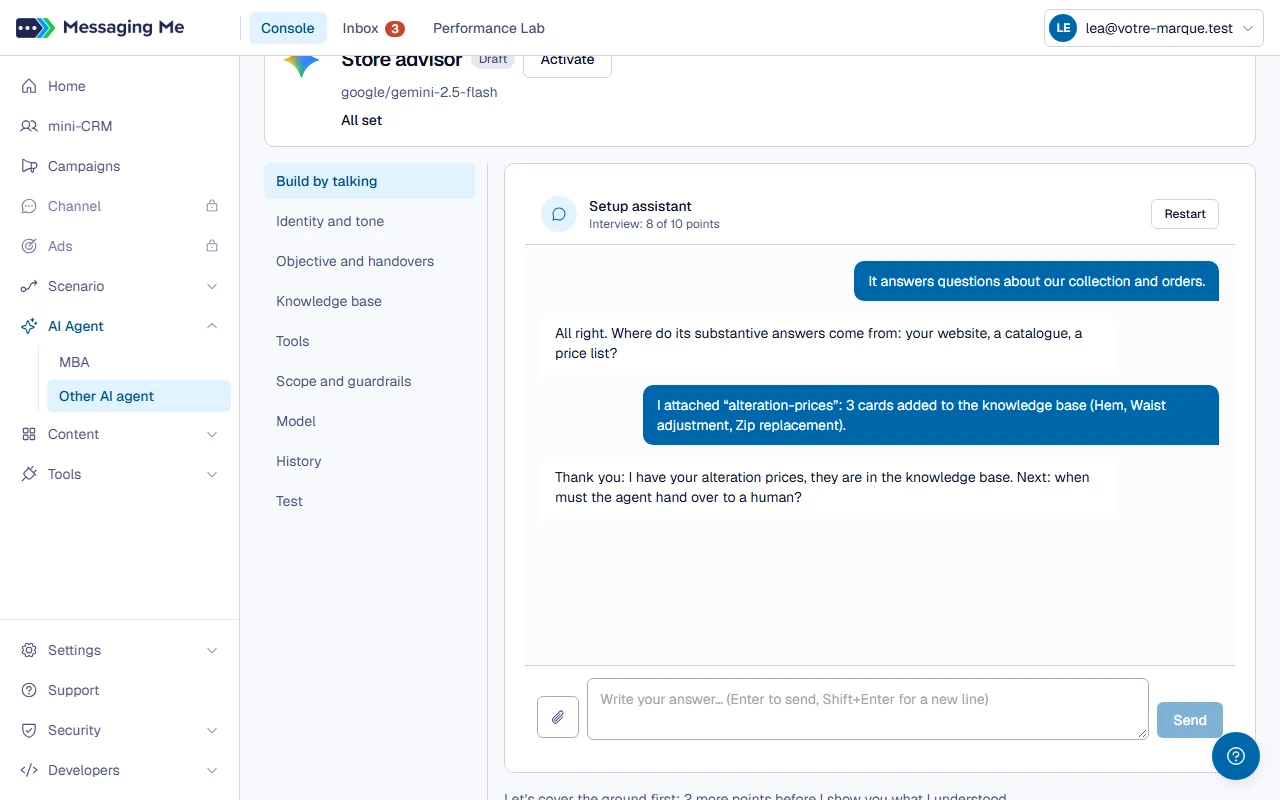
“Build by talking” tab, “Attach a file” paperclip: a document or an image. Its text is extracted, split into entries, and the assistant tells you how many it added.
In detail
- The assistant is included from the Pro plan.
- Accepted: text, CSV, Markdown, PDF, Word, and JPEG, PNG, GIF and WebP images. 8 MB per document, 5 MB per image.
- An image is read by the AI, which picks out its text: the photo of a price grid becomes entries.
- A file with no readable text, a scanned PDF for example, is reported as such, and the 40-entry cap, if it bites, is stated in the message.
6. Reread and fix the entries
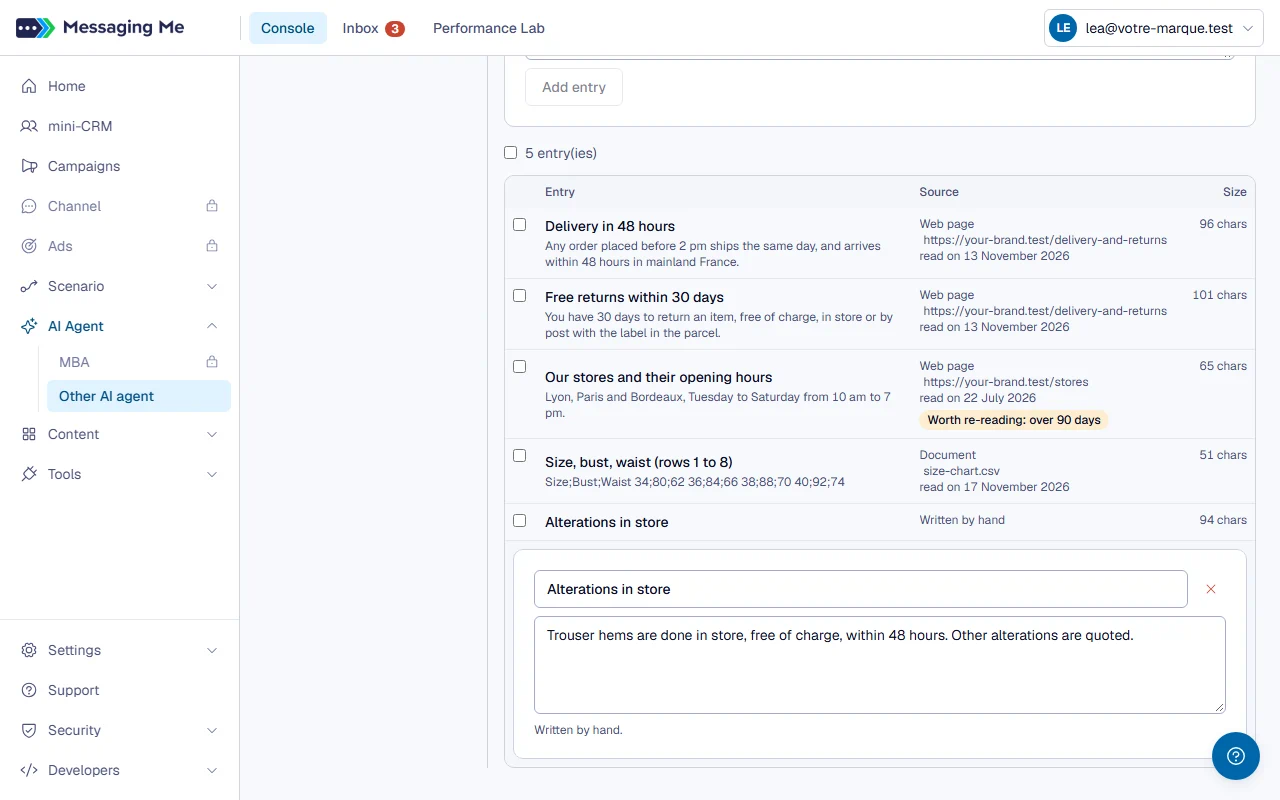
The table lists each entry, its source and its size. Click an entry to open it: its title and its answer can be edited in place.
In detail
- The source says “Written by hand”, “Document”, or the page read and its date.
- An entry nobody has touched for more than ninety days carries the “Worth re-reading” badge: it is the answer to out-of-date content.
- An entry is at most 2,000 characters, what the agent reads of it: a longer section becomes several numbered entries. Nothing is cut.
- Tick several entries, then “Delete the N selected entries”. A deleted entry leaves its content in the History tab, the only copy left of it.