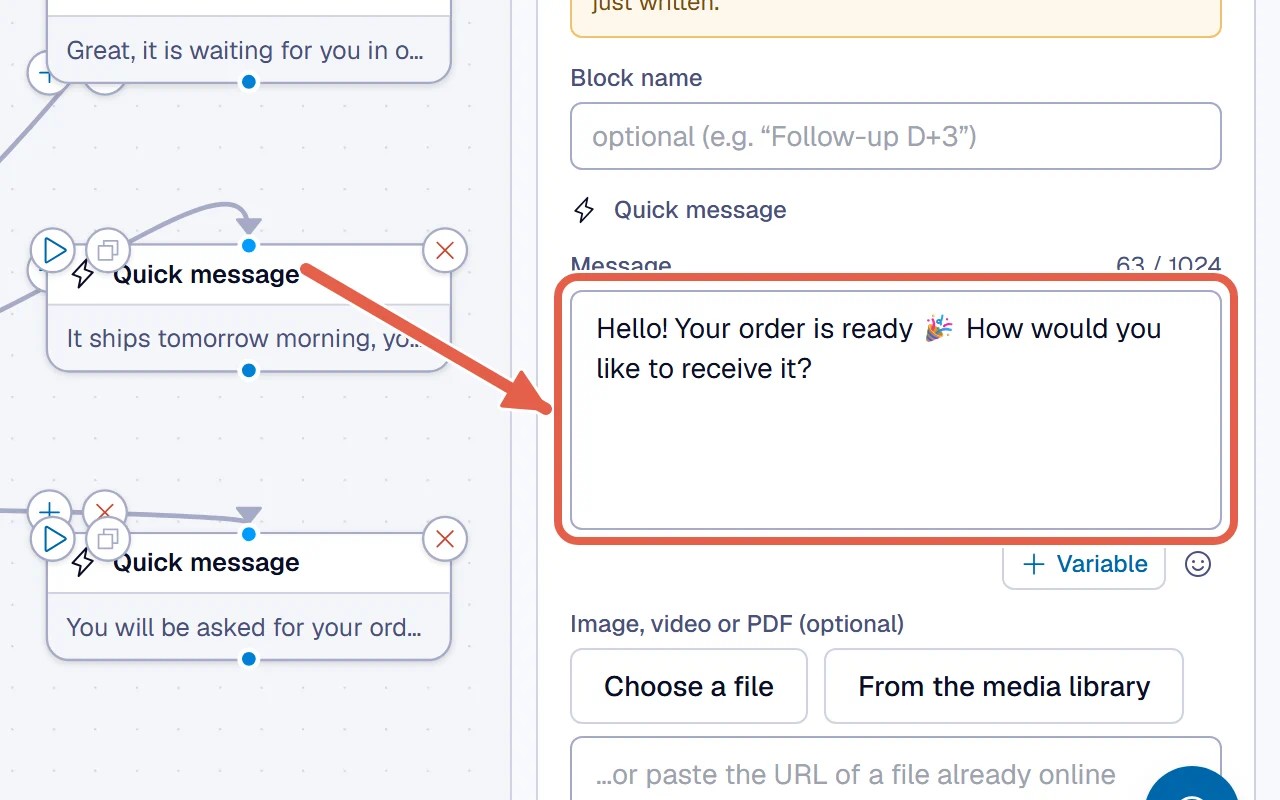
1. Write the message
Click the block: its panel opens on the right, with the "Message" box at the top.
In detail
- 4,096 characters at most, or 1,024 as soon as the message carries a button or a file.
- "Variable" inserts a contact field, for example their city.
- It only goes out in an open conversation: the contact wrote to you less than 24 hours ago. A scenario that starts with it therefore cannot go out as a campaign; to write first, use the Send template block.
- Placed after a wait of 24 hours or more, or where the customer has not replied yet in a scenario started by an event (a store, a date, a campaign), it will not go out: the screen warns you in yellow.
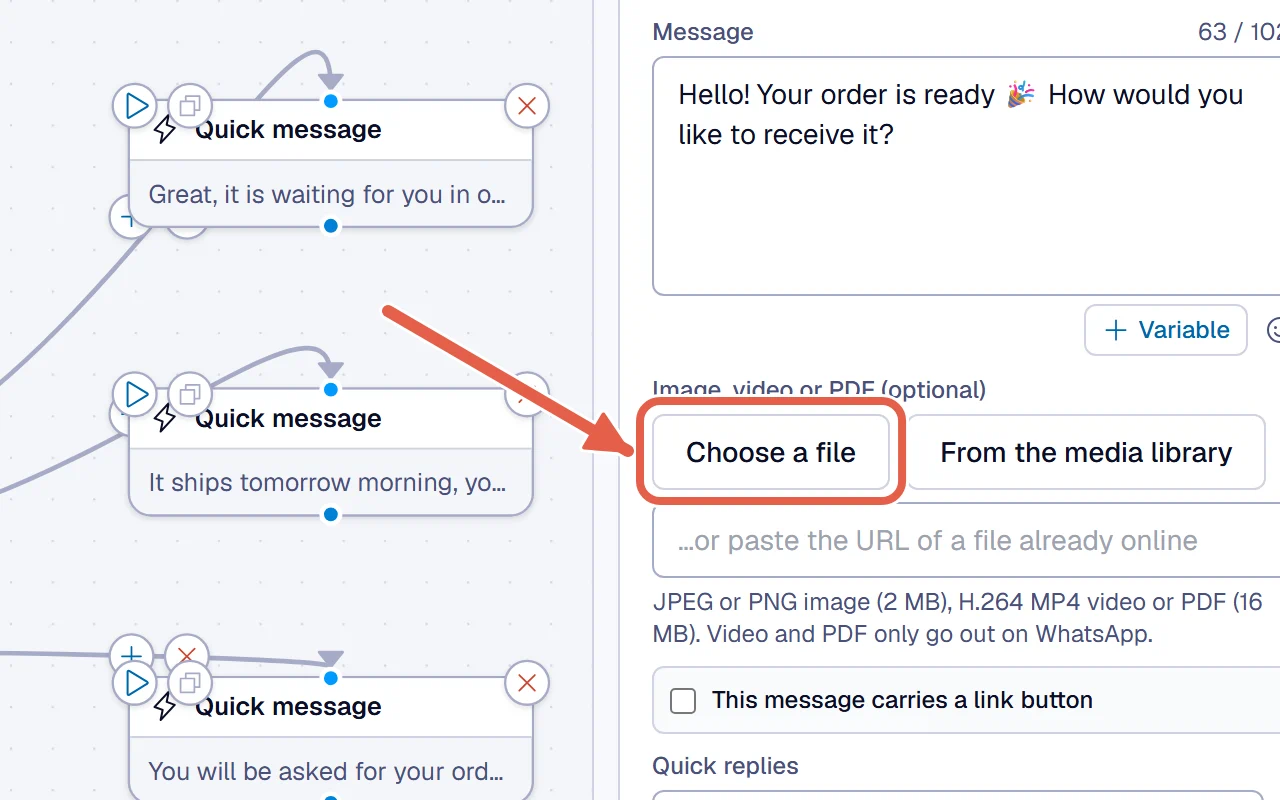
2. Attach a file, if needed
An image, a video or a PDF, from your computer or the media library.
In detail
- JPEG or PNG image: 2 MB at most. H.264 MP4 video or PDF: 16 MB at most.
- An iPhone video (MOV, HEVC) is refused: convert it to H.264 MP4.
- Video and PDF only go out on WhatsApp, not on RCS.
- The message text becomes the caption of the file.
- The media library only offers what the block can send. Your files and your plan's quota are managed in Settings > Media library.
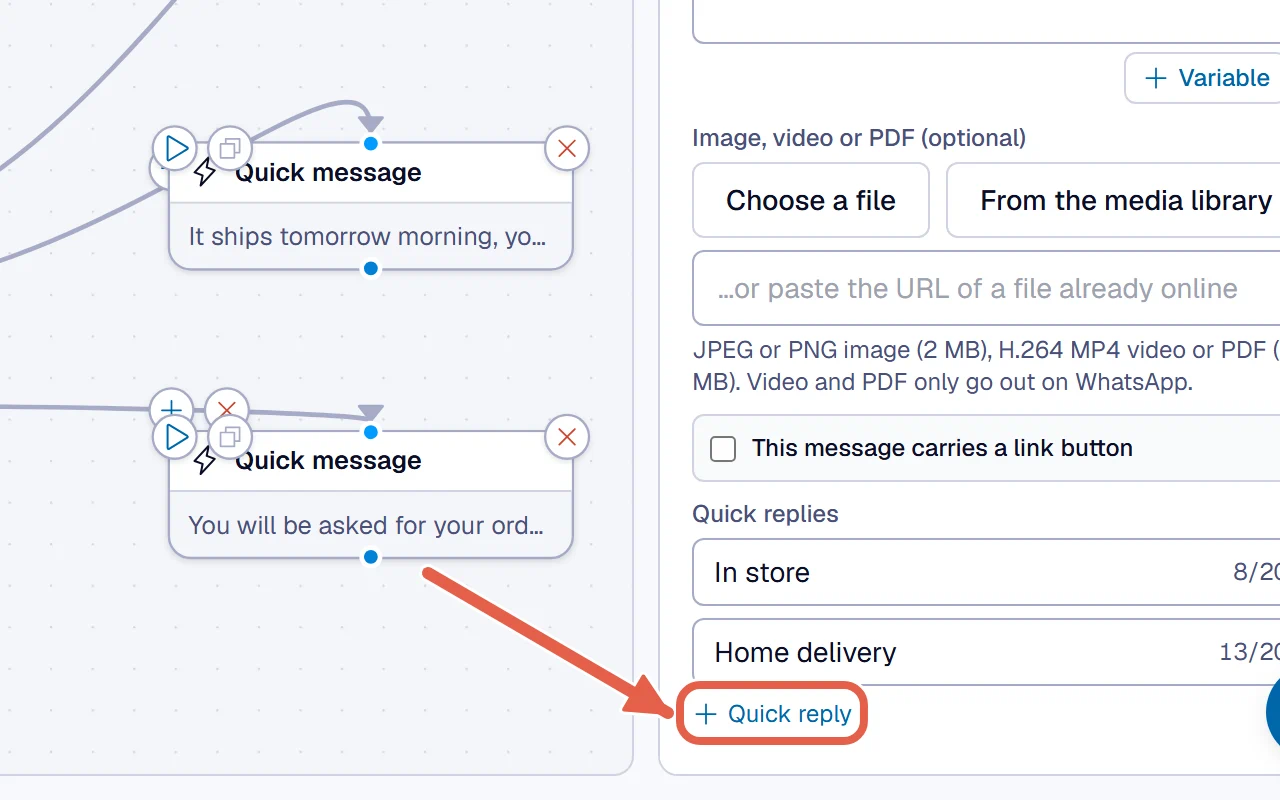
3. Offer quick replies
"Quick reply" adds a button the contact taps to answer you.
In detail
- Three buttons at most, 20 characters each.
- With buttons, the scenario waits for the contact's answer before going on.
- Without a button, it waits for nothing: the next block goes out right away.
4. Or add a link button
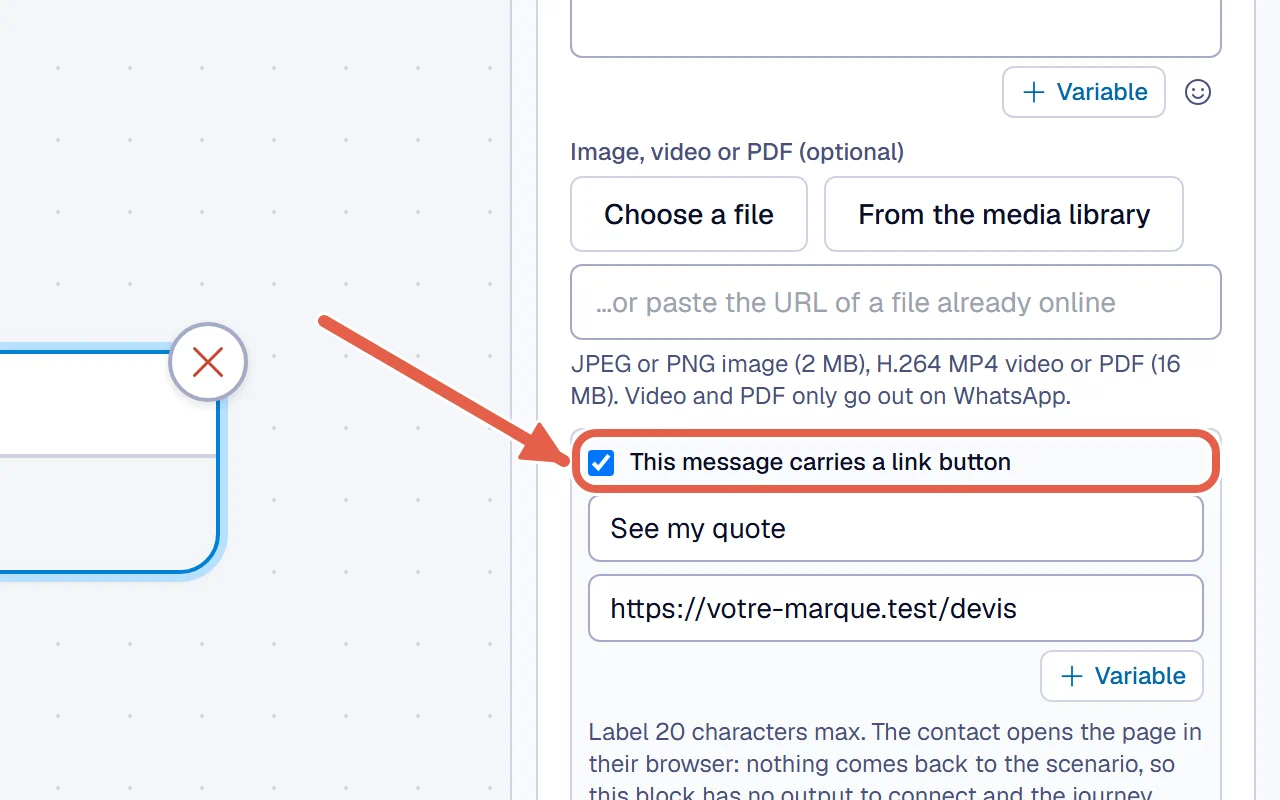
Tick "This message carries a link button", then write its label and the page address.
In detail
- Label: 20 characters at most. The address starts with https:// (or http://).
- Ticking the box removes the quick replies: WhatsApp never sends both in the same message.
- "Variable" puts a contact field in the address, for example the link to their quote. If that field is empty on their record, the message does not go out: during a journey, the conversation goes to your team, and the Error log says why.
- An address with a variable only goes out on WhatsApp.
- Nothing comes back from the click: the block does not wait, the journey goes on right after.
5. Connect each reply
On the canvas, drag an arrow from the dot of a reply to the next block.
In detail
- A red dot is a reply connected to nothing. If the contact taps it, they go through "Any other reply" if it is connected; otherwise, they get nothing and the conversation goes to your team, in "To handle".
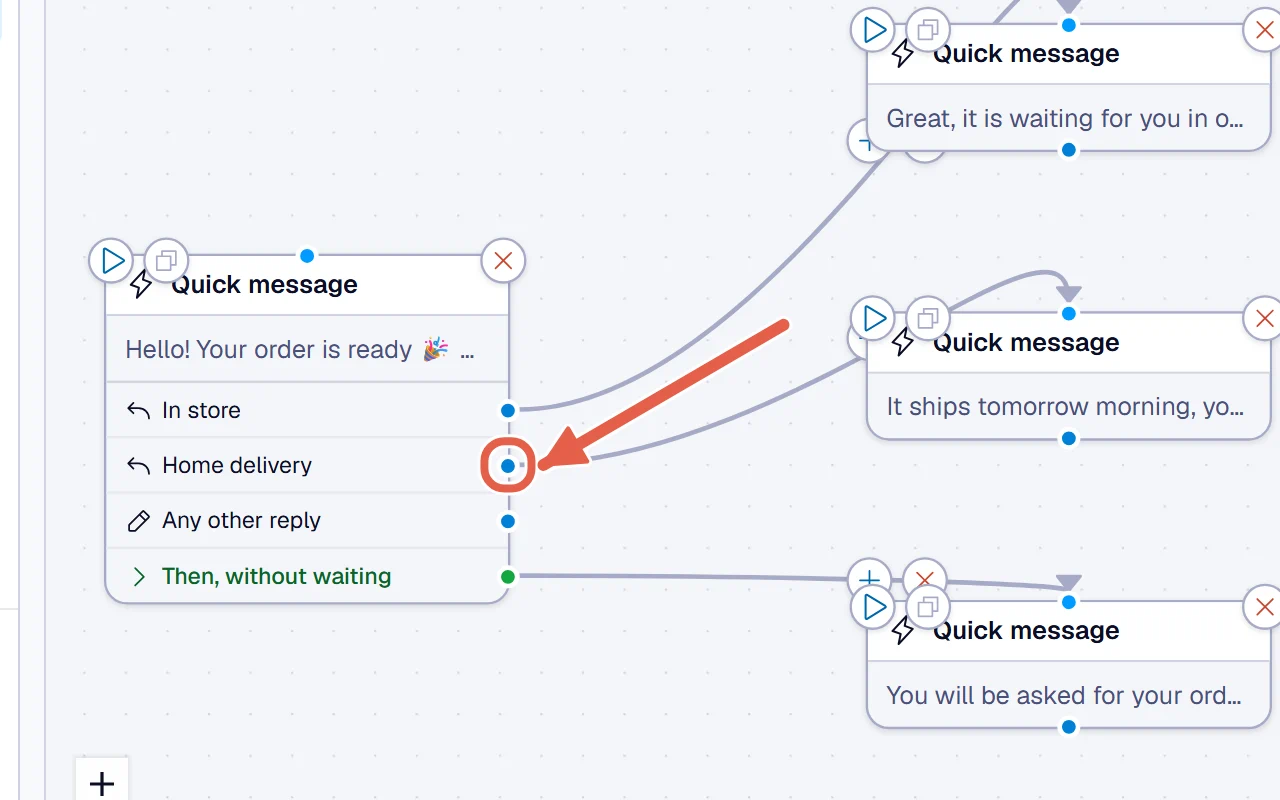
6. Plan for the contact who writes
With quick replies, the "Any other reply" dot is used when the contact writes instead of tapping a button.
In detail
- Connected to nothing, the journey stops and the conversation goes back to whoever usually answers your customers.
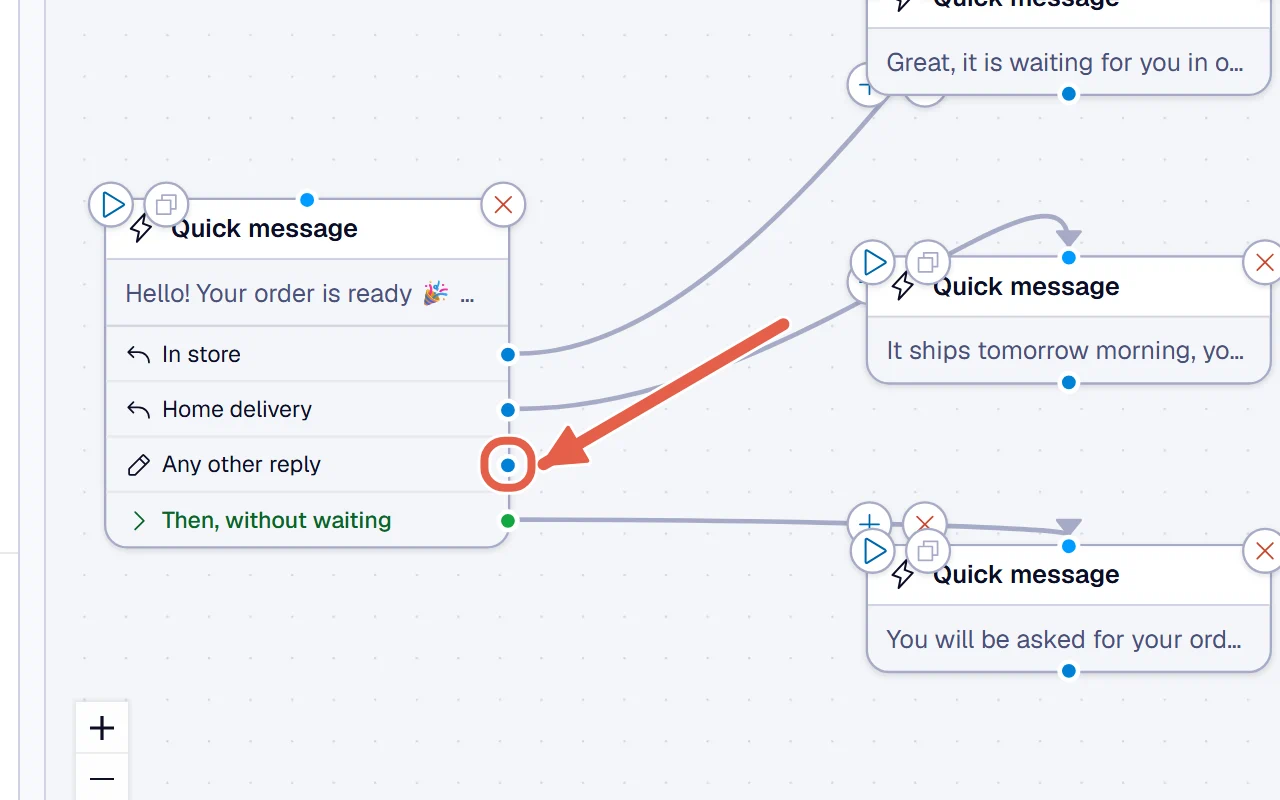
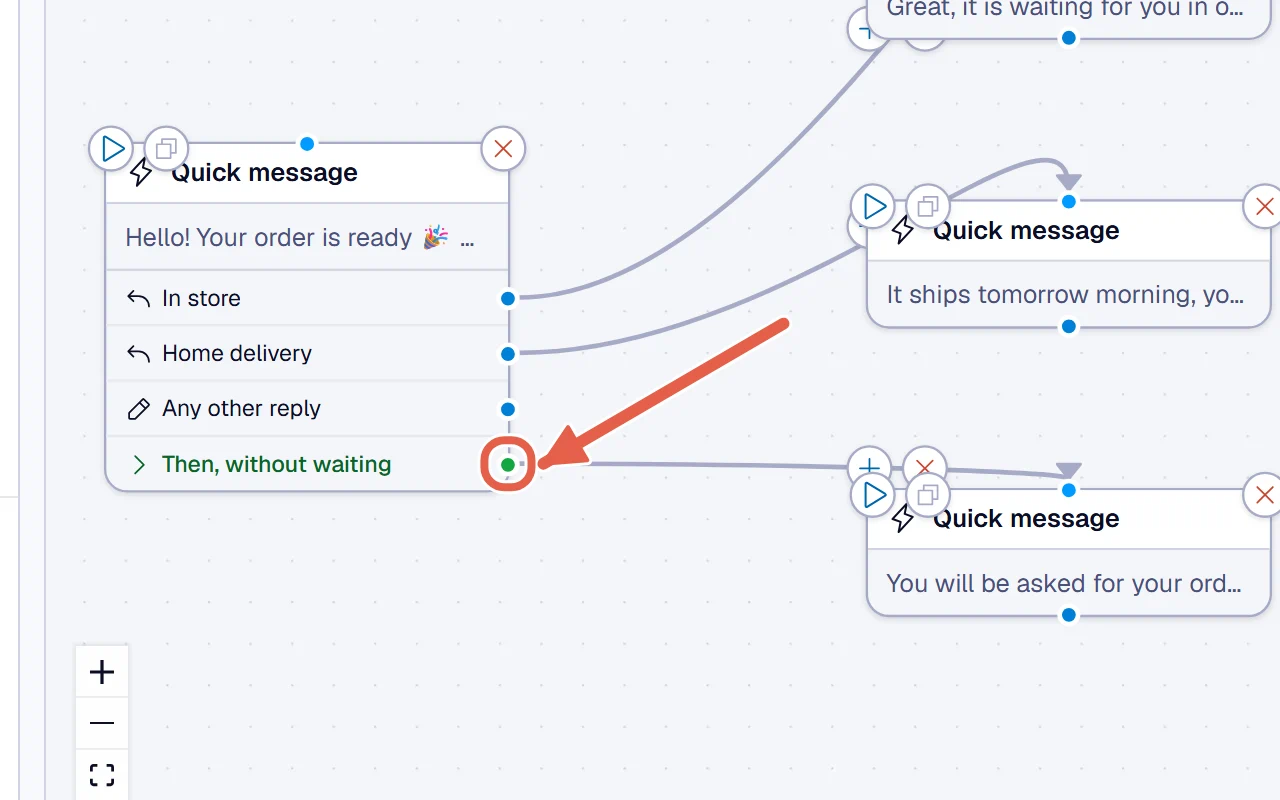
7. Chain without waiting
With quick replies, the "Then, without waiting" dot sends what follows right after the message; its buttons stay offered to the contact.
In detail
- Only blocks that wait for nothing can follow it: message without buttons, action, condition, send email, API call, JS function, extract from JSON.
- A block that waits for an answer at this spot prevents publishing the scenario.