
1. Create the scenario
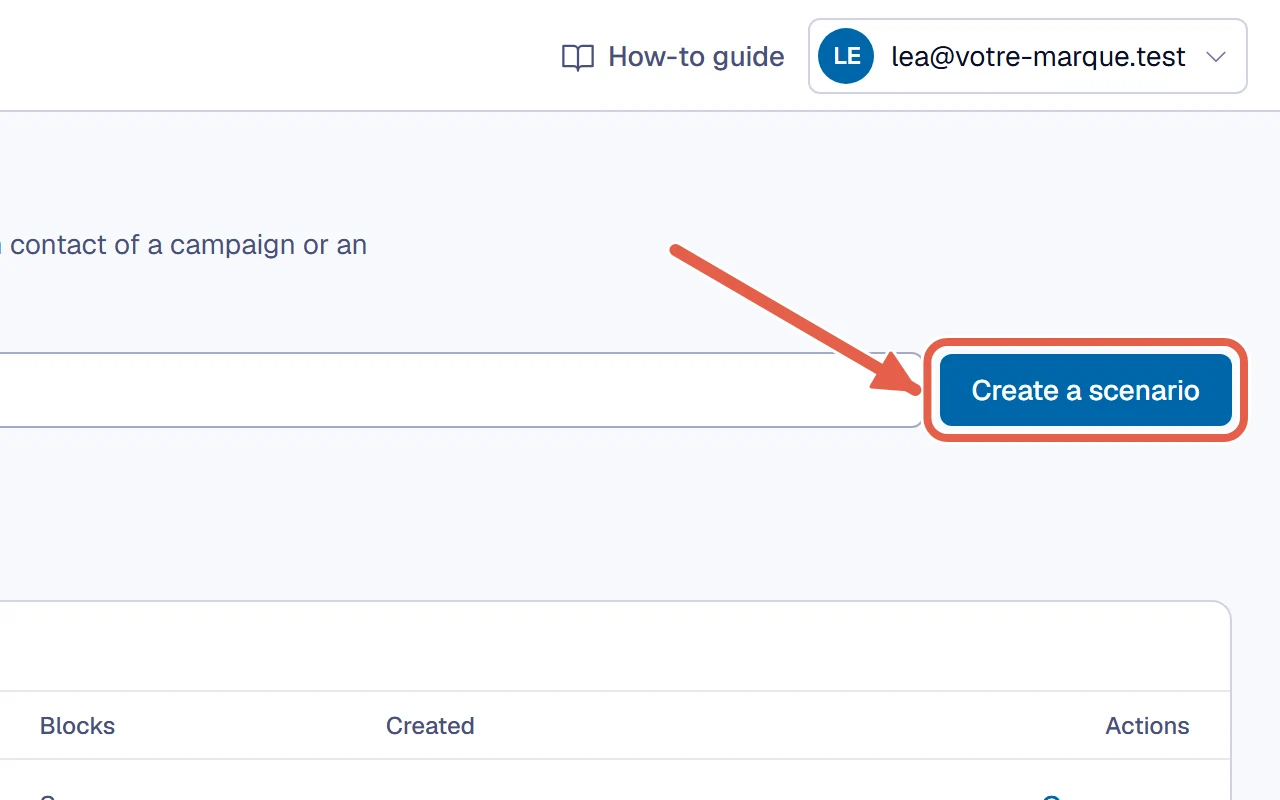
In Scenario > Builder, give it a name, then "Create a scenario".
2. Place a block
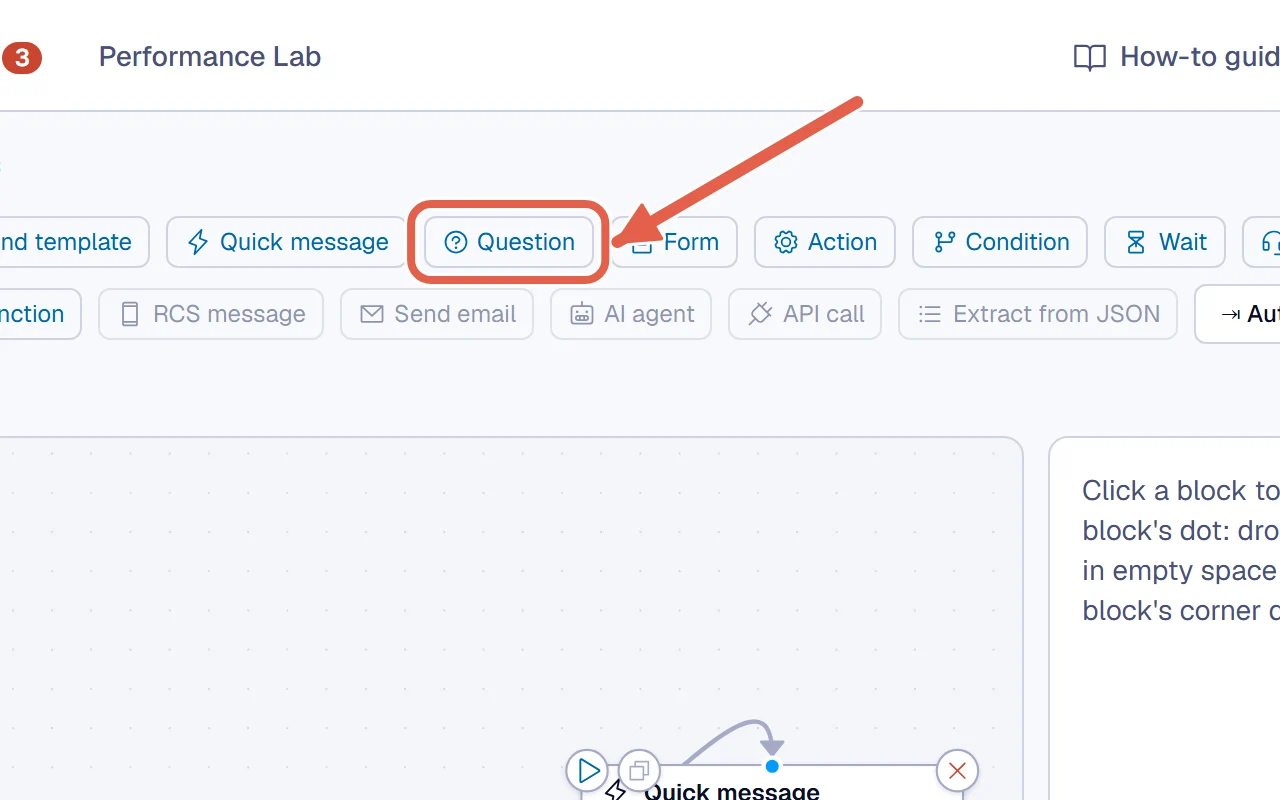
"Create a block:" offers each type of block: click the one you want.
In detail
- A greyed-out block is waiting for a connection: an RCS agent, a sending mailbox, an active AI agent or a declared call.
- An arrow dragged from a block's dot and dropped in empty space also creates a block.
- A block's type is chosen when it is created and no longer changes. The ✕ in a block's corner deletes it.
- The button to the right of the play button, at the top left of a block, copies its code, for a "Go to" or for the API. It stays greyed out for a second, the time it takes to save.
3. Connect the blocks
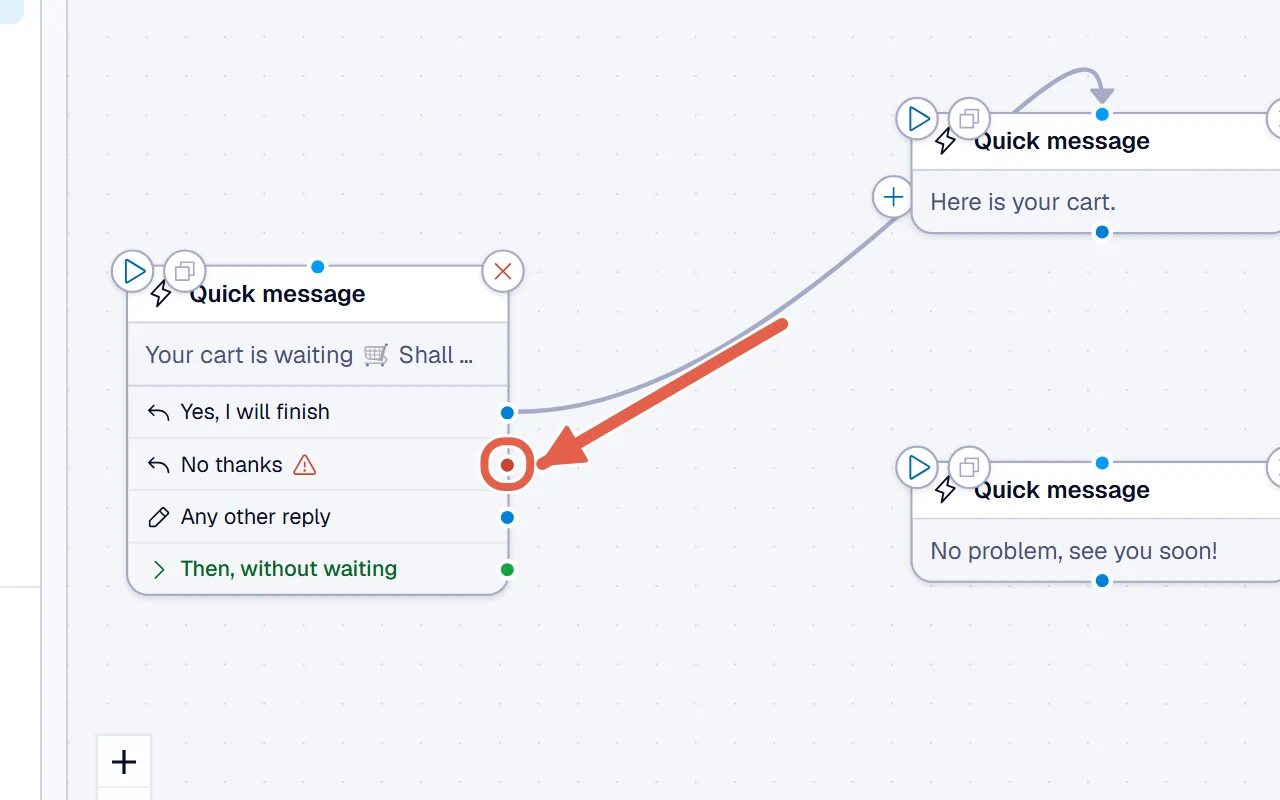
Drag an arrow from a block's dot and drop it on the next one.
In detail
- An output carries only one arrow: dragging a new one replaces the old one.
- "Auto-arrange" tidies up the canvas.
4. Try it
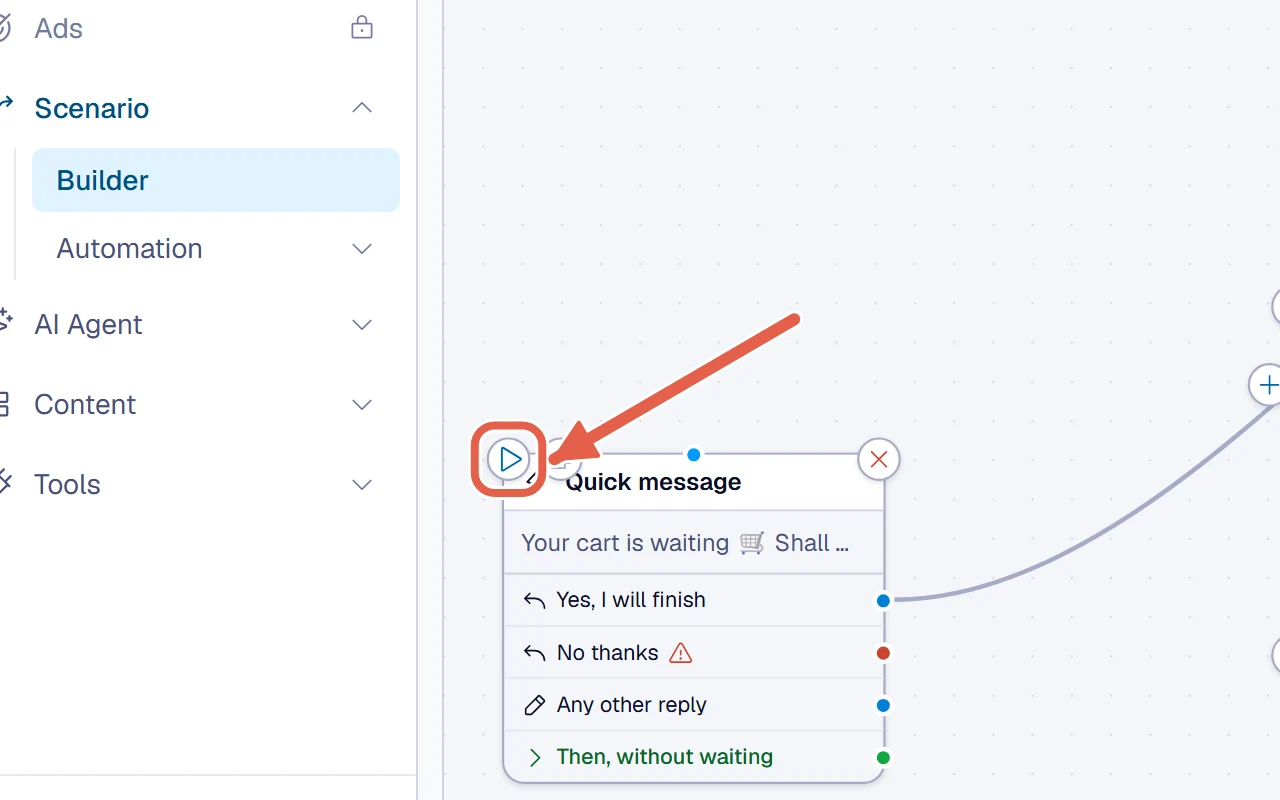
The play button at the top left of a block opens the test link from that block; "Test scenario", in the ⋯ menu of the list, starts it from the beginning.
In detail
- The link opens a conversation with your number, on your phone: it is your draft that plays, before any publication.
- From a block, what comes before it is not replayed: its tags and fields are not set.
- If Meta's agent held the conversation, it first answers "Je lance le test.", and the scenario starts a few seconds later.
5. Put it live
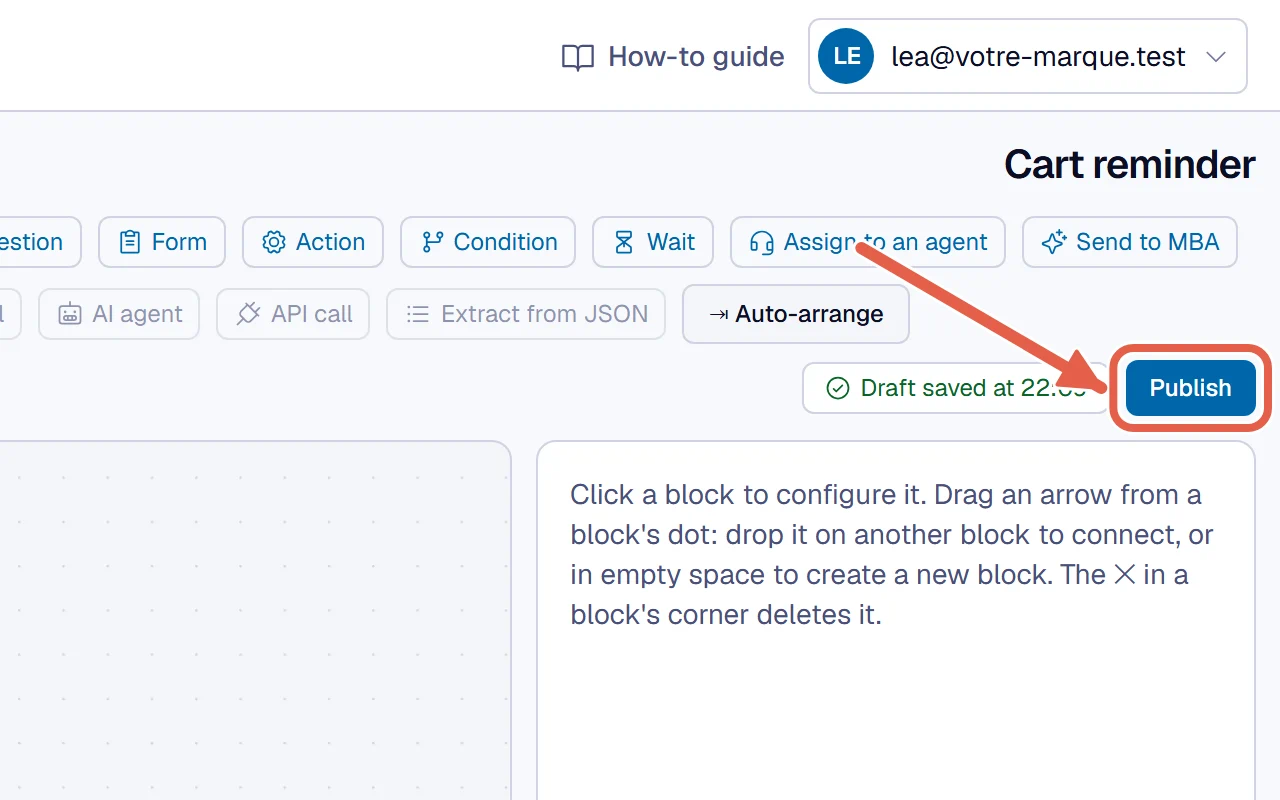
"Publish" puts your draft live.
In detail
- The draft saves itself, about a second after each change; the indicator says when.
- A real contact only plays the live version. Runs in progress switch to the new one, with no going back.
- A scheduled campaign goes out with the live version at the time of sending.
- A publication refusal says which block to fix.
6. File it in folders
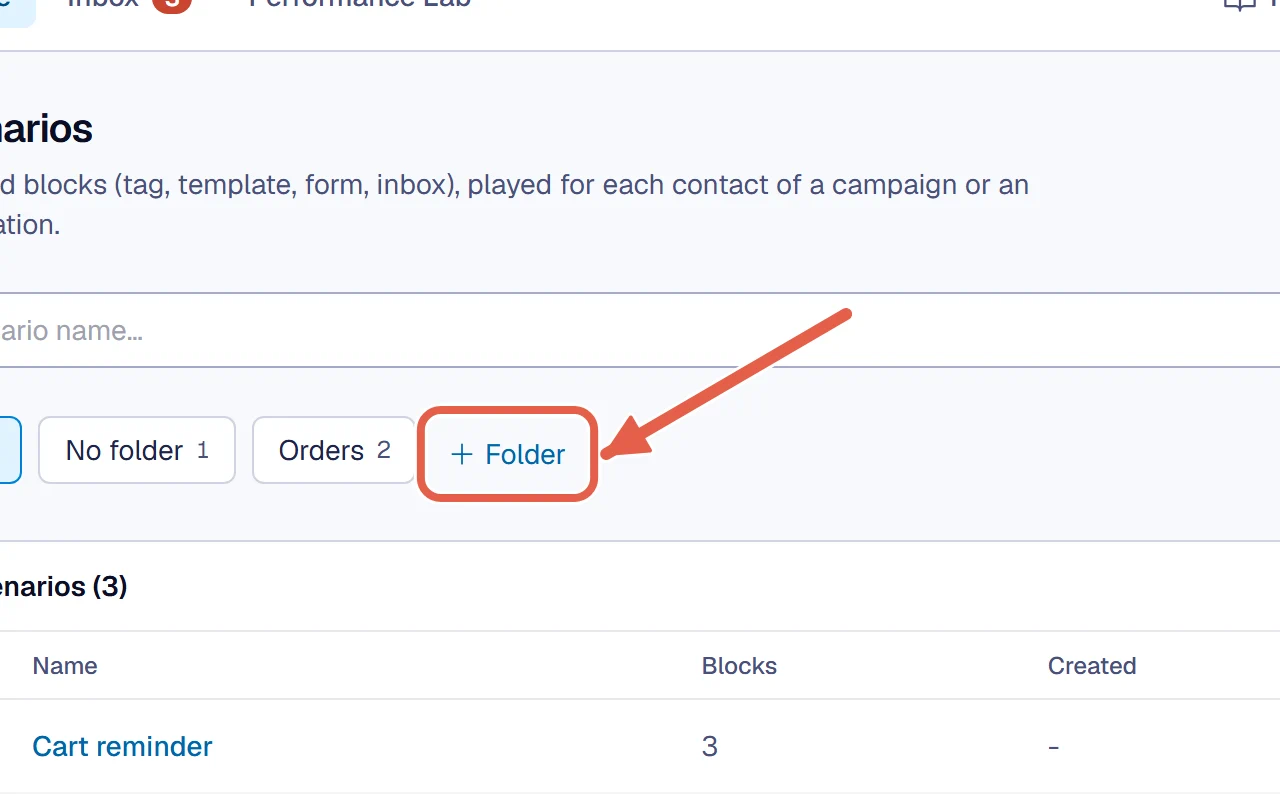
"Folder" creates one; "Move to…", in the ⋯ menu of a scenario or after ticking several, files them there.
In detail
- The "All" and "No folder" tabs and your folders filter the list.
- Deleting a folder does not delete its scenarios: they go back to "No folder".
The blocks
Each one has its guide, in the palette order.
- Send template: an approved template, the only message that opens a conversation. "The Send template block".
- Quick message: a text, with a file, quick replies or a link button. "The Quick message block".
- Question: a question, with or without a menu, that waits for the answer or a file. "The Question block".
- Form: a WhatsApp form whose answers fill in the record. "The Form block".
- Action: tags, fields, consent. "The Action block".
- Condition: route the contact according to their state. "The Condition block".
- Wait: a pause, until a date or business hours. "The Wait block".
- Assign to an agent: hand the conversation to your team. "The Assign to an agent block".
- Send to MBA: hand the conversation to Meta's agent. "The Send to MBA block".
- Go to: carry on at another block, here or elsewhere. "The Go to block".
- JS function: transform a field with JavaScript. "The JS function block".
- RCS message: an RCS message, with its fallback. "The RCS message block".
- Send email: an email from your mailbox. "The Send email block".
- AI agent: several exchanges handed to an agent. "The AI agent block".
- API call: query your system. "The API call block".
- Extract from JSON: store values from an answer. "The Extract from JSON block".
Good to know When a message cannot go out during a journey (an empty field, the 24-hour window closed when a wait wakes up…), the reason and the block involved are written in Security > Error log, under "scenario failure". When a campaign is launched, the campaign counts the contact as a failure, with the reason.