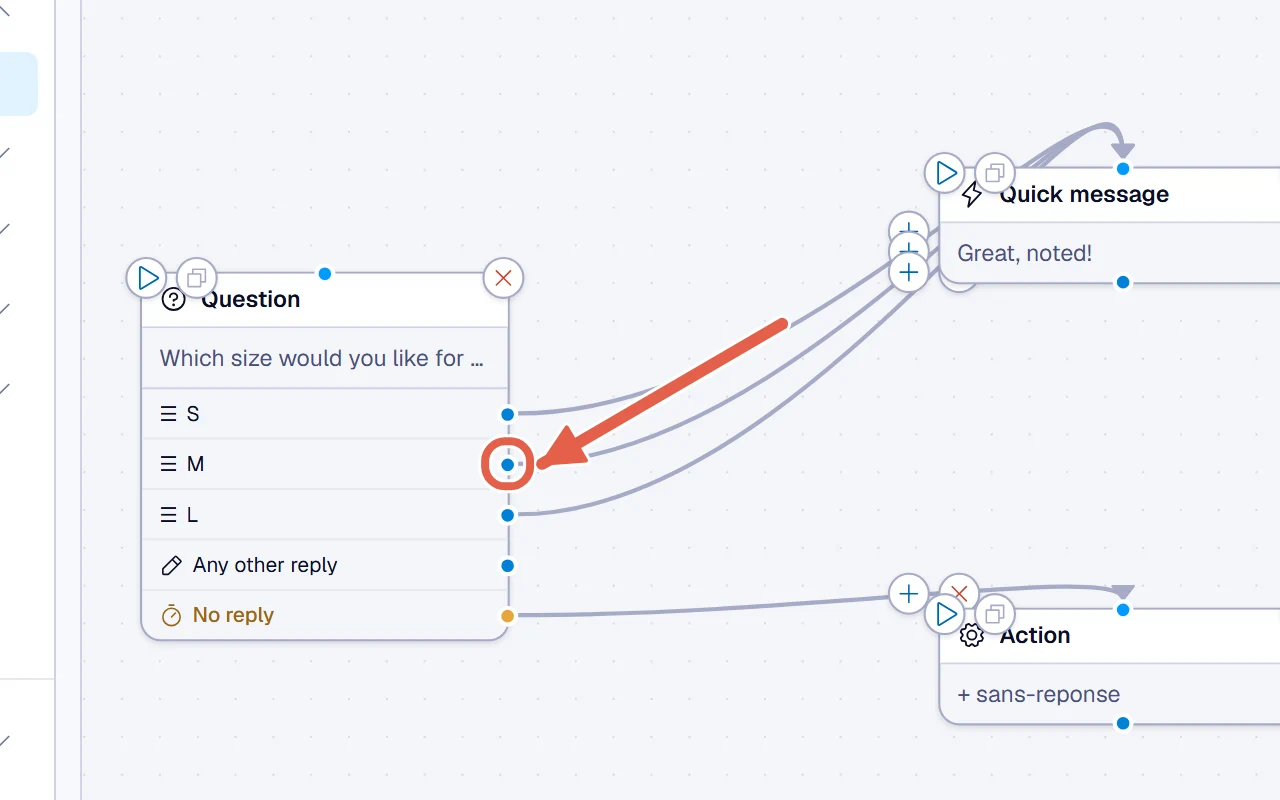
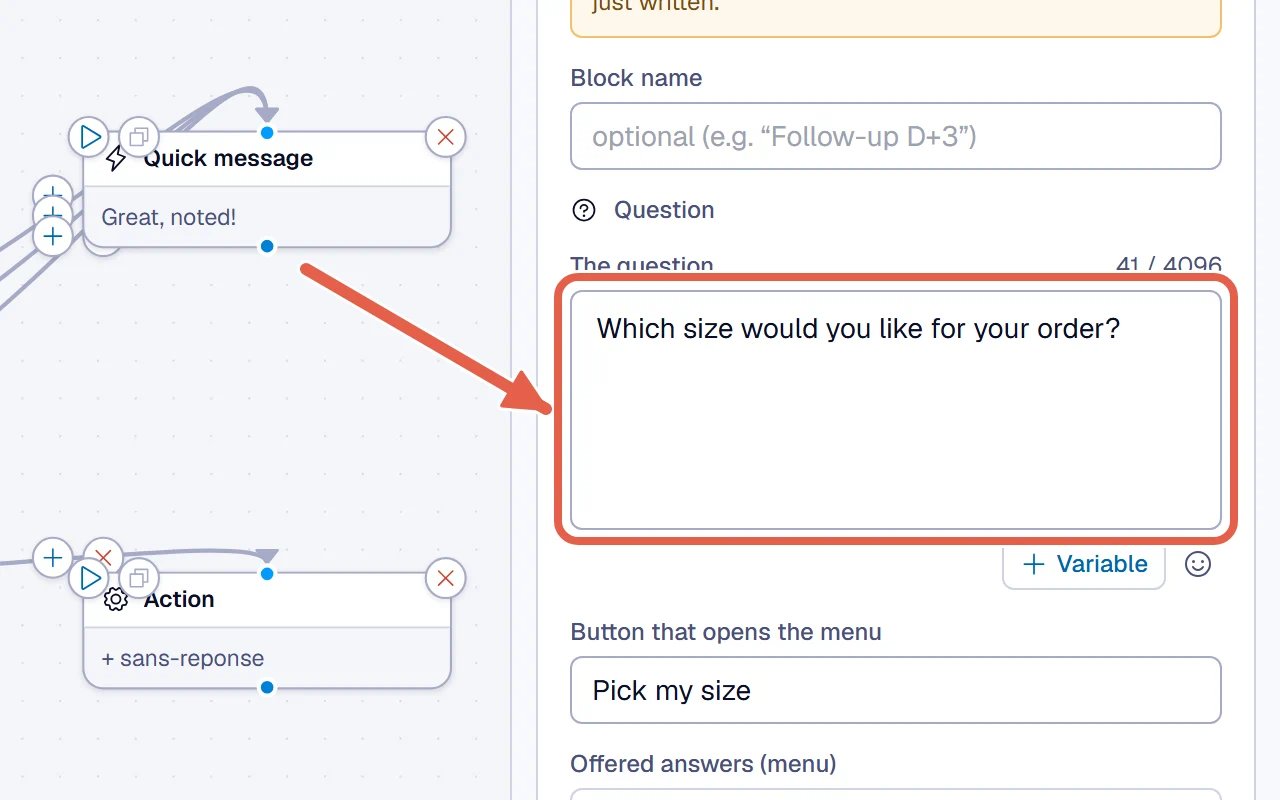
1. Write the question
Click the block: its panel opens on the right, with "The question" box at the top.
In detail
- 4,096 characters at most. "Variable" inserts a contact field.
- The scenario always waits for an answer, with or without a menu.
- Without text, the block sends nothing and the journey goes through "Any other reply".
- It only goes out in an open conversation: the contact wrote to you less than 24 hours ago. A scenario that starts with it therefore cannot go out as a campaign.
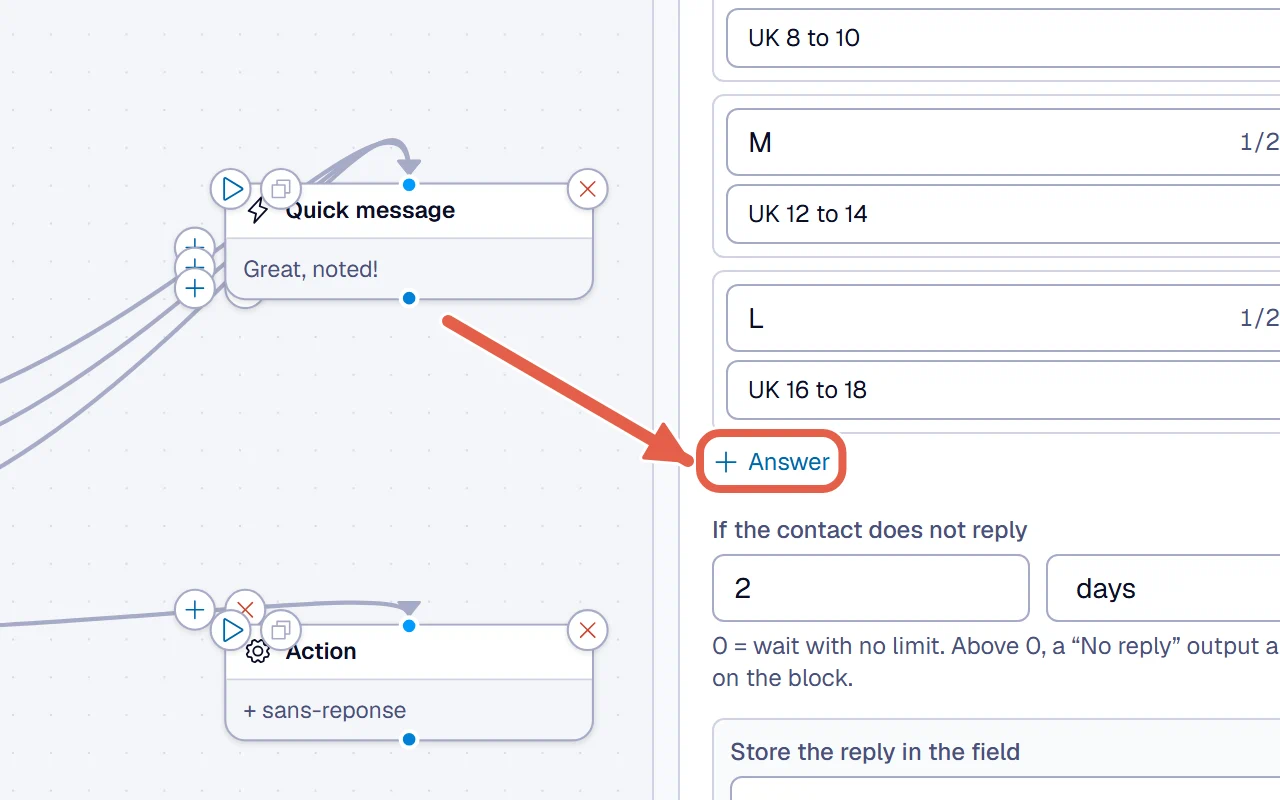
2. Offer a menu, if needed
"Answer" adds a row to the menu; "Button that opens the menu" is the label the contact taps to open it.
In detail
- 10 answers at most. Title: 24 characters; detail, optional: 72; button: 20, "Choisir" if it is empty.
- Without a titled answer, the question goes out as plain text and the contact answers by writing.
- Deleting an answer removes its arrow.
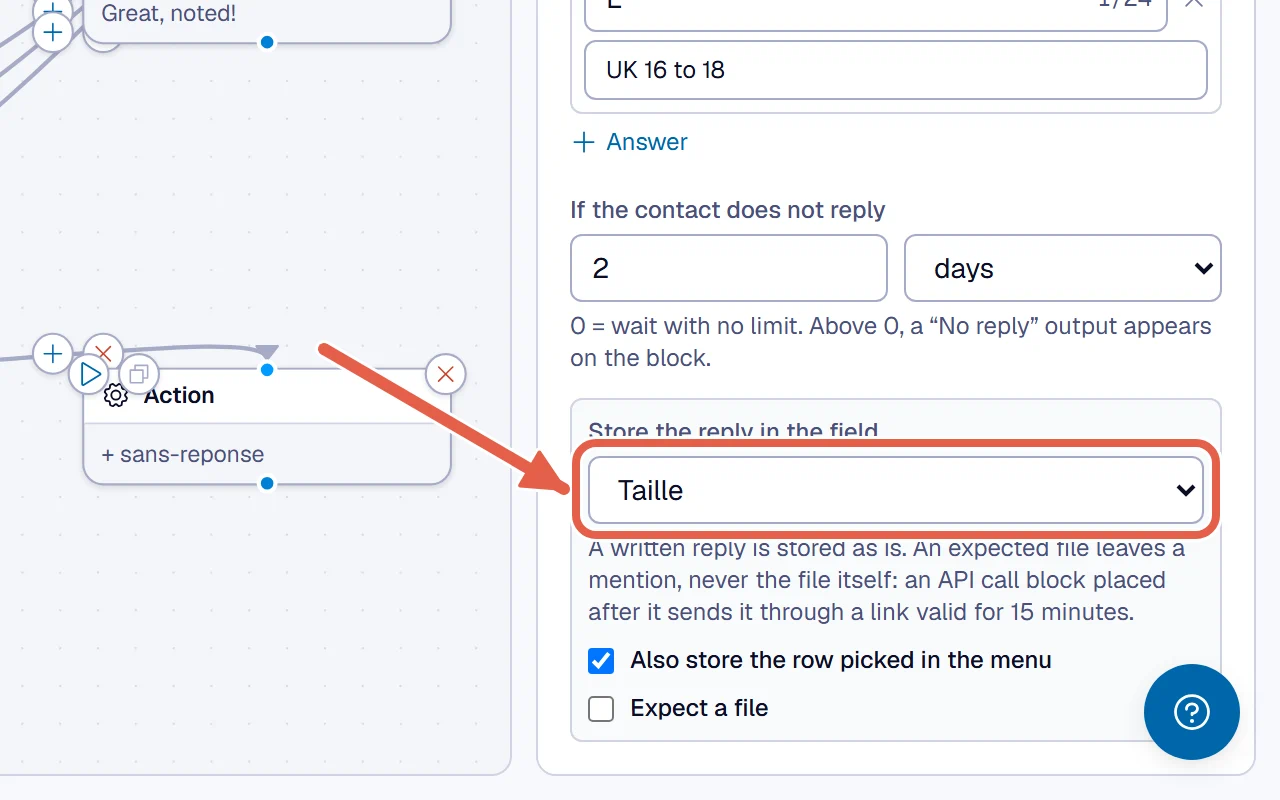
3. Store the reply
"Store the reply in the field" writes it on the contact's record.
In detail
- A written message goes in as it is. A menu answer, only if "Also store the row picked in the menu" is ticked.
- First name, Last name, Email or one of your fields, except JSON fields.
- Nothing is checked: a text can go into a number field.
- A Condition placed after it already reads the stored reply.
4. Expect a file, if needed
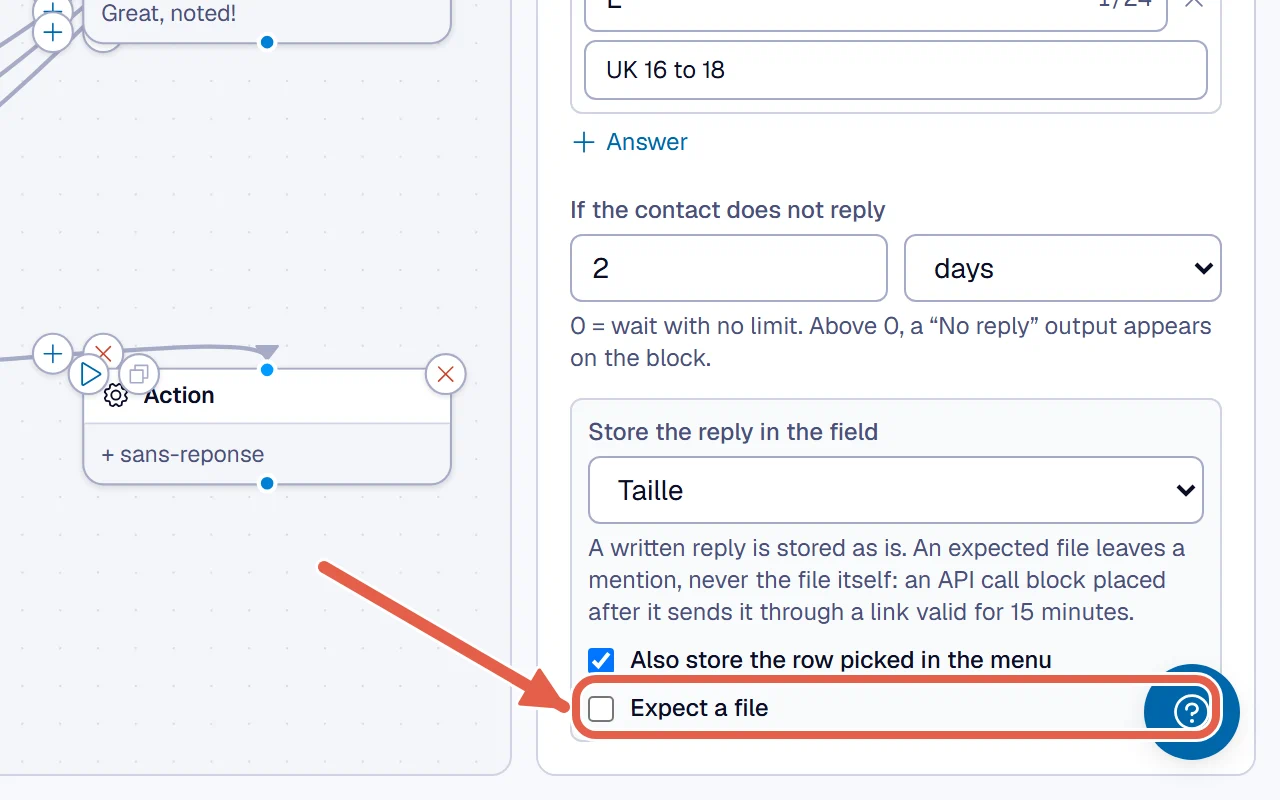
Tick "Expect a file", then its types: photo, PDF, other document, video, voice note.
In detail
- The file goes through the "File received" output: the scenario cannot be published while it is connected to no block.
- The chosen field gets a note ("Pièce reçue le …"), never the file. An API call block placed after it sends the file to your storage through a link valid for 15 minutes; without a chosen field, it cannot.
- A file of a type that is not ticked goes through "Any other reply".
5. Plan for no reply
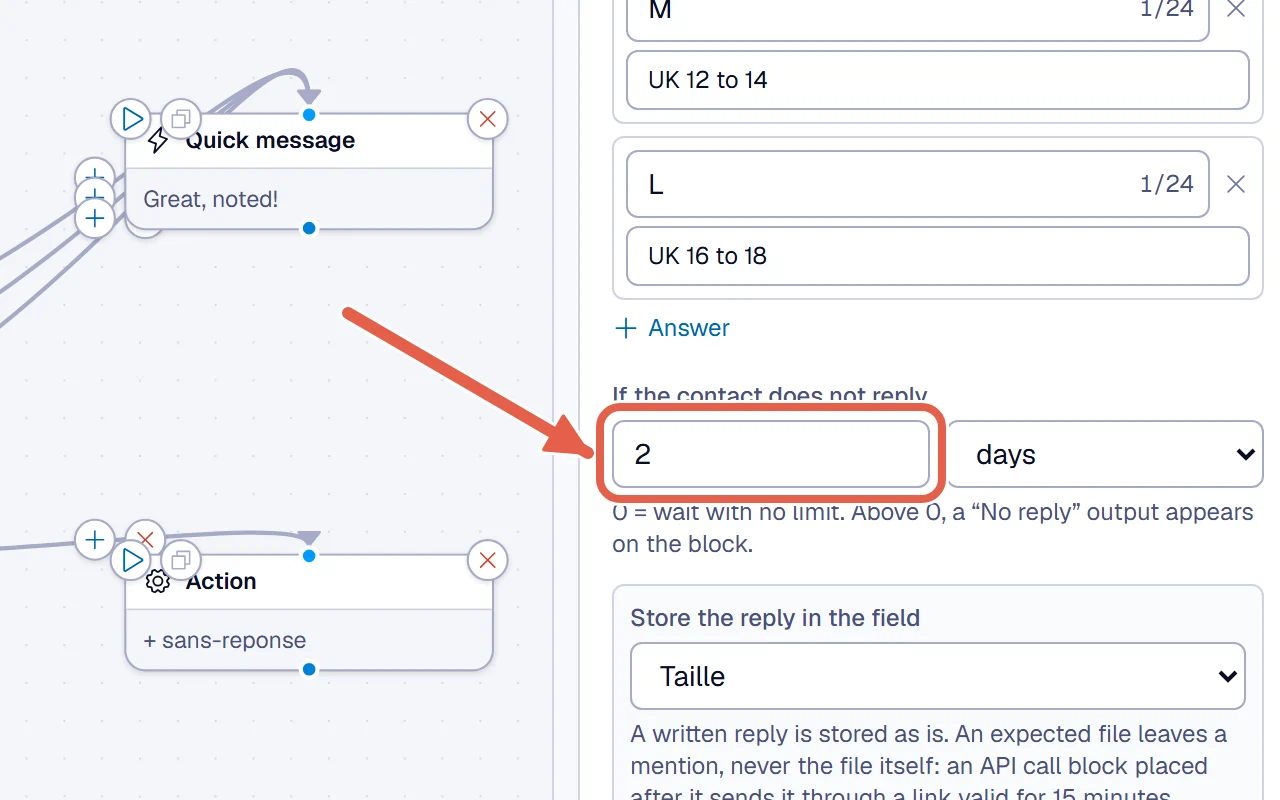
"If the contact does not reply": a delay in minutes, hours or days.
In detail
- 0 waits with no limit. Above 0, the "No reply" output appears on the block; going back to 0 removes it, along with its arrow.
- 30 days at most.
- What follows "No reply" goes out before the customer has replied: the builder flags in yellow a message that would not get through the 24-hour window.
- "No reply" connected to nothing: the journey stops and the conversation goes back to whoever usually answers your customers.
6. Connect the outputs
One output per menu answer, then "Any other reply", and depending on your settings "File received" and "No reply".
In detail
- A menu answer connected to nothing goes through "Any other reply" if it is connected; otherwise, the conversation goes to your team, in "To handle".
- A written message without "Any other reply" connected: the journey stops and the conversation goes back to whoever usually answers your customers. An emoji reaction counts as a written message.
- If your team or Meta's agent took over the conversation, the contact's reply no longer moves the journey forward.
- A Question cannot follow the "Then, without waiting" output of a quick message: the scenario cannot be published.