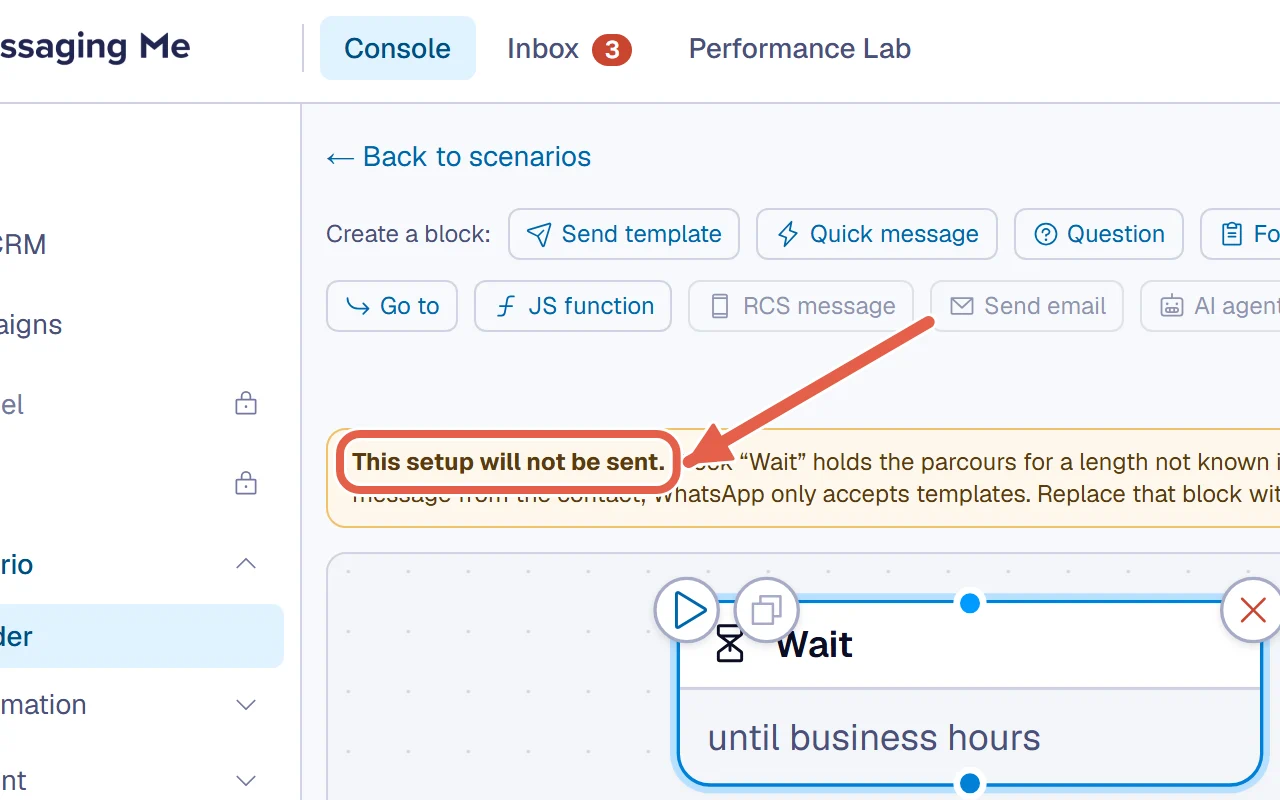
1. Choose when to resume
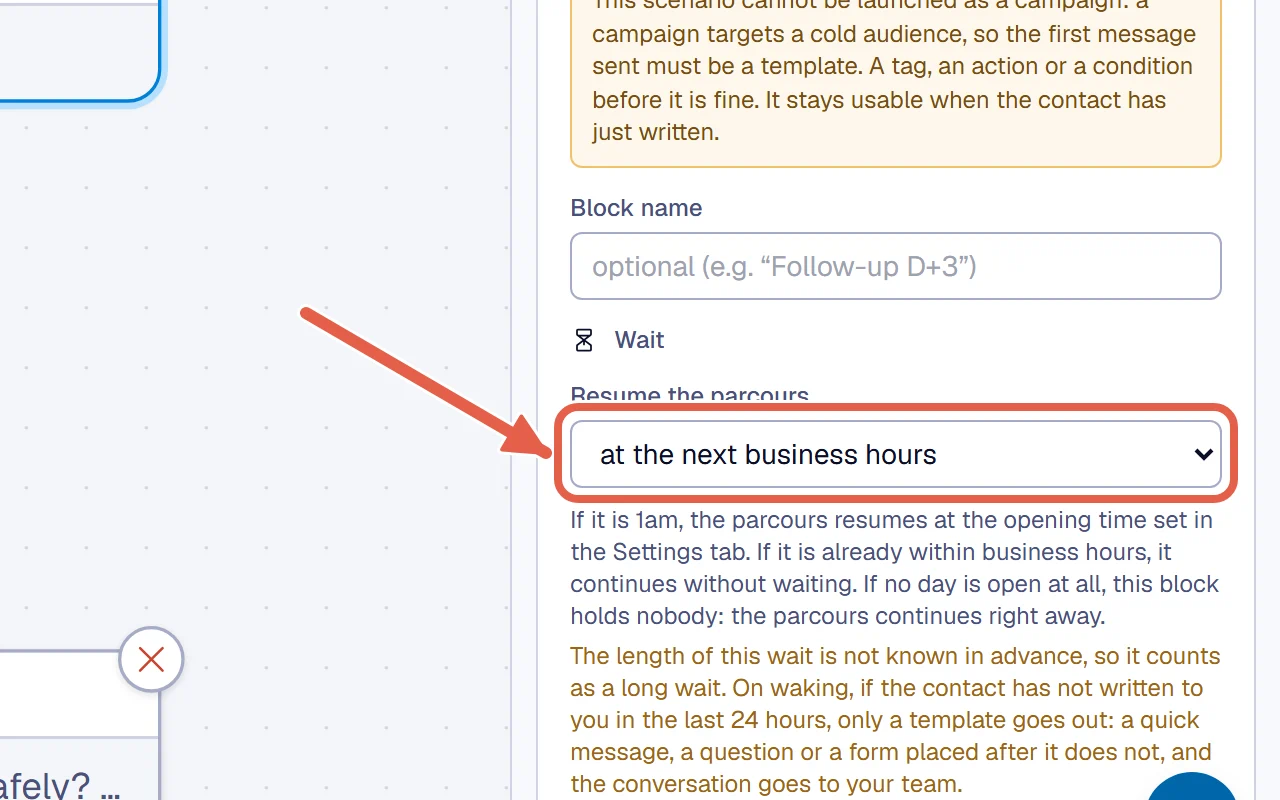
Click the block, then in "Resume the parcours…": after a delay, at a precise date, or at the next business hours.
In detail
- 30 days of waiting at most, whatever the mode.
- During the wait, a reply from the contact does not move the journey forward.
- If a member of your team or Meta's agent took over the conversation in the meantime, the journey stops when it wakes up.
- A wait before the first message prevents launching the scenario as a campaign: to postpone it, choose "Plus tard" at launch (the launch screen is in French).
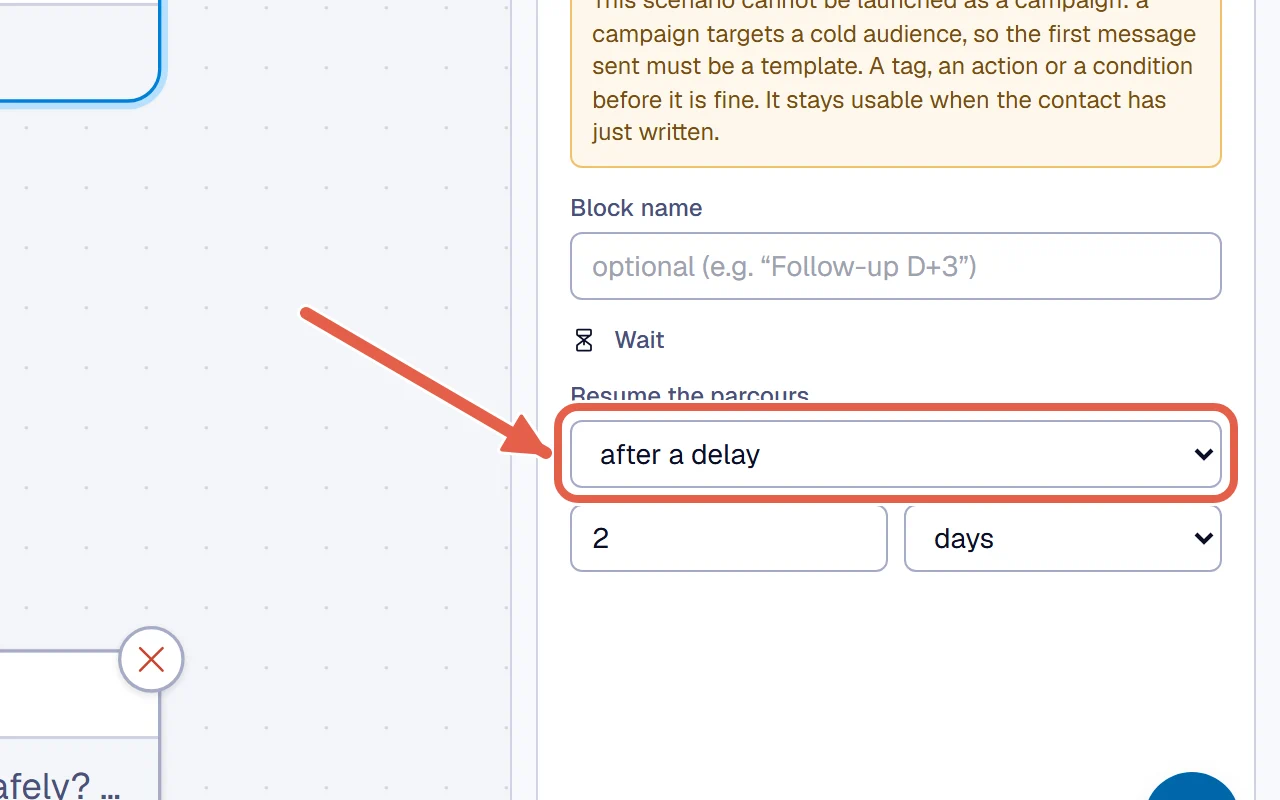
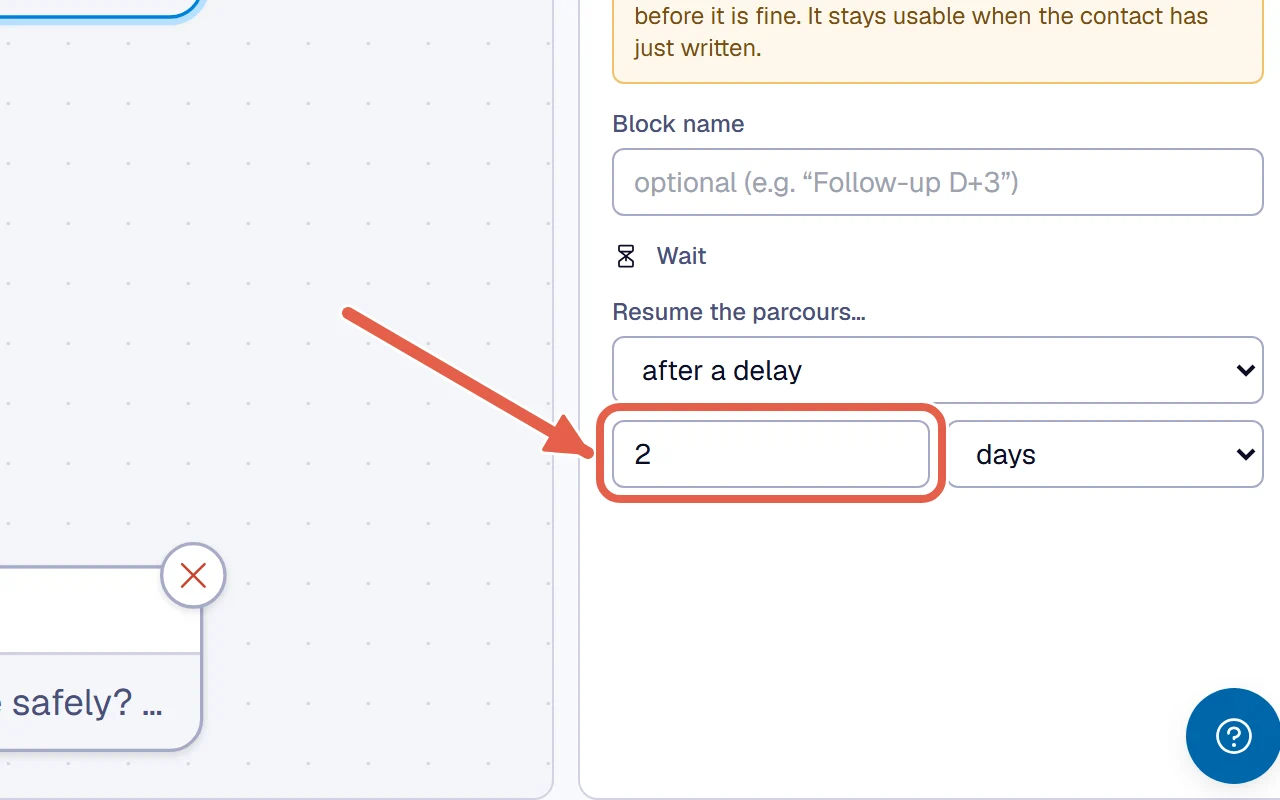
2. Wait for a delay
A number and its unit: seconds, minutes, hours or days.
In detail
- In seconds, from 1 to 59: the pause between two messages. When the scenario answers the contact on WhatsApp, they see "typing…" and their message is marked as read.
- An empty or zero delay holds nobody.
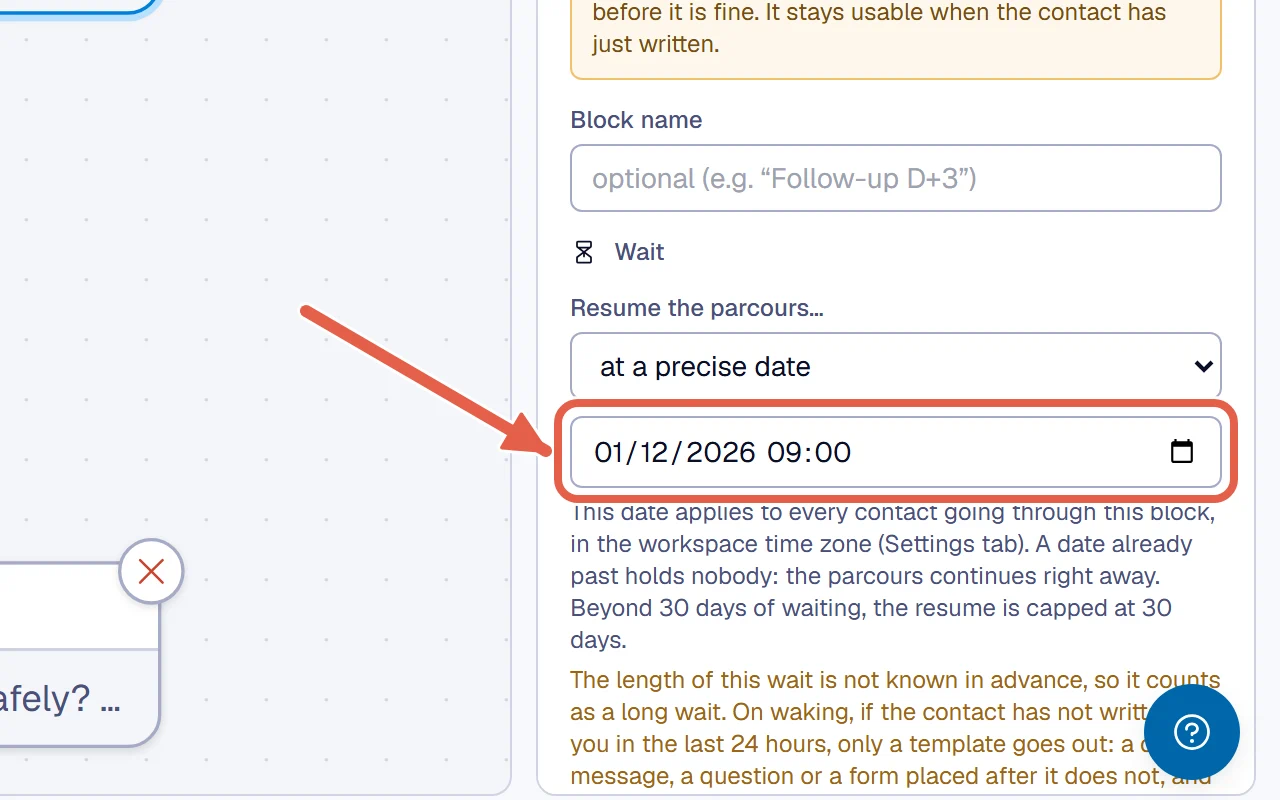
3. Wait until a precise date
A date and a time, in your workspace's time zone.
In detail
- The same for every contact going through this block.
- A date already past holds nobody.
4. Wait for business hours
The journey resumes at the next opening time, as set in Settings.
In detail
- Already within business hours, it goes on without waiting.
- If no day is open, the block holds nobody.
5. Connect what goes out when it wakes up
The block has only one dot, at the bottom: what follows goes out when it wakes up.
In detail
- If the contact has not written to you in the last 24 hours, only a template goes out: a quick message, a question or a form does not, and the conversation goes to your team.
- A wait until a date or business hours counts as 24 hours: the editor warns you as soon as a non-template message follows it.
- Connected to nothing, the journey stops when it wakes up.